Server Management
Unduh
Mode fokus
Ukuran font
To centrally manage the security of multiple cloud virtual machines, you can use the host assets feature of CSC to onboard assets, view security status, and bind protection licenses, avoiding security blind spots caused by asset dispersion. This document describes common operations under the Servers tab, including asset synchronization, information viewing, condition filtering, license binding and unbinding, and client installation and uninstallation.
Syncing the Latest Assets
CSC automatically synchronizes status changes of onboarded servers. New servers may not appear in the asset list immediately due to synchronization delays. In this case, you can manually synchronize assets to obtain the latest asset information.
Steps
1. Log in to the CSC console.
2. In the left sidebar, choose Asset center > Host Assets.
3. On the Server tab, click Update assets.
4. After synchronization is complete, you can view the latest host asset information. Hover over Update assets to view the last synchronization time and automatic synchronization description.

Note:
When you enter the console, the system automatically synchronizes host assets once by default. If a synchronization has been performed within the last 20 minutes, it will not be repeated.
After the client is installed for the first time, the system automatically completes the initial asset collection.
Automatic synchronization of host assets is supported on a periodic basis. By default, synchronization occurs every 8 hours, and you can configure the interval to 1, 2, 4, 8, 12, or 24 hours.
Onboarding Host Assets
CSC supports onboarding Tencent Cloud hosts, third-party cloud hosts, and IDC hosts. The following three onboarding methods are supported:
Prerequisites
The host is a Tencent Cloud CVM or Lighthouse instance.
The TAT agent on the host is online, which is used to run the one-click installation command.
The client status on the host is Not installed.
Steps
1. Log in to the CSC console.
2. In the left sidebar, choose Asset center > Host Assets.
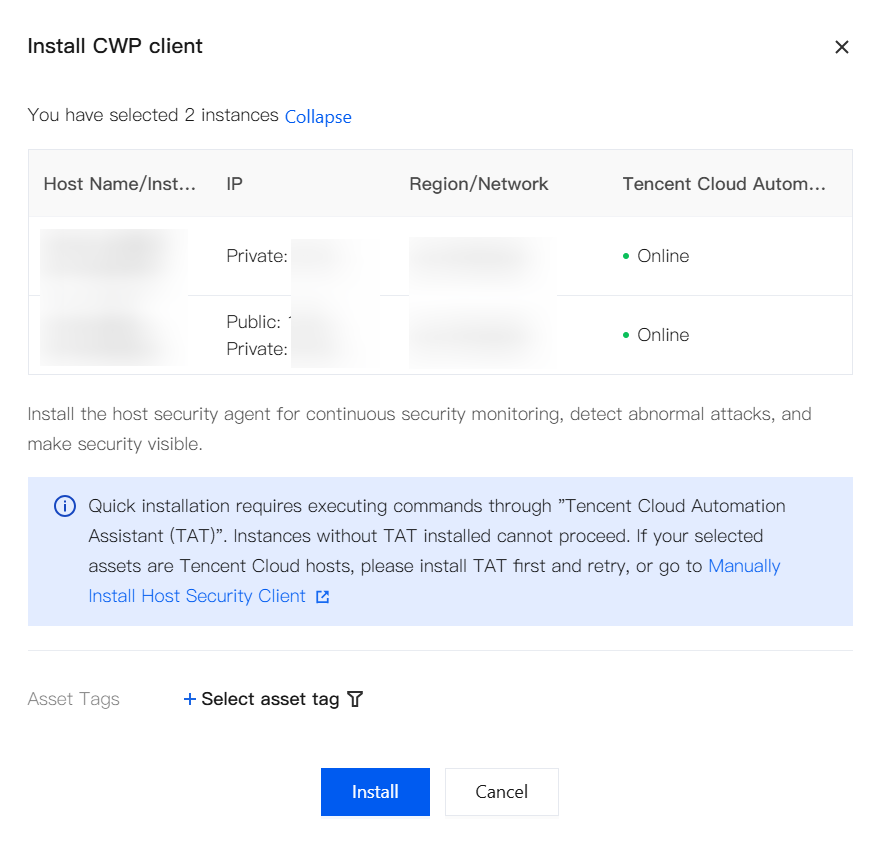
3. In the host list on the Server tab, select one or more hosts that require client installation, and click Install CWPP Agent.

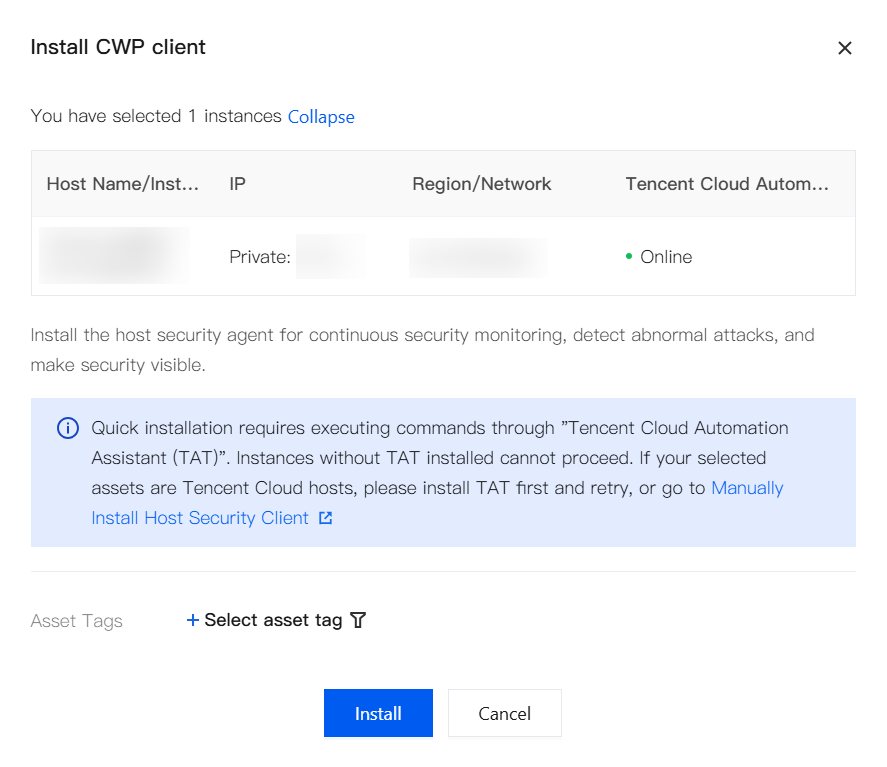
4. In the Install CWPP client dialog box, verify the selected hosts and their TAT status.
5. Optional: Click Select asset tag to add asset tags to the hosts for this installation.
6. Click Install to trigger TAT on the host to run the installation command.
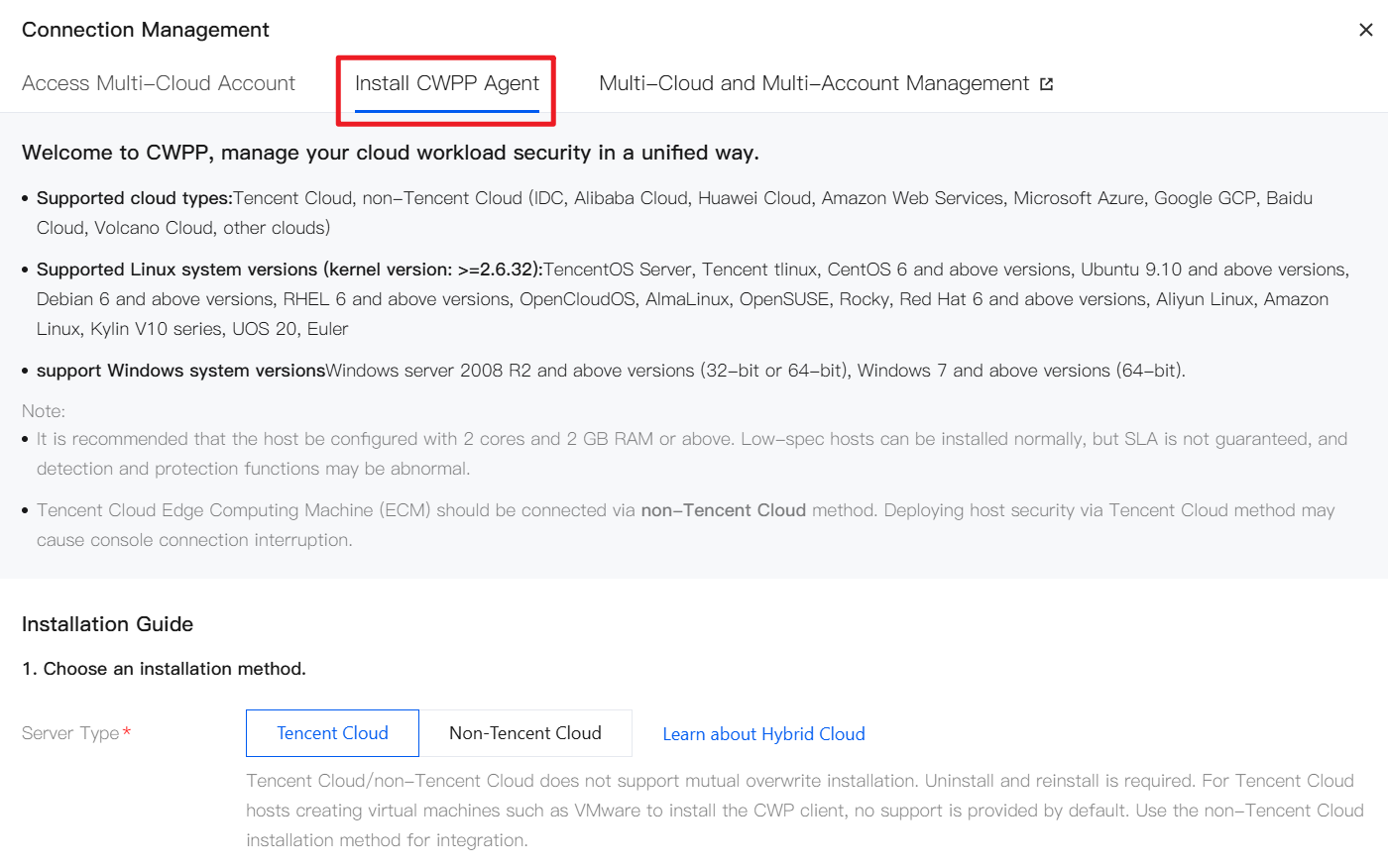
If the host is not on Tencent Cloud (for example, a third-party cloud host or IDC host), or if the host is on Tencent Cloud but TAT is unavailable, you can manually install the client by running the installation command.
Steps
1. Log in to the CSC console.
2. In the left sidebar, choose Asset center > Host Assets.
3. On the Server tab, click Connection Management.

4. Select the Install CWPP Agent tab, choose an installation method as instructed, and run the installation command. For detailed operations, see Manually Install Client.
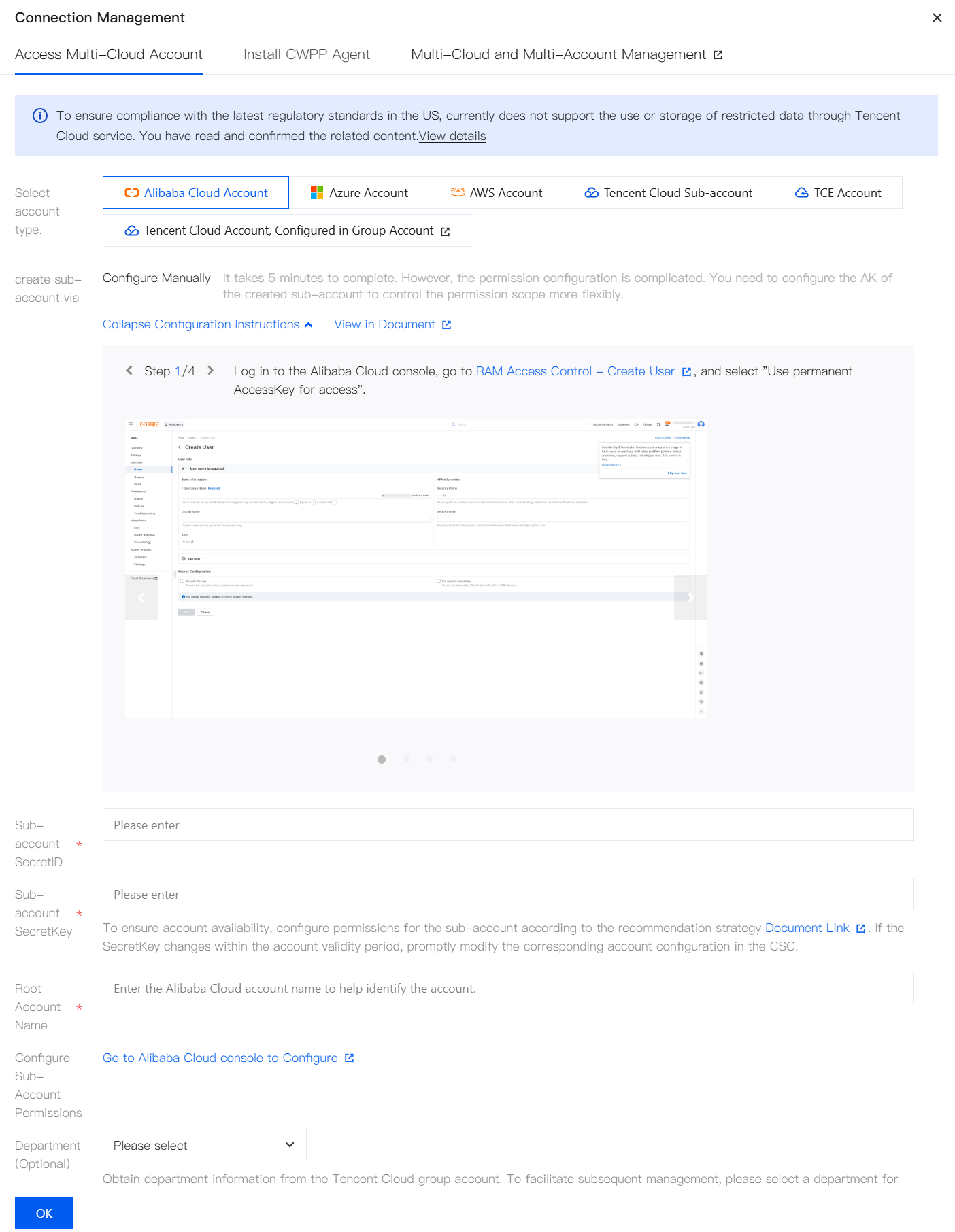
By integrating third-party cloud platforms (such as Alibaba Cloud, AWS, and Azure) through AccessKey, you can synchronize the host assets under those accounts to CSC in a unified manner.
Steps
1. Log in to the CSC console.
2. In the left sidebar, choose Asset center > Host Assets, and then choose Connection Management.

3. Select the Access Multi-Cloud Account tab and complete the connection configuration by following the configuration guide. When using it for the first time, read and confirm the compliance requirements before entering the sub-account key and other information.
Viewing Server Information
1. Log in to the CSC console.
2. In the left sidebar, choose Asset center > Host Assets.
3. On the Server tab, view the host information.
Viewing Asset Overview
Statistical cards are provided at the top to help you quickly understand the risk posture, protection coverage, and asset scale. Some cards support drill-down or quick actions.

Assets with alarms: the number of hosts with pending alarms.
Exposed assets: the number of hosts with internet-exposed paths.
Assets with protection exceptions: the number of hosts in an abnormal protection state. The breakdown is displayed by Not Installed, Offline, and Unauthorized. For hosts that are not installed or offline, you can directly initiate a batch installation.
Total assets: the total number of hosts under the current account. You can view the number of newly added hosts in the last 15 days and the distribution of cloud assets across different cloud vendors.
Filtering Servers by Criteria
Server classification, region filtering, keyword search, and column header filtering are provided to facilitate server management by category.

Filter by server type and region:
Server type: All servers, Tencent Cloud Virtual Machine (CVM), and Lighthouse.
Region: All regions, as well as the regions that actually exist in the console.
Search by keyword: Enter a keyword in the search box to perform an exact query. Multiple conditions can be separated by the Enter key. You can filter by the following resource attributes: host name, instance ID, host type, public IP address, private IP address, exposure status, operating system, associated network, client status, host status, associated project, and licensed edition.
Filter by column header: Click the filter icon to the right of the target column header and select the desired filter conditions.
Host name/instance ID: All, Cluster Host, and Others.
Exposure status: All, Exposed, and Not Exposed.
Asset tag: Select a tag key and tag value. You can search by entering a keyword.
Region/associated network: All networks, VPC, Classic Network, and non-Tencent Cloud networks.
Client status: All, Online, Offline, and Not installed.
Licensed edition: All, Free Edition, Professional Edition, and Ultimate Edition.
Custom Lists and Export
You can customize the fields displayed in the list and export host list data locally for viewing asset information based on your actual needs.

Customize list: Click the Settings icon in the upper-right corner of the list to enable or disable fields in the Customize List Settings dialog box, and drag to adjust the field order. Click Restore Defaults to restore the default display fields.
Export: Click the export icon in the upper-right corner of the list, and select the export scope in the Customize List Export dialog box.
Export All Ignoring Search Conditions: Export all hosts under the current account.
Export Based on Search Conditions: Export only the current filtered results.
Note:
Export uses an asynchronous mechanism. After an export task is completed, the file is automatically downloaded to the local device. If the exported data exceeds 100,000 records, the system splits it into multiple files for export, generating up to 5 files.
Viewing a Single Server
You can use the search box above the list to accurately find a target server by host name, instance ID, or IP address. You can view the security status of the server in its Alarm, Exposure, Client Status, and Licensed Edition columns.

The host list displays the following fields by default. You can enable other fields in Settings in the upper-right corner of the list.
Host name/instance ID: The host name or instance ID.
IP address: The private and public IP addresses of the host.
Exposure: Whether the host is exposed to the internet.
Asset tag: A Tencent Cloud tag added to the host.
Alarm: The number of alarms for the host. Click the number to go to the Alarm tab on the details page.
Region/associated network: The region where the host resides, and the VPC, Classic Network, or non-Tencent Cloud network to which it belongs.
Client status: The running status of the client, including Online, Offline, and Not installed.
Licensed edition: The edition currently bound to the host, including Free Edition, Professional Edition, and Ultimate Edition.
Operation: Provides entry points for Details and More operations.
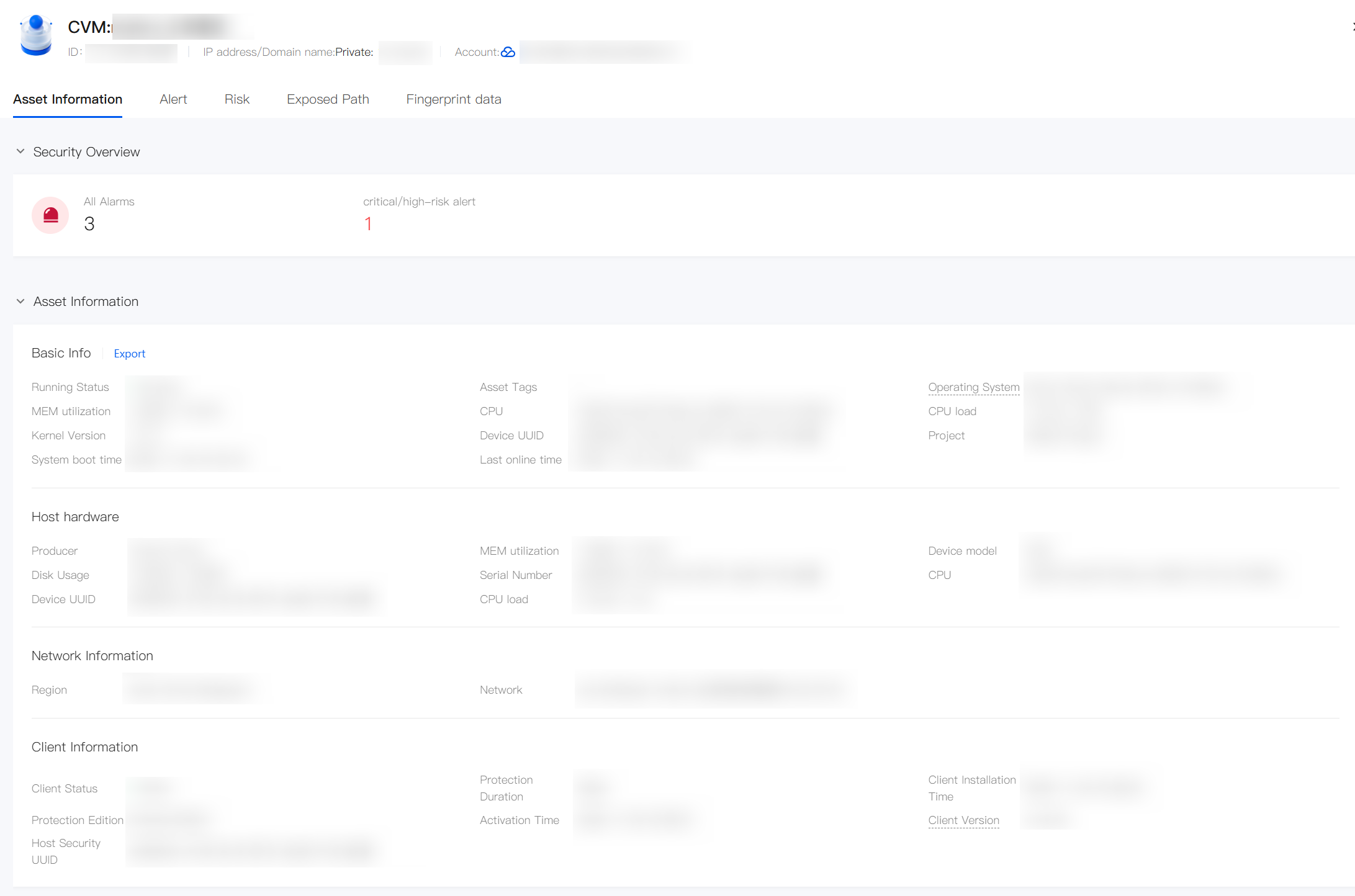
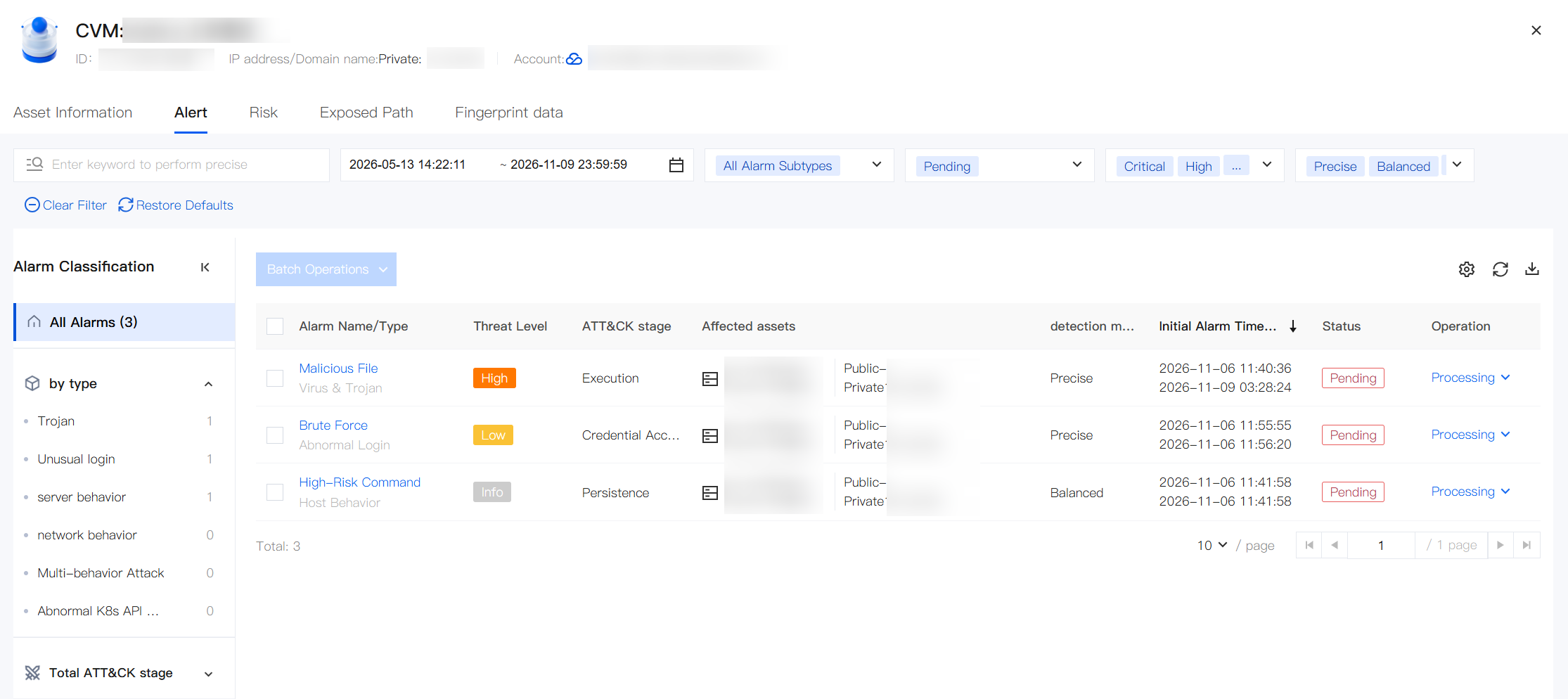
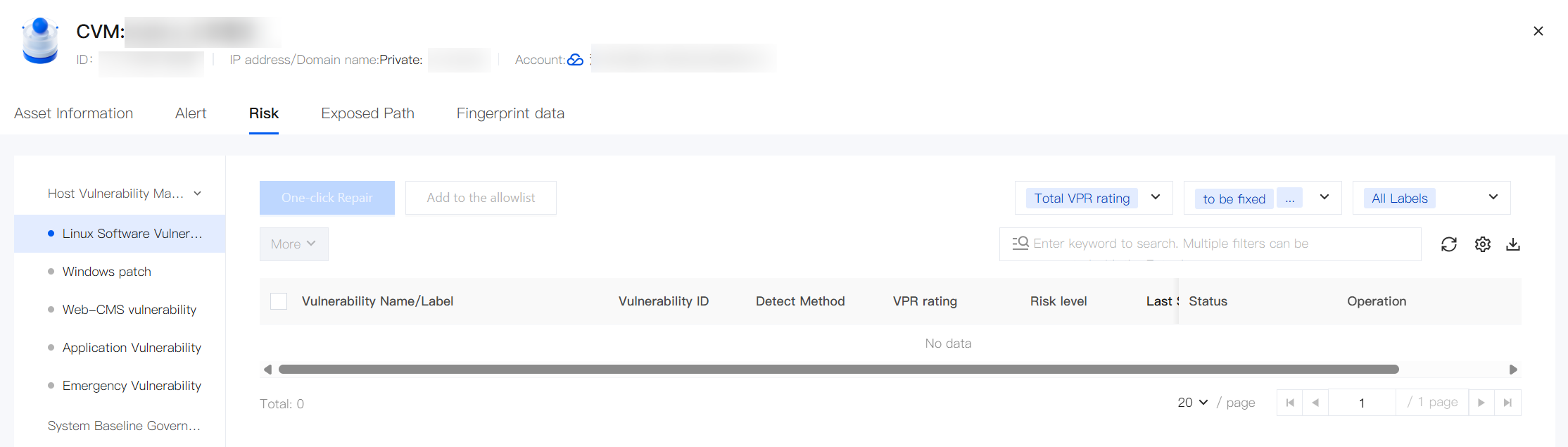
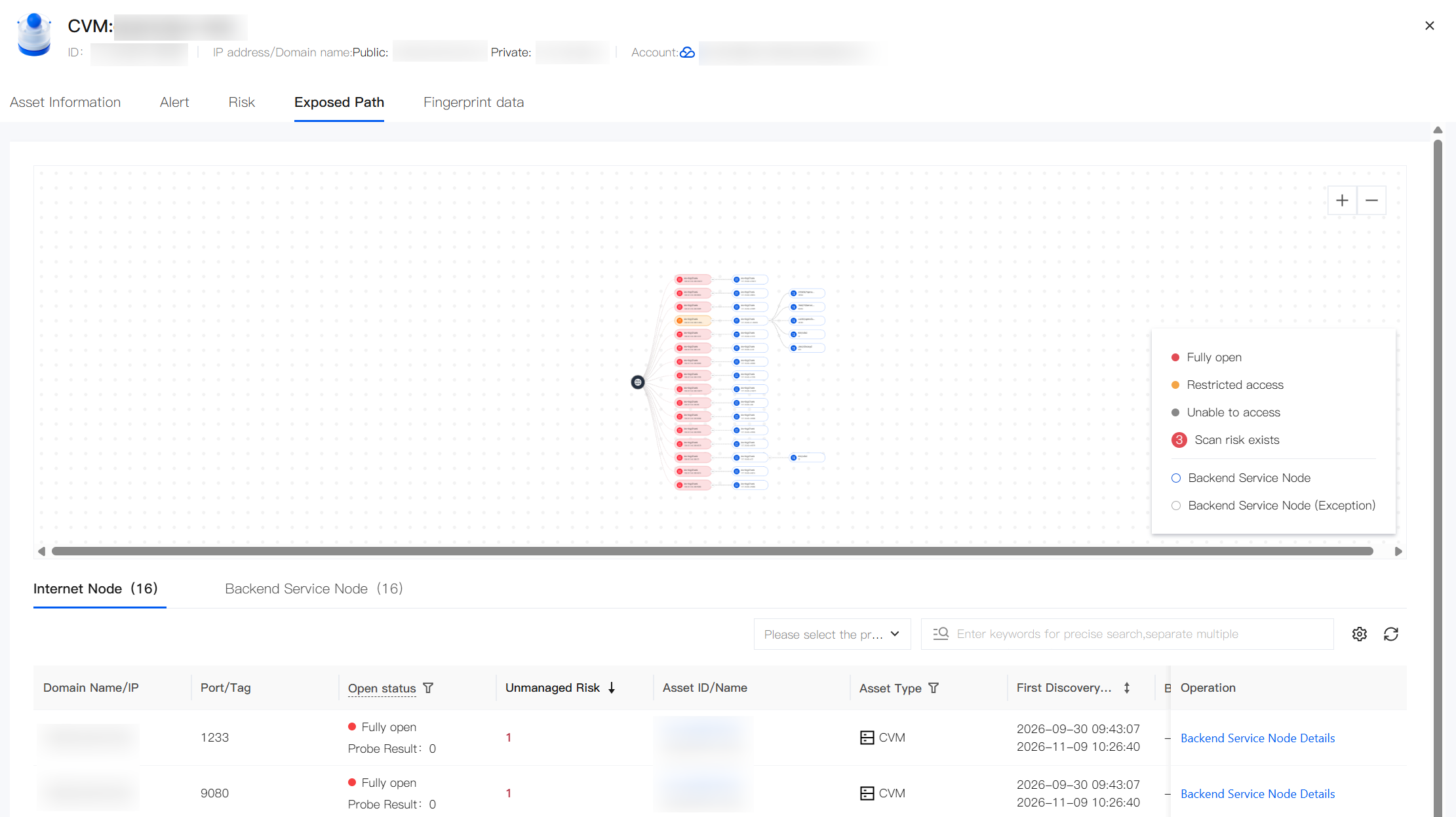
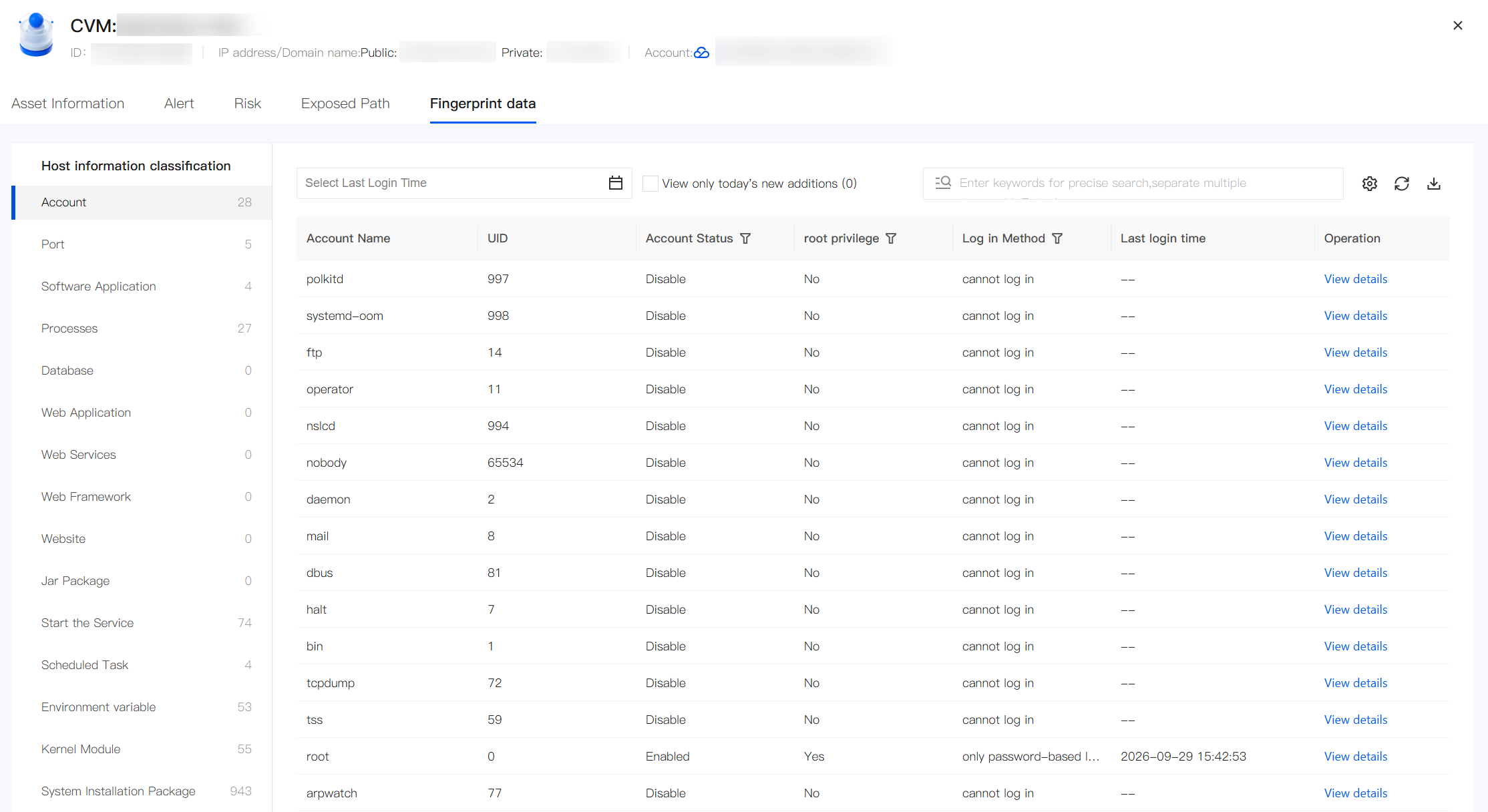
Click Details to go to the server details page. The top of the details page displays the host name, instance ID, IP address, and associated account, while the bottom displays multi-dimensional information such as asset information, alarms, and risks.
Displays the security overview and asset profile of the host, including critical/high-risk alarm statistics, basic information, container environment information, host hardware, network information, client information, and associated assets (ENIs and disks). It also supports exporting asset information.
Displays the security alarm information of the host. You can browse alarms by type and ATT&CK stage, and handle alarms. For details, see Viewing and Handling.
Displays the vulnerability detection results of the host, including Linux software vulnerabilities, Windows patches, Web CMS vulnerabilities, application vulnerabilities, and emergency vulnerabilities. It also supports fixing vulnerability risks. For details, see Vulnerability Governance.
Displays the exposure path of the host from the internet to backend services, along with details of the internet nodes and backend service nodes.
Displays the asset fingerprint collection results of the host, including categories such as accounts, ports, processes, software, databases, Web components, Jar packages, startup items, scheduled tasks, environment variables, kernel modules, and system installation packages. For details, see Asset Fingerprint Collection.
Note:
When you click an alarm or risk number in the host list to go to the details page, the corresponding tab automatically carries the filter conditions.
Click More. The available operations vary dynamically depending on factors such as client status, licensed edition, and associated account, as shown below:
Host Status | Available Actions |
Client not installed | Install client, remarks |
Client installed, Free Edition | Bind authorization, reinstall, uninstall |
Bound to CSC paid edition | Unbind, reinstall, uninstall |
Bound to CWPP paid edition | Reinstall, uninstall |
Note:
For assets not under the current account, the Bind License and Unbind operations are unavailable.
Managing Host Tags
Managing Host Authorization
CSC supports binding and unbinding licenses in the host list, eliminating the need to go to a separate license management page.
Note:
CSC only processes licenses purchased in CSC. For hosts with CWPP licenses bound, the license edition is displayed in the list, but unbinding is not supported in CSC. You need to go to the CWPP console to unbind them. You can rebind such hosts to CSC licenses.
Binding and unbinding operations are supported only for hosts under the current account.
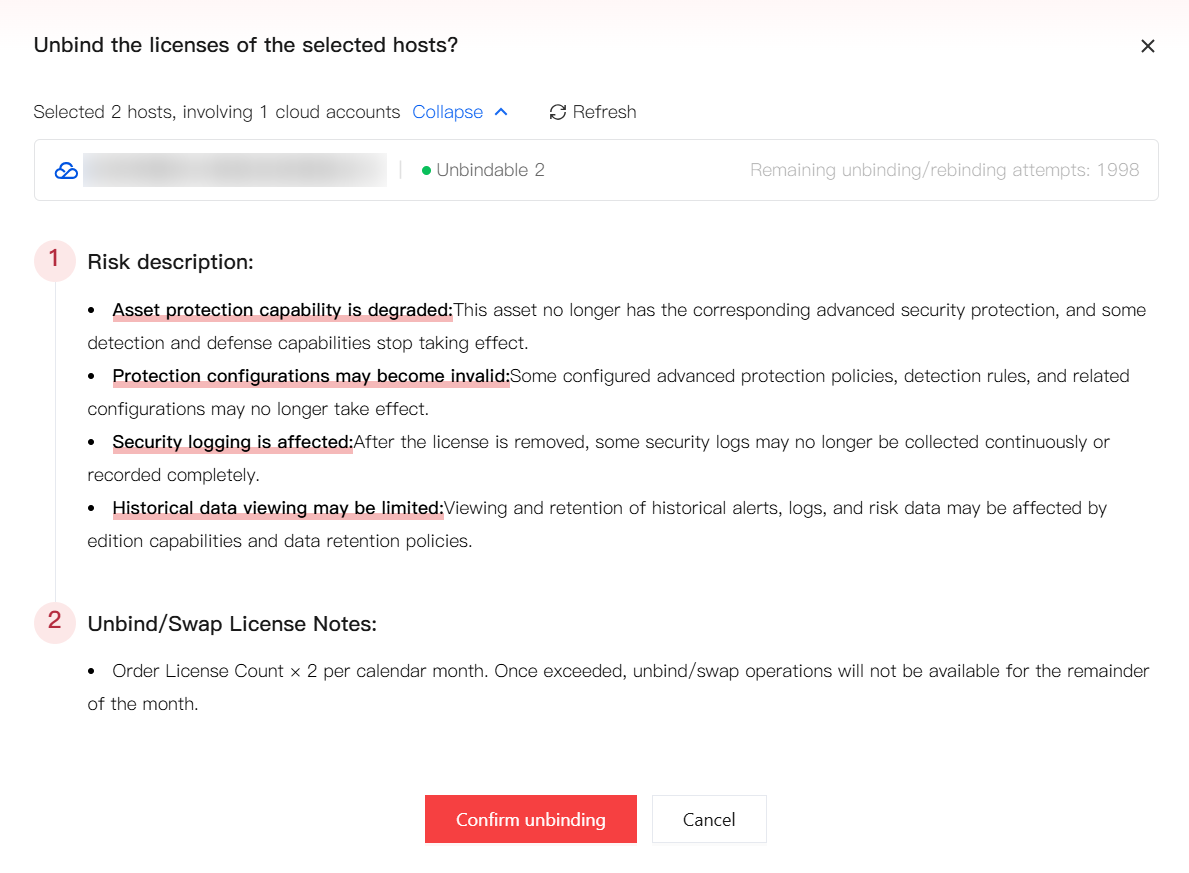
The number of unbinding or rebinding operations is limited to the number of licenses in the order multiplied by 2 per calendar month. When the limit is reached, no further unbinding or rebinding can be performed in the current month, and the limit is automatically reset at the beginning of the next month.
After a CVM instance is terminated/returned, the system automatically unbinds the license without counting toward the unbinding quota, and the license can then be bound to another host.
Binding Authorization
Prerequisites
The current account has available protection license quota.
The client has been installed on the target host.
The target host belongs to the current root account.
Steps
1. Log in to the CSC console.
2. In the left sidebar, choose Asset center > Host Assets.
3. In the host list on the Server tab, select one or more hosts that require license binding, and click Bind Authorization.

4. In the Bind host license dialog, check the number of available licenses. If the licenses are insufficient, go to the purchase page to buy more.
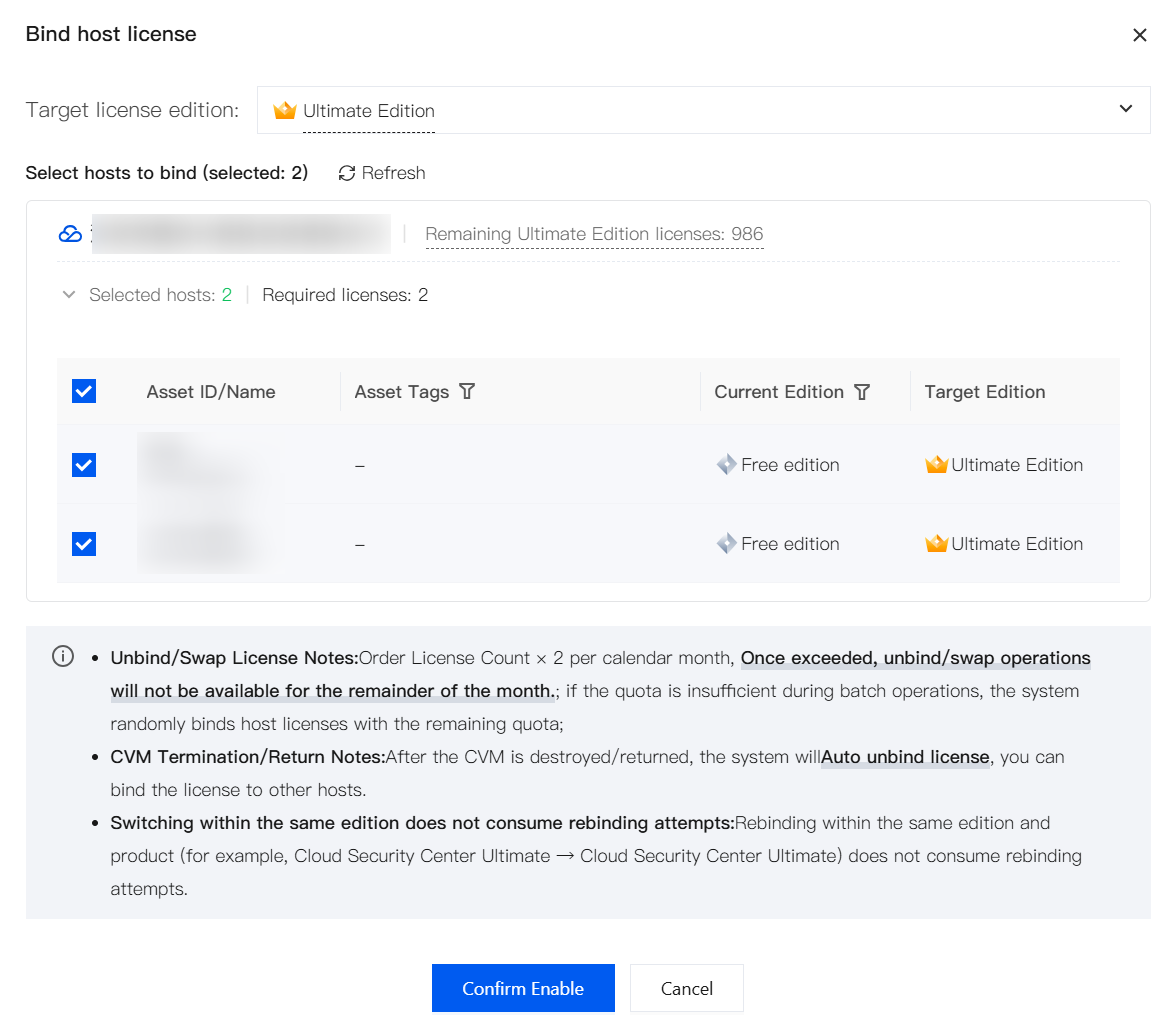
5. In the Target Version drop-down list, select the license version to bind. The drop-down list displays the remaining number of licenses that can be bound for that version.
6. Check the number of bindable hosts indicated by the system, and click Confirm Enable.
Note:
During batch binding, the system automatically filters out hosts that do not support binding. You can hover over the displayed number of hosts to view the specific reasons. If none of the selected hosts support binding, the Confirm Enable button will be grayed out.
If the license quota is insufficient, the system will process the host license binding for the remaining quota in order.
Unbinding
1. Log in to the CSC console.
2. In the left sidebar, choose Asset center > Host Assets.
3. In the host list on the Server tab, select the hosts to unbind, and click Batch Operations > Unbind.

4. In the confirmation dialog, read the notes on unbinding risks and unbinding quantity, and click Confirm unbinding.
Note:
During batch unbinding, the system automatically filters out hosts that do not support unbinding and displays the number. If none of the selected hosts support unbinding, the OK button will be grayed out.
Managing Clients
Adding Remarks
For hosts that do not require client installation or cannot have the client installed for other reasons, you can add remarks to facilitate subsequent management.
1. Log in to the CSC console.
2. In the left sidebar, choose Asset center > Host Assets.
3. In the host list on the Server tab, filter out hosts whose client status is Uninstalled, and click More > Remarks in the operation column of the target host.
4. In the remarks dialog, enter the remarks content (up to 50 characters), and click OK.

Note:
Only hosts without the client installed support remarks. If the client is installed on a host after remarks are added, the original remarks will no longer be displayed.
Reinstalling
If the client is abnormal, its version is outdated, or installation issues need to be fixed, you can reinstall the client.
1. Log in to the CSC console.
2. In the left sidebar, choose Asset center > Host Assets.
3. In the host list on the Server tab, click More > Reinstall in the operation column of the target host.

4. In the Install CWPP Client dialog box, verify the selected hosts and their TAT status, and click Install.
Note:
Reinstallation is an overwrite installation that retains the original configurations and data while upgrading only the client components. For hosts bound to a paid edition, the license binding relationship remains unaffected after reinstallation.
Uninstalling
Prerequisites
For hosts bound to a paid edition license, you must unbind the license before you can uninstall the client.
To bind CSC Professional Edition or Ultimate Edition, unbind the host in the host list first.
To bind CWPP Professional Edition or Ultimate Edition, go to the CWPP console to unbind the host.
Steps
1. Log in to the CSC console.
2. In the left sidebar, choose Asset center > Host Assets.
3. In the host list on the Server tab, click More > Uninstall in the operation column of the target host.
4. In the pop-up dialog, read the prompt message and click Uninstall.

Note:
Uninstallation also cleans up asset, risk, and alarm data.
If a paid edition is already activated, you must unbind the license before uninstalling the client.
If the host is a Tencent Cloud host under this account or a host connected through an AK, the client status will be updated to Uninstalled after uninstallation.
FAQs
Client Installation and Status Issues
What should I do if TAT is offline during one-click installation?
One-click installation relies on Tencent Cloud TAT to deliver commands. Install and start TAT on the target CVM, and retry after confirming that its status is online. If TAT cannot be used, go to Host Assets > Connection Management > install client and follow the instructions to obtain the installation command for manual installation.
How long after installation can the client be seen in the list?
After a Tencent Cloud host is installed through TAT with one click, the client status is usually synchronized to online within a few minutes.
Authorization Binding and Unbinding Issues
Why are some hosts filtered out when a license is bound?
Common causes include the host not belonging to the current account or the client not being installed on the host. You can hover over the number of hosts that do not support binding shown in the dialog box to view the specific reasons.
Can hosts with CWPP licenses bound be unbound in CSC?
No. CSC displays the license edition of the host, but you must go to the CWPP console to unbind it. To manage all licenses in CSC, you can rebind the host to a CSC license, and rebinding is not subject to the unbinding limit.
What should I do when the unbinding or rebinding limit is reached?
The number of unbinding or rebinding operations is limited to the number of licenses in the order multiplied by 2 per calendar month. When the limit is reached, no further unbinding or rebinding can be performed in the current month, and the limit is automatically reset at the beginning of the next month.
Will the license be wasted after the CVM is returned?
No. After a CVM instance is terminated or returned, the system automatically unbinds the license, and the released license can be bound to another host.
Uninstallation Issues
Why does it prompt "This is not the Free Edition. Unbind the license first" during uninstallation?
For hosts bound to a paid edition license, you must unbind the license before you can uninstall the client. To unbind a CSC license, perform the unbinding operation in the host list. To unbind a CWPP license, go to the CWPP console.
Will data be retained after the client is uninstalled?
No. Uninstalling the client also cleans up the host's asset, risk, and alarm data. If you only want to temporarily stop protection, unbind the license instead of uninstalling the client.
Bantuan dan Dukungan
Apakah halaman ini membantu?
Anda juga dapat Menghubungi Penjualan atau Mengirimkan Tiket untuk meminta bantuan.
masukan