General Settings (IP Groups, Referer Groups, and More)
Unduh
Mode fokus
Ukuran font
Overview
Groups are used to centrally manage IP/CIDR addresses, User-Agent, Referer, or TLS fingerprints, and to reference them uniformly in Web Security rules, reducing repetitive configuration and improving policy maintenance efficiency.
Note:
All group types support cross-site referencing. After a group is updated, all rules that reference the group take effect immediately without requiring rule-by-rule modification.
When referencing a group in a Web Security rule, you must follow the relevant restrictions of Match Conditions.
Availability and Quotas
Availability: All group types are supported only in the Standard Edition and Enterprise Edition plans. You must subscribe to Bot Management before referencing a TLS fingerprint group in a rule.
Quota: The applicable scope and calculation methods for each quota item are as follows. For specific quotas, see Plan Comparison.
Quota Item | Applicable Group | Statistical Dimension |
Number of groups | IP address group, User-Agent group, Referer group, TLS fingerprint group | Count the total number of groups by type for each site. |
Total number of entries | IP address group, User-Agent group, Referer group, TLS fingerprint group | Count the total number of entries across all groups by type for each site, without limiting the number of entries in a single group. |
Number of IP address/CIDR entries with expiration time | IP address group only | Count the number of IP address/CIDR entries with expiration time configured in each IP address group. |
Group Types and Reference Methods
In a Web Security rule, select the match field and logical operator that correspond to the group type, and then select the group name in the match value. An IP address group can also be referenced in Anti-DDoS.
Group Type | Entry Content | Web Security Match Field | Operator |
IP address group | IP addresses or CIDR blocks, for example, 1.2.2.2 and 1.1.0.0/23. | Client IP Real client IP | is in, is not in |
User-Agent group | Complete User-Agent header value, for example, ExampleApp/3.1.0. | User-Agent | is in, is not in |
Referer group | Complete Referer header value, for example, https://partner.example/. | Referer | is in, is not in |
TLS fingerprint group | JA3 and JA4 fingerprint values. A group can contain both types at the same time. | JA3 Fingerprint JA4 Fingerprint | is in, is not in |
Note:
Use the logical operator "is in" to match any value in the group, and "is not in" to indicate that none of the values in the group are matched.
When "is in" or "is not in" is used to match User-Agent or Referer, matching is performed only for requests where the header is present and its value is not empty. To match requests that do not carry the header, use the logical operator "does not exist". To match requests that carry the header but with an empty value, use the logical operator "is empty".
When a TLS fingerprint group is referenced in the "JA3 Fingerprint" match condition, only the JA3 values in the group are matched. When it is referenced in the "JA4 Fingerprint" match condition, only the JA4 values in the group are matched.
For other configuration restrictions, see Match Conditions.
Scenarios
Log in to the EdgeOne console. In the left menu bar, go to Service Dashboard and click the site to configure under Website security acceleration. Groups are created and maintained in Security > General Settings, and rules are configured in Security > Web Security.
IP Address Groups: Blocking Risky IP Addresses
Case Scenario
When you need to block risky IP addresses in a unified manner, you can centrally maintain IP addresses or CIDR blocks in an IP address group and reference the group in protection rules. For long-term control entries, do not set an expiration time. For temporary control entries, you can set an expiration time, after which the entries are automatically removed from the group. The same IP address group can contain both types of entries. Later, you only need to update the group content to synchronously adjust the control scope of all rules that reference the group.
Configuration Guide
1. On the General Settings page, in the IP address group card, click Edit.

2. In IP group, click Create, enter a group name, such as
block_ip, and the IP addresses or CIDR blocks that require long-term control. Separate multiple addresses with the Enter key.
3. Click Save to complete the IP address group creation.
4. Based on your control requirements, click Add on the group editing page and enter the IP addresses or CIDR blocks to add:
Long-term control: If you do not select Scheduled Expiration, the entry remains valid until it is manually removed.
Temporary control: Select Scheduled Expiration and set the expiration time. The entries added this time will be automatically removed at the specified time.
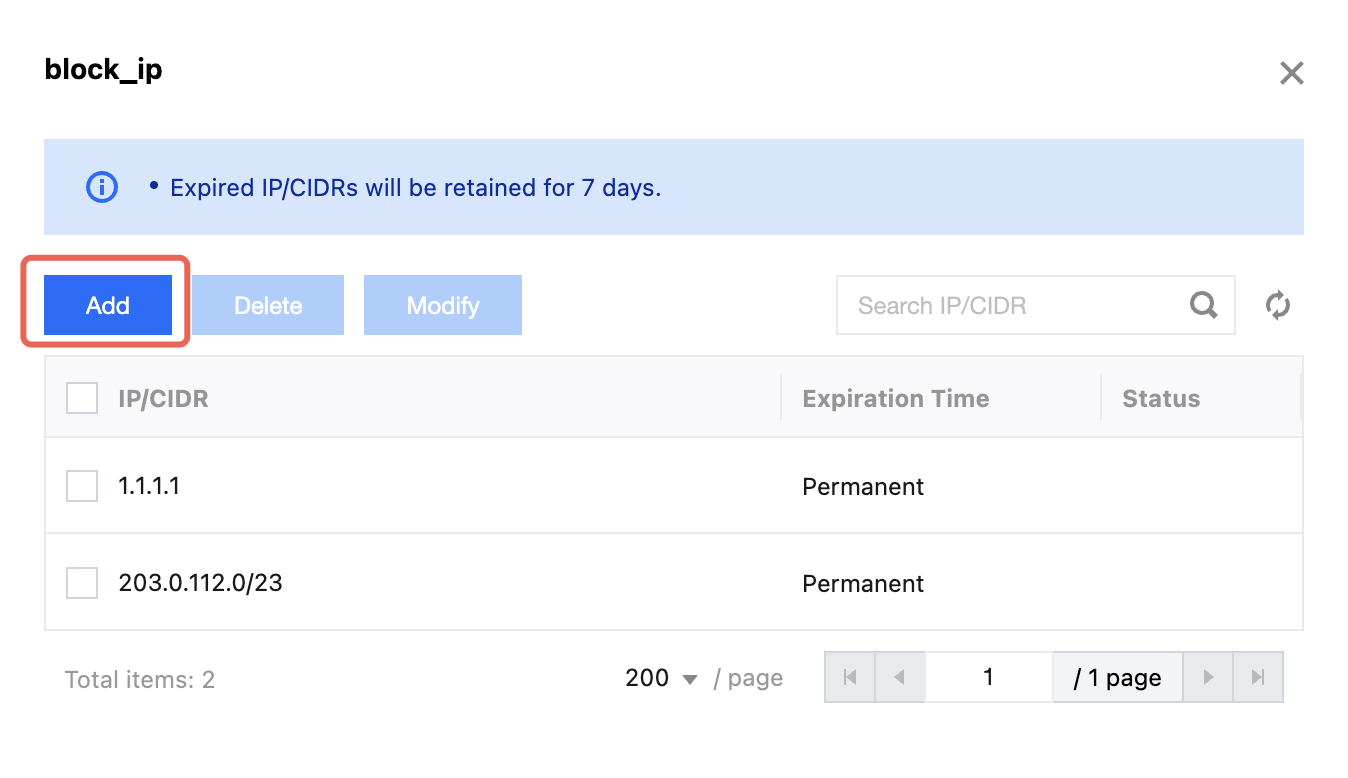
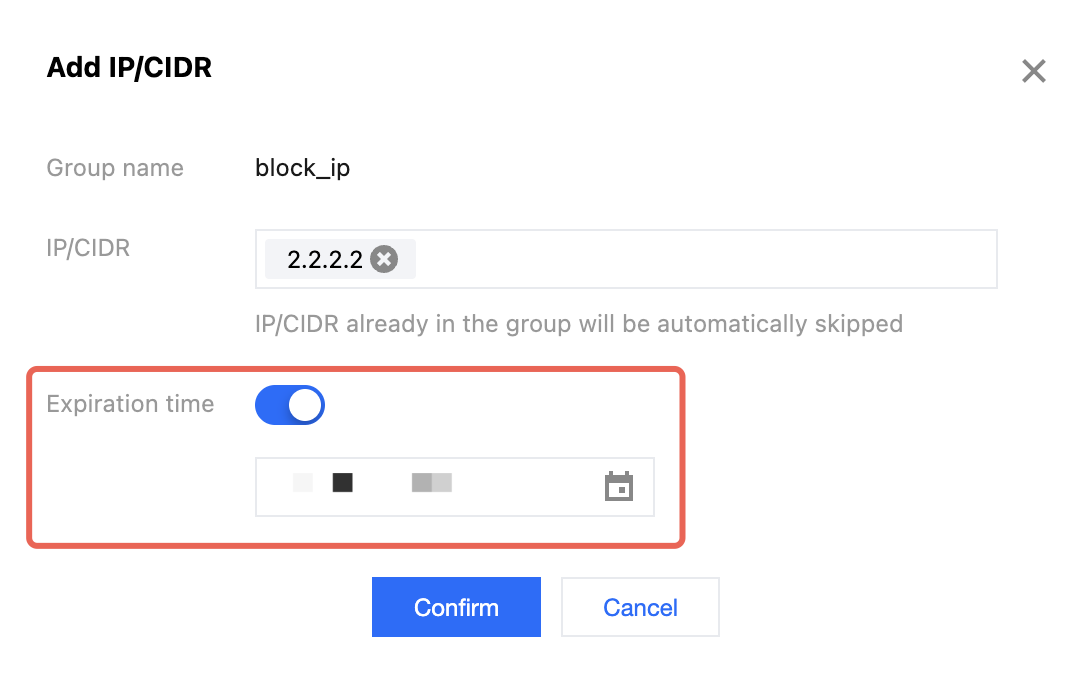
5. Click Confirm to save the entry.
6. In the site where the group needs to be applied, go to the Web Security page and add a basic access control rule. Select Client IP for the match field, select is in for the logical operator, reference the group
block_ip, and select Block for the action. After you save the rule, access from IP addresses in the group will be blocked. For detailed configuration steps, see Custom Rules.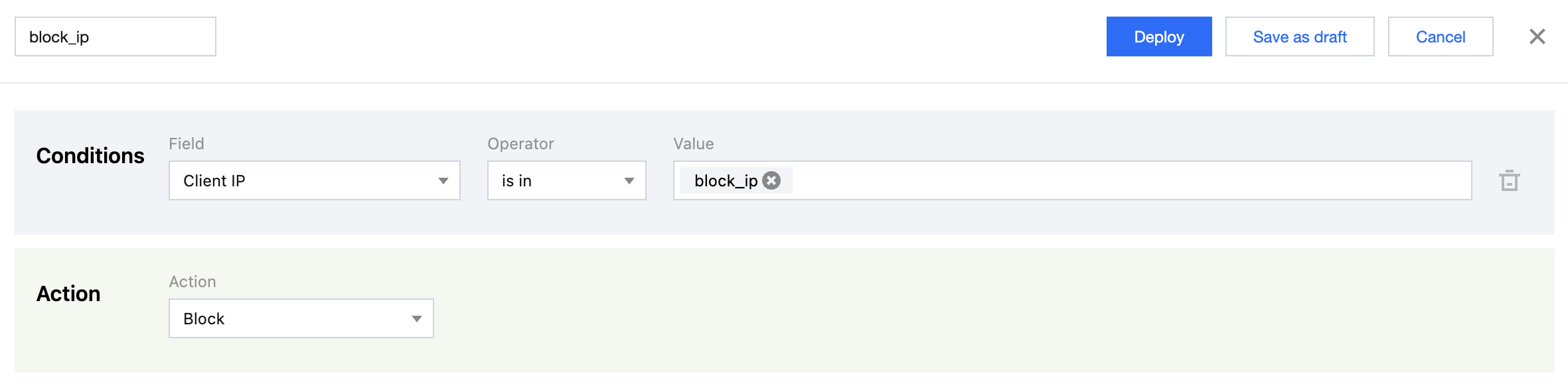
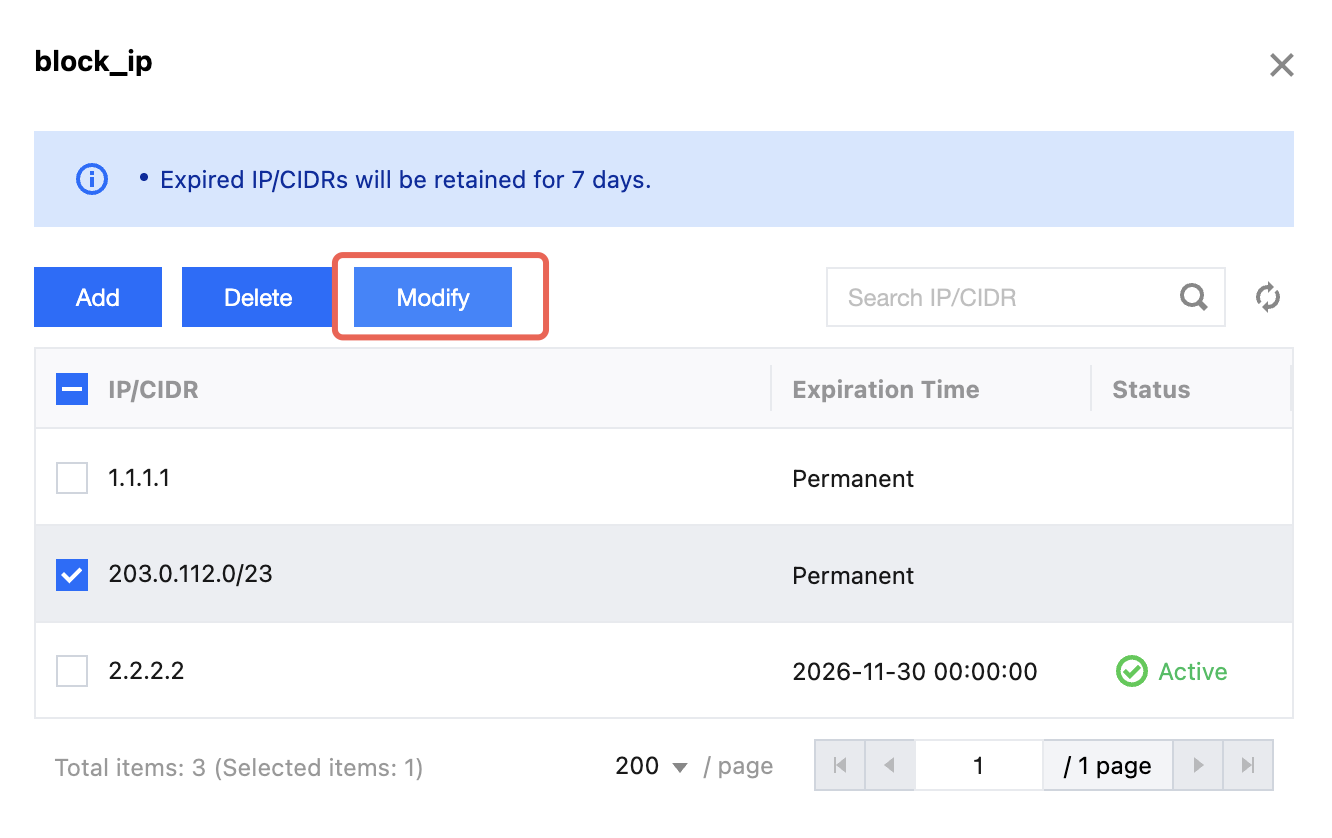
7. (Optional) To adjust the temporary control period, go to the group editing page, select the IP addresses or CIDR blocks to adjust, click Modify, and set a new expiration time and save.
8. (Optional) When you add or remove risky IP addresses later, go to the group editing page, edit the group content, and save. The changes will be applied to all rules that reference the group in real time, without the need to modify the rules one by one.
User-Agent Groups: Restricting Access from Disabled Clients
Case Scenario
When you need to restrict disabled clients from accessing business APIs, you can add their complete User-Agent values to a group and configure blocking in rules based on request paths. When you disable other client versions later, you only need to update the group content.
Configuration Guide
1. In General Settings, in the User-Agent group card, click Edit.
2. In User-Agent group, click Create, enter a group name, such as
retired_app_clients, and the complete User-Agent values used by disabled clients, such as ExampleApp/3.1.0 and ExampleApp/3.2.0. Separate multiple values with the Enter key, and click Save.
3. In the site where the group needs to be applied, go to the Web Security page and add a precise match rule. Add a Request Header - User-Agent match condition, select is in for the logical operator, reference the group
retired_app_clients, select Block for the action, and save the rule. Requests that carry a User-Agent value from the group and access the specified API will be blocked.4. (Optional) When you disable other client versions later, go to the site where the group was created, edit
retired_app_clients, add the corresponding complete User-Agent values, and save. The new entries will be applied to all rules that reference the group in real time.Referer Groups: Managing Partner Source Allowlists
Case Scenario
When you need to control resource access by partner source, you can centrally maintain allowed source values through a Referer group and reference the group in protection rules. When a partner source changes, you only need to update the group content without modifying rules one by one.
Configuration Guide
1. In General Settings, in the Referer group card, click Edit.
2. In Referer group, click Create. Enter a group name, such as
partner_referers, and the complete Referer values actually carried in partner requests, such as https://partner-a.example/ and https://partner-b.example/. Separate multiple values with the Enter key, and click Save.
3. In the site where the group needs to be applied, go to the Web Security page and add a protection exception rule. Add a Request Header - Referer match condition, select is in for the logical operator, reference the group
partner_referers, configure the skip scope, and save the rule. Requests that carry a partner source Referer will skip the specified security protection modules.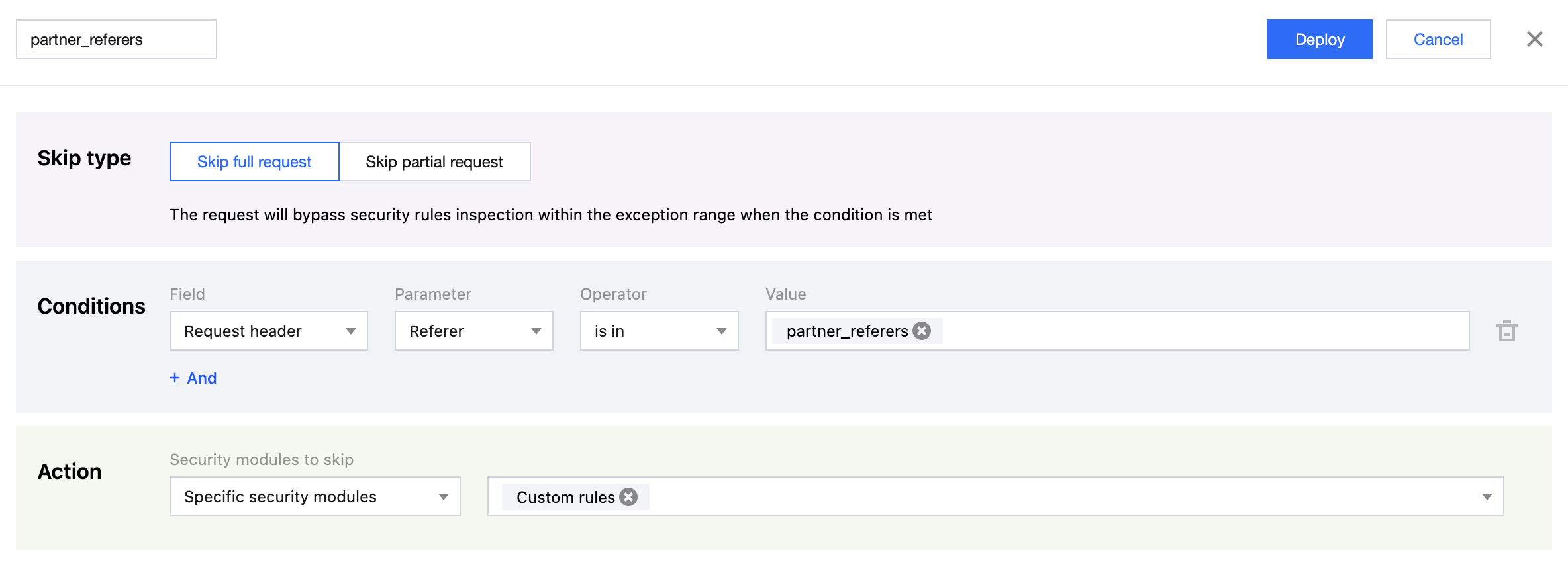
4. (Optional) When you add a new partner source, go to the site where the group was created, edit
partner_referers, add the corresponding complete Referer values, and save. The new entries will be applied to all rules that reference the group in real time.Note:
The above rules do not block requests that do not carry a Referer or have an empty Referer value. To block both types of requests, add two separate blocking rules with the match conditions Referer does not exist and Referer is empty respectively.
TLS Fingerprint Groups: Unified Management of Risky Client Fingerprints
Case Scenario
After identifying JA3 and JA4 fingerprints associated with behaviors such as malicious crawling and abnormal order placement, you can centrally maintain them through TLS fingerprint groups and configure blocking in rules based on your business scope. When new risk fingerprints are identified later, you only need to update the group content.
Configuration Guide
1. In Configuration Options, go to the TLS fingerprint group and click Create.
2. Enter a group name, such as
risk_tls_clients, and the identified JA3 and JA4 fingerprint values. Separate multiple values with the Enter key, and the system automatically identifies the fingerprint type. Click Save.
3. In the site that has subscribed to Bot Management and where the group needs to be applied, go to the Web Security page and add a precise match rule. Add a JA3 Fingerprint match condition, select is in for the logical operator, reference the group
risk_tls_clients, select Block for the action, and save the rule. Requests that match a JA3 fingerprint in the group and access the specified API will be blocked.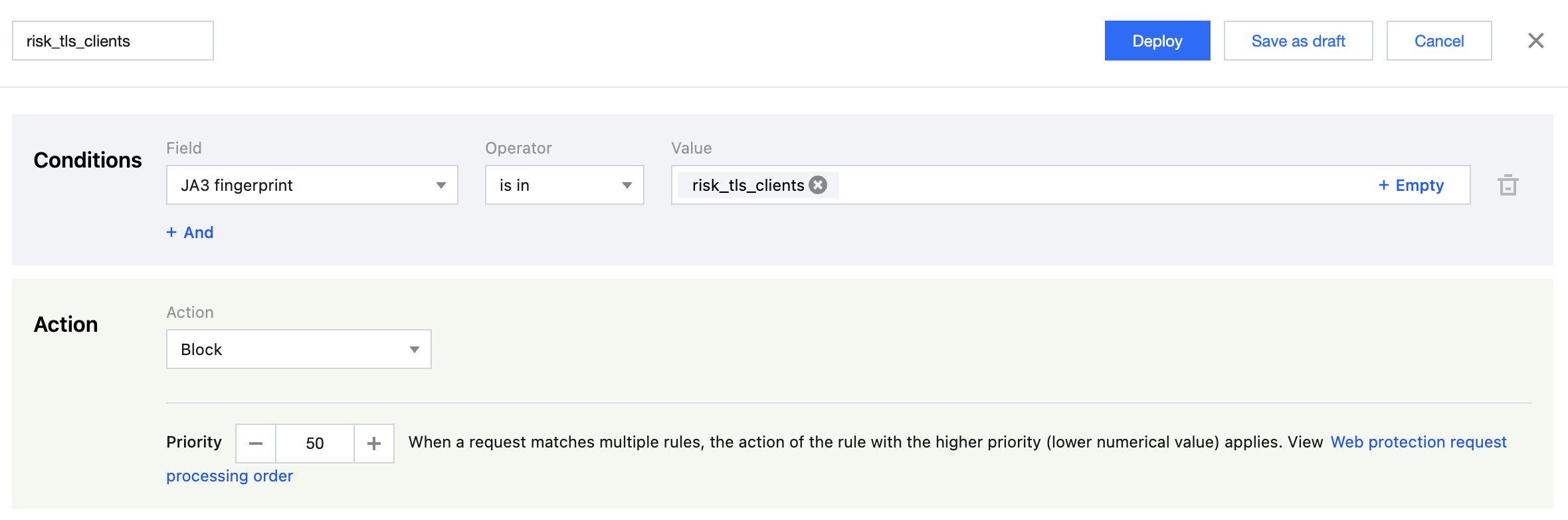
Note:
To manage JA4 fingerprints in the group at the same time, create another rule, select JA4 Fingerprint for the match field, select is in for the logical operator, reference the same group, select Block for the action, and save the rule.
4. (Optional) In the group list or group details, click Show Details to view the types of fingerprint values that have been entered.

5. (Optional) When new risk fingerprints are identified, go to the site where the group was created, edit
risk_tls_clients, add the corresponding JA3 and JA4 fingerprint values, and save. Existing entries will be automatically skipped, and new entries will be applied to all rules that reference the group in real time.
Bantuan dan Dukungan
Apakah halaman ini membantu?
Anda juga dapat Menghubungi Penjualan atau Mengirimkan Tiket untuk meminta bantuan.
masukan