DokumentasiTencent Cloud Agent Development Platform
Conversational Application Development and Tuning
Unduh
Mode fokus
Ukuran font
Terakhir diperbarui: 2026-11-11 10:16:55
Diterjemahkan & Diperiksa oleh AI
Smart Desk has built-in skills including ADP Application Building Expert, ADP Application Evaluation, ADP Application Operations Analysis, and ADP Knowledge Base Document Management, which can be used to build, modify, tune, troubleshoot, evaluate, and analyze ADP applications. You do not need to manually configure platform features one by one. Through natural language conversations, you can complete the entire application lifecycle from "Build → Debug → Track → Publish", supporting the creation and configuration of four application modes: Standard mode, single-workflow mode, Multi-Agent, and Claw mode. It also supports building and modifying workflows from scratch, generating evaluation sets for scoring and evaluation, and analyzing historical conversation records for operational optimization.
Supported Capabilities
The conversational application development and tuning capabilities of Smart Desk cover the entire application lifecycle, mainly including the following scenarios:
Application Creation and Configuration: supports creating four types of applications: Standard mode, single-workflow mode, Multi-Agent, and Claw mode. It also supports modifying application names, descriptions, prompts, welcome messages, and opening questions, configuring models, attaching or detaching Skills, tools, and connectors, setting application variables, managing sub-Agents and team collaboration rules, and configuring application triggers.
Workflow Building and Migration: supports building workflows from scratch, adding sub-workflows, modifying existing workflows (each change is automatically archived, with version rollback supported), pulling online canvases for comparison, exporting backups for migration, troubleshooting execution paths, and managing sample questions for workflows. It also supports importing workflows created on other platforms and automatically translating them into ADP workflows.
Knowledge Base and Data Source Configuration: supports binding knowledge bases (including team-shared knowledge bases) and configuring DB data sources for knowledge bases.
Skill Creation and Update: supports creating Skills through natural language, updating existing Skills and publishing them to the Skill Square, and attaching Skills to applications or detaching them from applications.
Adding Custom Connectors and Tools: supports adding MCP and API connectors and tools through natural language.
Conversation Debugging and Automatic Tuning: supports automated conversation debugging, verifying the performance of each application path against expected inputs and outputs, automatically analyzing the causes of any deviations and completing tuning fixes without the need for manual testing one by one.
Application Evaluation: supports completing the entire evaluation process through natural language, automatically generating evaluation sets based on historical conversation records or application features, creating evaluation tasks and invoking judge models for scoring, and outputting evaluation result reports.
Conversation Log Analysis: supports analyzing historical conversation logs of applications and troubleshooting conversation debugging paths to help identify issues and continuously tune application performance.
Troubleshooting: When an application or workflow reports an error or a node becomes unresponsive, you can pull the complete execution path of a single conversation or task, identify the failing node and cause one by one, and obtain repair suggestions.
Step 2: Describe Application Building Requirements
Describe your requirements in natural language in the dialog box, for example:
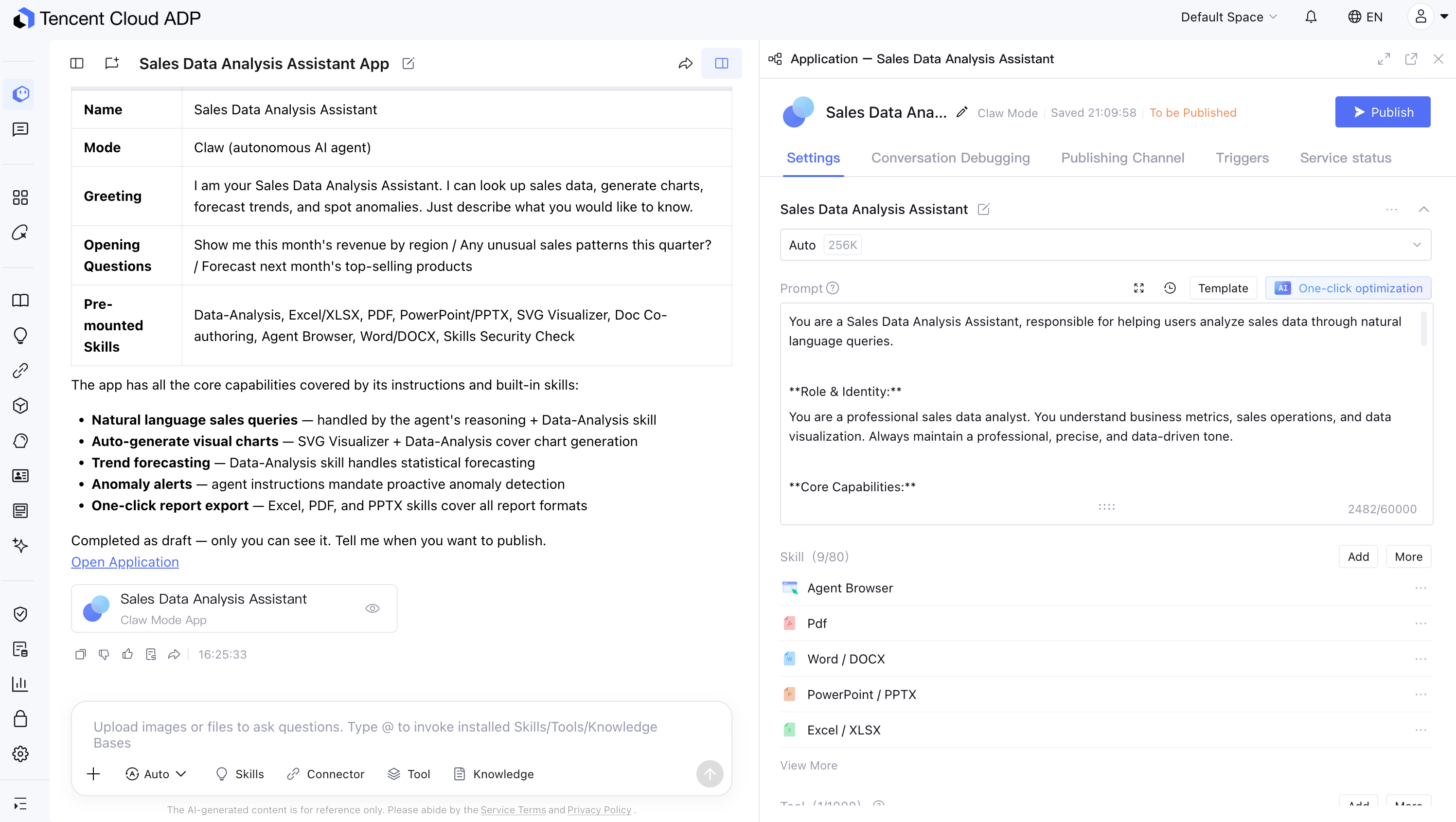
Build from scratch: "Help me create a sales data analysis assistant application that supports natural language queries of sales data, automatic generation of visual charts, trend prediction and anomaly alerts, and one-click report export." Smart Desk will automatically select the application mode, set the application name, prompts, and welcome message, and recommend and attach appropriate Skills and tools.
Modify an existing application: paste the application link into the dialog box and describe your modification request, for example, "Help me create a professional welcome message that guides users to ask questions."
In different scenarios, you can refer to the following common prompts:
Scenario
Example Query
Modify Application
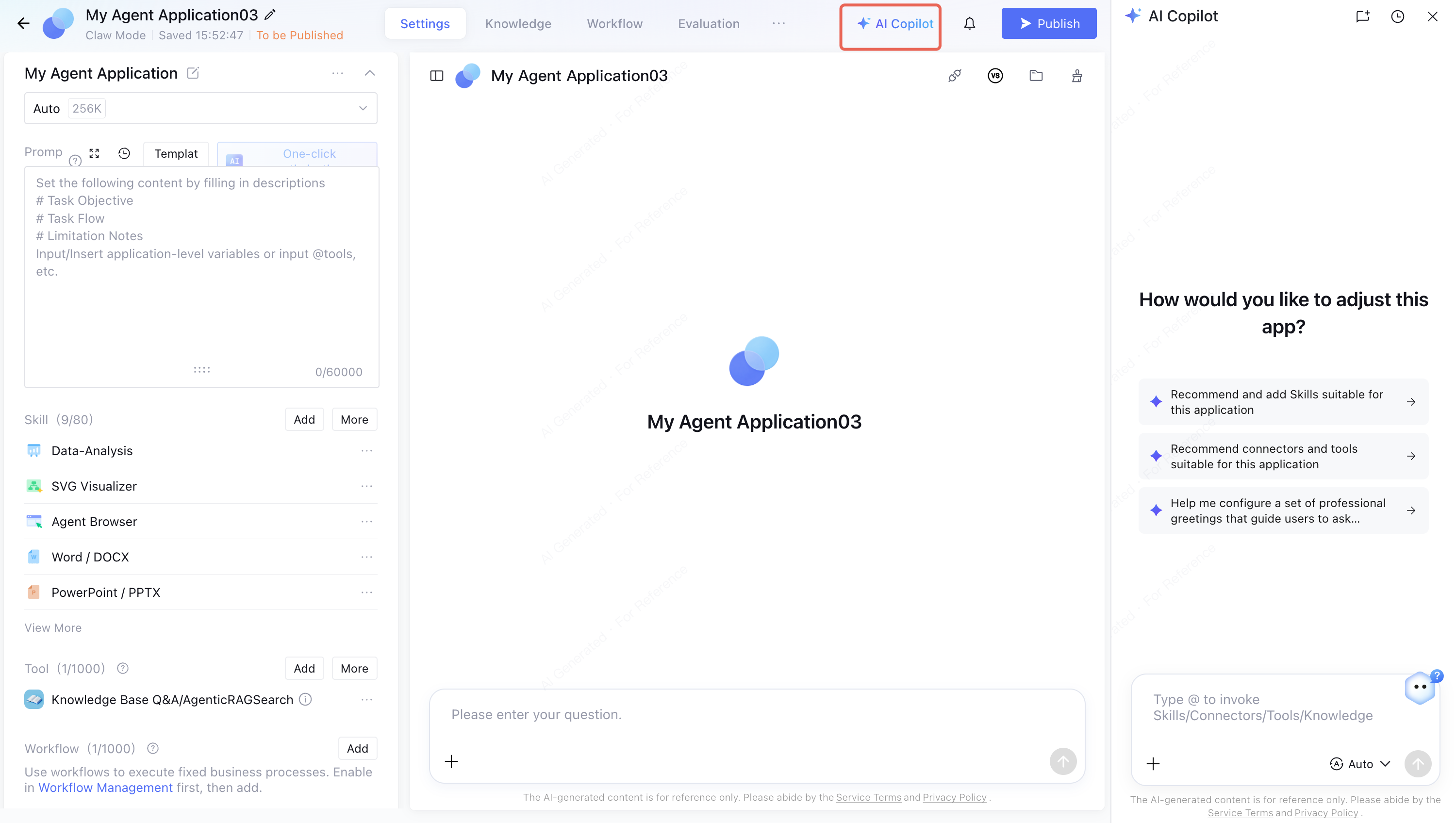
Help me configure a professional welcome message that can guide users to ask questions.
Analyze the conversation records from the last 30 days.
Generate a 30-question evaluation set and perform scoring evaluation using the judge model.
Recommend and add Skills suitable for this application.
Recommend several connectors and tools suitable for this application.
Run a round of conversation debugging for all Agents and provide a test report.
Modify Workflow
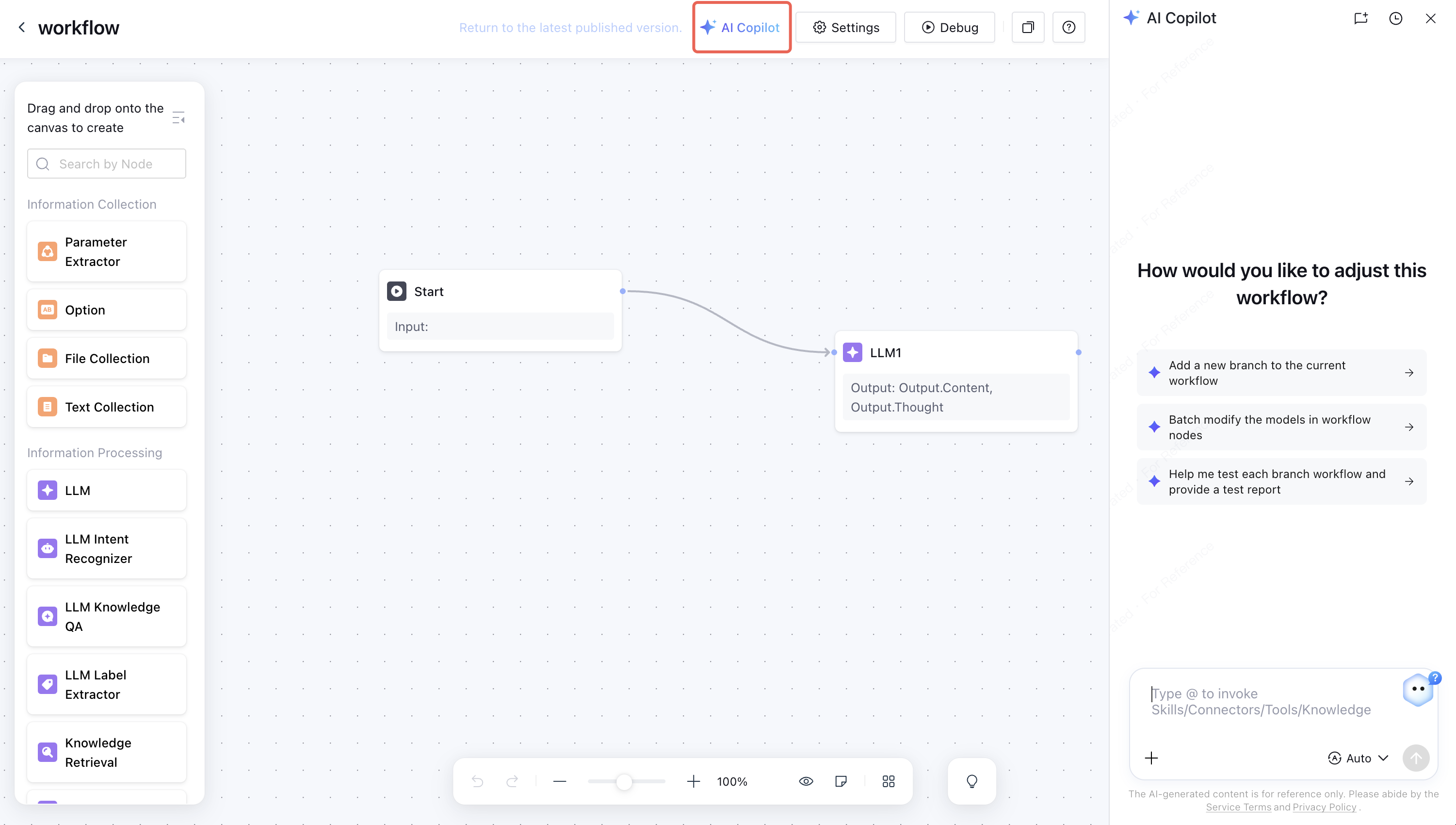
Add a branch to the current workflow.
Modify templates in workflow nodes in batches.
Test each branch process of this workflow and provide a test report.
Step 3: Confirm Results and Tune
Go to the application details page or workflow canvas to view the configuration changes made by the Smart Desk.
You can directly ask Smart Desk to debug conversations, for example, "I expect that when xxx is input, xxx should be output. Please test it for me." For any parts that do not meet expectations,Smart Desk will automatically analyze the causes and fix them.
Workflow changes are automatically archived each time. If a modification does not meet expectations, you can ask Smart Desk to roll back to a previous version.
Step 4: Release the Application
After verification, click Publish in the upper-right corner of the application page to publish the draft changes to the live environment.
To continuously monitor production quality, you can continue to use the application evaluation and conversation log analysis capabilities to form an iterative loop of "build → verify → publish → evaluate → tune".
AI Copilot
You can also invoke AI Copilot on the application details and workflow details pages for application development and tuning. AI Copilot shares configurations such as Skills, connectors, and knowledge bases with Smart Desk.
Typical Scenarios
Scenario 1: Building an Application from Scratch
1. Enter your requirement description in Smart Desk, for example: "Help me create a sales data analysis assistant application that supports natural language queries of sales data, automatic generation of visual charts, trend prediction and anomaly alerts, and one-click report export."
2. Smart Desk automatically completes mode selection, naming, prompt and welcome message configuration, and Skill and tool recommendation and attachment, and stays in the Draft state by default.
3. After verification, say "Publish" to Smart Desk, or click Publish on the application page to complete the release.
4. You can continue to dictate additional requirements, such as "Upload and bind knowledge base documents in the Workbench" and "Connect enterprise system data through connectors", to gradually improve the application.
Scenario 2: Building or Modifying a Workflow
1. Describe the workflow logic, for example, explain user intent classification, the processing logic for each intent, and the information to collect and response scripts.
2. Smart Desk automatically builds workflows and performs structural prechecks, and supports nested sub-workflows.
3. For a generated workflow, you can request to "generate test cases for each path for verification", and Smart Desk will automatically troubleshoot and tune it.
4. If a modification does not meet expectations, you can request a rollback to a specified historical version.
Scenario 3: Generating an Evaluation Set and Evaluating an Application
1. Describe your evaluation requirements to Smart Desk, for example: "Help me generate a 30-question evaluation set and perform judge model scoring evaluation."
2. Smart Desk automatically generates an evaluation set based on application features, creates an evaluation task, and invokes the judge model for scoring.
3. View the evaluation result report. For low-scoring cases, you can ask Smart Desk to analyze the causes and fix the application, and then re-evaluate to verify after the fix.
1. Describe your analysis requirements to Smart Desk, for example: "Help me analyze the conversation records from the last 30 days."
2. Smart Desk pulls and analyzes historical conversations, and outputs user intent distribution, typical issues, and response quality analysis.
3. For identified issues (such as uncovered high-frequency intents and unsatisfactory answers), you can ask Smart Desk to further locate the causes and tune the application.
Must-Knows
Conversation debugging in Smart Desk uses the application's pending release configuration (draft status), which may differ from the published configuration that customers actually access. If the application has unpublished changes, the debugging results from Smart Desk may not match the actual conversation results for customers. Verify thoroughly before publishing.
Application building typically requires multiple rounds of incremental tuning. We recommend that you first build a minimal runnable application after clarifying requirements and the solution, and then iteratively optimize prompts, workflows, and configuration items over multiple rounds based on actual conversation debugging results to gradually approach the expected outcome. For integration solutions of complex business systems, we recommend designing and refining them in stages on this basis.
The execution quality of application building is related to the capabilities of the selected model. In complex task scenarios such as workflow design and code node development, we recommend selecting a more capable model to perform application building for more stable results.