DokumentasiTencent Cloud Agent Development Platform
Smart Desk Settings
Unduh
Mode fokus
Ukuran font
Terakhir diperbarui: 2026-11-10 15:51:36
Diterjemahkan & Diperiksa oleh AI
Smart Desk supports personalized settings. You can customize global instructions, set the default model, and perform system repairs based on your usage habits. All settings are consolidated on the settings page for centralized management.
Operation Entry
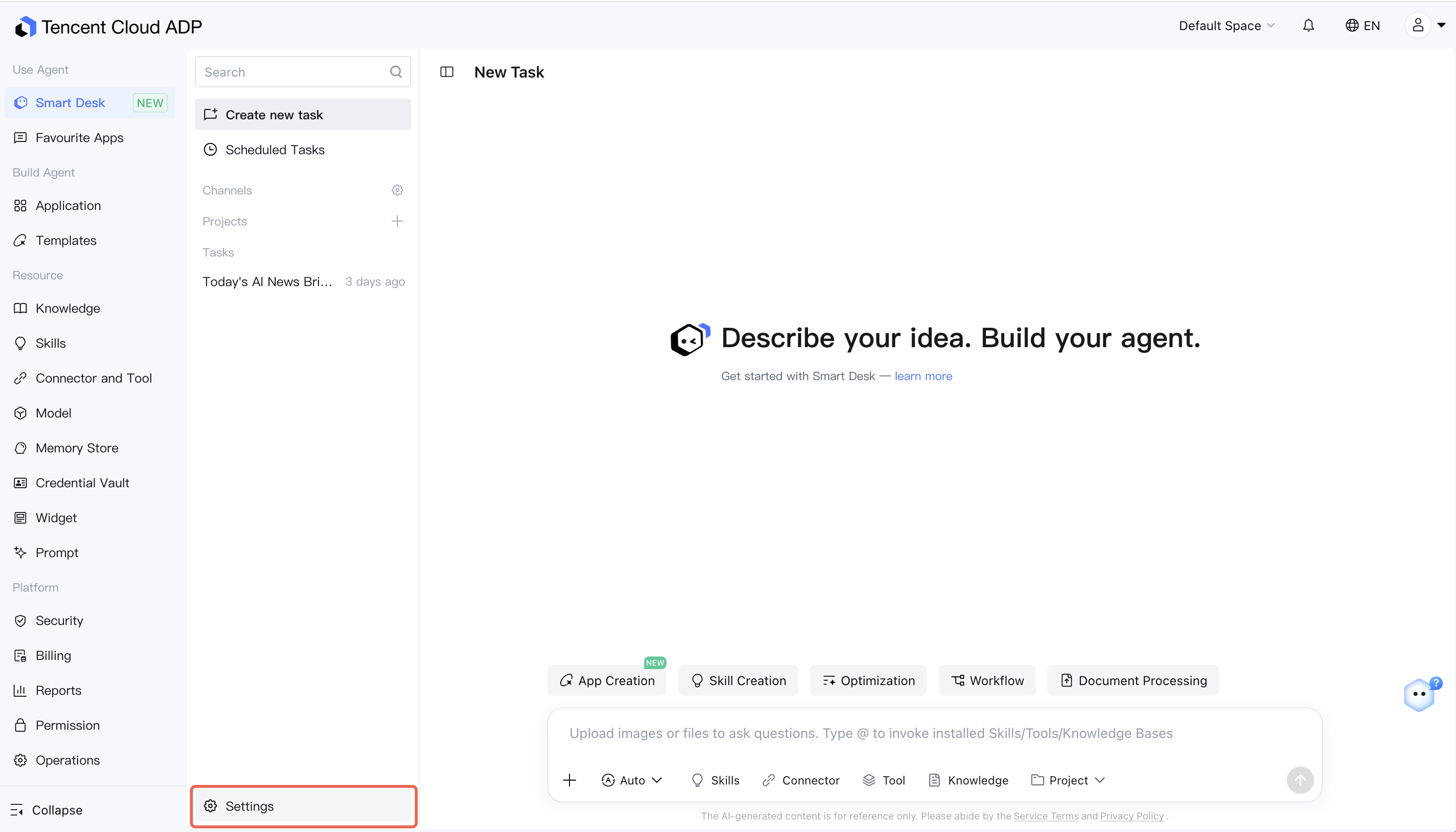
Go to Smart Desk and click the Settings button in the lower-left corner to configure the settings.
Custom Instructions
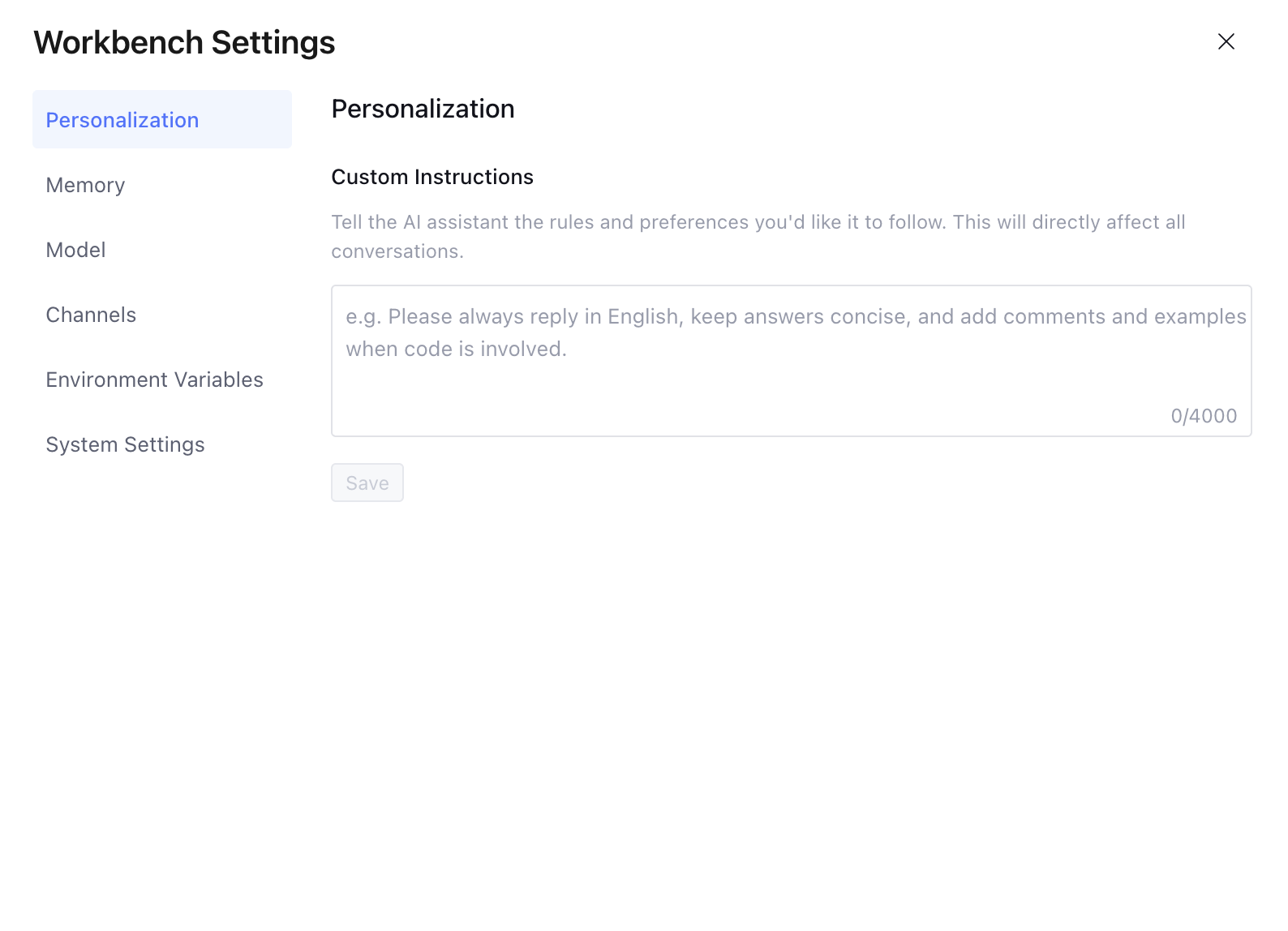
Custom instructions allow you to set a globally effective prompt instruction. Once set, the instruction is automatically injected into every conversation between you and Smart Desk, eliminating the need for manual repetition each time.
Example scenarios:
I hope all responses will be in English by default.
Fix the role-playing or output format requirements.
In the left sidebar of the settings page, select Personalization. In the Custom Instructions input box, enter the instruction content that you want to take effect globally. After saving, all subsequently created tasks will include this instruction.
Memory
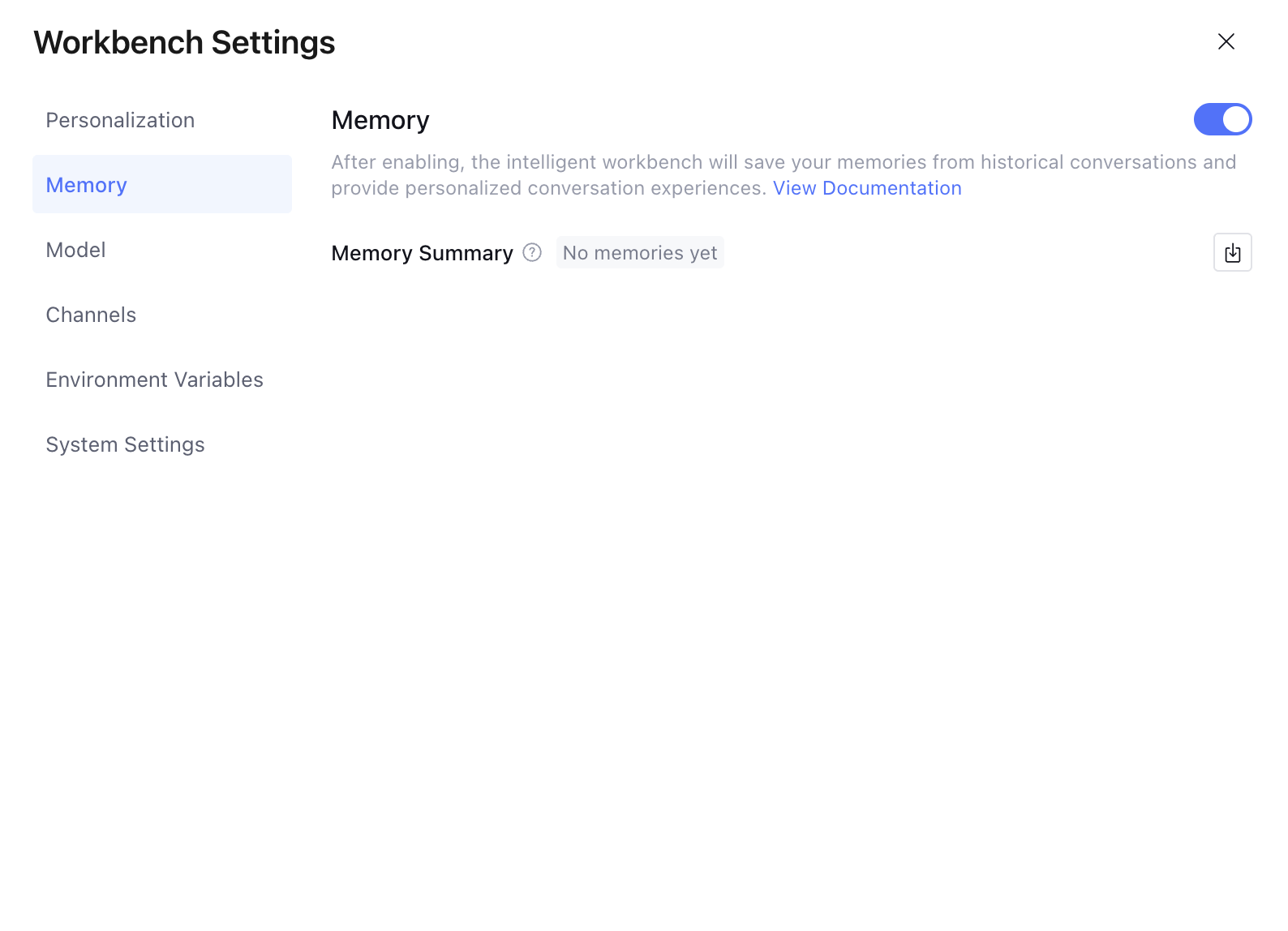
This feature is enabled by default. Once enabled, Smart Desk automatically extracts relevant information from users' historical conversations, such as personal preferences, areas of interest, and recent activities. This information is then provided to the model as context in subsequent conversations, delivering a more coherent and personalized experience without the need to repeat background information in each conversation. During use, you can view, edit, import, export, or clear this memory at any time, giving you full control over what the AI "remembers". For details, see Long-Term Memory of the Smart Desk.
Default Model
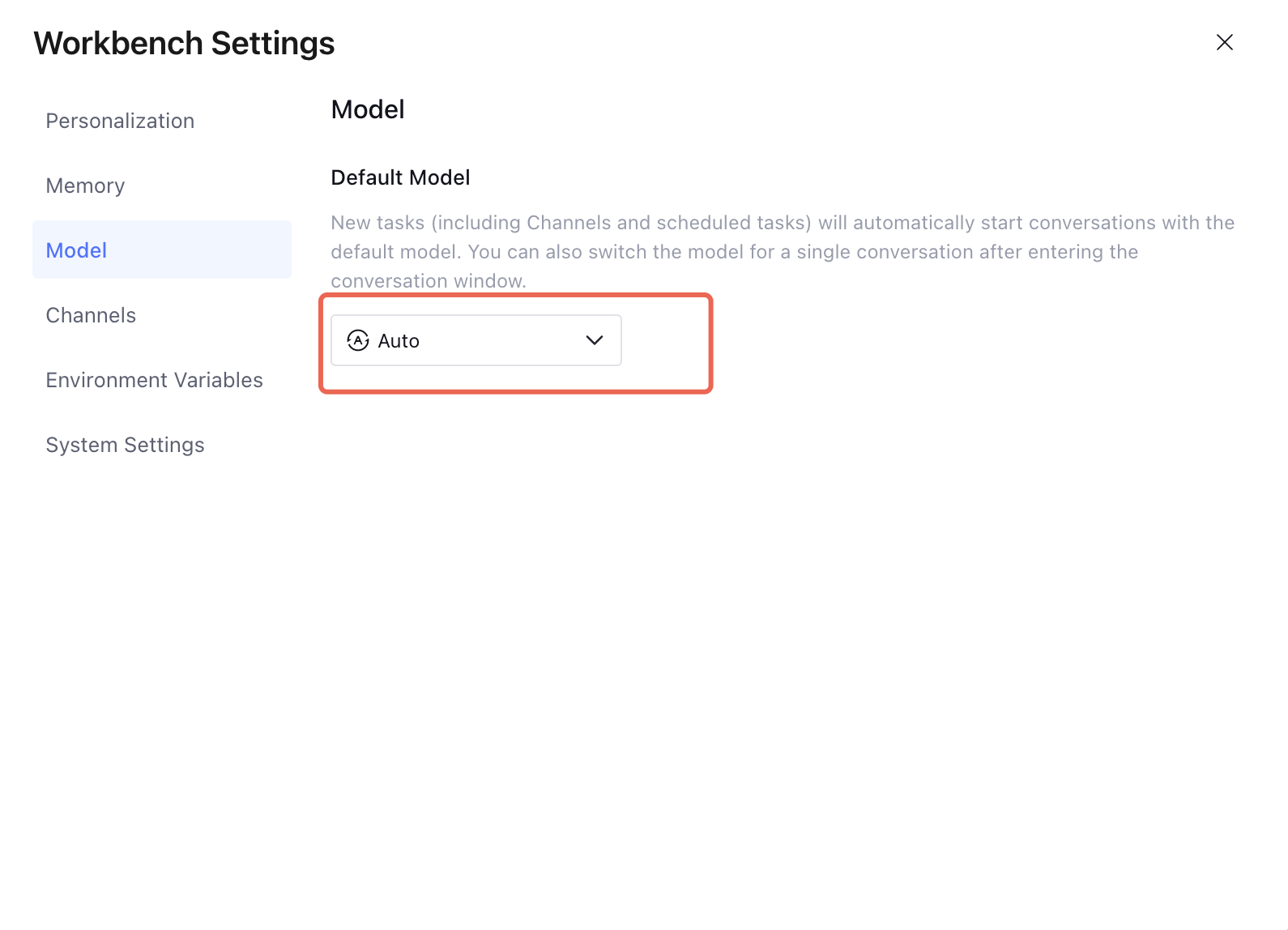
In the left sidebar of the settings page, select Model. You can customize the default model used when creating tasks. After selection, all new tasks, including remote terminal and scheduled tasks, will automatically use the default model to start sessions. After entering a session window, you can still switch the model for a single session as needed.
Environment Variables
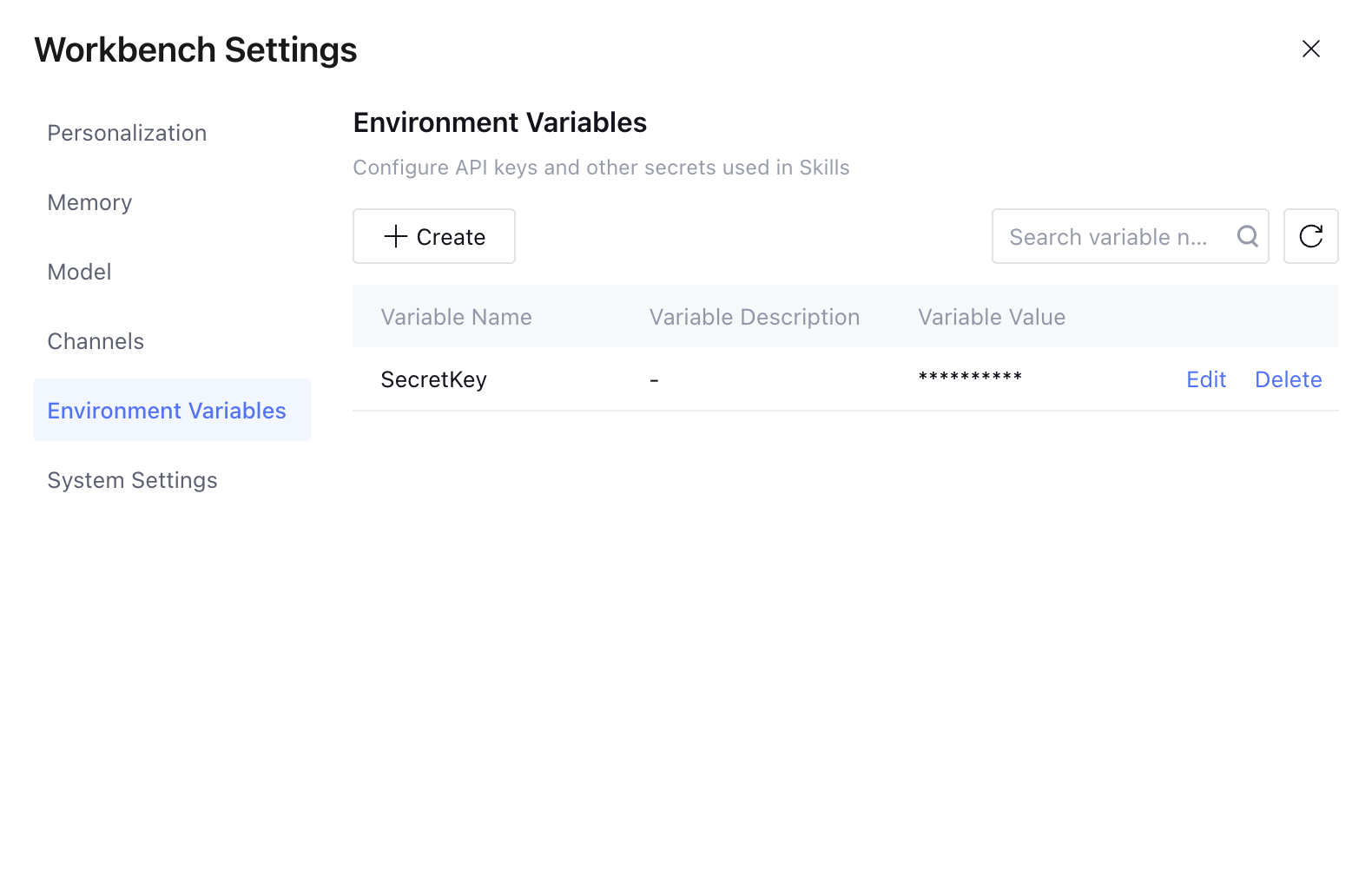
In the left sidebar of the settings page, select Environment Variables. API keys and other secrets required by Skills should be configured in environment variables. Variable values are encrypted for storage, and only placeholders are displayed during conversations. The actual values are dynamically injected by the system when the final request is sent, ensuring the security of variable values.
Runtime Environment Reset
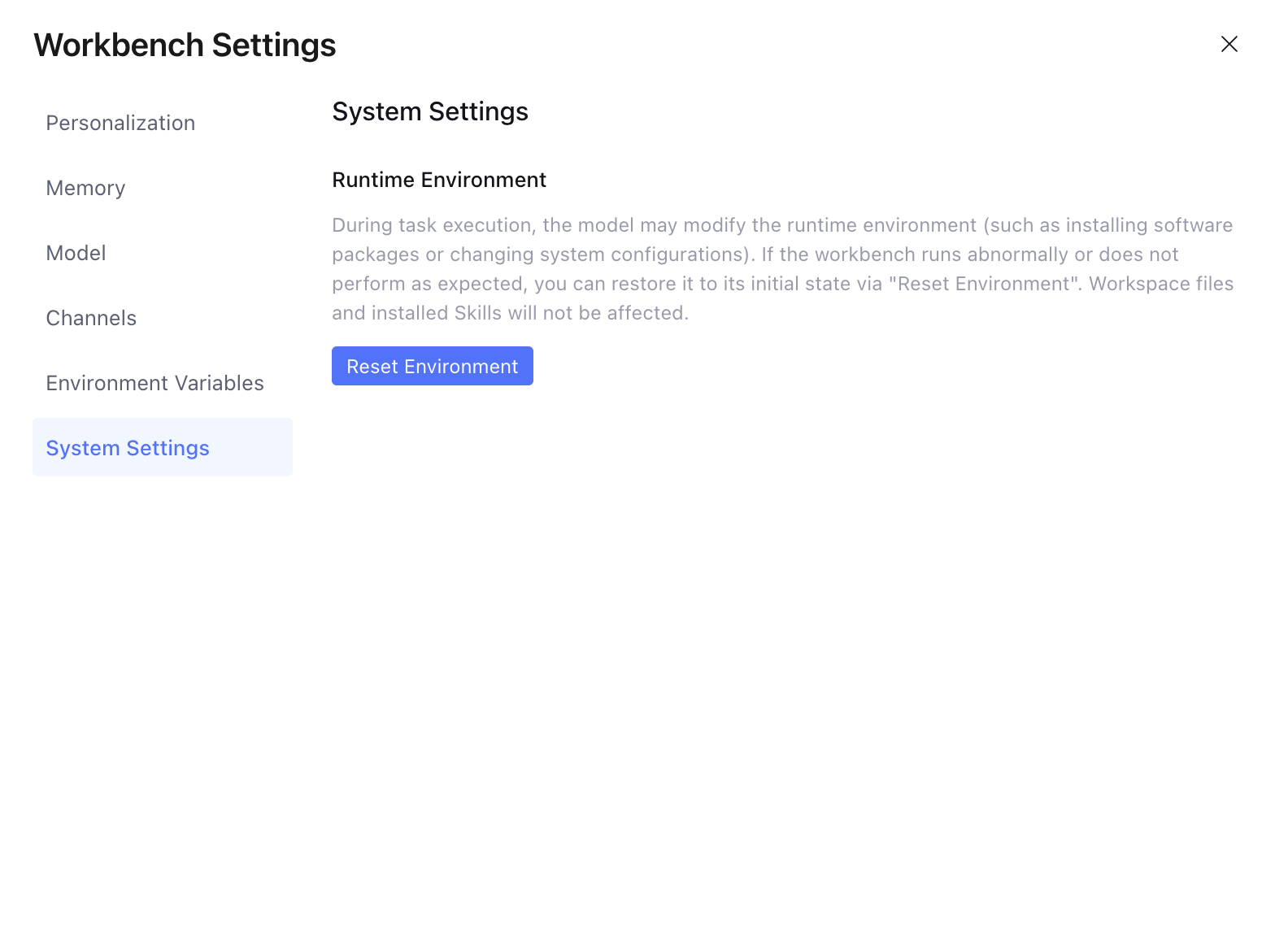
In the left sidebar of the settings page, select System Settings. During task execution, the model may modify the runtime environment, such as installing software packages or changing system configurations, which can cause exceptions in the sandbox environment, including command execution failures and dependency conflicts. If the workbench runs abnormally or the performance does not meet expectations, you can restore it to its initial state through "Environment Reset". This operation does not affect workspace files or installed Skills.
FAQs
Q: Will the model used in historical conversations change after the default model is modified?
A: No. The default model only affects new sessions, while historical conversations retain their original model settings.
Q: Do I need to reinstall Skills after an environment reset?
A: No. Workspace files and installed Skills are not affected.