Configuring a Feishu Workspace
Unduh
Mode fokus
Ukuran font
If you are already using Feishu as your office IM software, you can configure the Feishu workspace for authentication-free login. Then, in the Feishu workspace, you can click the relevant app to go directly to Tencent OneID.
This document describes how to configure the Feishu workspace for authentication-free login to apps. Before you begin, make sure you have access to the Feishu admin console.
Step 1: Creating a Feishu App
If you have not signed up for a Feishu developer account, go to Feishu Open Platform to create one first.
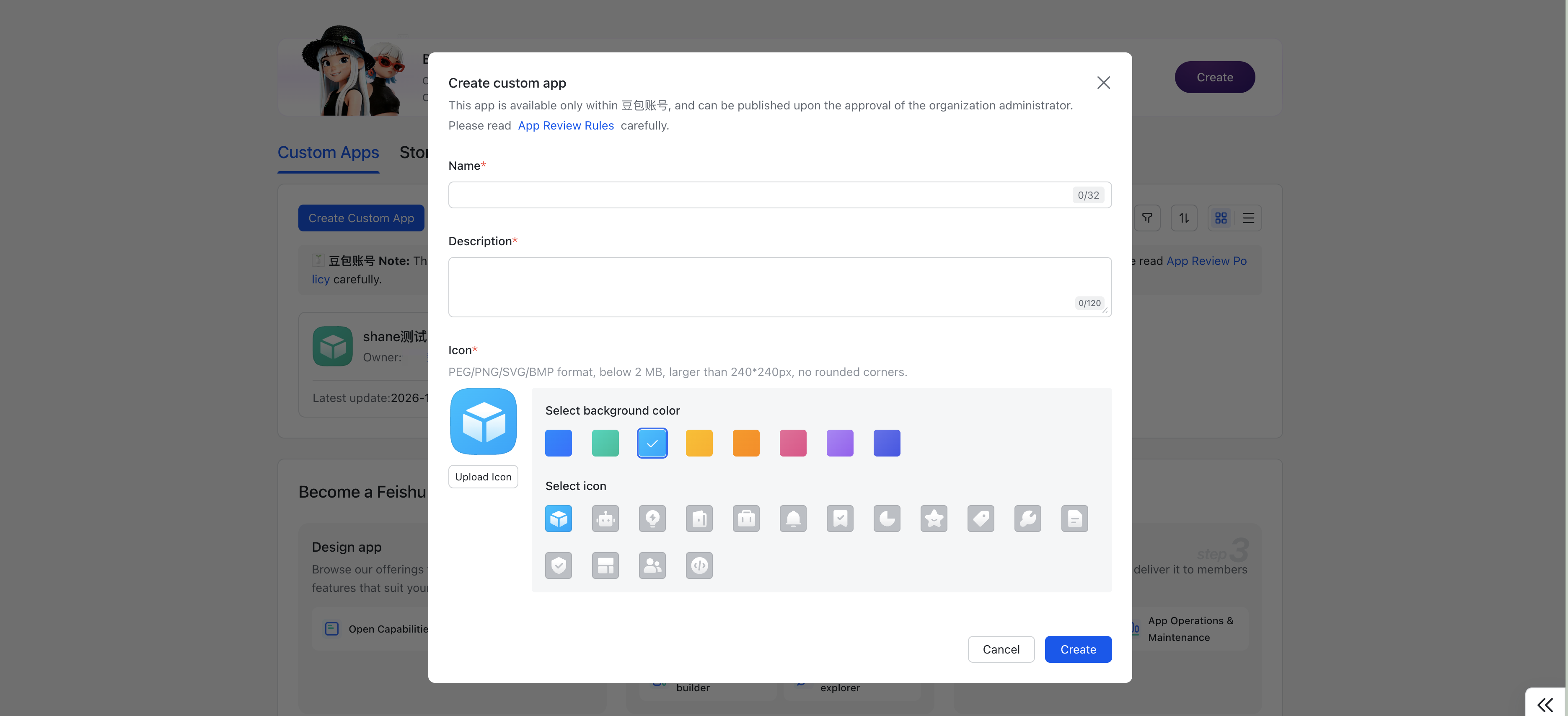
Register and log in to a developer account. In the Developer Console, create an app.
Enter the app name and description. Click Create.
Step 2: Obtaining App Credentials
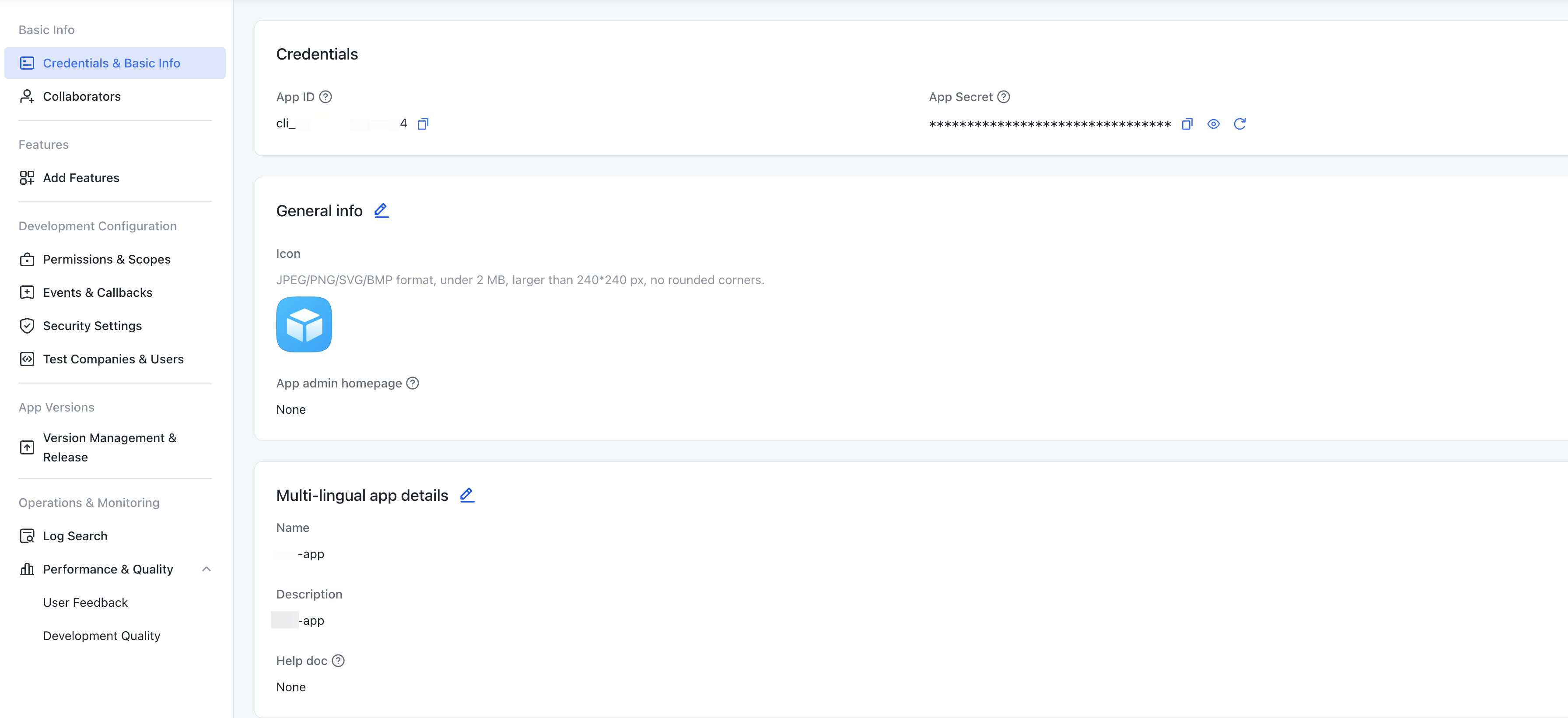
After the app is created, click the app instance you just created to go to the app details page.
On the Credentials and Basic Info page of the Feishu app details, you can obtain the App ID and App Secret of the app. Copy these two parameters.
Step 3: Creating a Feishu Workspace in Tencent OneID
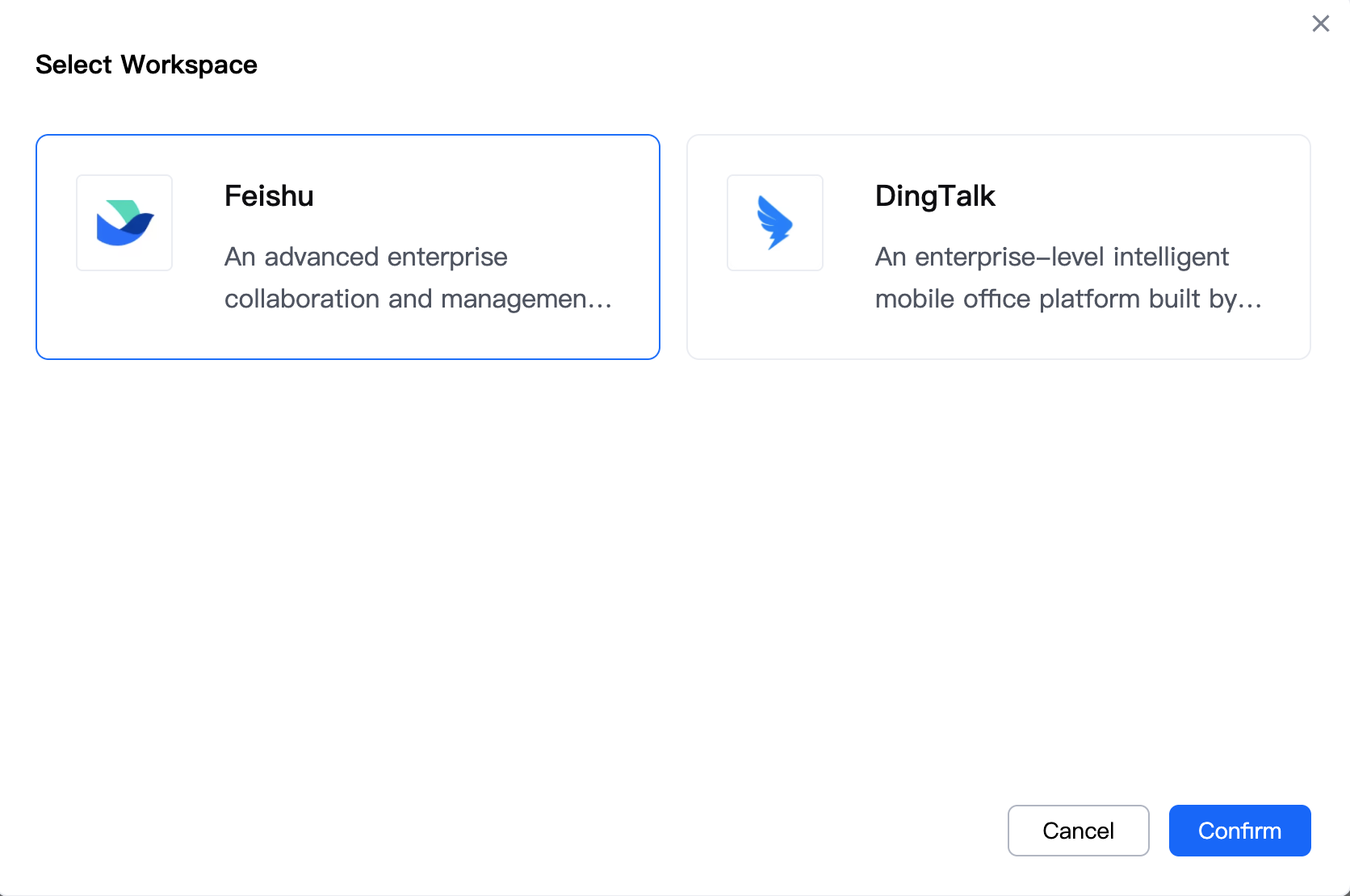
Log in to the OneID admin console. Under the Login module, click Workspaces, click Add Workspace, select Feishu, and click Confirm.
Enter the Feishu App ID and App Secret obtained in step 2.
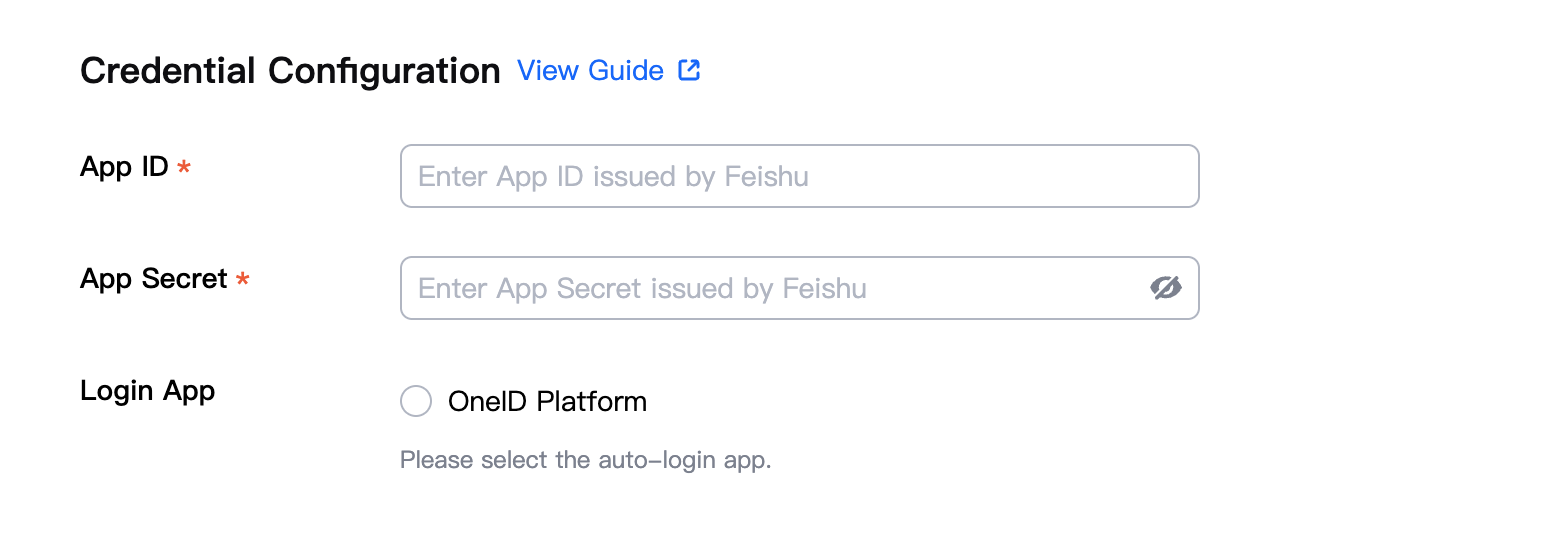
Select the app for which you want to enable authentication-free login. Currently, OneID supports apps such as Tencent Meeting, Tencent Docs, and the OneID platform.
If you select Tencent Meeting, you can launch it directly from the corresponding app in the Feishu workspace and enter the Tencent Meeting app in the login state.
If you select Tencent Docs, you can open it directly from the corresponding app in the Feishu workspace and enter Tencent Docs in the login state.
If you select OneID Platform, you can open it directly from the corresponding app in the Feishu workspace and enter the Tencent OneID workspace in the login state.
Step 4: Copying the Callback URL and Web Login URL
After you have filled in the above information, copy the two links below.
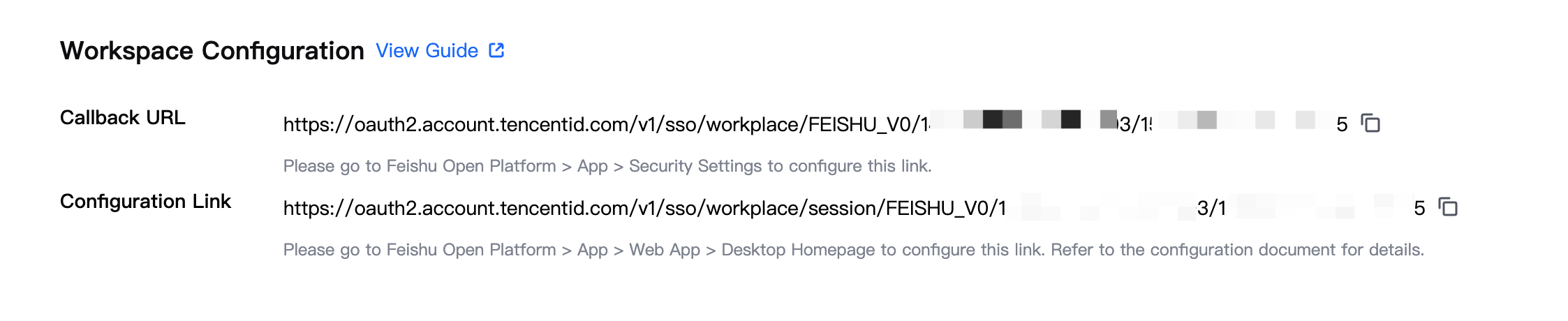
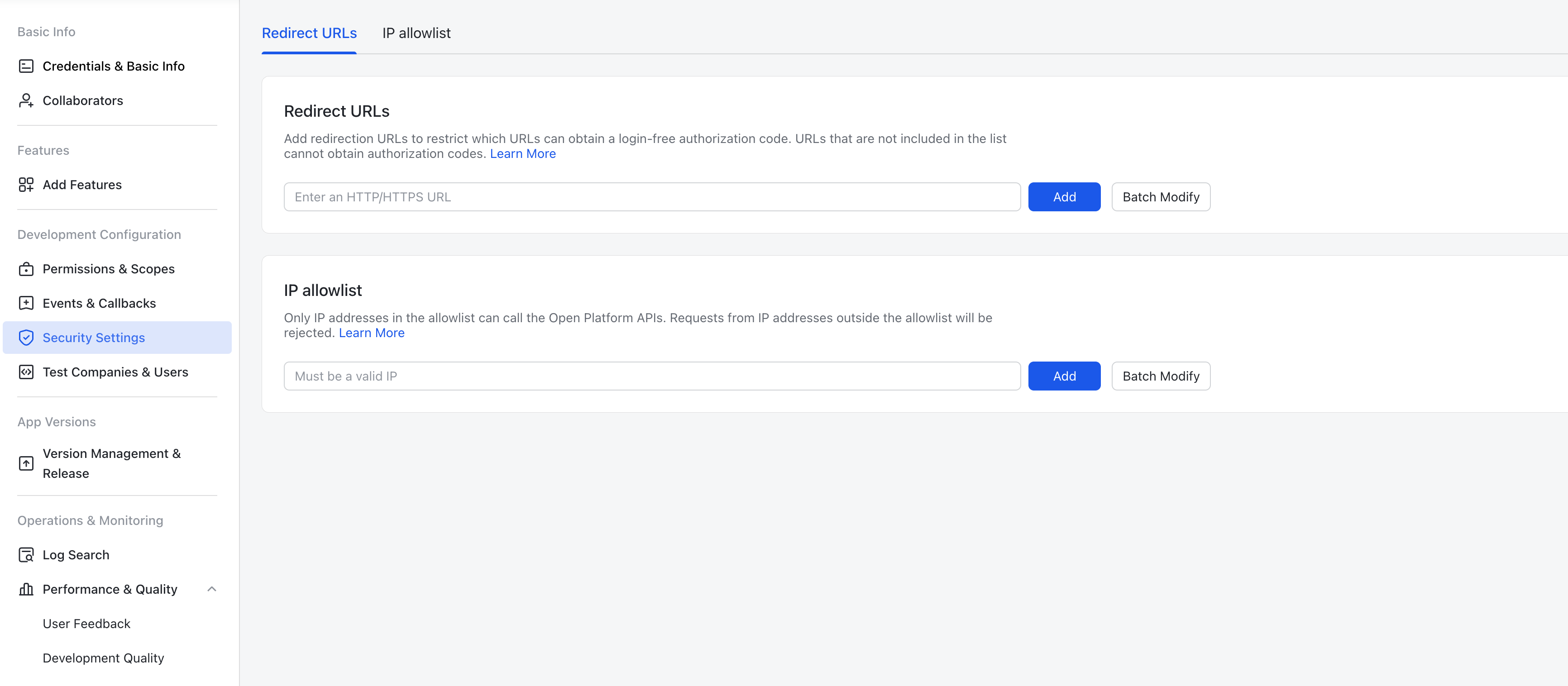
Step 5: Configuring Related Links in the Feishu Admin Console
Go back to the Feishu app configuration page. Choose Security Settings > Redirect URL and paste the Callback Link obtained from OneID.
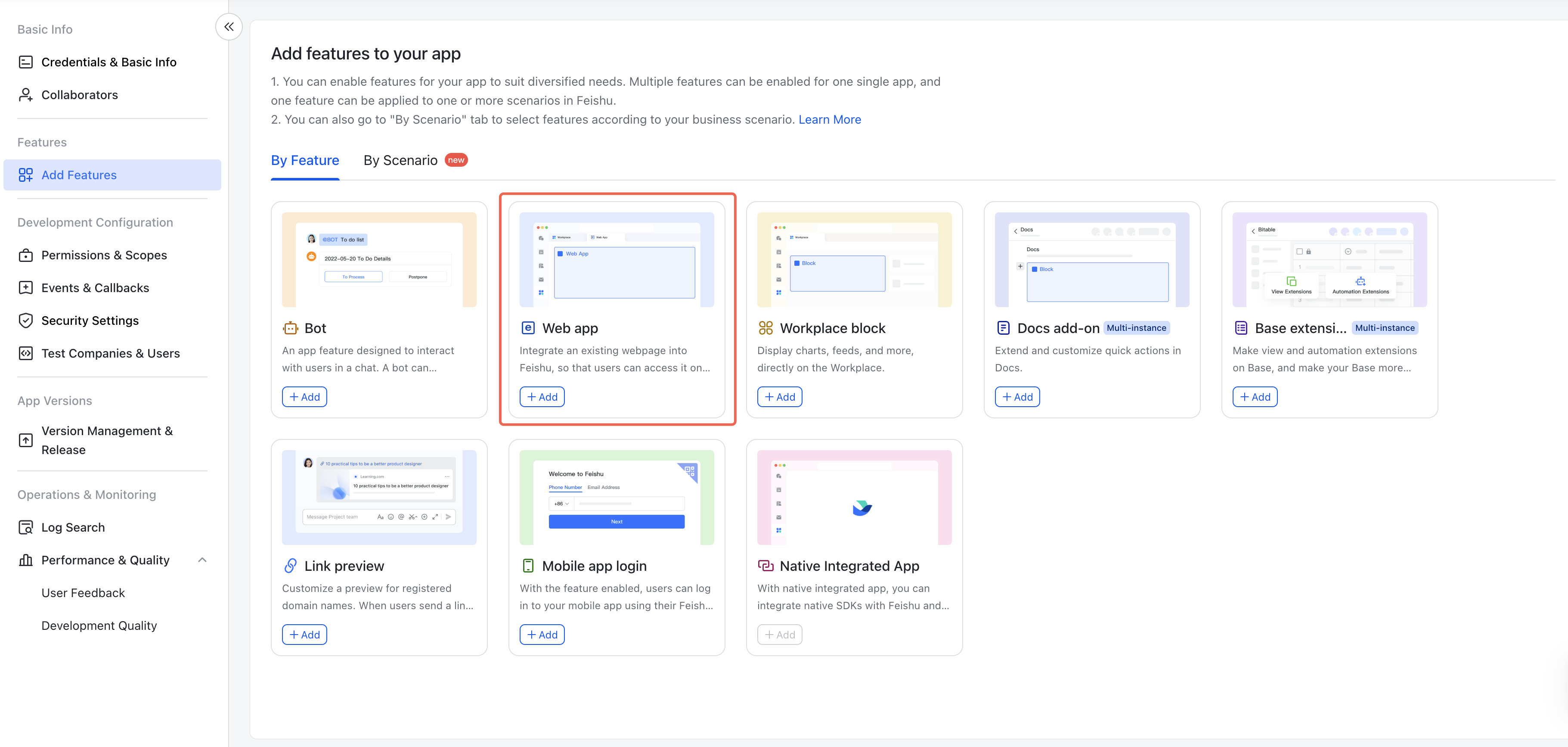
Choose App Capabilities > Add App Capability > Add Web App and paste the Web Login Link obtained from OneID.
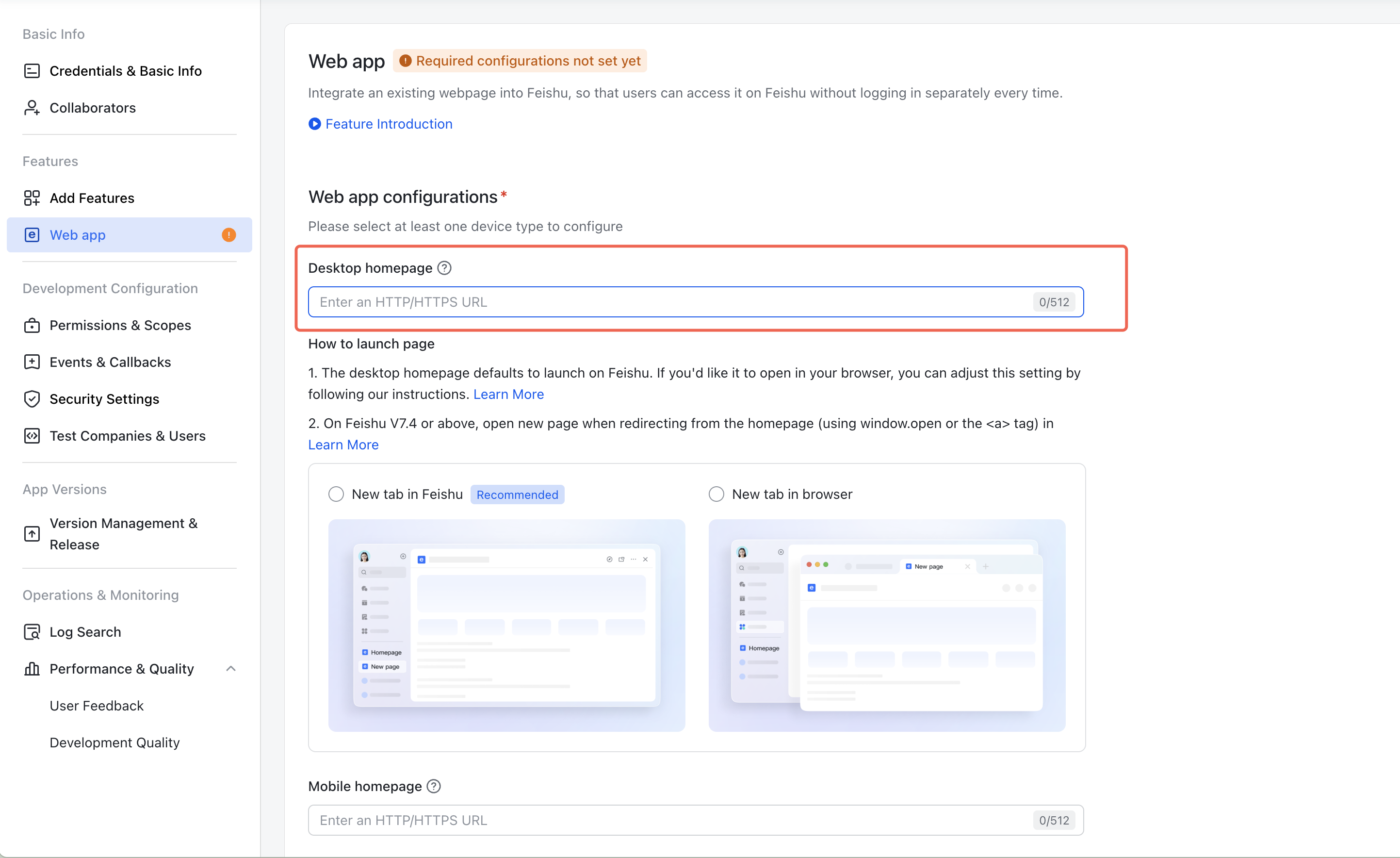
Then, the Feishu app parameter configuration is complete.
Step 6: Completing Workspace Configuration
Go back to the Tencent OneID platform and click Next to go to the Association Rules configuration page. Association Rules consist of two parts: Matching Logic and Unmatching Logic.
Matching Logic
When a user logs in through the Feishu workspace, we first match the user information from the Feishu side with the user information in Tencent OneID.
For example, the default matching logic condition group in Feishu is: When the userid of a Feishu user matches the userid field of a user in Tencent OneID, the system considers them the same person and establishes a matching relationship, and the user then logs in to Tencent OneID.
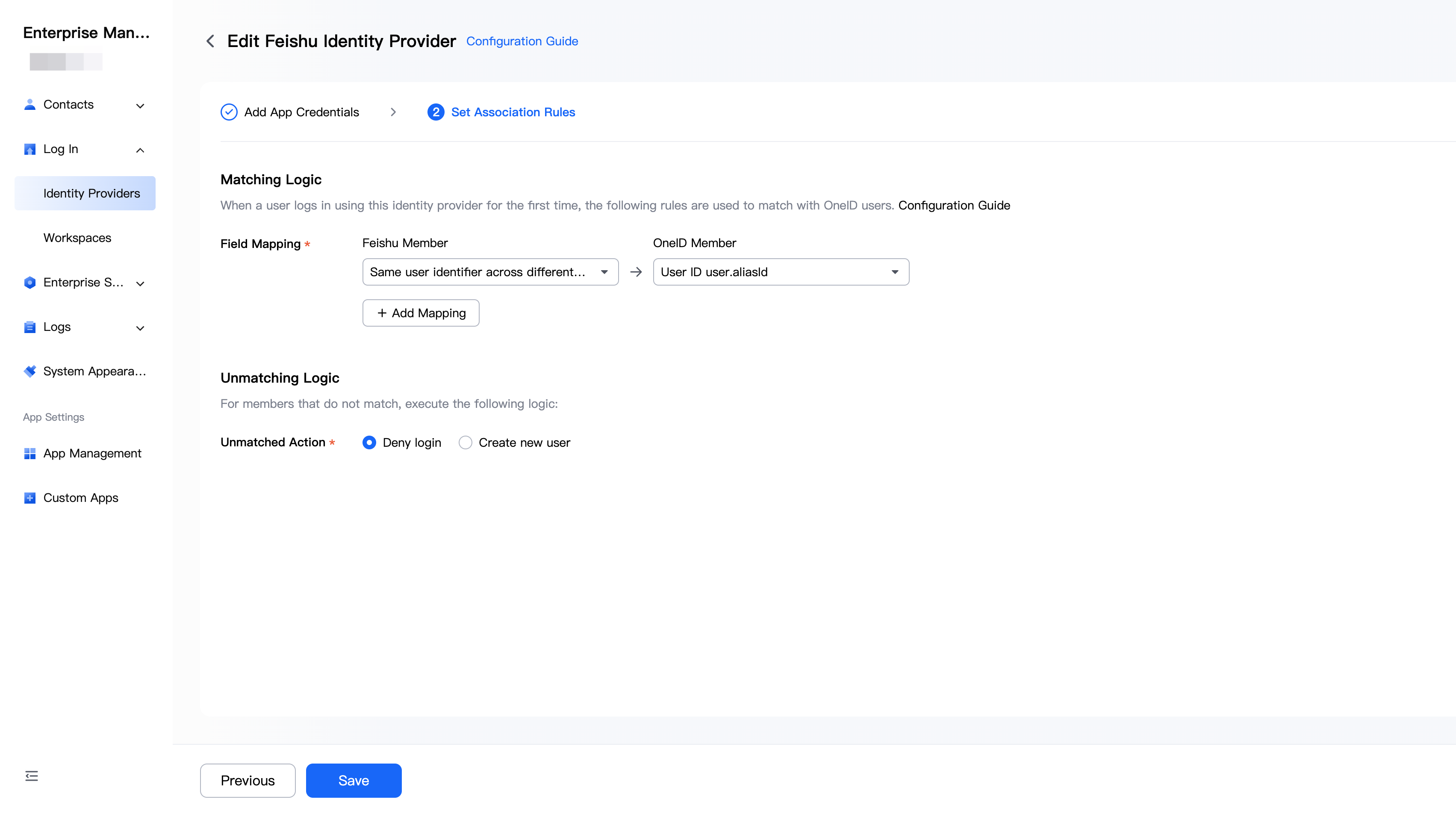
Here, we support creating up to two conditions, and the relationship between these two conditions is OR. (During login, the conditions are executed from top to bottom in the order of the condition groups.) For example, you can configure the following matching logic: When the mobile number field of a Feishu user matches the mobile number field of a user in Tencent OneID, OR when the email field of a Feishu user matches the email field of a user in Tencent OneID, the system considers them the same person and establishes a matching relationship.
Attention:
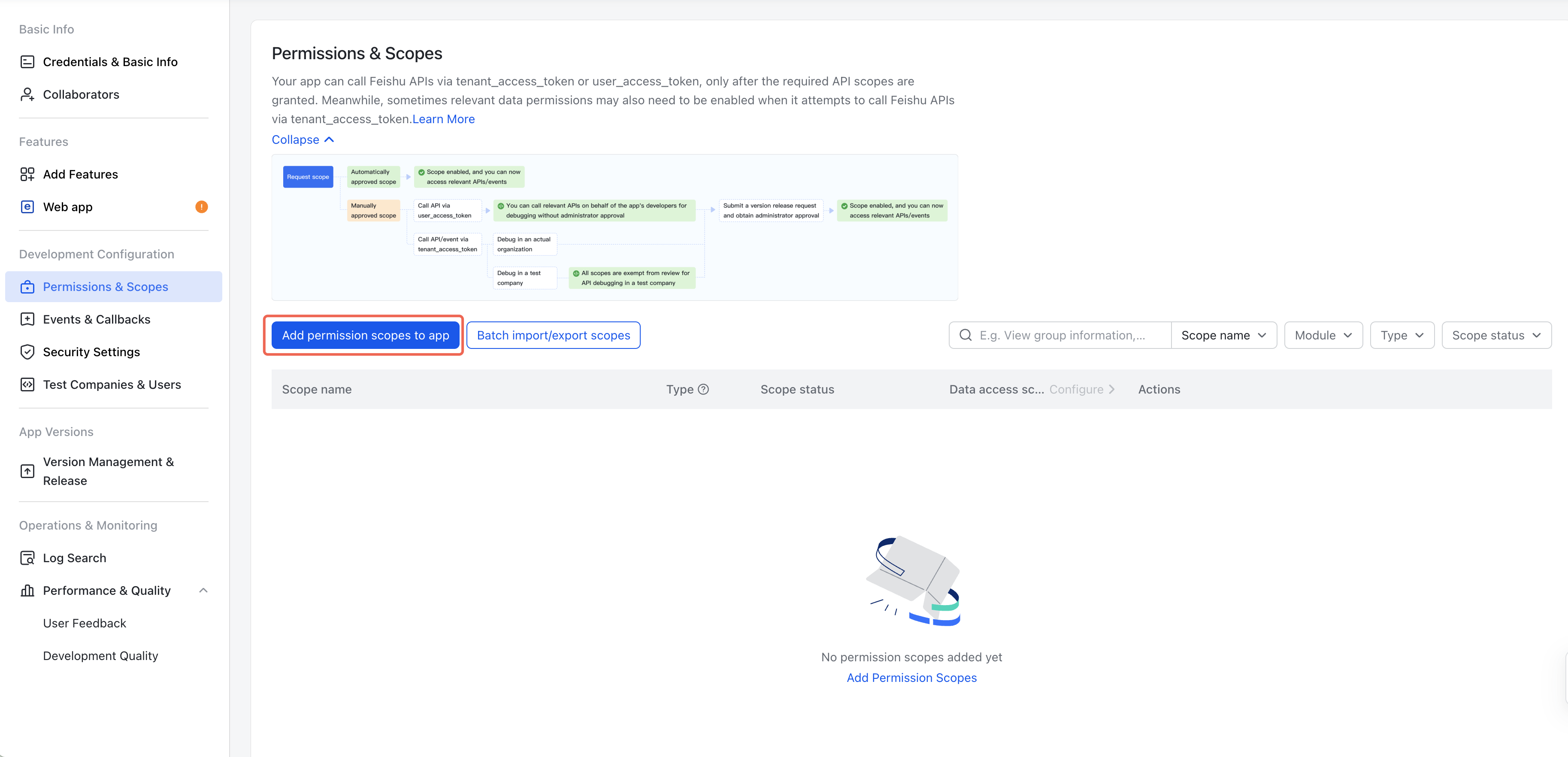
After you select the Feishu conditions here, you need to confirm that the permissions related to these conditions have been granted in the above app.
For example, if you configure the mobile number as a matching condition, the Feishu app must grant the permission to access the mobile number.
Unmatching Logic
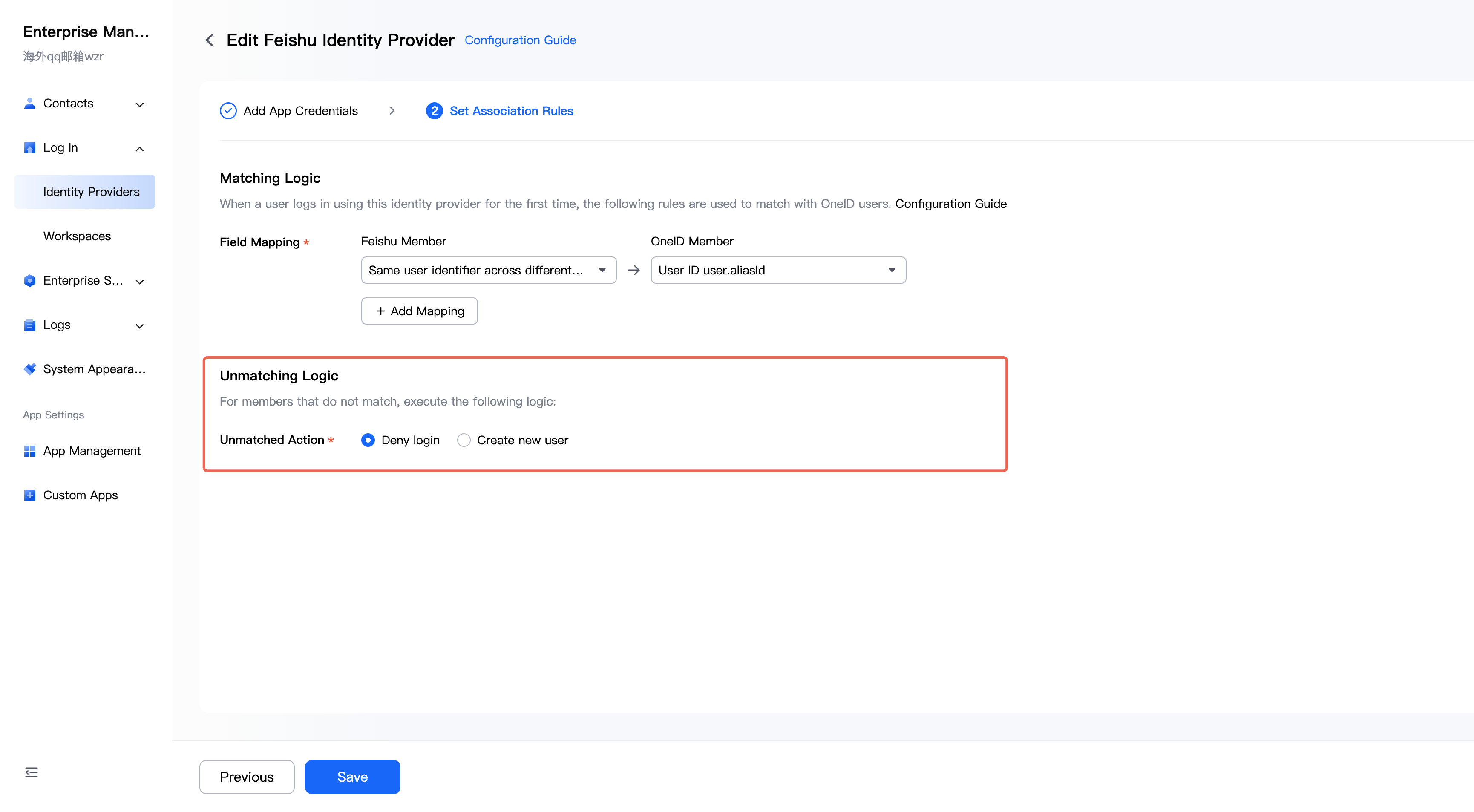
If no matching user is found in Tencent OneID through the Matching Logic when a user logs in, the Unmatching Logic is executed. Here, we support two options:
Deny login
In this case, users for whom no matching user is found in Tencent OneID through the Matching Logic will be directly denied login.
Create a user
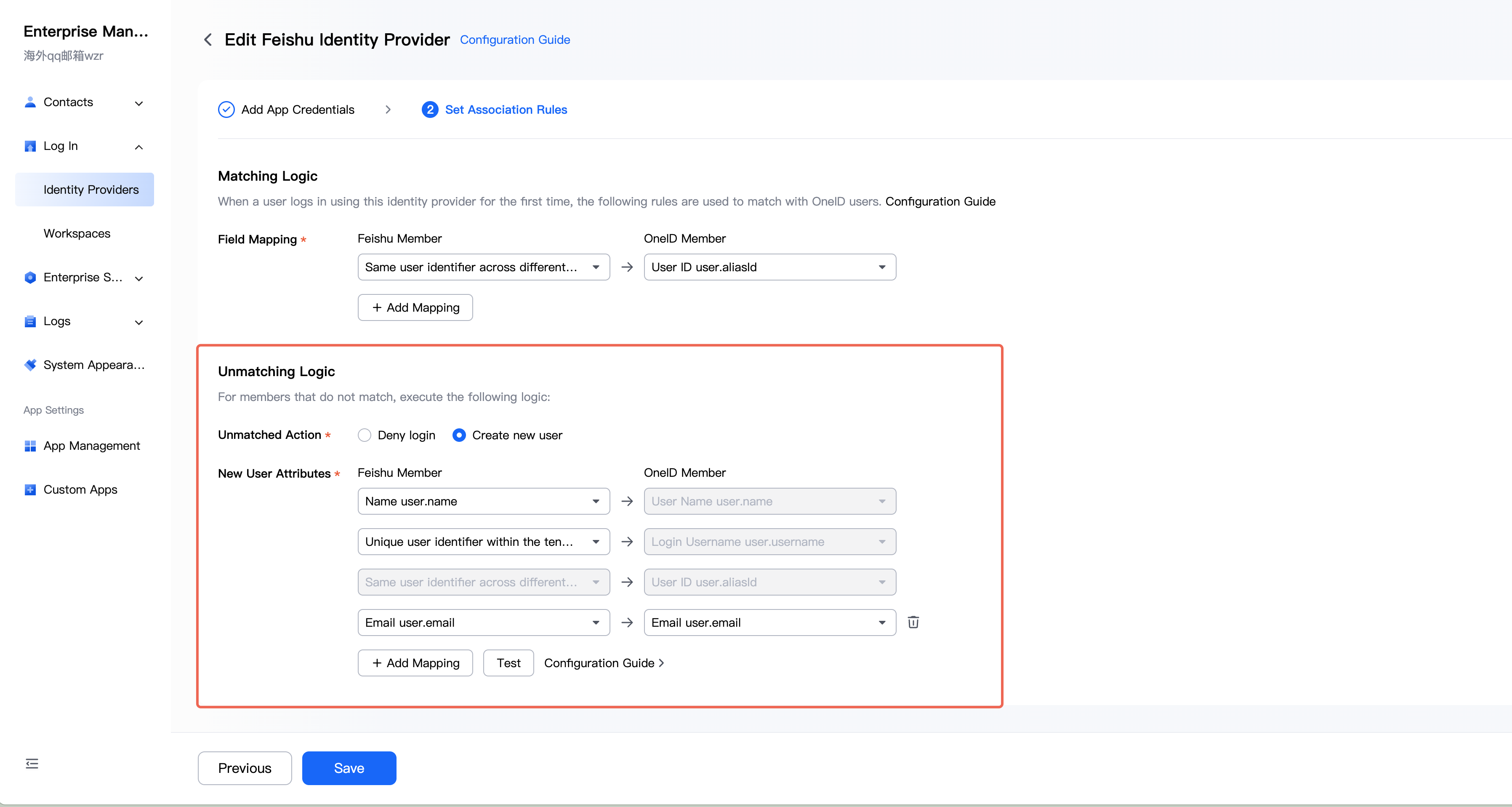
In this case, if no matching user is found in Tencent OneID through the Matching Logic, we will create a user on the Tencent OneID side based on the user creation attribute settings and continue the login process.
Content to be filled in:
Mapping relationship for creating a user
Attention:
When a user is created in Tencent OneID, at least one of the following fields is required: mobile number, email, or login username. Ensure that at least one of these fields has a value on the Feishu side. In addition, the attributes for the new user must include the matching conditions mentioned above. Otherwise, your second login will be affected.
Department of the user to be created
The default user attribute mapping logic from Feishu to Tencent OneID is shown in the following figure. You can also modify it as needed for your business.
Step 7: Enabling the Feishu Workspace and Releasing the Feishu App
If your configuration has been verified, you can click Enable after creation, or go back to the Workspace list page and click Enable for the current Feishu workspace.
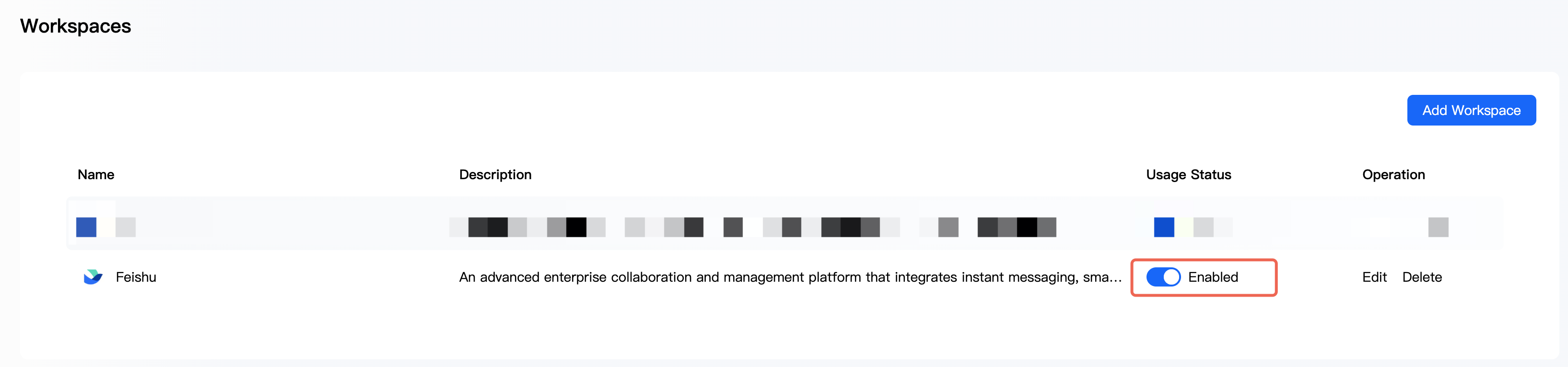
At the same time, you need to release the Feishu app you have created.
Configuration Successful
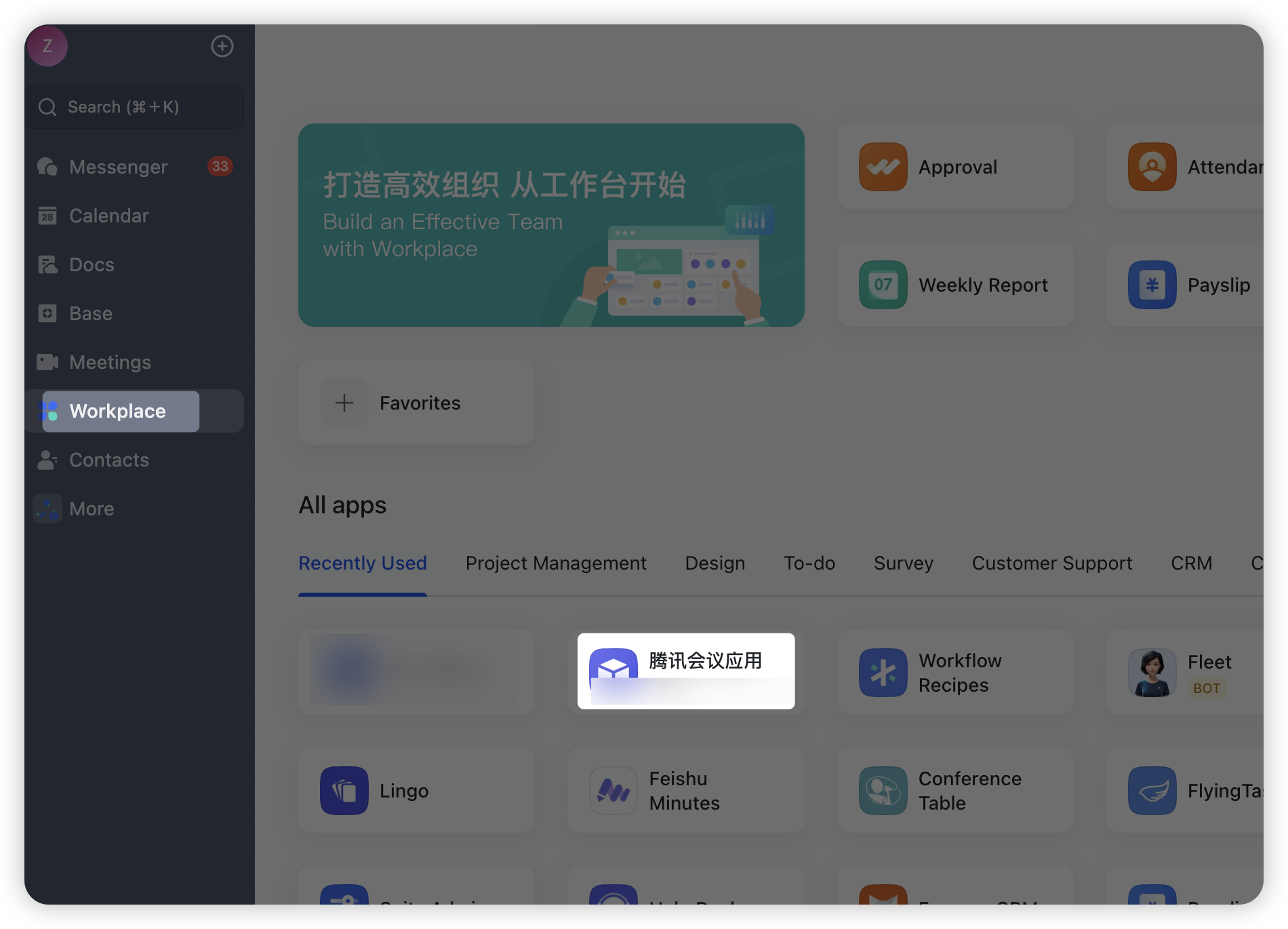
After it is enabled, you can see the app you created in Feishu in the Feishu workspace. Click the app to log in to the corresponding app directly.
Bantuan dan Dukungan
Apakah halaman ini membantu?
Anda juga dapat Menghubungi Penjualan atau Mengirimkan Tiket untuk meminta bantuan.
masukan