Setting SSL Encryption
Unduh
Mode fokus
Ukuran font
SSL Encryption Overview
SSL (Secure Sockets Layer) authentication is a process that authenticates the connection from the client to the cloud database server. It is performed for both users and the server. After you enable SSL encryption, you can obtain a CA certificate and upload it to the server. When the client accesses the database, the SSL protocol will be activated to establish an SSL-based secure channel between the client and the database server to achieve encrypted data transmission. This prevents data interception, tampering, and eavesdropping during transmission and ensures data transmission security for both parties.
The SSL protocol is required to run over a reliable transport layer protocol (such as TCP). SSL is independent of application layer protocols, and high-layer application layer protocols (such as HTTP, FTP, and TELNET) can transparently run over the SSL protocol. The SSL protocol has completed data encryption, communication key negotiation, and server authentication before application layer protocols transmit data. In this way, the data transmitted by application layer protocols is encrypted, which ensures communication privacy.
Background
If encryption is not performed during database access, all data transmitted over the network is in plaintext. As a result, data may be eavesdropped, tampered with, and intercepted by users with malicious purposes. The SSL protocol is designed to address such risks. In theory, it has the following capabilities:
The information is encrypted and cannot be eavesdropped by third parties.
There is a verification mechanism. Once the information is tampered with, both the communicating parties will detect it promptly.
The identity certificate is equipped to prevent identity impersonation.
TencentDB for MySQL supports enabling SSL encryption to enhance link security. It also allows you to download and install the SSL CA certificate to required applications.
Attention:
To ensure the traffic security between the database and the server, SSL encryption does not protect data. You can encrypt network connections at the transport layer to improve communication data security and integrity, but the response time of network connections will increase.
Prerequisites
The instance version is MySQL 5.6/5.7/8.0.
The instance architecture is two-node/three-node.
The storage engine of the instance is InnoDB/RocksDB.
Supported Versions
MySQL uses OpenSSL to implement secure connections. TencentDB for MySQL supports Transport Layer Security (TLS) versions 1.0, 1.1, 1.2, and 1.3. TLS support depends on the MySQL version. The following table lists the MySQL versions that support TLS.
MySQL version | TLS1.0 | TLS1.1 | TLS1.2 | TLS1.3 |
MySQL 5.7 | Not supported | Not supported | Supported | Supported |
MySQL 8.0 | Supported | Supported | Supported | Supported |
Enabling SSL Encryption
1. Log in to the TencentDB for MySQL console. In the instance list, click the Instance ID or Manage in the Operation column to go to the instance management page.
2. On the instance management page, under the Data Security tab, select the SSL tab.
3. This feature is disabled by default. Toggle it to enable, then click OK to enable SSL encryption.
The window for enabling SSL on the primary instance is as follows:
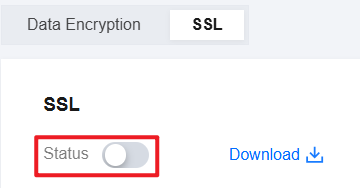
Note:
When you enable SSL encryption, your database instance will be restarted to load the SSL certificate. Make sure that your businesses are configured with a reconnection mechanism.
The interface for enabling SSL on the RO instance is as follows:
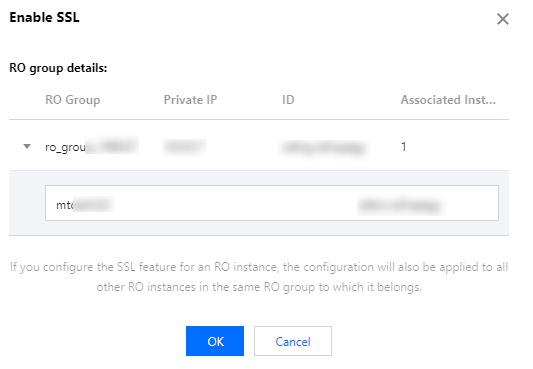
Attention:
Configuring the SSL feature for an RO instance automatically configures other RO instances in the same RO group.
4. Click Download to download the SSL CA certificate, which is valid for 20 years.
The downloaded file is a compressed package (TencentDB-CA-Chain.zip) containing the following three files:
.p7b file: It is used to import the CA certificate to Windows systems.
jsk file: A storage file for truststore and keystore in Java with a unified password of tencentdb, used for importing the CA certificate chain in Java programs.
.pem file: It is used to import the CA certificate to other operating systems or applications.
Configure SSL CA Certificate
After you enable SSL encryption, you need to configure the SSL CA certificate when connecting to the cloud database from a client. The following uses Navicat as an example to describe how to install the SSL CA certificate. For other applications or clients, see the corresponding product documentation.
Note:
Each time SSL encryption is enabled or disabled for TencentDB for MySQL, its certificate is regenerated.
1. Open Navicat.
2. Right-click the target database and select Edit Connection.
3. Select the SSL tab and specify the path to the .pem CA certificate. After completing the settings as shown below, click OK.
Note:
If the "connection is being used" error occurs, it is probably because the previous session is not closed. Close Navicat and try again.
4. Double-click the corresponding database to test if the connection is normal.
Disabling SSL Encryption
1. Log in to the TencentDB for MySQL console. In the instance list, click the Instance ID or Manage in the Operation column to go to the instance management page.
2. On the instance management page, under the Data Security tab, select the SSL tab.
3. Click the switch and then click OK in the dialog box.
Note:
When you disable SSL encryption, your database instance will be restarted to uninstall the SSL certificate. Make sure that your businesses are configured with a reconnection mechanism.
Connect to an SSL-Enabled Instance Using the MySQL Command-Line Client
If the database version you are using is different, the connection command parameters for the MySQL client will vary. You can first query the database version in use with the following command, and then refer to the subsequent steps to connect to the instance.
SELECT VERSION();Query result example:+--------------+| VERSION() |+--------------+| 8.0.30-txsql |+--------------+1 row in set (0.00 sec)
1. Download the SSL CA certificate through the TencentDB for MySQL console. For the operation, see Enabling SSL Encryption.
2. Use the MySQL command-line client to connect to an SSL-enabled instance via command.
Use the MariaDB client to connect to the instance via the following command.
mysql -h <IP address> --ssl-ca=<ca_certificate> --ssl -P <port> -u <username> -p
When the client database version is MySQL 5.6, connect to the instance via the following command.
mysql -P <port> -h <IP address> -u <username> -p<password> --ssl-ca=<ca_certificate>
When the client database version is MySQL 5.7/8.0, connect to the instance via the following command.
mysql -h <IP address> --ssl-ca=<ca_certificate> --ssl-mode=REQUIRED -P <port> -u <username> -p
If you want to use other SSL modes, such as VERIFY_CA or VERIFY_IDENTITY, you need to connect to the instance via the following command.
mysql -h <IP address> --ssl-ca=<ca_certificate> --ssl-mode=VERIFY_CA -P <port> -u <username> -p
Note:
The --ssl-mode parameter indicates the SSL mode. Typically, the REQUIRED and VERIFY_CA modes are recommended. These modes require the MySQL client to connect to the MySQL server using the SSL/TLS protocol and to verify the server's SSL/TLS certificate. The VERIFY_IDENTITY mode, in addition to verifying the server's SSL/TLS certificate, requires the client's hostname to match the identity in the server certificate. Otherwise, the MySQL client rejects the connection to the MySQL server.
3. Enter the password for the corresponding username as prompted by the system.
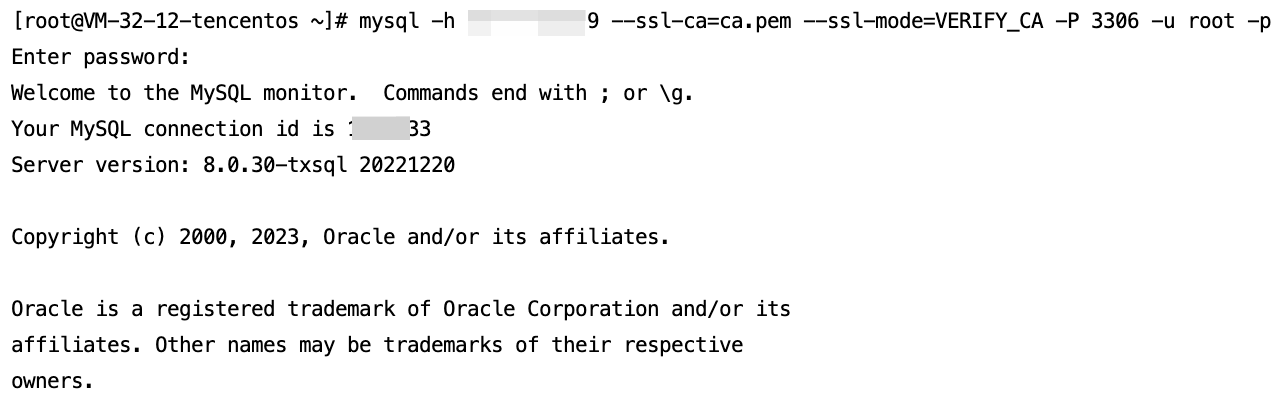
Code Example for Connecting to SSL-Enabled Instances Using Common Programs
PHP
$conn = mysqli_init();mysqli_ssl_set($conn,NULL,NULL, "<downloaded certificate path>", NULL, NULL);mysqli_real_connect($conn, '<database access address>', '<database access username>', '<database access password>', '<specified access database>', <access port>, MYSQLI_CLIENT_SSL | MYSQLI_CLIENT_SSL_DONT_VERIFY_SERVER_CERT);if (mysqli_connect_errno($conn)) {die('Failed to connect to MySQL: '.mysqli_connect_error());}
Note:
The MYSQLI_CLIENT_SSL_DONT_VERIFY_SERVER_CERT flag needs to be added to the code to disable host name verification for the server certificate while retaining the SSL encrypted connection feature. Otherwise, the "certificate mismatch" error may occur.
PHP (Using PDO)
$options = array(PDO::MYSQL_ATTR_SSL_CA => '<downloaded certificate path>');$db = new PDO('mysql:host=<database access address>;port=<access port>;dbname=<specified access database>', '<database access username>', '<database access password>', $options);
Java (MySQL Connector for Java)
# generate truststore and keystore in codeString importCert = " -import "+" -alias mysqlServerCACert "+" -file " + ssl_ca +" -keystore truststore "+" -trustcacerts " +" -storepass password -noprompt ";String genKey = " -genkey -keyalg rsa " +" -alias mysqlClientCertificate -keystore keystore " +" -storepass password123 -keypass password " +" -dname CN=MS ";sun.security.tools.keytool.Main.main(importCert.trim().split("\\\\s+"));sun.security.tools.keytool.Main.main(genKey.trim().split("\\\\s+"));# use the generated keystore and truststoreSystem.setProperty("javax.net.ssl.keyStore","<downloaded certificate path>");System.setProperty("javax.net.ssl.keyStorePassword","tencentdb");System.setProperty("javax.net.ssl.trustStore","<downloaded certificate path>");System.setProperty("javax.net.ssl.trustStorePassword","tencentdb");url = String.format("jdbc:mysql://%s/%s?serverTimezone=UTC&useSSL=true", '<database access address>', '<specified access database>');properties.setProperty("user", '<database access username>');properties.setProperty("password", '<database access password>');conn = DriverManager.getConnection(url, properties);
.NET (MySqlConnector)
var builder = new MySqlConnectionStringBuilder{Server = "<database access address>",UserID = "<database access username>",Password = "<database access password>",Database = "<specified access database>",SslMode = MySqlSslMode.VerifyCA,SslCa = "<downloaded certificate>",};using (var connection = new MySqlConnection(builder.ConnectionString)){connection.Open();}
Python (MySQLConnector Python)
try:conn = mysql.connector.connect(user='<database access username>',password='<database access password>',database='<specified access database>',host='<database access address>',ssl_ca='<downloaded certificate path>')except mysql.connector.Error as err:print(err)
Python (PyMySQL)
conn = pymysql.connect(user='<database access username>',password='<database access password>',database='<specified access database>',host='<database access address>',ssl={'ca': '<downloaded certificate path>'})
Django (PyMySQL)
DATABASES = {'default': {'ENGINE': 'django.db.backends.mysql','NAME': '<specified access database>','USER': '<database access username>','PASSWORD': '<database access password>','HOST': '<database access address>','PORT': '<access port>','OPTIONS': {'ssl': {'ca': '<downloaded certificate path>'}}}}
Node.js
var fs = require('fs');var mysql = require('mysql');const serverCa = [fs.readFileSync("<downloaded certificate path>", "utf8")];var conn=mysql.createConnection({host:"<database access address>",user:"<database access username>",password:"<database access password>",database:"<specified access database>",port:<access port>,ssl: {rejectUnauthorized: true,ca: serverCa}});conn.connect(function(err) {if (err) throw err;});
Golang
rootCertPool := x509.NewCertPool()pem, _ := ioutil.ReadFile("<downloaded certificate path>")if ok := rootCertPool.AppendCertsFromPEM(pem); !ok {log.Fatal("Failed to append PEM.")}mysql.RegisterTLSConfig("custom", &tls.Config{RootCAs: rootCertPool})var connectionString stringconnectionString = fmt.Sprintf("%s:%s@tcp(%s:<access port>)/%s?allowNativePasswords=true&tls=custom","<database access username>" , "<database access password>", "<database access address>", '<specified access database>')db, _ := sql.Open("mysql", connectionString)
Ruby
client = Mysql2::Client.new(:host => '<database access address>',:username => '<database access username>',:password => '<database access password>',:database => '<specified access database>',:sslca => '<downloaded certificate path>')
Bantuan dan Dukungan
Apakah halaman ini membantu?
Anda juga dapat Menghubungi Penjualan atau Mengirimkan Tiket untuk meminta bantuan.
masukan