If normal access traffic is blocked by the WAF rule engine in a production environment, you can add the corresponding rule to the allowlist. After the rule is added to the allowlist, the traffic will no longer be blocked.
Rule Engine
1. Log in to the WAF console, and at the top of the left sidebar, switch the console to the region where the instance is located (Chinese mainland/non-Chinese mainland).
2. In the left sidebar, choose Basic Security.
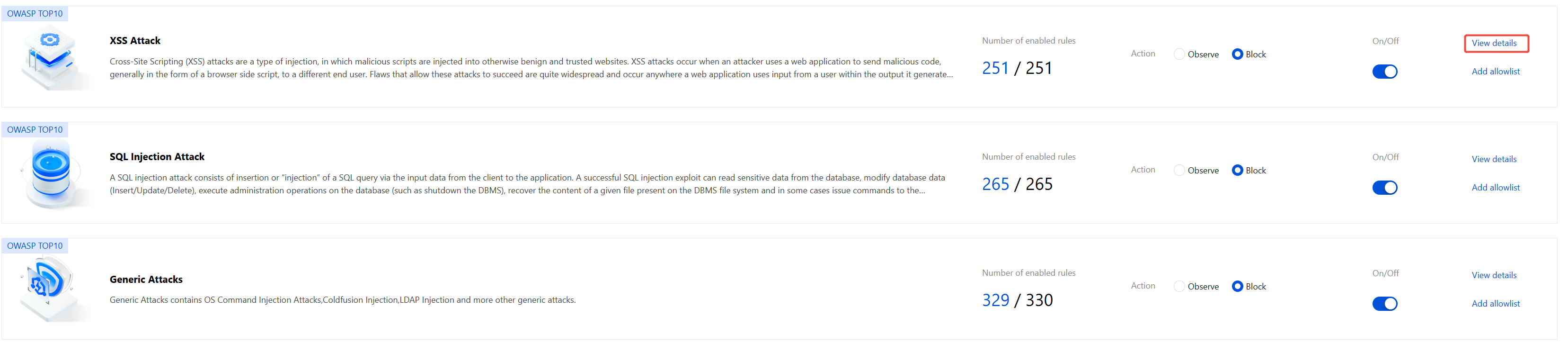
3. On the Basic Security page, select the target domain, and click Web security.
4. Click Add allowlist on the right of the attack type ruleset to navigate to the Add Allowlist page. On this page, configure relevant parameters and click OK.
Field description:
Rule name: Custom rule name, up to 50 characters.
Condition: For detailed field descriptions, see Match Mode Field Description. You can add up to 5 rules.
Allowed module: Supports adding rules to the allowlist by rule type or specific rule ID. On the Rule Engine page, click Add allowlist on the right of the attack type ruleset. By default, the rule type is selected for allowlisting and the attack type is selected, and multiple selections are supported.
Option: You can choose from Permanent, Scheduled Effectiveness, Weekly Granularity Effective or Monthly Granularity Effective.
Enable allowlist: One-click enable/disable of this allowlist rule is supported.
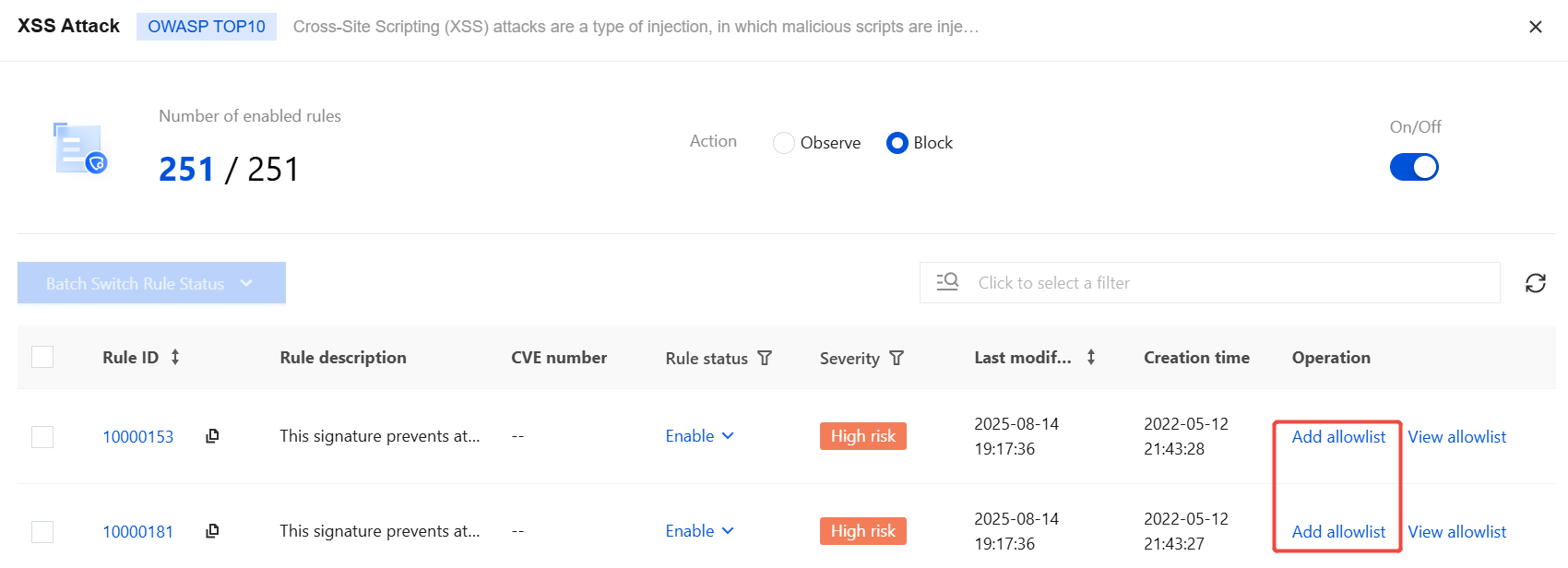
5. Alternatively, click View Details on the right of an attack type. On the ruleset information page, click Add allowlist in the rule operation column to add an allowlist.
6. At this point, the allowlist module defaults to adding rules by specific rule ID, and the rule ID is added by default. You can add multiple rule IDs separated by carriage returns, up to 50.
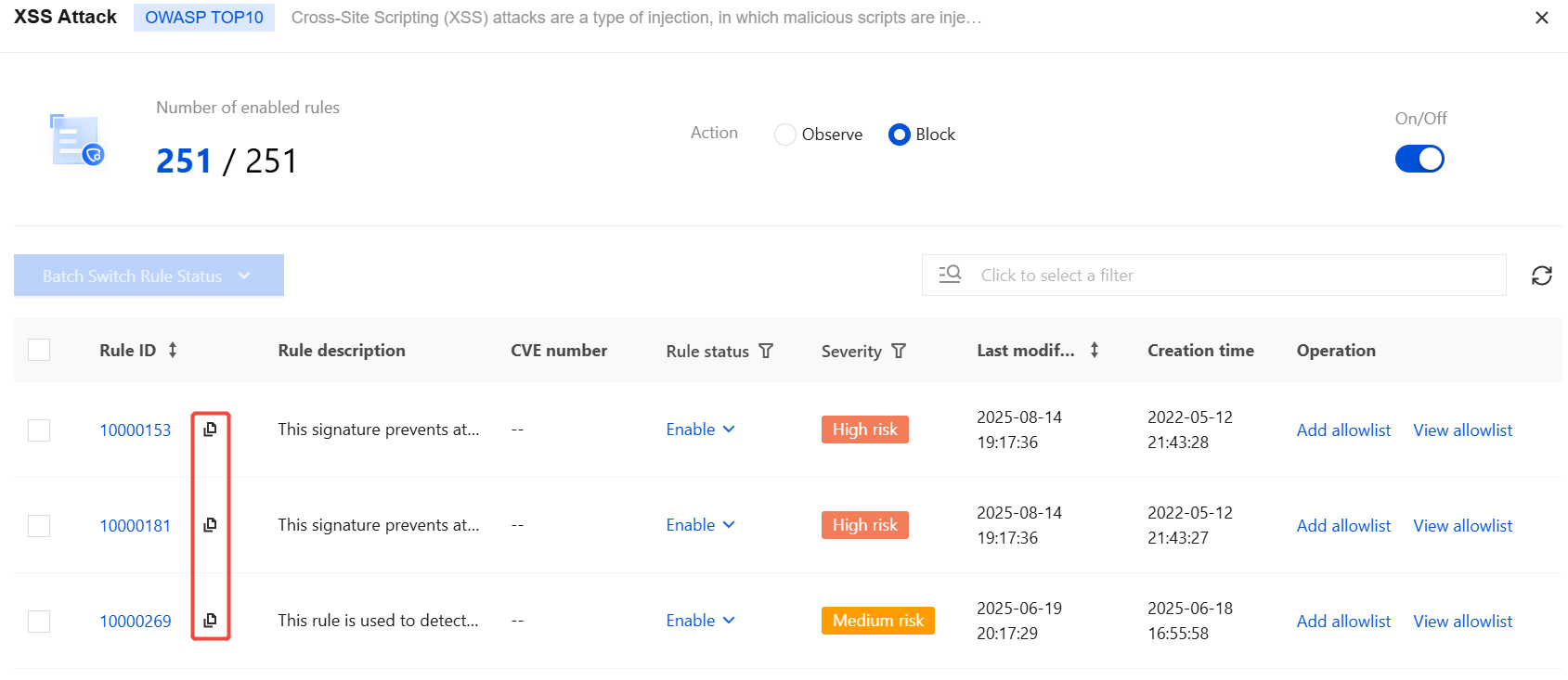
How to obtain a rule ID is as follows:
Method 1:
a. On the Basic Security > WEB Security page, select the attack type ruleset to which the required rule ID belongs, and click View Details.
b. Select the required rule ID and click
.
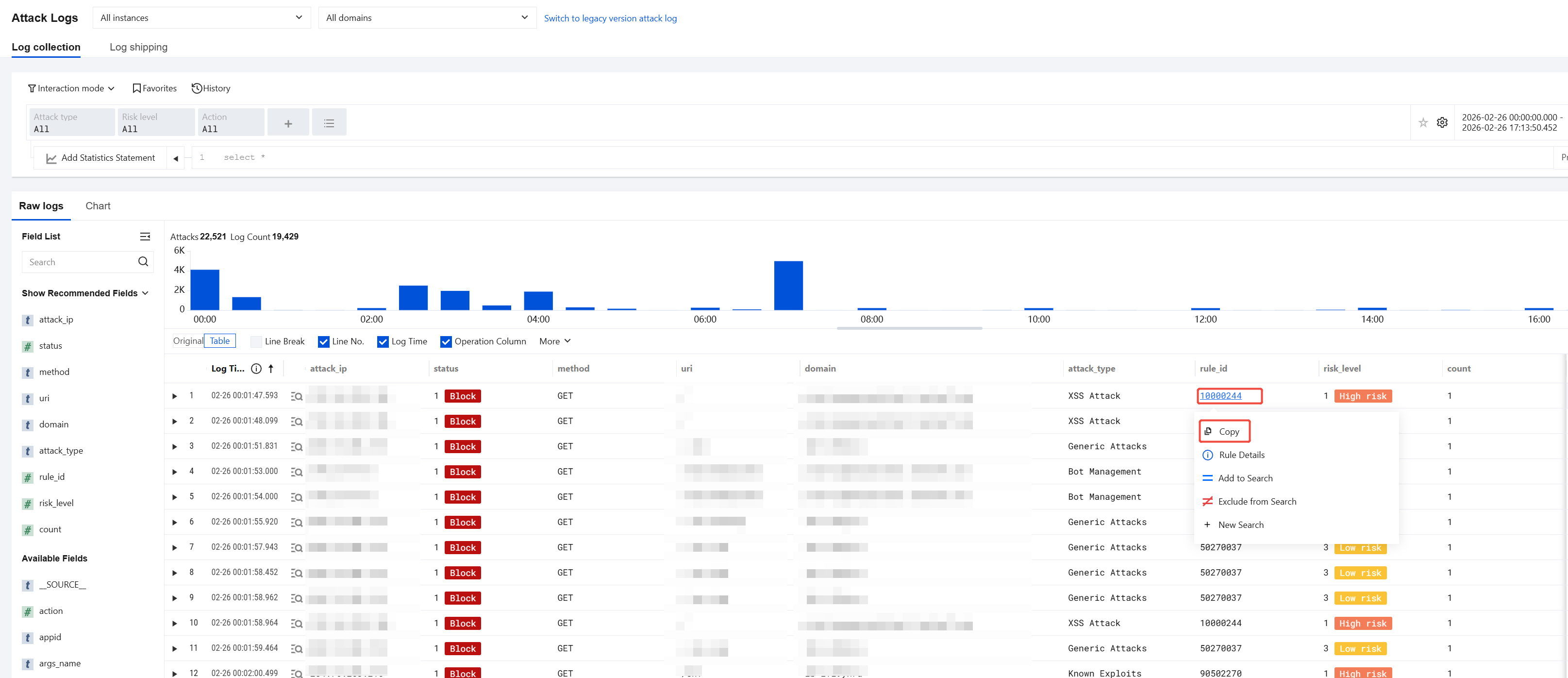
Method 2: On the Attack Logs > Log collection > Raw logs page, click the desired rule_id and select Copy.
Blocklist/Allowlist
1. Log in to the WAF console, and at the top of the left sidebar, switch the console to the region where the instance is located (Chinese mainland/non-Chinese mainland).
2. In the left sidebar, click Blocklist/Allowlist.
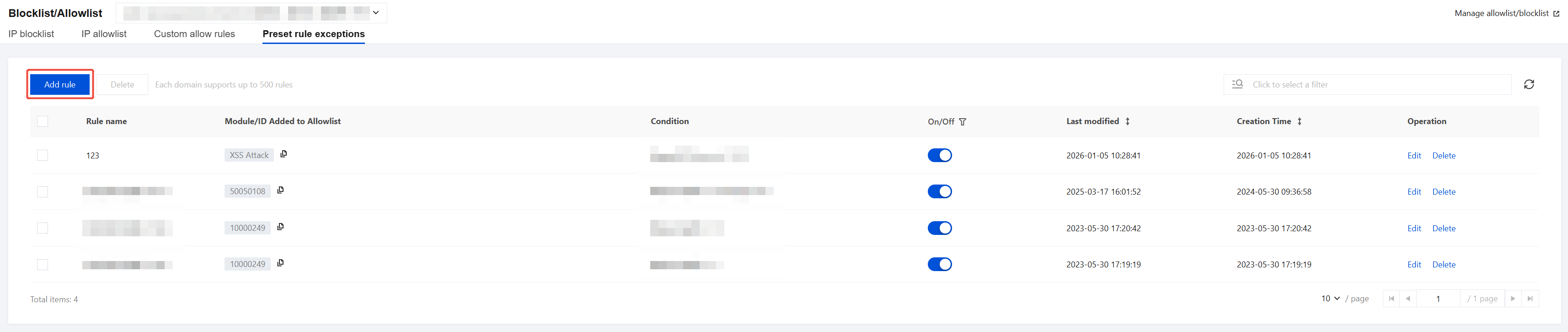
3. On the Blocklist/Allowlist page, select the domain name to be protected in the upper left corner and click Preset rule exceptions.
4. On the rule allowlist page, click Add Rule.
5. In the Add Allowlist dialog box, configure the relevant parameters and click OK.
6. After the allowlist is added, you can view the allowlist rules on the rule allowlist page and perform related operations. You can enable or disable allowlist rules in the rule switch column, edit or delete allowlist rules in the operation column, and delete rules in batches.