SSL Transmission Encryption
ダウンロード
フォーカスモード
フォントサイズ
SSL transmission encryption is used to encrypt data transmitted over JDBC and HTTP access links to the TCHouse-D cluster, enhancing client connection security and meeting security compliance requirements. After you enable it, clients can access the cluster through the encrypted address and download the CA certificate for server identity verification.
Feature Overview
One-click switch: The console provides a cluster-level unified switch for one-click enabling or disabling. Configurations are automatically delivered by the control plane, eliminating the need to manually modify node configurations.
Certificate hosting: TCHouse-D automatically issues and hosts certificates. Issuance, renewal, and rotation are fully automated, requiring no customer intervention.
Multi-channel encryption: Covers both JDBC (MySQL protocol) and HTTP access channels simultaneously.
Note:
1. This feature supports only 4.1 and 3.1 clusters created on or after November 10, 2026. Existing clusters purchased earlier are not supported yet. To use this feature, contact us.
2. The certificate used by the SSL encryption feature is a self-signed certificate issued by TCHouse-D and has not been authenticated by a third-party certificate authority (CA).
Operation Steps
Enabling SSL Transmission Encryption
You can enable SSL transmission encryption in the following two ways. The SSL (Secure Socket Layer) encryption feature encrypts data in transit to enhance the security of client connections or meet security compliance requirements.
After you enable SSL transmission encryption, you can choose whether to use an encrypted or unencrypted connection when connecting to TCHouse-D from a client.
If you disable SSL transmission encryption, only non-SSL connections are supported. Re-enabling it requires restarting the instance. Please proceed with caution.
Method 1: Enabling SSL Transmission Encryption at Purchase
On the purchase page, SSL encryption is enabled by default. You can clear the checkbox to disable this feature.
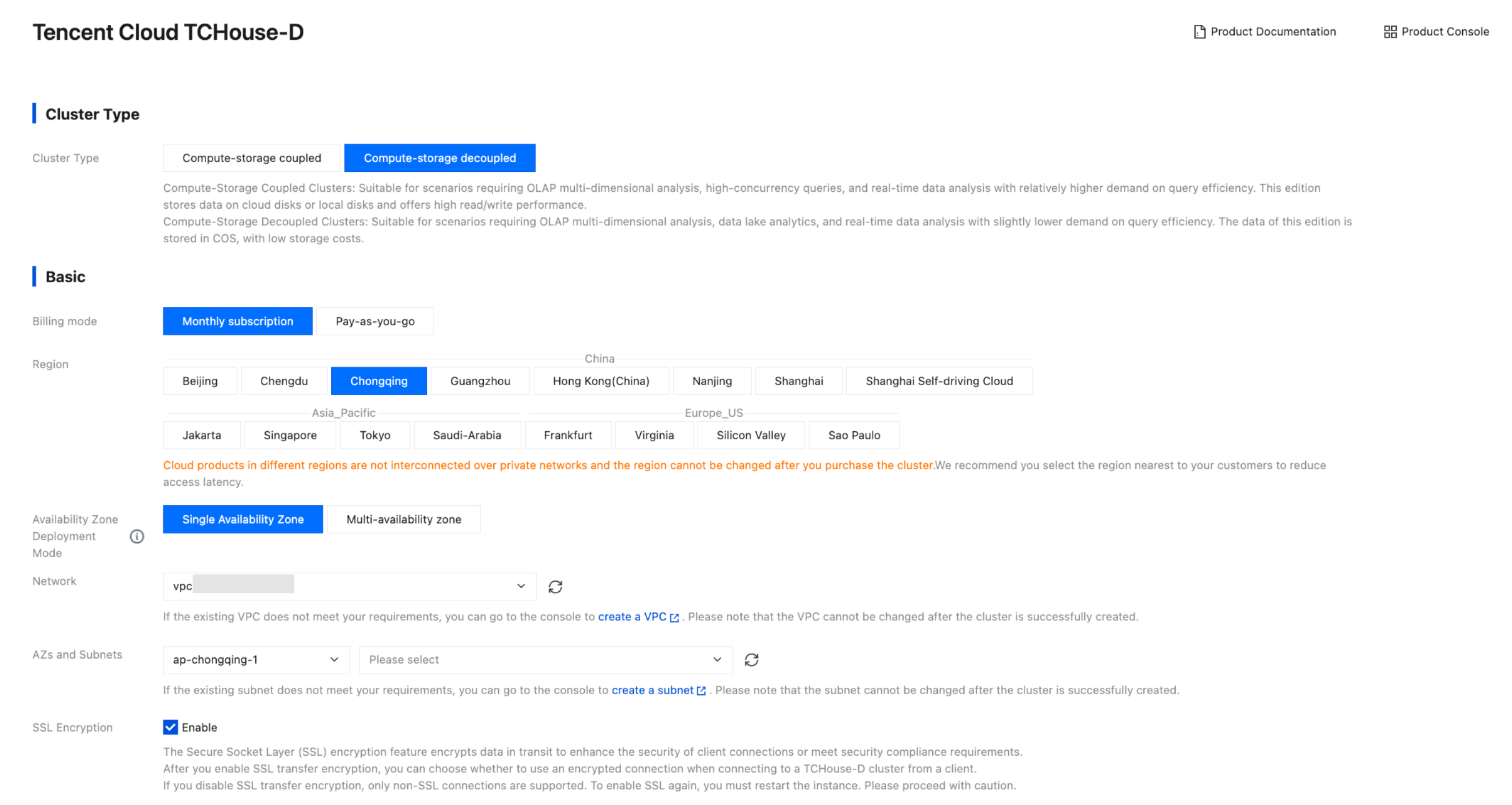
Method 2: Enabling SSL Transmission Encryption for a Purchased Cluster
1. Log in to the Tencent Cloud TCHouse-D console, select the target cluster in the instance list, and go to Cluster Details -> Cluster Information -> Network Information.
2. Click Enable in the SSL encryption row. You can select either rolling restart or immediate restart. After the restart is complete, SSL transmission encryption will be enabled for the cluster. An immediate restart will cause ongoing read and write tasks to fail. A rolling restart may cause ongoing read and write tasks to fail. You are advised to perform the restart during off-peak business hours.
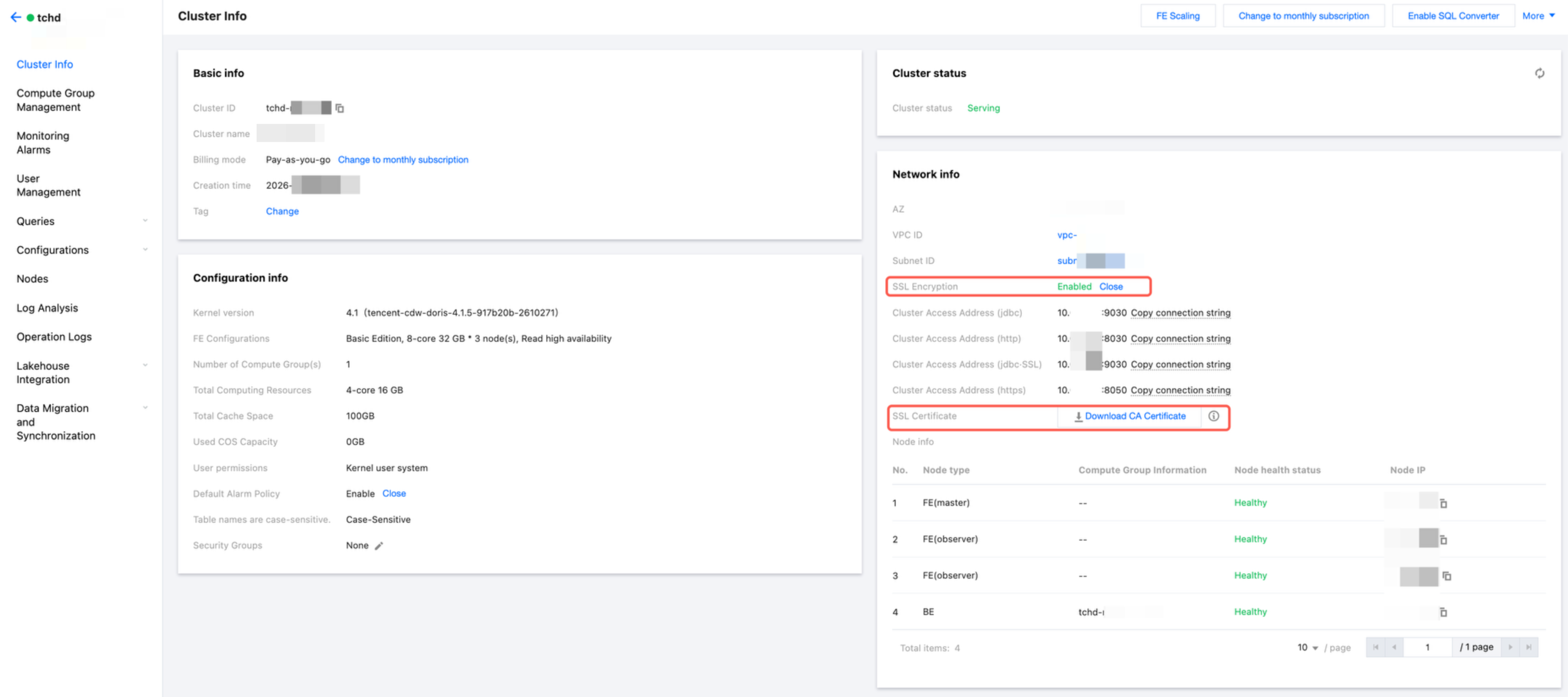
Enabling SSL Transmission Encryption
After it is enabled, SSL encrypted transmission will be enabled for the cluster:
1. The SSL encryption status changes to Enabled.
2. New encrypted access addresses: JDBC over SSL (9030) and HTTPS (8050).
3. You can click to download the CA certificate for client verification.
Disabling SSL Transmission Encryption
To disable SSL encryption and restore plaintext communication:
1. Go to Cluster Details > Network Information, and click Disable on the right side of the SSL encryption row.
2. After confirming the dialog box, select a restart method and click Confirm Disable.
3. After the restart is complete, the cluster is restored to plaintext access only, and the encrypted addresses and certificate download entry are hidden.
Note:
After SSL is disabled, clients that are connected using encrypted addresses will no longer be able to connect. Switch back to plaintext addresses in advance.
FAQs
Q1: Does Enabling SSL Affect Existing Plaintext Connections?
A1: After SSL is enabled, both plaintext and encrypted connections are supported.
Q2: What Should I Do If My Certificate Expires?
A2: TCHouse-D automatically renews and rotates certificates, requiring no customer intervention. If the CA imported in the client truststore changes, download the latest CA certificate and import it again.
フィードバック