Integrated Management
ダウンロード
フォーカスモード
フォントサイズ
Comprehensive Management is the unified entry point for enterprise security-related control switches. It currently provides the AI Assets tab, which is used to manage installation security policies for endpoint AI assets. After a switch is toggled, the policy takes effect on all enterprise endpoints.
Note:
Switches in Comprehensive Management take effect uniformly on all enterprise endpoints, regardless of department or member. To distribute different file, command, and network rules by department or member, use Client Security.
Operation Steps
Step 1: Entering Integrated Management
Log in to the WorkBuddy Enterprise console, go to Security Center > Comprehensive Management in the left sidebar. The AI Assets tab is displayed by default.
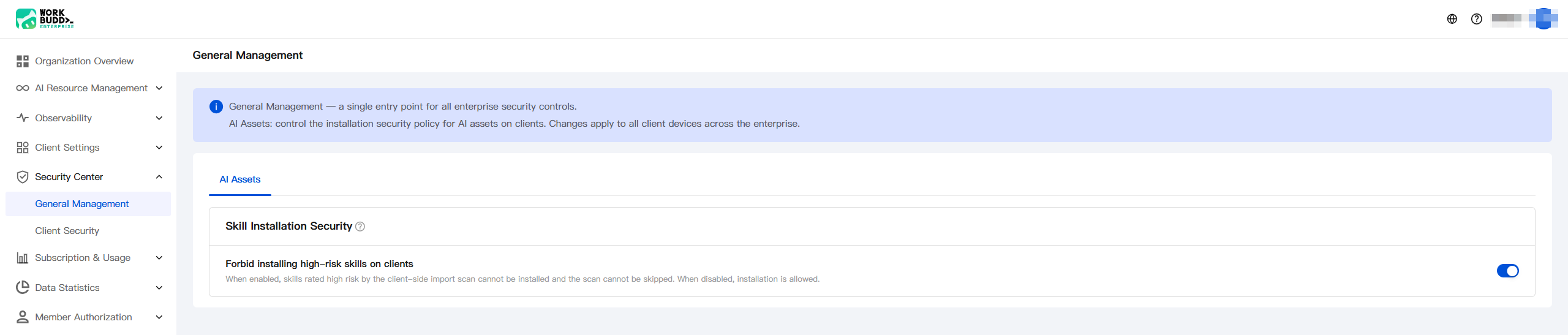
Step 2: Configuring Security for Skill Installation
Skill Installation Security controls member behavior for uploading and importing skills locally, managed through the Block installation of high-risk skills on clients switch.
Switch Status | Description |
Enable | When an on-premises imported skill is determined as high risk by security detection, the "Continue Installation" button is grayed out and disabled, and members can only cancel the installation. The detection cannot be skipped (the "Skip detection and install directly" entry is hidden). Interception records are written to security audit logs. |
Disabled. | Restores the default experience. When detection determines a skill as high risk, members can "Continue Installation" or "Skip detection and install directly". |
Skills whose detection results are medium-low risk or safe are not affected by this switch.
The policy is distributed immediately after the switch is toggled and takes effect on all enterprise endpoints. You do not need to configure the effective scope by department or member.
Note:
Example: A member imports a skill locally on the client, and the security detection determines that the skill is high-risk.
Switch Status | Result Seen by Members |
Enable "prohibit clients from installing high-risk skills". | During the detection process, the "Skip detection and install directly" entry is not visible. On the result page, "Continue Installation" is grayed out, and an orange prompt is displayed: "The enterprise currently prohibits the installation of high-risk skills. If installation is required, contact the enterprise administrator." Only cancellation is allowed. This interception record is written to the security audit log. |
Disable "prohibit clients from installing high-risk skills". | No enterprise policy prompt is displayed. You can choose "Continue Installation" or "Skip Detection and Install Directly". |
Step 3: Disabling Management and Control (If Needed)
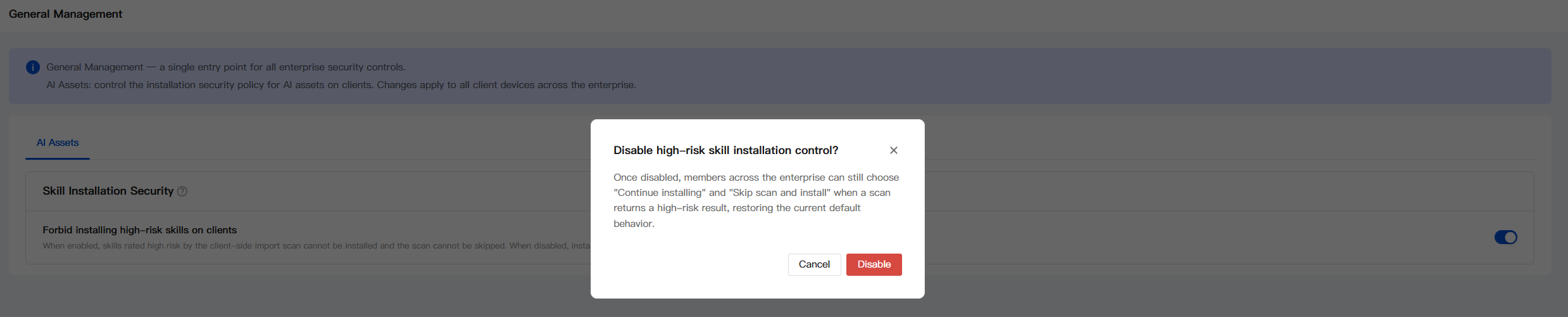
Click the switch to the right of Forbid installing high-risk skills on clients. In the dialog box that appears, asking "Disable high-risk skill installation control?", click Disable.
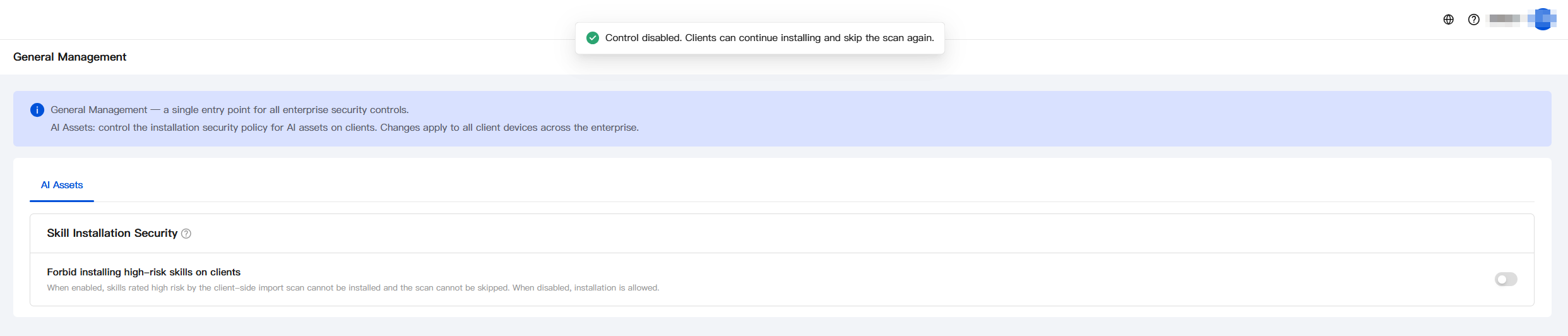
After the switch is disabled, a message appears at the top of the page: "Control disabled. Clients can continue installing and skip the scan again". Toggle the switch on again to restore control.
Attention:
This policy takes effect on all enterprise endpoints. After it is disabled, all members will no longer be blocked when importing high-risk skills. Operate only after confirming that this complies with your enterprise security requirements.
References
フィードバック