Policy Backup and Rollback
다운로드
포커스 모드
폰트 크기
CFW provides the policy backup and rollback feature to ensure the stability and reliability of your network protection policies in response to potential misoperations, policy change requirements, or emergency fault recovery scenarios.
With policy backup and rollback, you can quickly undo recent changes and restore the configurations of Internet Firewall, NAT Firewall, VPC Firewall, Enterprise Security Group, blocked lists, allowlist policies, and address templates to their previously saved states.
Rule Backup
1. Log in to the CFW console. In the left-side navigation, click Common Tool.
2. On the Common Tools page, click Configure now under Back up and roll back rules.
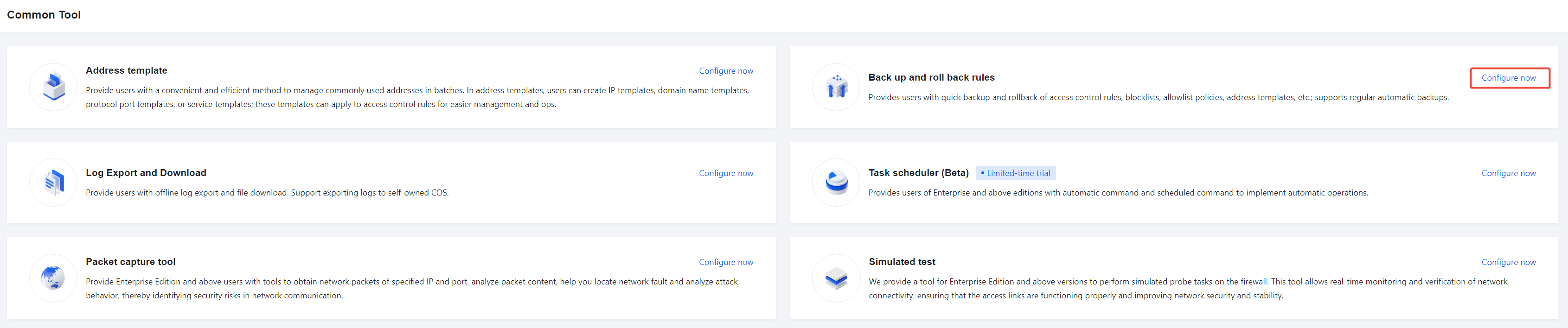
3. In the Back up and roll back rules dialog, you can create backup manually or set up auto-backup.
Note:
Each access control rule list supports only 10 backups, regardless of direction. Each backup includes both inbound and outbound rules.
Backups will not be cleared when the product expires or is reclaimed. When the number of backups reaches the limit, delete older backups first. If auto-backup is enabled, the system automatically removes the earliest backup files.
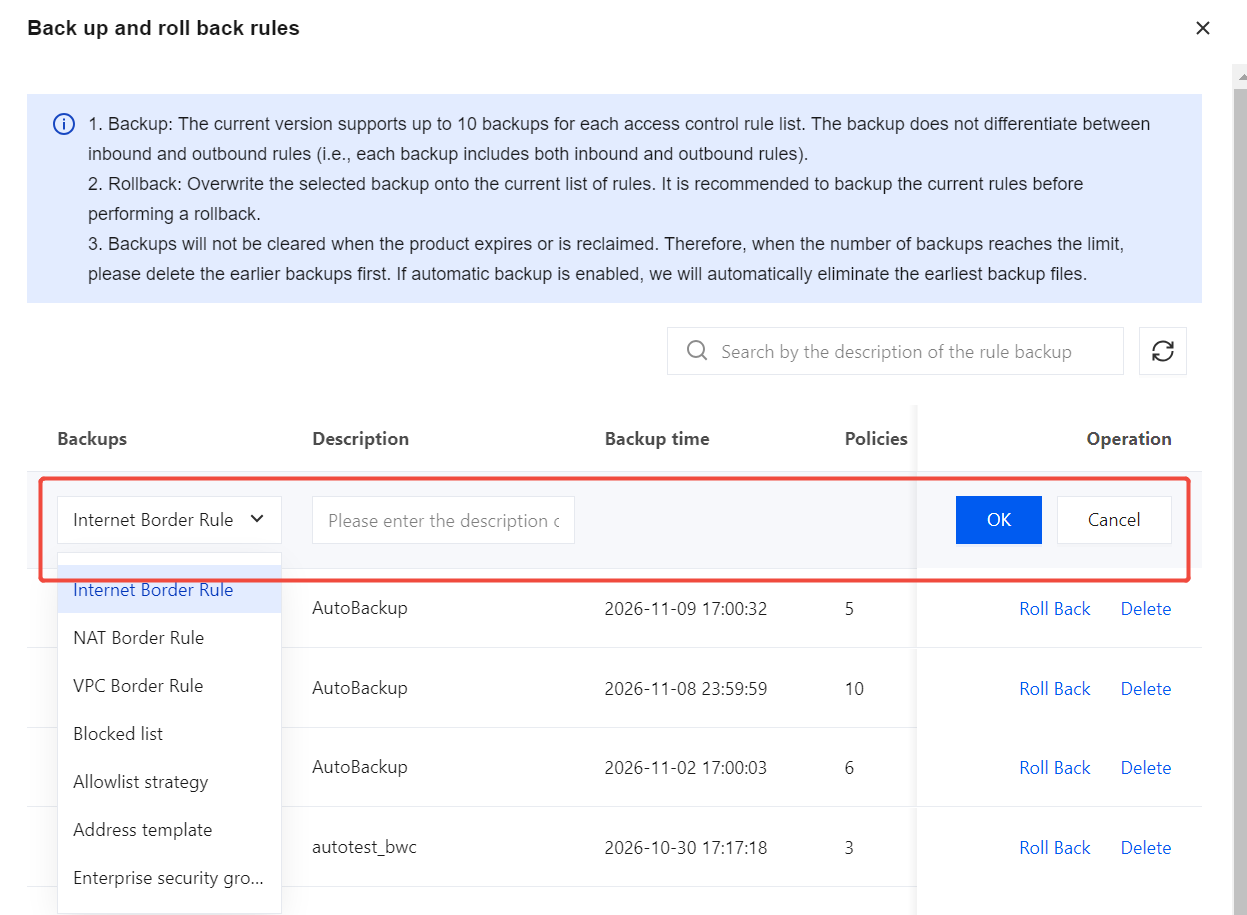
Create backup: Click Create backup, select the rule list to be backed up, enter a Description, and click OK.
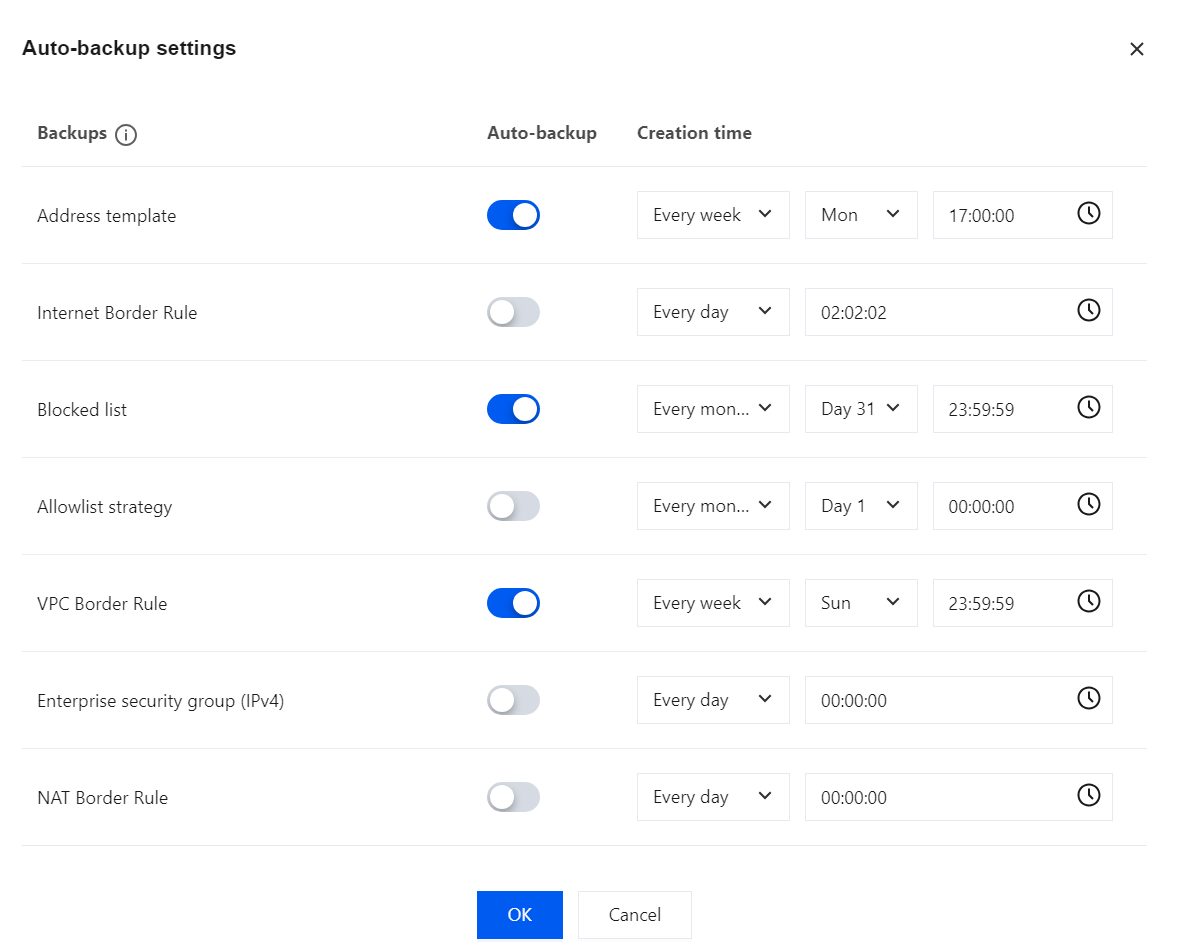
Auto-backup: Click Auto-backup, configure the following parameters, and click OK.
Parameter | Description |
Backups | Display the list of all rules that can be configured for automatic backup (Internet Border Rule, NAT Border Rule, VPC Border Rule, and others). The list is not displayed when it is empty. |
Auto-backup | When it is enabled, automatic backups will be performed at the scheduled time. When it is disabled, automatic backups will no longer be performed. |
Creation time | Set the execution cycle and specific time for automatic backups. The following three cycle types are supported: Every day: Select the specific time to perform daily backups. Every week: Select a specific day from Monday to Sunday and set the backup execution time. Every month: Select a specific day from the 1st to the 31st and set the backup execution time. Note: When monthly backup is selected, if the chosen date exceeds the actual number of days in that month (for example, selecting the 31st when there are only 30 days), the backup will be performed on the last day of that month. |
Backup Management
1. In the policy backup and rollback dialog, select the rule list to be managed, or enter a description in the search box on the right to search.
2. Select a backed-up rule and perform a Roll Back or Delete as needed.
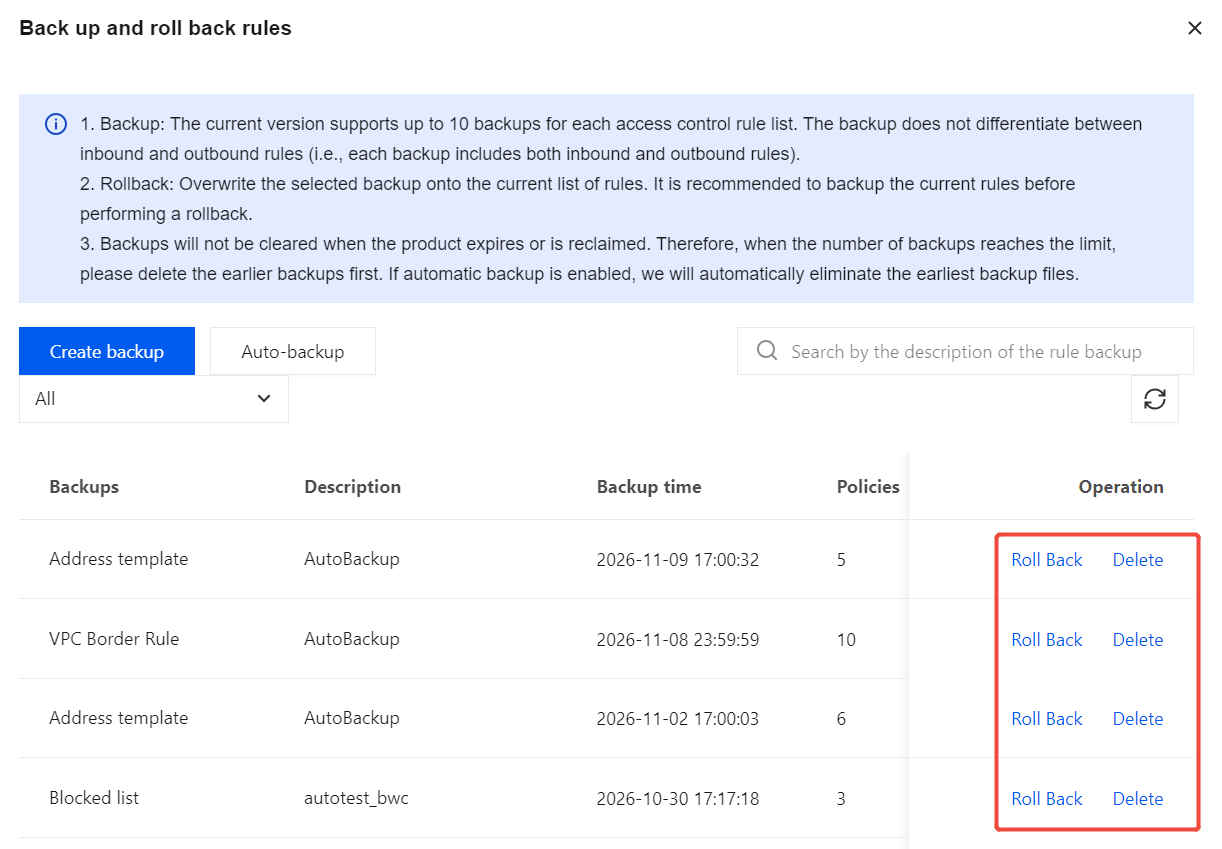
Roll back: Click Roll back in the operation column of the target backup, and then click OK in the confirmation dialog to roll back the backed-up rules and overwrite the current rule list.
Note:
Rule rollback will overwrite the corresponding rule list, and existing policies will be deleted. To ensure data security, it is recommended to back up the current rule list first.
To delete a backup, click Delete in the operation column of the target backup, and then click OK in the confirmation dialog to delete the backed-up rule.
Note:
Once rule backups are deleted, they cannot be retrieved or restored. Please proceed with caution.
Related Information
피드백