The Tencent Cloud TCHouse-D Console provides a visual interface for convenient and efficient account and privilege management of clusters.
Account Management
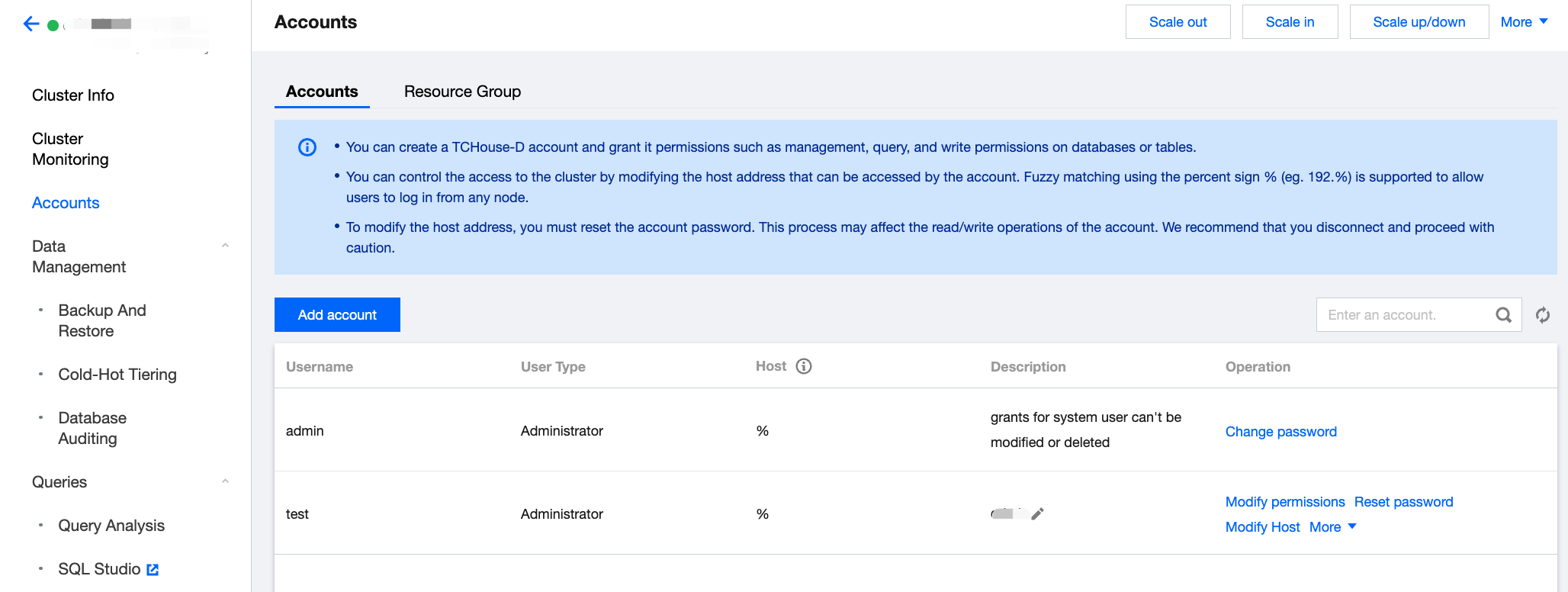
1. Log in to Tencent Cloud TCHouse-D Console, click the target Cluster ID/Name and you can find the Accounts menu in the left list.
2. The Accounts page provides features for adding/deleting accounts, modifying privileges, resetting passwords.
Adding Account
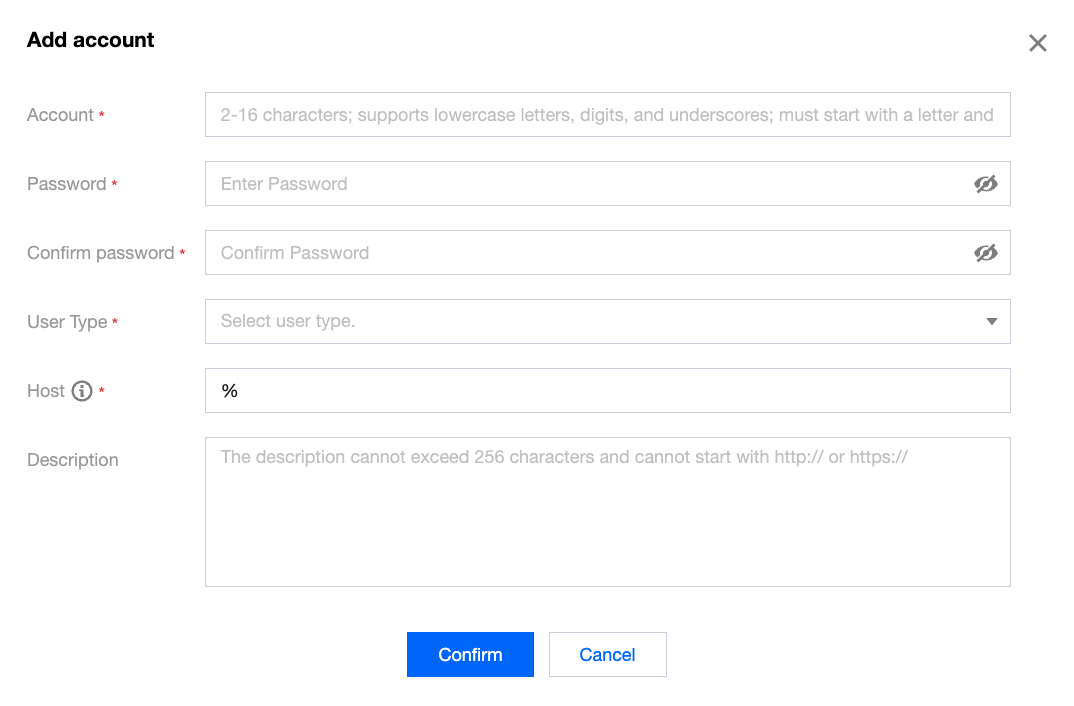
1. Click the Add Account button, fill in the account name, password, host, and description (optional), and click OK to add the account.
2. By default, new users have only read privileges for the information_schema library and its tables.
3. User type: You can select Administrator or Regular User. The administrator has access to all databases and tables without additional authorization.
4. Host: Specify one IP address or fill in % to indicate no limit.
Deleting Account
Deletion is irreversible. Please confirm that this account will not be used in the future before deleting.
After deletion, even if you immediately add an account with the same name, the privileges will be initialized.
Resetting Password
Tencent Cloud TCHouse-D does not allow viewing existing account password, only allows password resets through the console.
If you forget your password, suggest the following actions:
If you forget the Admin account password, please submit a ticket to Contact Us to reset the password.
Forget the sub-account password? Reset through the console.
Permission Management
Note:
The user-level batch permission modification feature will go offline on November 9, 2026.
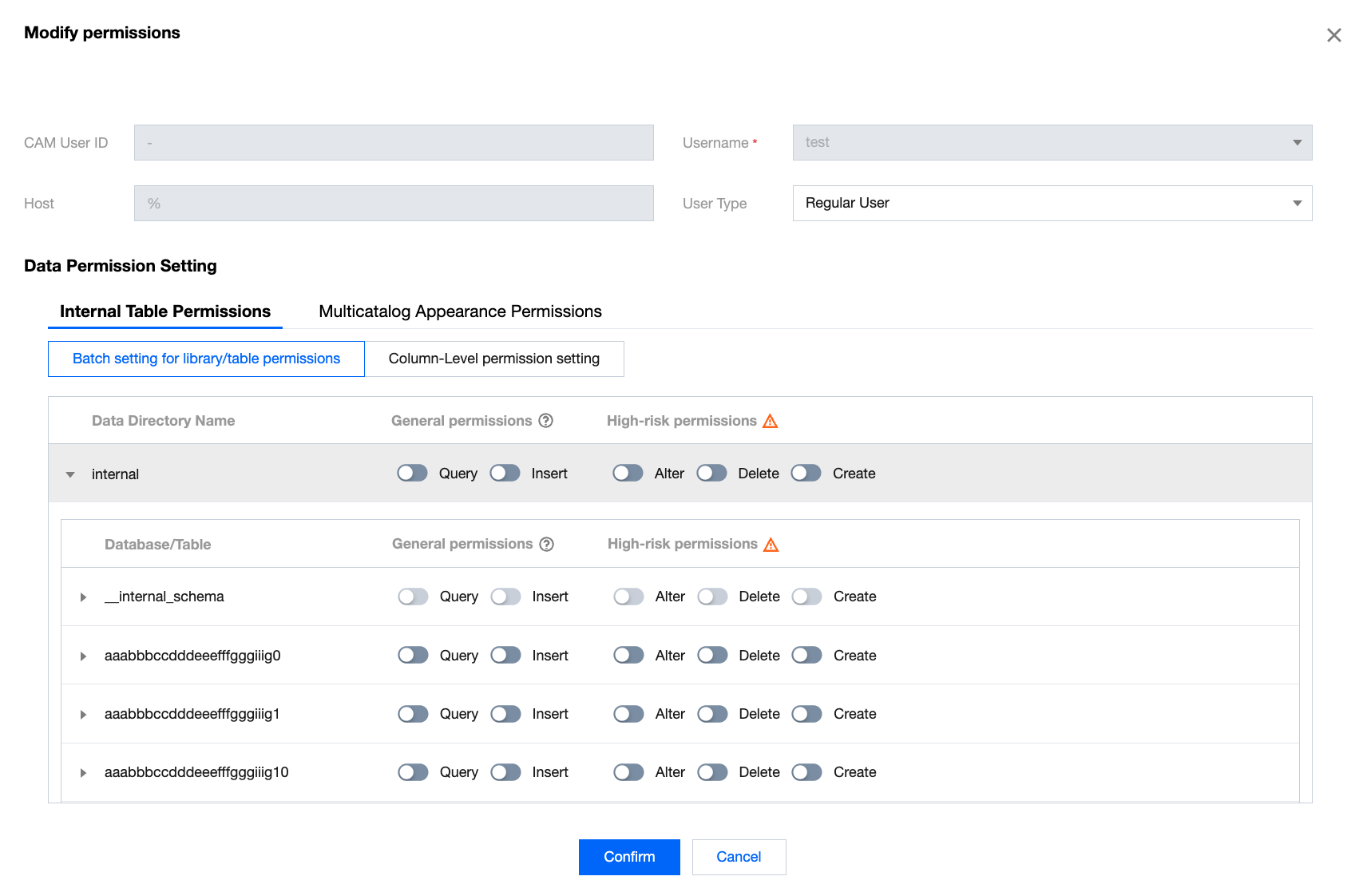
Click Modify permissions in the list of users to enter the privilege modification window. Grant the internal table and Multicatalog permissions to regular user accounts. This window can also be used to View permissions.
The administrator has access to all databases and tables by default, without additional authorization.
Internal Table Permissions - Batch Settings for Database/Table Permissions:
You can choose to set internal level permissions in batch: Once the internal level permissions are authorized, the user will have access to all databases and tables under internal.
You can choose to set database-level permissions in batch: Authorize multiple databases at the same time.
You can choose to set table-level permissions in batch: Authorize multiple tables at the same time.
After selecting a specific table, you can grant additional Select permissions for specified fields in this table.
Note: Table-level permissions and column-level permissions will overlay. For example, if User 1 does not have permission for Table A, you can grant Select permission for specific columns of Table A to the user.
Multicatalog external table permissions
Authorization
Authorization scope: Supports granting cluster management privileges, or global, data catalog, database/table privileges.
Granting cluster management privileges:
Once this privilege is activated, it grants the user cluster management privileges (Admin_priv), including query, insertion, modification, deletion, and creation within global scope.
Granting global, data catalog, database/table privileges:
Granting global privileges: Authorization will be effective globally.
Granting data catalog privileges: Authorization will apply to all databases and tables under the data catalog.
Granting database/table privileges: You can specify databases and tables for authorization.
Note:
For external data sources with normal connectivity, we support granting query privileges to the corresponding catalog.
Privilege Category
For internal data sources (internal), the privileges available include standard and high-risk privileges, as categorized below:
Standard privileges:
Query: Read-only privilege (Select) for databases and tables.
Insertion: Write privilege (Load, Insert, Delete) for databases and tables.
High-risk privileges:
Modify: Privilege to alter database tables, including renaming databases/tables, adding/deleting/changing columns, adding/deleting partitions, etc. (Alter).
Delete: Privilege to delete databases, tables, and views (Drop).
Create: Privilege to create databases, tables, and views (Create).
For external data sources (multi-catalog), only query privileges are supported.
Modifying Access Host Address
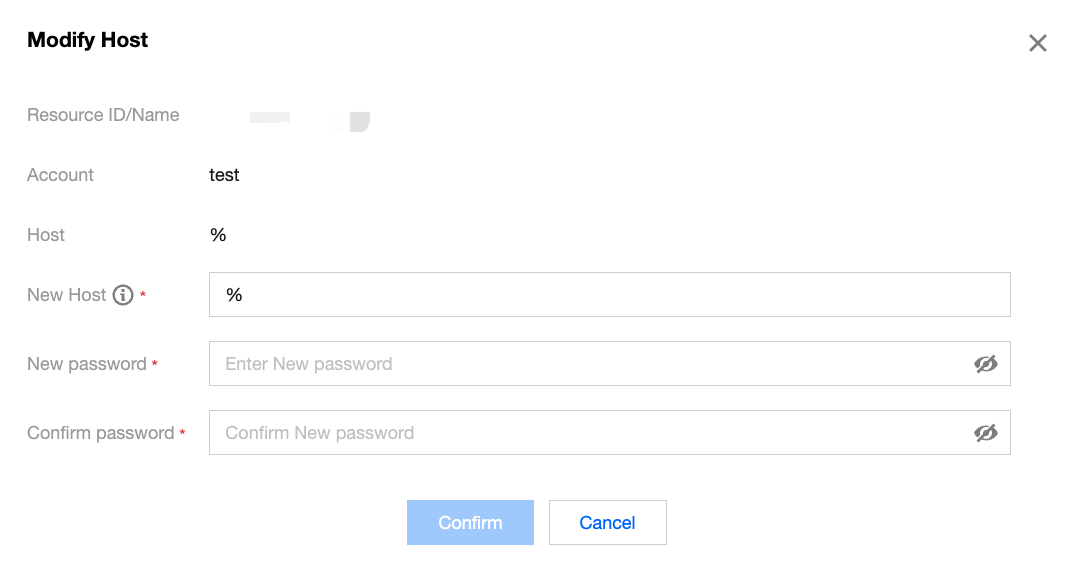
You can use the console settings to modify the host address authorized for the account to control access to the cluster and thereby enhance cluster security.
Note:
Modifying the host address is not supported for the admin account.
Setting Host
When creating an account, you need to set a host (default is %). It supports specifying one IP address and also supports filling in % to indicate no limit.
Allows for the creation of accounts with the same name but different hosts; privileges, and passwords are independent of each other.
Note:
Supports % fuzzy matching (for example, "192.%"), where "%" means that users are allowed to log in from any node.
Modifying Host
Modifying the host address requires resetting the account password. During the modification process, the read and write access of this account may be affected. Recommend disconnecting and proceed with caution.