Quick Start (Android)
다운로드
포커스 모드
폰트 크기
This guide walks you through building a basic live streaming app featuring host broadcasting and audience viewing, using the core AtomicLiveView component from the AtomicXCore SDK. You'll also use AtomicPusher for host streaming and AtomicPlayer for audience playback.
Key Features
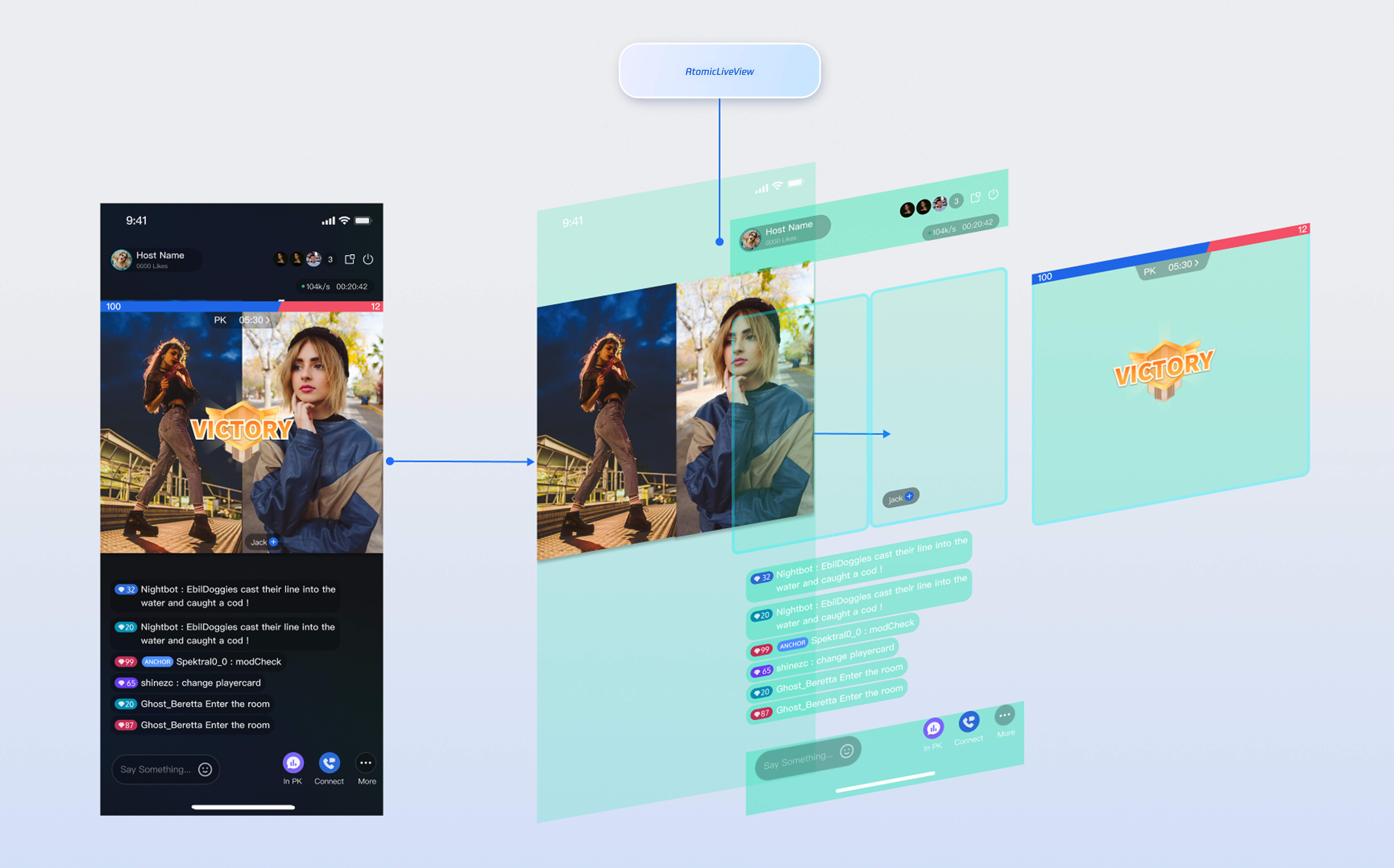
AtomicLiveView is a lightweight
View component purpose-built for live streaming, acting as the canvas for your live video interface. On the host side, AtomicPusher manages local audio/video capture and streaming. On the audience side, AtomicPlayer handles stream playback. Both use setView to render video onto the same AtomicLiveView. You only need to focus on building your UI and interaction logic.The diagram below shows where AtomicLiveView fits within the live streaming interface:
Prerequisites
Step 1: Activate Service
Step 2: Import AtomicXCore
Install the component by adding
implementation 'io.trtc.uikit:atomicxcore:latest' to your build.gradle file, then sync your Gradle project.implementation("io.trtc.uikit:atomicx-core:latest.release")api("com.tencent.imsdk:imsdk-plus:9.1.7818")
implementation 'io.trtc.uikit:atomicx-core:latest.release'api "com.tencent.imsdk:imsdk-plus:9.1.7818"
Step 3: Implement Login
Call
LoginStore.shared.login in your project to complete login. This step is required before using any feature in AtomicXCore.Important:
Call
LoginStore.shared.login only after your app's own user account login succeeds. This ensures clear and consistent login logic.import android.os.Bundleimport androidx.appcompat.app.AppCompatActivityimport io.trtc.tuikit.atomicxcore.api.login.LoginStoreimport io.trtc.tuikit.atomicxcore.api.CompletionHandlerimport android.util.Logclass MainActivity : AppCompatActivity() {override fun onCreate(savedInstanceState: Bundle?) {super.onCreate(savedInstanceState)LoginStore.shared.login(this, // context1400000001, // Replace with your SDKAppID"test_001", // Replace with your UserID"xxxxxxxxxxx", // Replace with your UserSigobject : CompletionHandler {override fun onSuccess() {// Login succeededLog.d("Login", "login success");}override fun onFailure(code: Int, desc: String) {// Login failedLog.e("Login", "login failed, code: $code, error: $desc");}})}}
Login API Parameter Description:
Parameter | Type | Description |
sdkAppId | int | |
userId | string | Unique identifier for the current user. Use only letters, numbers, hyphens, and underscores. Avoid simple IDs like 1, 123, etc., to prevent multi-device login conflicts. |
userSig | string | A ticket for Tencent Cloud authentication. Please note: Development Environment: You can use the local GenerateTestUserSig.genTestSig function to generate a UserSig or generate a temporary UserSig via the UserSig Generation Tool.Production Environment: To prevent key leakage, you must use a server-side method to generate UserSig. For details, see Generating UserSig on the Server. |
Building a Basic Live Room
Step 1: Host Video Broadcasting
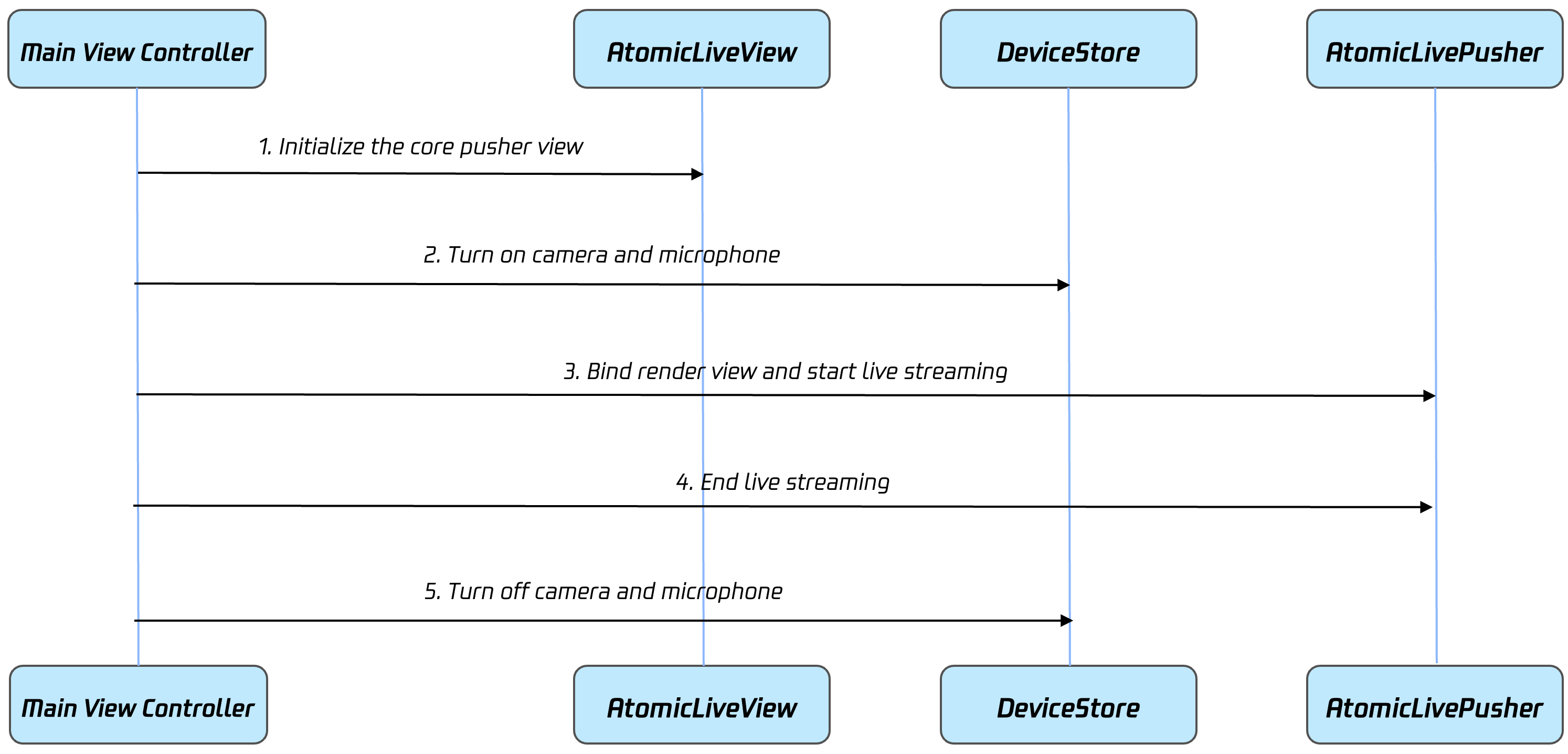
Follow these steps to quickly set up host video streaming.
1. Initialize Host Streaming View
In your host Activity, create an
AtomicLiveView instance and set viewType to AtomicLiveViewType.PUSH_VIEW.import io.trtc.tuikit.atomicxcore.api.view.AtomicLiveViewimport io.trtc.tuikit.atomicxcore.api.view.AtomicLiveViewTypeimport android.os.Bundleimport androidx.appcompat.app.AppCompatActivityimport androidx.constraintlayout.widget.ConstraintLayout// YourAnchorActivity represents the host broadcasting Activityclass YourAnchorActivity : AppCompatActivity() {// 1. Declare AtomicLiveView as a property of your Activityprivate lateinit var liveView: AtomicLiveViewoverride fun onCreate(savedInstanceState: Bundle?) {super.onCreate(savedInstanceState)// 2. Initialize the viewliveView = AtomicLiveView(this, viewType = AtomicLiveViewType.PUSH_VIEW)// Set up UI layoutsetupUI()}private fun setupUI() {setContentView(R.layout.activity_anchor)// 3. Add the host streaming view to your layoutval container = findViewById<ConstraintLayout>(R.id.container)container.addView(liveView)// Set layout parametersval params = ConstraintLayout.LayoutParams(ConstraintLayout.LayoutParams.MATCH_PARENT,ConstraintLayout.LayoutParams.MATCH_PARENT)params.topMargin = 36params.bottomMargin = 96liveView.layoutParams = params}}
2. Enable Camera and Microphone
Use DeviceStore's
openLocalCamera and openLocalMicrophone APIs to enable the camera and microphone. AtomicLiveView automatically previews the current camera stream—no extra steps required. Example:import androidx.appcompat.app.AppCompatActivityimport android.os.Bundleimport io.trtc.tuikit.atomicxcore.api.device.DeviceStoreclass YourAnchorActivity : AppCompatActivity() {// ... other code ...override fun onCreate(savedInstanceState: Bundle?) {super.onCreate(savedInstanceState)// Set up UI layoutsetupUI()// Enable devicesopenDevices()}private fun openDevices() {// 1. Enable front cameraDeviceStore.shared().openLocalCamera(true, completion = null)// 2. Enable microphoneDeviceStore.shared().openLocalMicrophone(completion = null)}}
3. Start Live Streaming
Bind the rendering view to AtomicPusher with
setView, then call startPush to begin streaming. Example:import android.util.Logimport androidx.appcompat.app.AppCompatActivityimport io.trtc.tuikit.atomicxcore.api.live.AtomicPusherimport io.trtc.tuikit.atomicxcore.api.live.PusherInfoclass YourAnchorActivity : AppCompatActivity() {// ... other code ...// Start live streamingprivate fun startLive() {// 1. Bind AtomicLiveView to AtomicPusher for local previewAtomicPusher.shared().setView(liveView)// 2. Configure live room infoval config = PusherInfo().apply {// Set live room IDliveID = "test_live_001"// Set live room nameliveName = "test live"}// 3. Start streamingAtomicPusher.shared().startPush(config)Log.d("Live", "startPush")}}
PusherInfo Parameter DetailsParameter Name | Type| | Attribute | Description |
liveID | String | Required | Unique identifier for the live room. |
liveName | String | Optional | Title of the live room. |
notice | String | Optional | Announcement for the live room. |
metaData | Map<String, String> | Optional | Custom metadata for the live room. |
isPublicVisible | Boolean | Optional | Whether the room is publicly visible (true: yes, false: no). |
coverURL | String | Optional | Cover image URL for the live room. |
backgroundURL | String | Optional | Cover image URL for the live room. |
categoryList | List<Int> | Optional | Background image URL for the live room. |
4. End Live Streaming
When the host ends the stream, call AtomicPusher's
stopPush API. The SDK will handle stopping the stream and destroying the room.import android.util.Logimport androidx.appcompat.app.AppCompatActivityimport io.trtc.tuikit.atomicxcore.api.device.DeviceStoreimport io.trtc.tuikit.atomicxcore.api.live.AtomicPusherclass YourAnchorActivity : AppCompatActivity() {// ... other code ...// Stop live streamingprivate fun stopLive() {AtomicPusher.shared().stopPush()Log.d("Live", "stopPush")}// Always stop streaming and disable devices when Activity is destroyedoverride fun onDestroy() {super.onDestroy()stopLive()DeviceStore.shared().closeLocalCamera()DeviceStore.shared().closeLocalMicrophone()Log.d("Live", "YourAnchorActivity onDestroy")}}
Step 2: Audience Enter Room and Watch
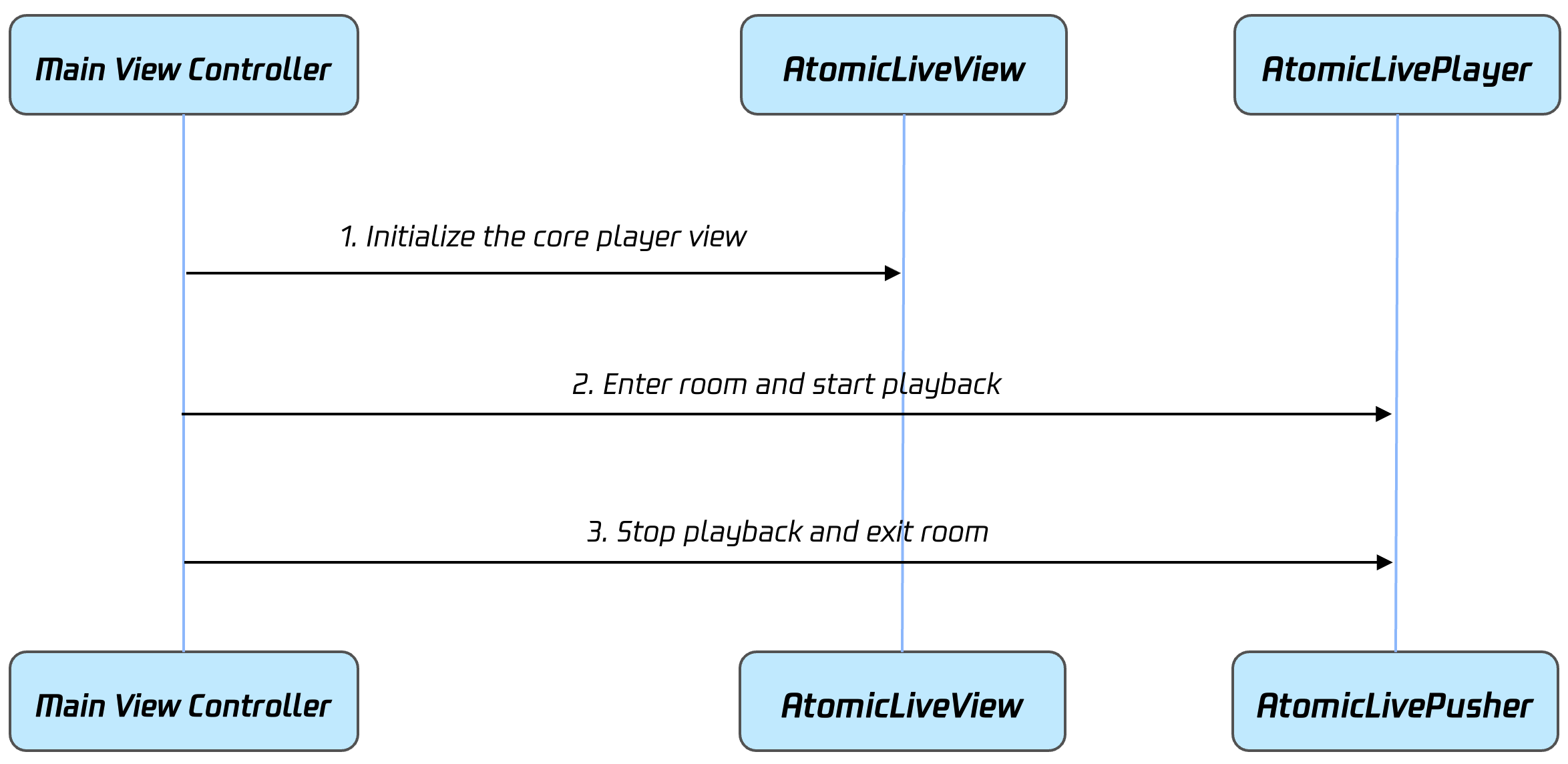
Follow these steps to enable audience live viewing.
1. Add Audience Playback View
In your audience Activity, create an
AtomicLiveView instance and set viewType to AtomicLiveViewType.PLAY_VIEW.import io.trtc.tuikit.atomicxcore.api.view.AtomicLiveViewimport io.trtc.tuikit.atomicxcore.api.view.AtomicLiveViewTypeimport android.os.Bundleimport androidx.appcompat.app.AppCompatActivityimport androidx.constraintlayout.widget.ConstraintLayout// YourAudienceActivity represents the audience viewing Activityclass YourAudienceActivity : AppCompatActivity() {// 1. Declare AtomicLiveView for playbackprivate lateinit var liveView: AtomicLiveViewoverride fun onCreate(savedInstanceState: Bundle?) {super.onCreate(savedInstanceState)// 2. Initialize the viewliveView = AtomicLiveView(this, viewType = AtomicLiveViewType.PLAY_VIEW)// Set up UI layoutsetupUI()}private fun setupUI() {setContentView(R.layout.activity_audience)// 3. Add playback view to layoutval container = findViewById<ConstraintLayout>(R.id.container)container.addView(liveView)// Set layout parametersval params = ConstraintLayout.LayoutParams(ConstraintLayout.LayoutParams.MATCH_PARENT,ConstraintLayout.LayoutParams.MATCH_PARENT)params.topMargin = 36params.bottomMargin = 96liveView.layoutParams = params}}
2. Enter Live Room and Watch
Bind AtomicLiveView to AtomicPlayer with
setView, then call joinChannel to enter the live room. After joining, call startPlay to play the video stream. Example:import io.trtc.tuikit.atomicxcore.api.CompletionHandlerimport io.trtc.tuikit.atomicxcore.api.live.AtomicPlayerimport android.os.Bundleimport androidx.appcompat.app.AppCompatActivityimport android.util.Log// YourAudienceActivity represents the audience viewing Activityclass YourAudienceActivity : AppCompatActivity() {// ... other code ...private val player = AtomicPlayer()override fun onCreate(savedInstanceState: Bundle?) {super.onCreate(savedInstanceState)setupUI()// 1. Bind AtomicLiveView to AtomicPlayerplayer.setView(liveView)// 2. Enter live roomjoinLive()}private fun joinLive() {// Enter the live room, then start playback// liveID: must match the host's liveIDval liveID = "test_live_001"player.joinChannel(liveID, object : CompletionHandler {override fun onSuccess() {// Playback URL is livekit://liveid=<liveID>player.startPlay("livekit://liveid=$liveID")Log.d("Live", "joinChannel success")}override fun onFailure(code: Int, desc: String) {Log.e("Live", "joinChannel error: $desc")}})}}
3. Exit Live Streaming
When the audience leaves the live room, call AtomicPlayer's
stopPlay and leaveChannel APIs. The SDK will automatically stop playback and exit the room.import androidx.appcompat.app.AppCompatActivityimport android.util.Log// YourAudienceActivity represents the audience viewing Activityclass YourAudienceActivity : AppCompatActivity() {// ... other code ...// Exit live streamingprivate fun leaveLive() {player.stopPlay()player.leaveChannel()Log.d("Live", "leaveLive success")}// Always exit streaming when Activity is destroyedoverride fun onDestroy() {super.onDestroy()leaveLive()Log.d("Live", "YourAudienceActivity onDestroy")}}
Step 3: Listen for Live Events
After the audience enters the live room, you need to handle certain events, such as the host ending the stream or the audience being removed for violations. If you don't listen for these events, the audience UI may remain on a black screen, impacting user experience.
Implement a
PlayerListener and register it with AtomicPlayer to handle these events:import io.trtc.tuikit.atomicxcore.api.live.PlayerListenerimport android.os.Bundleimport androidx.appcompat.app.AppCompatActivityimport android.util.Log// YourAudienceActivity represents the audience viewing Activityclass YourAudienceActivity : AppCompatActivity() {// ... (liveView, player, liveID, setupUI, joinLive, leaveLive, etc.) ...// 2. Define PlayerListenerprivate val playerListener = object : PlayerListener() {override fun liveEnded(reason: PlayerListener.EndedReason) {// Handle live end eventLog.d("Live", "Live ended. reason: $reason")// Add logic to exit live room, e.g., finish Activity// finish()}override fun kickedOut(reason: PlayerListener.KickedOutReason, message: String) {// Handle being kicked out of live roomLog.d("Live", "Kicked out of live. reason: $reason, message: $message")// Add logic to exit live room// finish()}}override fun onCreate(savedInstanceState: Bundle?) {super.onCreate(savedInstanceState)setupUI()// 3. Register listenerplayer.addListener(playerListener)// 4. Enter live roomjoinLive()}// ... joinLive() and leaveLive() methods ...override fun onDestroy() {super.onDestroy()// 5. Remove listener to prevent memory leaksplayer.removeListener(playerListener)leaveLive()Log.d("Live", "YourAudienceActivity onDestroy")}}
Run Result
After integrating AtomicLiveView, you will have a dedicated video rendering view. The host streams via AtomicPusher, the audience plays via AtomicPlayer, and both render to this view. The view itself does not include any interactive UI. See Enrich Live Streaming Scenarios for ways to enhance your live streaming experience.
Layout Type | Dynamic Grid Layout | Floating Window Layout | Fixed Grid Layout | Fixed Window Layout |
Template ID | 600 | 601 | 800 | 801 |
Description | Default layout, dynamically adjusts grid size based on number of co-hosts. | Co-hosts are displayed as floating windows. | Fixed number of co-hosts, each occupies a fixed grid. | Fixed number of co-hosts, guests are displayed as fixed windows. |
Run Result |  | 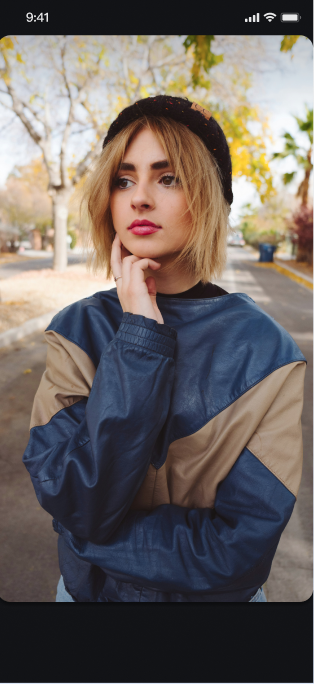 | 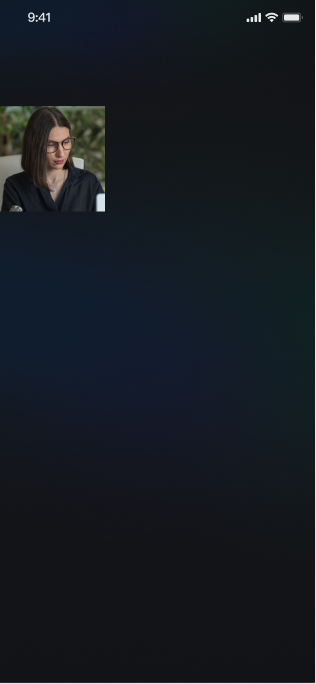 | 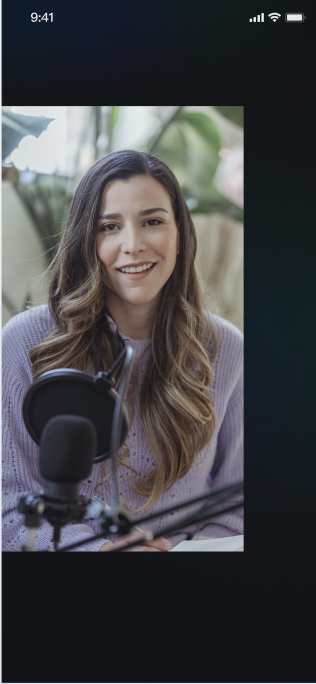 |
Enrich Live Streaming Scenarios
Once you've implemented basic live streaming, refer to the guides below to add interactive features to your live stream.
Live Feature | Feature Description | Feature Stores | Implementation Guide |
Audience Audio/Video Co-hosting | Audience can apply to take a mic seat and interact with the host in real-time video. | ||
Host Cross-room Co-hosting PK | Hosts from different rooms can connect for interaction or PK. | ||
Live Comments Chat | Audience can send and receive real-time text messages in the live room. | ||
Gift System | Audience can send virtual gifts to the host to increase interaction and fun. |
API Documentation
Store/Component | Feature Description | API Documentation |
AtomicPusher | Host streaming: local audio/video capture and preview, start/stop streaming, live room info update, streaming status/statistics, event callbacks. | |
AtomicPlayer | Audience playback: bind rendering view, join/leave channel, start/stop playback, playback status/statistics, event callbacks. | |
LiveListStore | Live room lifecycle management: create/join/leave/destroy room, query room list, modify live info (name, announcement, etc.), listen to live status (e.g., kicked out, ended). | |
DeviceStore | Audio/video device control: microphone (on/off, volume), camera (on/off, switch, quality), screen sharing, real-time device status monitoring. | |
CoGuestStore | Audience co-hosting management: apply/invite/accept/reject co-hosting, member permissions (mic/camera), status sync. | |
CoHostStore | Host cross-room co-hosting: supports multiple layout templates (dynamic grid, etc.), initiate/accept/reject co-hosting, co-host interaction management. | |
BattleStore | Host PK battle: initiate PK (configure duration/opponent), manage PK status (start/end), sync scores, listen to battle results. | |
GiftStore | Gift interaction: get gift list, send/receive gifts, listen to gift events (including sender and gift details). | |
BarrageStore | Live comments: send text/custom comments, maintain comment list, real-time status monitoring. | |
LikeStore | Like interaction: send likes, listen to like events, sync total like count. | |
LiveAudienceStore | Audience management: get real-time audience list (ID/name/avatar), count audience number, listen to audience enter/exit events. | |
AudioEffectStore | Audio effects: voice change (child/male), reverb (KTV, etc.), monitor adjustment, switch effects in real time. | |
BaseBeautyStore | Basic beauty: adjust smoothing/whitening/rosiness (0-100 levels), reset beauty state, sync effect parameters. |
FAQs
Why is the screen black with no video after the host calls startPush or the audience calls joinChannel?
Check setView: Before calling the broadcast or playback API, make sure you have called setView to bind AtomicLiveView to AtomicPusher or AtomicPlayer.
Check device permissions: Verify that your app has system permissions for camera and microphone.
Check host side: Confirm the host has called
DeviceStore.shared().openLocalCamera(true) to enable the camera.Check network: Ensure the device has a stable network connection.
Why is the host's camera preview black before broadcasting, but shows local video after broadcasting?
Check host side: Confirm that the host streaming view's
AtomicLiveView viewType is set to AtomicLiveViewType.PUSH_VIEW.Check audience side: Confirm that the audience playback view's
AtomicLiveView viewType is set to AtomicLiveViewType.PLAY_VIEW.피드백