LAMP stands for Linux + Apache + Mysql/MariaDB + Perl/PHP/Python, a set of open-source software commonly used to build dynamic websites or servers. The programs are independent, but because they are often used together, their compatibility with each other continues to improve, and together they form a powerful Web application platform.
This tutorial guides you through the following process: launching a TencentDB instance and configuring a LAMP application on a CVM instance to connect to the high-availability environment of the TencentDB instance.
Running a TencentDB instance separates the database lifecycle from the environment, allowing you to connect to the same database from multiple servers, simplifying database Ops, and eliminating the need to handle database installation, deployment, version updates, and troubleshooting.
Note:
The cloud database instances and CVM instances used in this tutorial are in the same region. If your cloud database instances and CVM instances are not in the same region, see Public network access.
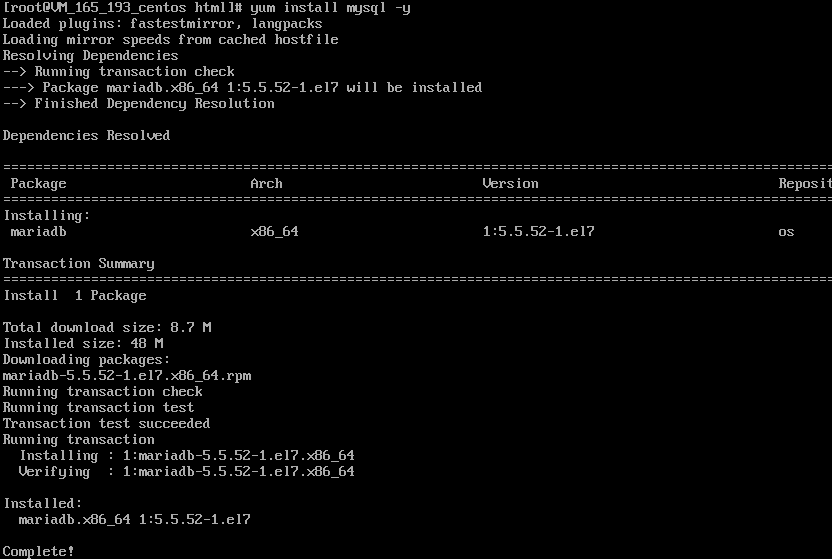
1. Use yum to install the MySQL client on the CVM instance.
yum install mysql -y
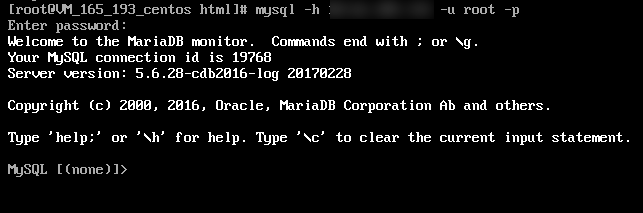
2. After the installation is complete, connect to the TencentDB instance.
mysql -hhostname-u username -p
Here, hostname is the private IP address of the database instance, and username is your database username.
3. After a successful connection, exit the database and proceed to the next step.
quit;
Installing Apache Service
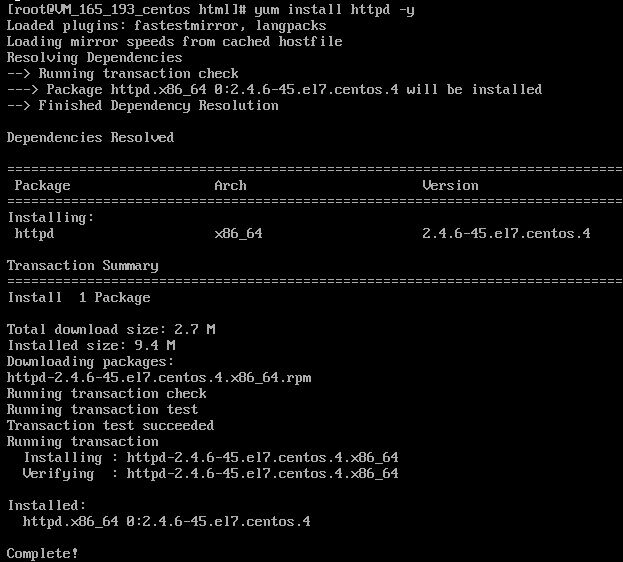
1. Use yum to install Apache on the CVM instance.
yum install httpd -y
2. Start the Apache service.
service httpd start
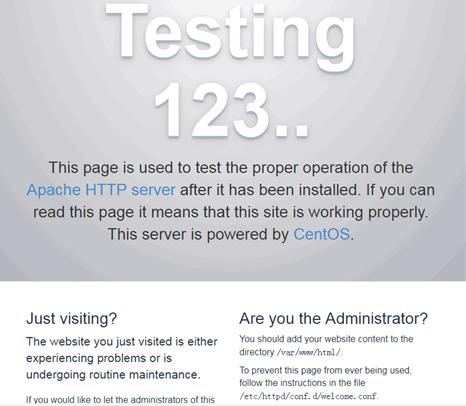
3. Test Apache.
Attention:
For this step, configure an inbound rule in the security group of your CVM instance with the source set to all and the port protocol set to TCP:80. For security group configuration, see Security Groups.
Enter https://xxx.xxx.xxx.xxx/ in your local browser, where xxx.xxx.xxx.xxx is the public IP address of your CVM instance. The following page indicates that Apache has started successfully.
Install PHP
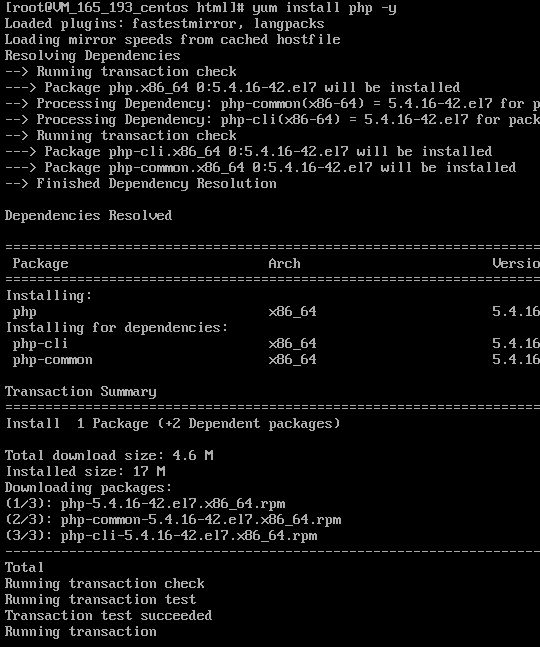
1. Use yum to install PHP on the CVM instance.
yum install php -y
Creating a Project to Test the LAMP Environment
1. Create an info.php file in the /var/www/html directory on the CVM instance. The sample code is as follows:
<?php phpinfo(); ?>
2. Restart the Apache service.
service httpd restart
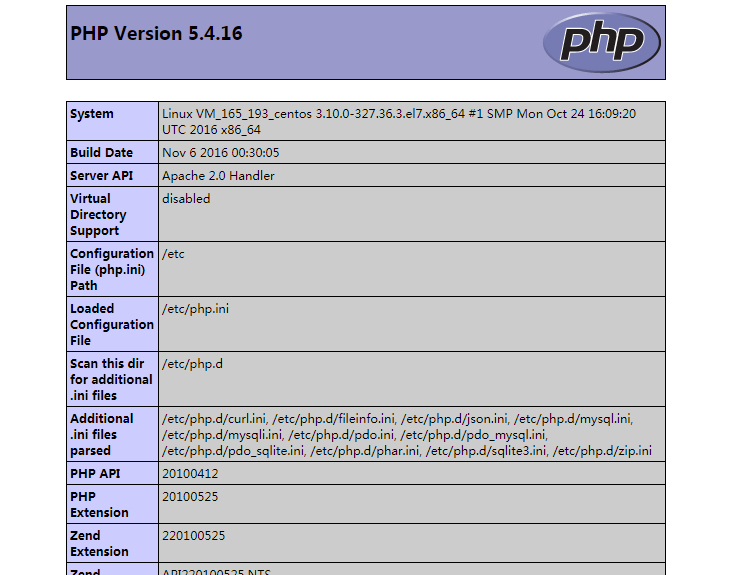
3. Enter https://xxx.xxx.xxx.xxx/info.php in your local browser, where xxx.xxx.xxx.xxx is the public IP address of your CVM instance. The following page indicates that the LAMP service has been deployed successfully.