Compute Consumption Rule
Baixar
Modo Foco
Tamanho da Fonte
Feature Overview
The computing power consumption rule is a fundamental capability of the WAF LLM security module. It reduces the risk of malicious users or bots consuming a large amount of your LLM computing resources (GPU inference and Token quota) through high-frequency calls, overly long contexts, and other means, and prevents abnormal business cost growth or impacts on normal user experience.
This capability provides coordinated control over access behavior based on two dimensions: request frequency and Token consumption. When a rule is matched, you can select either Observe or Intercept as the handling action.
If you do not enable the computing power consumption rule, you may face the following risks:
A single user can consume millions of Tokens within a short period, causing a sharp increase in your bill.
Bots register accounts in batches and consume free quotas.
Slow requests occupy concurrent model resources and affect normal user experience.
Scenario
This document describes how to use the computing consumption rule to limit the call frequency and Token consumption of LLM APIs.
Prerequisites
Operation Step
1. Log in to the WAF console, and in the left sidebar, choose LLM Security > Security Configurations > Computing Power Consumption Rules.
2. On the Computing Power Consumption Rules tab, click Add Rule.
3. In the Add Computing Power Consumption Rule window, configure the following information:
Parameter description
Field Name | Description |
Rule Name | Set the rule name. |
Session Identifier | Select the previously configured session identifier to distinguish different users and implement precise computing power consumption detection for individual users. Note: You do not need to configure this parameter when using the SDK/API Integration method. |
Condition | By default, select the LLM business matching method and the added LLM business protection path configuration. Note: Different matching methods within a single rule are in an "AND" relationship. You do not need to configure this parameter when using the SDK/API Integration method. |
Rules | Request Frequency Protection: counts the number of requests from a single user ID within a unit of time (1 minute, 5 minutes, 10 minutes, 30 minutes, 60 minutes, 6 hours, 12 hours, 24 hours, every hour on the hour, or every natural day, with a value of 2-100000 that must be an integer). Protection Based on token Consumption: configure the total Token consumption of a single user ID within a unit of time (1 minute, 5 minutes, 10 minutes, 30 minutes, 60 minutes, 6 hours, 12 hours, 24 hours, every hour on the hour, or every natural day) based on the business type. This feature is not supported for domains connected through CLB-type WAF. |
Action | WAF supports two handling methods for users with excessive computing power consumption: Observe: log only. Block When the selected type is Request Frequency Protection: after it is detected that a user has exceeded the limit, requests sent by the user to the origin server will be blocked, and the default WAF block page will be returned. You can go to Basic Security to modify the content of the default block page. When the selected type is Protection Based on token Consumption: after detecting that a user has exceeded the limit, WAF interrupts the response from the origin server to the user and inserts custom prompt content into the returned data. You can configure the prompt content returned to the user. During WAF interception, if it is request interception, the default WAF interception prompt page is returned. You can go to Basic Security to modify the content of the default interception prompt page. If it is response interception, in addition to inserting the custom prompt content configuration into the returned data, a uuid field and uuid value are also inserted into the returned data. For a better interception experience, you can also modify the business frontend logic to adjust the actual interception effect when a uuid field is detected in the returned fields. |
Priority | Configure the rule priority. Priority logic: Enter an integer from 1 to 100. A smaller value indicates a higher execution priority for this rule. When priorities are the same, a later update time indicates a higher priority. |
To optimize the interception experience and provide better interaction, the following sample code demonstrates how to modify the business frontend for LLM security interception logic. This sample code is based on the Deepseek API format and can be embedded into your business frontend code to integrate with the LLM security protection logic:
Interception Mechanism:
Request direction interception: LLM security uses synchronous interception for requests. After the client sends a request, the server performs a risk check on the request (such as for sensitive words). If interception is triggered, the preset LLM security interception page is returned directly (the custom interception prompt content in the rule is not used). If the business frontend needs to handle the interception effect, it only needs to adjust how the business frontend handles the response status code and status prompt.
Response direction interception: LLM security uses asynchronous interception for responses. While the server is streaming output, LLM security synchronously detects risks. When interception is triggered:
LLM security interrupts the streaming content output.
Add a uuid field to the response data, and insert the custom interception prompt content configured in the rule into the defined response content field.
If the business frontend needs to handle the interception effect, it can determine the interception status by detecting the presence of the uuid field, and adjust the interception effect of the business frontend accordingly:
If the uuid field is not detected: display the content normally.
If the uuid field is detected: clear the output content and reset the display to the custom prompt content inserted by LLM security.
Request Direction Interception
Default block page handling: the effect is to display the block prompt content in the chat window. The sample code is as follows:
if (!initResponse.ok) {const errorText = await initResponse.text();console.error('API error response:', errorText);removeMessage(responseMessageId); // Remove the message container currently displayed// Parse the error message returned by the serverlet errorMessage = '';try {const errorData = JSON.parse(errorText);errorMessage = errorData.error?.message || errorData.message || errorText;} catch (e) {errorMessage = errorText;}// Display the error message in the chat interfaceaddMessage(errorMessage, 'error');updateStatus('Request failed', 'error');return;}
Response Direction Interception
Insert the custom prompt content into the data, and handle the replacement and display of the uuid field. The effect is to reset the content that has already been returned and display the custom prompt content. The sample code is as follows:
// UUID detection handling - based on code logicif (parsed.uuid) {console.log('🚨 Content replacement signal detected!');console.log('Original data:', parsed);console.log('Content before replacement:', fullContent);// Extract new content from the data returned by the serverlet newContent = '';if (parsed.choices && parsed.choices[0] && parsed.choices[0].delta && parsed.choices[0].delta.content) {newContent = parsed.choices[0].delta.content;console.log('✅ Content obtained from choices[0].delta.content:', newContent);} else if (parsed.content) {newContent = parsed.content;console.log('✅ Content obtained from content:', newContent);} else {console.log('⚠️ content not found in the data');}// Completely reset the displayed contentfullContent = newContent;reasoning = '';contentWasReplaced = true;// Clear the currently displayed content and display the new content returned by the serverif (selectedModel === 'deepseek-reasoner') {// R1 mode: clear the thinking process and answer, and display new contentclearR1Message(responseMessageId);updateR1StreamingMessage(responseMessageId, '', fullContent, false);addContentReplacedIndicator(responseMessageId);} else {// Normal mode: clear messages and display new contentclearStreamingMessage(responseMessageId);updateStreamingMessage(responseMessageId, fullContent, true);addContentReplacedIndicator(responseMessageId);}console.log('✅ Content replacement completed. Current fullContent:', `"${fullContent}"`);// Stop processing subsequent data streamsshouldStopProcessing = true;console.log('🛑 Stop processing flag set. Subsequent data will not be processed');}
4. After completing all the parameter settings above, carefully review them. Once you have confirmed that they are correct, enable the rule, and click OK to submit the configuration. The rule then takes effect to protect computing power resources.
Example Scenarios for Compute Consumption Rules
1. Refer to Business Access to connect your LLM business and configure the session ID and LLM protection path.
2. Log in to the WAF console, and in the left sidebar, choose LLM Security > Security Configurations > Computing Power Consumption Rules.
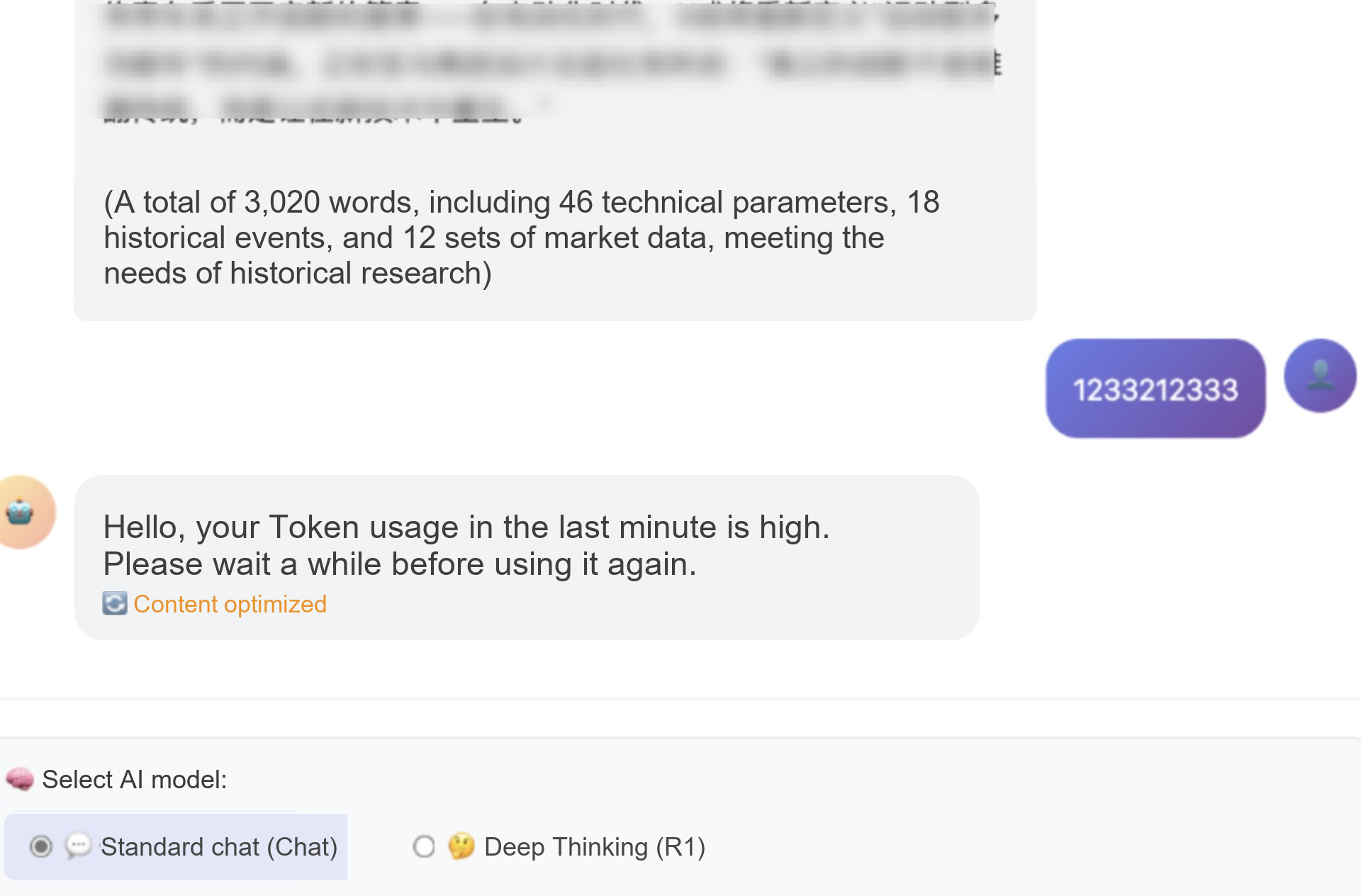
3. On the Computing Power Consumption Rules page, click Add Rule to configure an example rule for high-frequency request blocking. Set the rule to block requests when the number of tokens exceeds 10,000 within 1 minute, and return a custom prompt. Then click OK.
Field Name | Description |
Rules | Configure Protection Based on token Consumption and set the detection value to 10,000 tokens per minute. |
Action | Block. |
Use custom prompt for interception prompt | Hello, you have used a high number of tokens in the last 1 minute. Please wait for a while before using it again. |
Priority | 1. |
On/Off | On. |
4. On the LLM business side, request the LLM to output two 3,000-word articles to trigger computing power consumption blocking, and a blocking prompt will be returned on the user side. If the LLM output rate is slow, you can adjust the rule to block requests when the number of tokens exceeds 10,000 within 5 minutes to complete scenario verification more conveniently.
5. When the system is integrated via SDK/API, you can go to Log Audit to view the corresponding attack log information.
References
Ajuda e Suporte
Esta página foi útil?
Você também pode entrar em contato com a Equipe de vendas ou Enviar um tíquete em caso de ajuda.
comentários