This article introduces common live streaming room features based on Chat and CSS. It provides practical solutions and implementation code samples to help developers build and customize live streaming rooms.
Preparations
Step 1: Create an Application
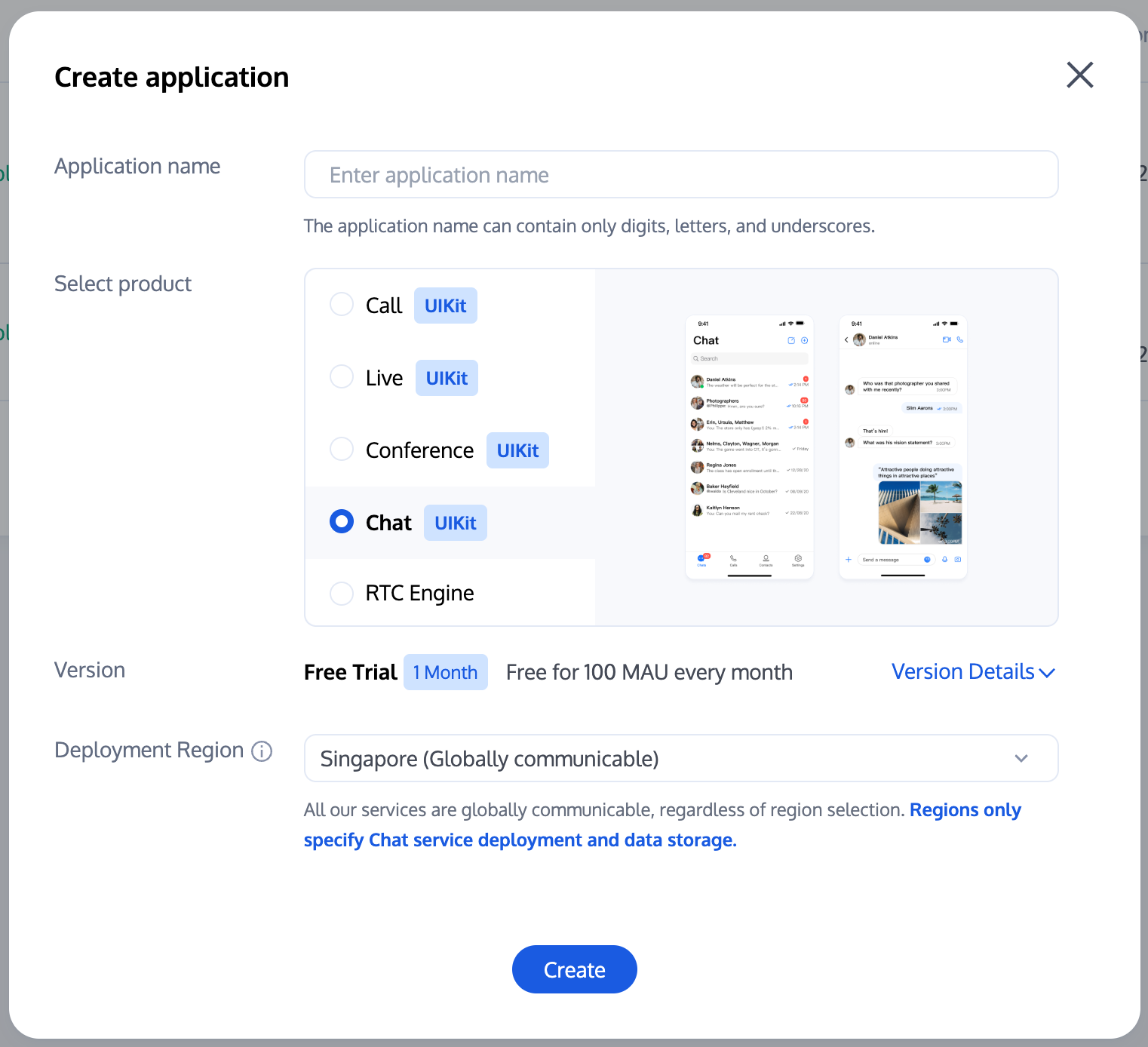
To build a live room using Chat, you need first create a Chat application in the Console, as shown below:
The application created is a Trial Edition, suitable only for demonstration. For production environments, you can upgrade to Pro Edition, Ultimate Edition, or Enterprise Edition based on your business requirements. For details on version differences, see the Chat Pricing Documentation.
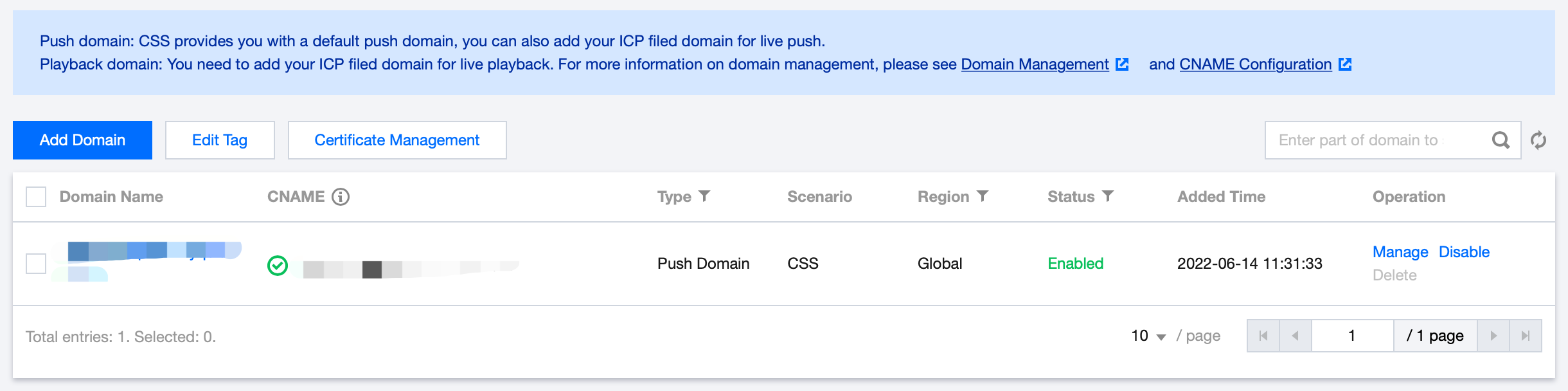
Step 2: Add Live Streaming Push and Playback Domains
To enable live streaming features in a Chat-based live room, you need to configure live streaming support via Cloud Live. Add push and playback domains as shown below:
In addition to creating the application, further configuration is required for live streaming scenarios:
Calculate UserSig Using SecretKey
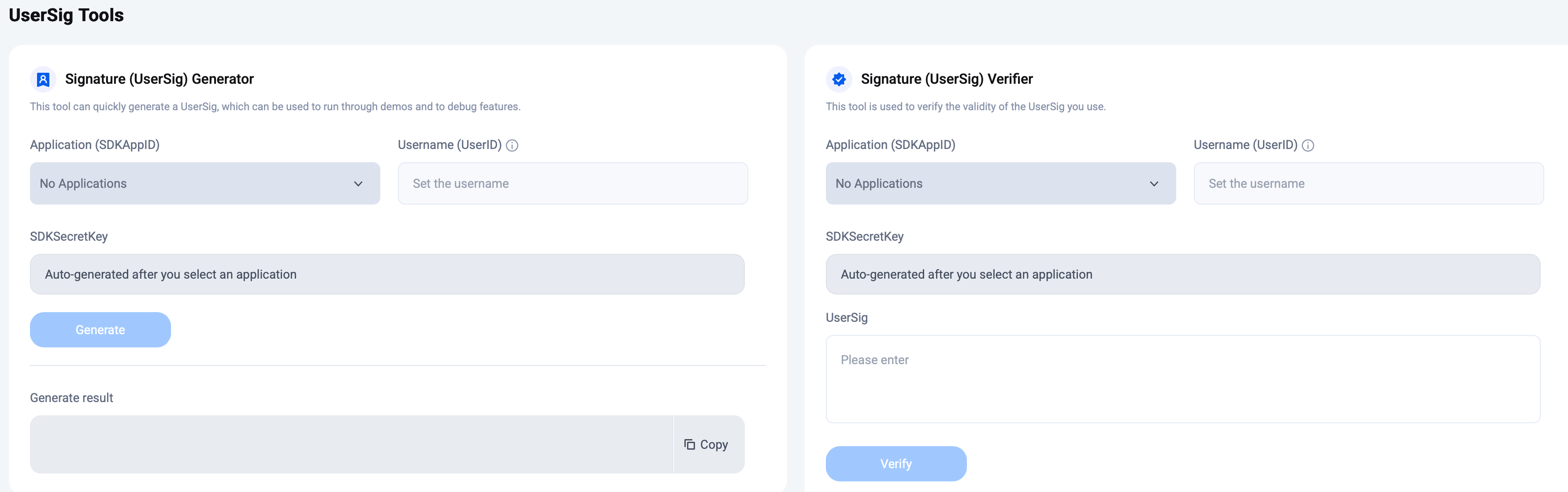
In the Chat account system, the password required for user login is generated by your backend using the SecretKey provided by Chat. Refer to the UserSig Calculation documentation. During development, to avoid blocking client development, you can also calculate UserSig in the Console, as shown below:
Configure Administrator Accounts
During live streaming, administrators may need to send messages to the live room, mute or remove users who violate rules, and perform other moderation actions. Use the Chat Server-side API for these operations. Before calling the server-side API, you must create Chat administrator accounts. Chat provides a default account with UserID administrator, and you can create up to five administrator accounts as needed.
Note:
Chat allows up to 5 administrator accounts.
Configure Callback URL and Enable Callbacks
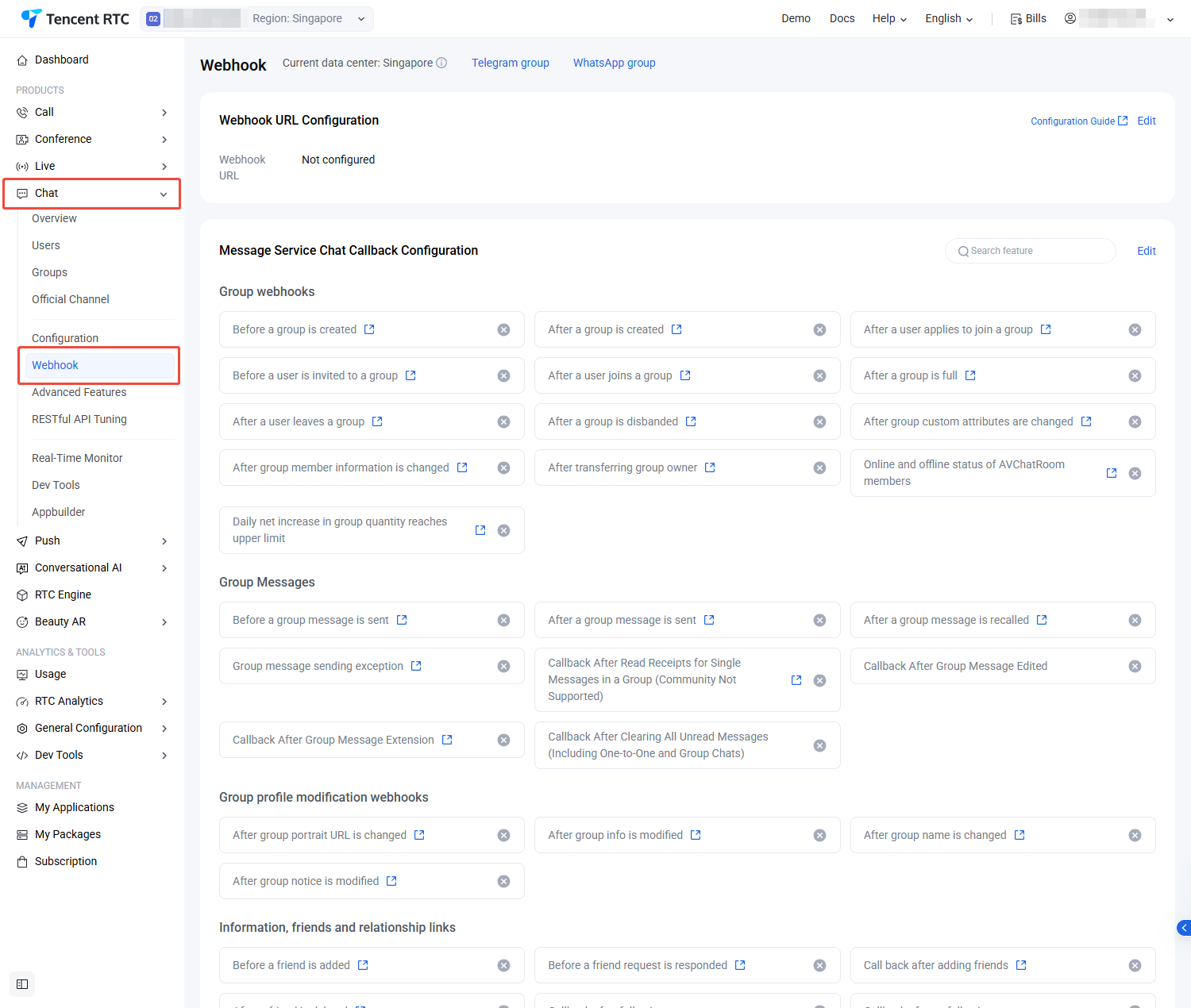
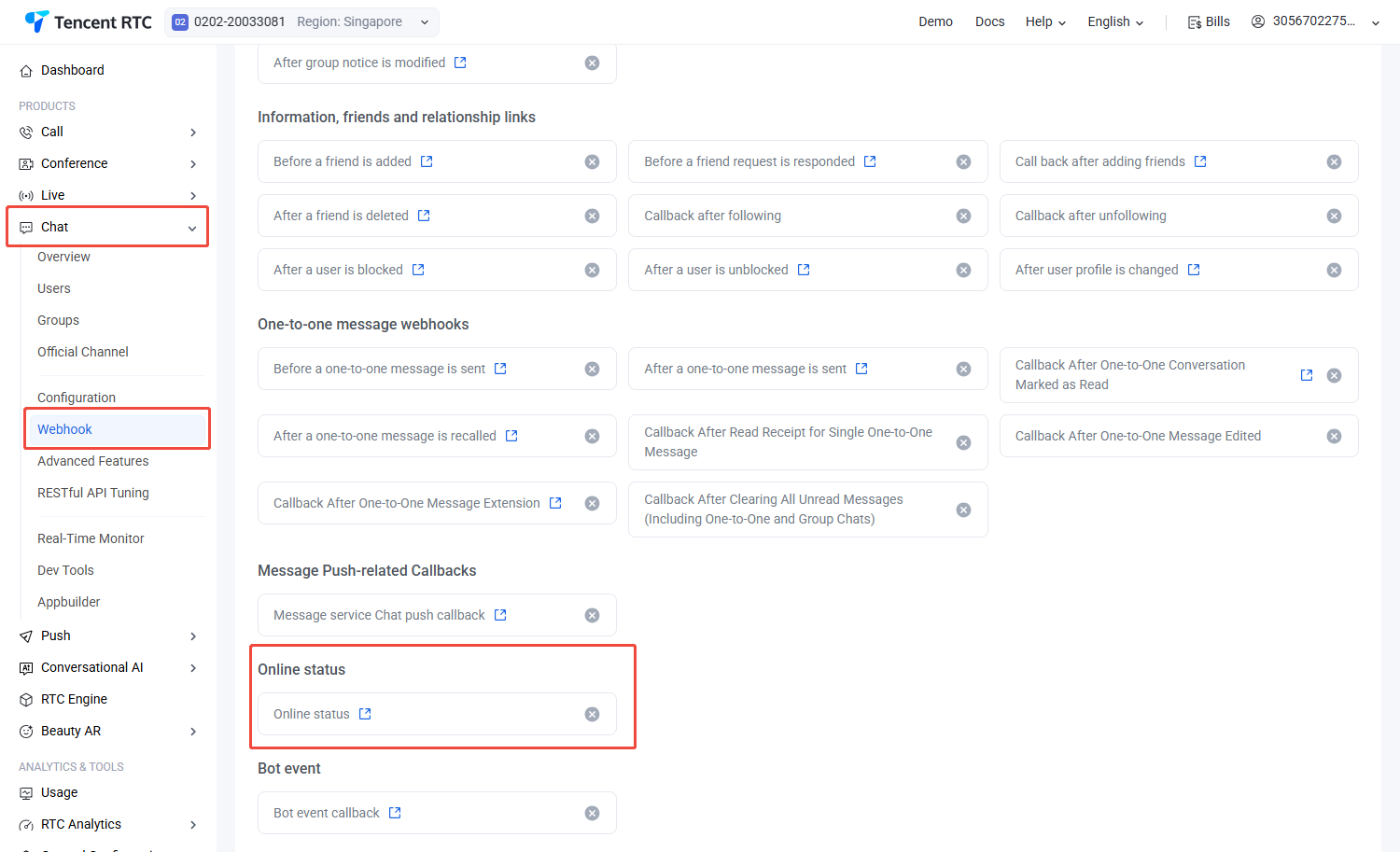
For features such as live room bullet chat lottery and message statistics, use Chat's callback module. The Chat backend will invoke your business backend in certain scenarios. Provide an HTTP endpoint and configure it in Console > Callback Configuration, as shown below:
Step 4: Integrate the Client SDK
After completing the preparation steps, integrate the Chat and Cloud Live CSS client SDKs into your project. Choose the integration method that best fits your business needs:
The following sections summarize common live room features, provide practical solutions, and include corresponding implementation code.
Live Room Feature Development Guide
Create a Live Room
You can create a live room via the Server-side API by setting the group type to AVChatRoom. In live streaming scenarios, the chat area has these characteristics:
1. Users frequently enter and leave groups; session information (unread, lastMessage, etc.) is not needed.
2. Users can join groups automatically without approval.
3. Messages are temporary; users do not care about chat history.
4. Groups typically have a large number of members.
5. Group member information does not need to be stored.
Based on these characteristics, Chat uses the AVChatRoom group type, which offers:
No member limit, supporting interactive live streaming for tens of millions of users.
Ability to send messages (System Notification) to all online users.
Users are added directly to the group without admin approval.
Note:
Chat Web & Mini Program SDKs restrict a single user to only one AVChatRoom at a time. In multi-client login scenarios, if a user logs in on device A and joins live room A, then logs in on device B and joins live room B (with multi-client login enabled in Console Configuration), device A will be removed from live room A.
Chat Web & Mini Program SDKs restrict a single user to only one AVChatRoom at a time. In multi-client login scenarios, if a user logs in on device A and joins live room A, then logs in on device B and joins live room B (with multi-client login enabled in Console Configuration), device A will be removed from live room A.
final result = await TencentImSDKPlugin.v2TIMManager.quitGroup(groupID:"groupA");
if(result.code ==0){
}else{
}
let promise = chat.quitGroup('groupA');
promise.then(function(imResponse){
console.log(imResponse.data.groupID);
}).catch(function(imError){
console.warn('quitGroup error:', imError);
});
Live Room Status
Live room status is typically divided into the following types:
No.
Live Room Status
1
Waiting to Start
2
Live
3
Paused
4
Ended
5
Playback
Live room status has the following characteristics:
No.
Characteristic
1
Status changes must be notified to users in real time
2
New users need to get the current status upon entry
There are two implementation approaches:
Solution
Advantages
Disadvantages
Maintain live room status in your business backend, and use Chat server-side API to send Custom Group Message to notify group members.
Reduces Chat SDK call frequency for frequent status retrieval; allows status access in modules without Chat SDK integration.
Requires additional backend modules for reading/writing status. Increases risk of data inconsistency, as data comes from both backend and Chat group profile.
Custom messages may be lost under high message volume; low-priority messages may be dropped, affecting status display. High-priority custom messages are recommended.
For mic-grabbing logic using group attributes, implement decision-making and attribute updates on your business server via REST API, then notify all users. Avoid updating group attributes directly from the client to ensure data consistency and prevent conflicts.
Live Room Announcement
Live room announcements (topics) are essential for every live room, allowing users to view basic information upon entry. Announcements must be updated and pushed to members in real time.
You can use the group profile's notification or introduction fields:
1. The notification and introduction fields have limited length (group intro max 240 bytes, group announcement max 300 bytes).
2. These fields only support string type. For rich text announcements, use a JSON string with image URLs accessible online.
3. Announcements set via a web editor may contain HTML tags that native clients cannot parse correctly.
In live room scenarios, message volume is typically high, with users sending messages frequently. When the upstream message volume reaches Chat's rate limit, the backend will discard some messages to maintain system stability. Excessive message frequency can also reduce readability. Message rate control is necessary for stability and clarity.
Group messages have three priority levels; high-priority messages are delivered first. Choose the appropriate priority based on message importance.
The three priorities, from high to low, are:
Priority
Meaning
High
High Priority
Normal
Normal Priority
Low
Low Priority
Message discard rules:
A single group can send up to 40 messages per second (default), averaged per second. When the limit is exceeded, higher-priority messages are delivered first, and messages of the same priority are randomly ordered.
Therefore, establish message priority rules for live rooms.
Live room messages are prioritized by importance, from High to Low:
User reward/gift messages—users expect all viewers to see these.
Regular text, voice, image messages.
Like messages.
Note:
Messages sent by a user are typically displayed in their app UI regardless of priority.
When sending a message, the user's avatar and nickname are automatically stored. Recipients can use this information directly, avoiding extra requests for user profile and rate limit issues. If more user info is needed, include it in your business message protocol.
1. The client sends a short connection request to your business server, which handles billing logic.
2. After billing, the sender immediately sees "XXX sent XXX gift" (to ensure the sender sees their own gift, even if the message is discarded due to high volume).
3. After settlement, the server-side API sends a custom message (gift).
4. For rapid gift sending (combo), message merging is needed:
4.1 If sending a fixed number of gifts (e.g., 99), send one message with the gift count.
4.2 For combo gifts with an uncertain final count, merge every 20 gifts (configurable) or send one message after 1 second of inactivity.
Likes in Live Room
1. Likes differ from gifts; they usually don't require billing and are sent directly from the client.
2. For likes that require server-side counting, throttle on the client, count the likes, merge multiple likes in a short time, and send one message. The server counts likes in the pre-send callback.
3. For likes that don't require counting, use the same logic—throttle and merge on the client, no need for server-side counting in the callback.
User Identity and Level
Most live rooms implement user levels, which developers may calculate based on factors such as:
1. User's online duration in the live room.
2. Number of regular messages sent.
3. Number of likes and gifts sent.
4. Whether the user is a live room member.
5. ...
For Chat-related metrics (e.g., online duration, message count), use Chat callbacks. Callback configuration guidance is provided in the preparation section; specific callbacks are shown in the Console:
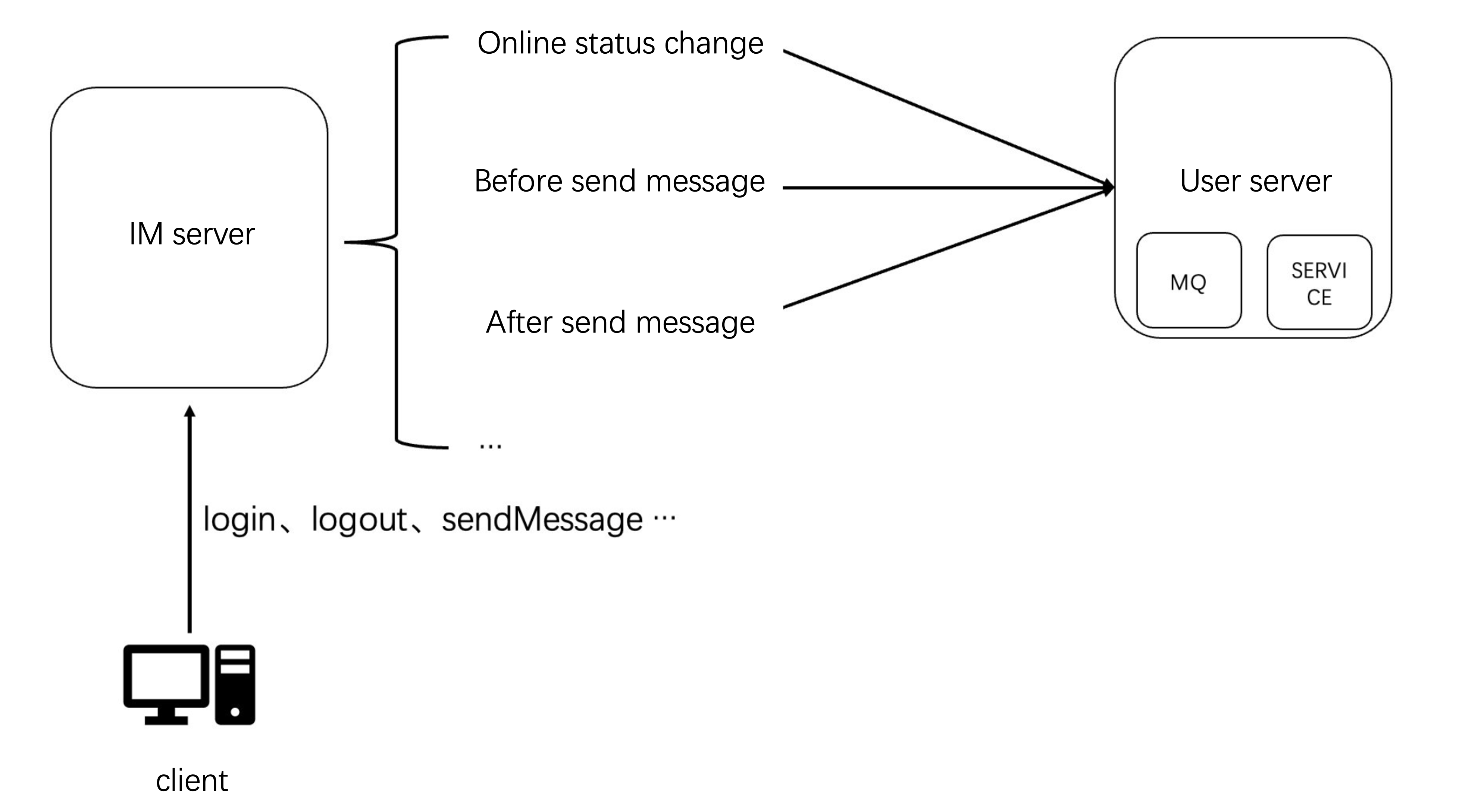
Statistics workflow diagram:
Sample callback data after message sent:
{
"CallbackCommand":"Group.CallbackAfterSendMsg",
"GroupId":"@TGS#2J4SZEAEL",
"Type":"Public",
"From_Account":"jared",
"Operator_Account":"admin",
"Random":123456,
"MsgSeq":123,
"MsgTime":1490686222,
"OnlineOnlyFlag":1,
"MsgBody":[
{
"MsgType":"TIMTextElem",
"MsgContent":{
"Text":"red packet"
}
}
],
"CloudCustomData":"your cloud custom data"
}
You can distinguish between regular messages and like/gift messages via the MsgType in MsgBody. For all field meanings, see the Server-side API.
Sample callback data for user online status change:
{
"CallbackCommand":"State.StateChange",
"EventTime":1629883332497,
"Info":{
"Action":"Login",
"To_Account":"testuser316",
"Reason":"Register"
},
"KickedDevice":[
{
"Platform":"Windows"
},
{
"Platform":"Android"
}
]
}
You can determine user online status from the Info field to calculate online duration. For all field meanings, see the Server-side API.
User identity, level, etc. can be written to CloudCustomData; the client can parse the cloudCustomData field in the message for display.
Note:
Many live rooms display popularity and recommend rooms based on it. Popularity statistics are similar to user level statistics and can be implemented via Chat's callback system. Details are omitted here.
Message History
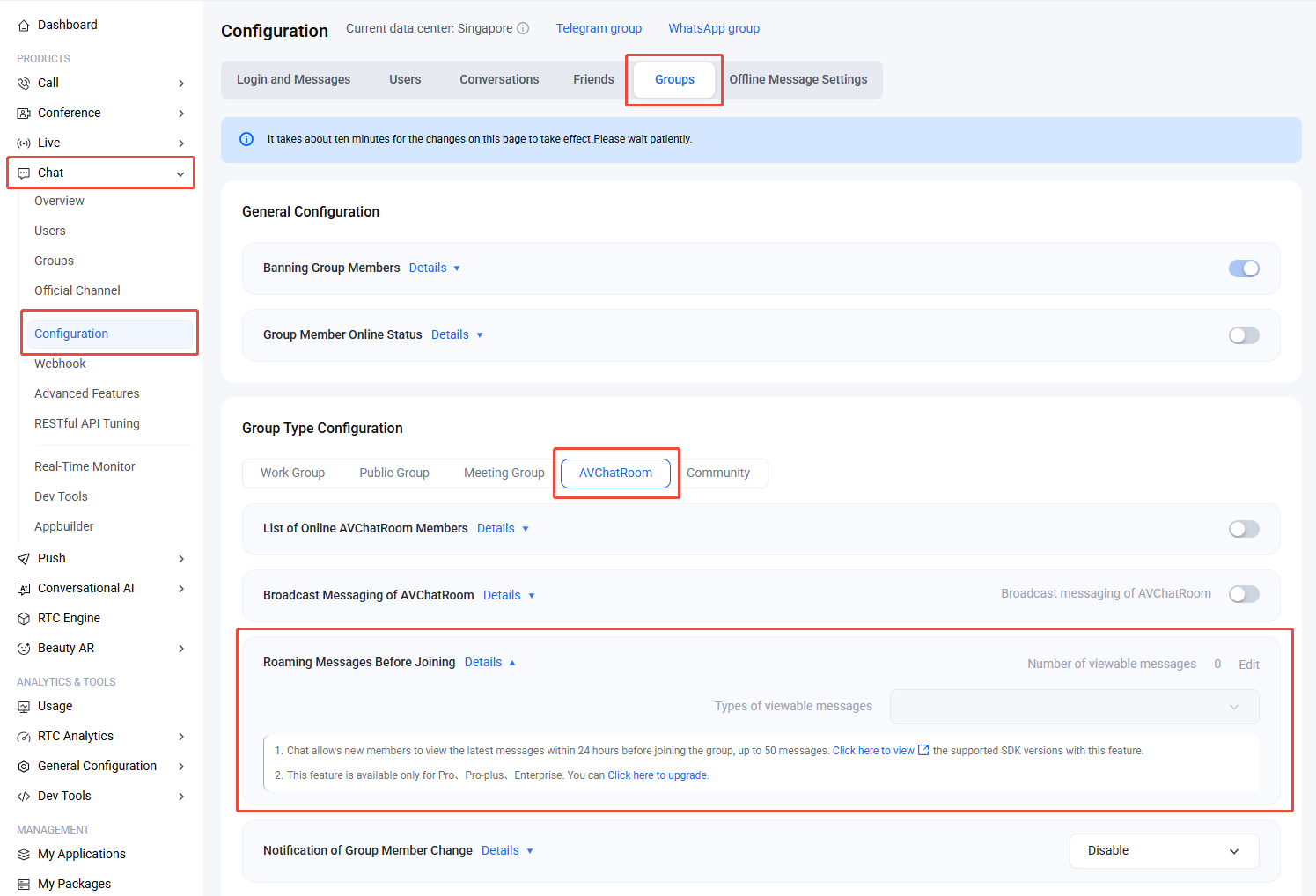
AVChatRoom does not store live room message history by default. New users only see messages sent after joining. To improve the experience, you can configure the number of pre-join messages to fetch in the console, as shown:
Note:
This feature is only available for Pro, Pro-plus, Enterprise users, and supports fetching up to 50 messages within 24 hours before joining.
Note:
Pre-join history messages for live rooms are returned via message callbacks.
Count online users via backend callbacks for user join/leave, and push the count to group members via server-side API (e.g., System Notification or Custom Group Message).
Suitable for: Multiple live rooms, need to display online user count in exposed positions
Disadvantages: Requires backend development and callback configuration
Note:
If using Solution 2, the backend can send online user count messages periodically (e.g., every five seconds). If user count changes little, this may cause extra network overhead. We recommend updating based on change rate.
Live room mute is divided into two types: mute all members, or mute specific users. Both have their use cases.
Typically, use the server-side SDK to set mute. To mute all, set the group profile's muteAllMembers field via Set Group Profile. To mute a specific member, use Set Group Member Profile.
When the administrator mutes the group, the client should disable the input box upon receiving the callback event, preventing users from sending messages and encountering errors. When unmuted, re-enable the input box.
When a muted member rejoins, call Get Group Member Profile to get the muteUntil timestamp and determine mute status.
muteTime:600// The user is muted for ten minutes. If the value is set to `0`, the user is unmuted.
});
promise.then(function(imResponse){
console.log(imResponse.data.group);// New group profile
console.log(imResponse.data.member);// New group member profile
}).catch(function(imError){
console.warn('setGroupMemberMuteTime error:', imError);// Error information
});
// Set the period for muting a group member in the topic
let promise = tim.setGroupMemberMuteTime({
groupID: 'topicID',
userID:'user1',
muteTime:600// The user is muted for ten minutes. If the value is set to `0`, the user is unmuted.
});
promise.then(function(imResponse){
console.log(imResponse.data.group);// New group profile
console.log(imResponse.data.member);// New group member profile
}).catch(function(imError){
console.warn('setGroupMemberMuteTime error:', imError);// Error information
});
// Starting from v2.6.2, the SDK supports muting and unmuting all. Currently, when all users are muted in a group, group notifications cannot be delivered.
let promise = tim.updateGroupProfile({
groupID:'group1',
muteAllMembers:true,// `true`: mute all; `false`: unmute all
});
promise.then(function(imResponse){
console.log(imResponse.data.group)// Detailed group profile after modification
}).catch(function(imError){
console.warn('updateGroupProfile error:', imError);// Error information
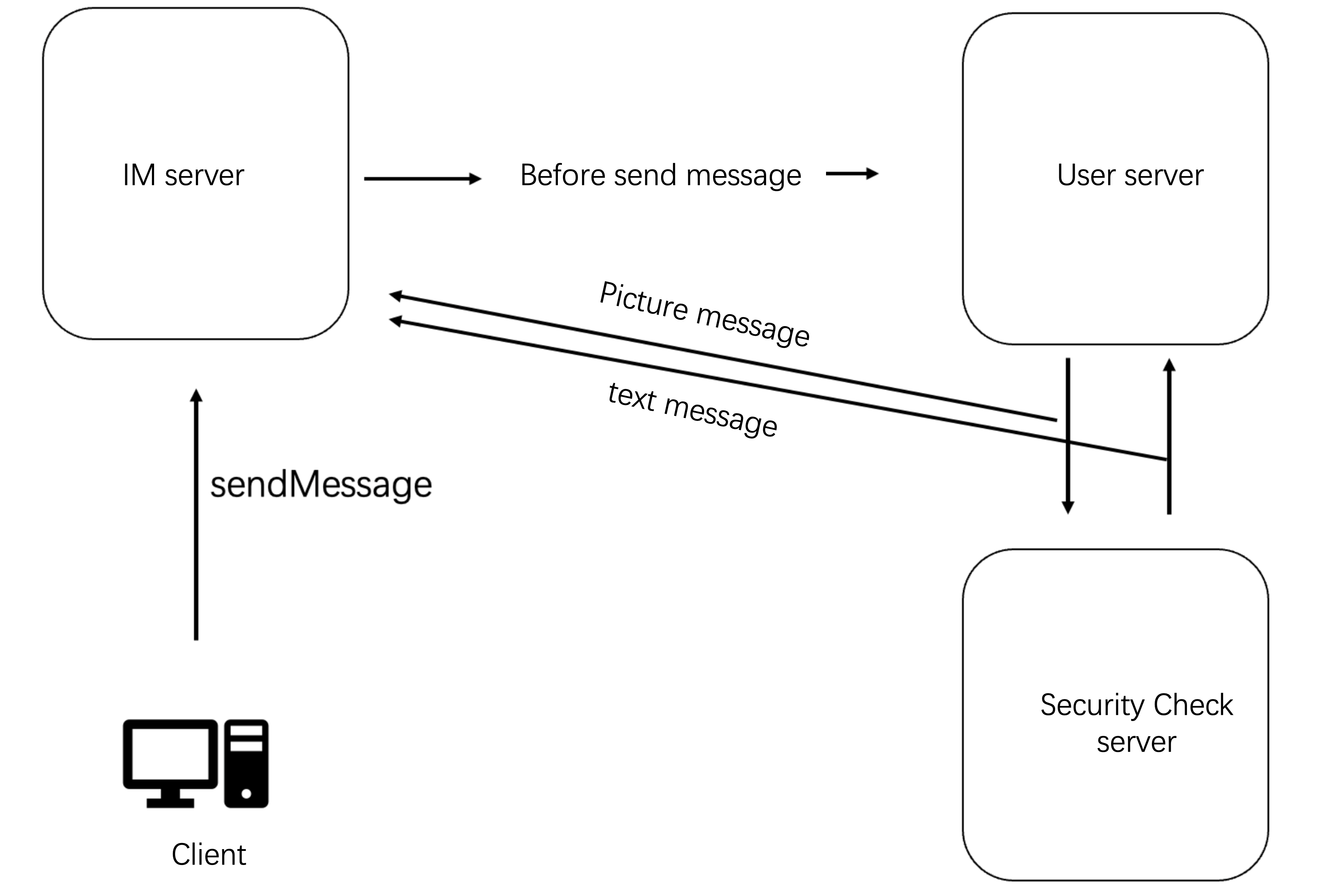
Sensitive content filtering is crucial in live streaming. Implementation steps:
1. Bind the pre-send message callback.
2. Determine message type from callback data and pass it to third-party detection services.
3. For text messages, wait for synchronous detection and return whether to deliver the message to Chat backend.
4. For multimedia messages, immediately return delivery status to Chat backend. If asynchronous detection (e.g., via Tianyu) later finds the message non-compliant, use the message edit API or custom group message API to notify of changes. Clients should block non-compliant messages upon receiving the notification.
Sample pre-send callback data:
{
"CallbackCommand":"Group.CallbackBeforeSendMsg",
"GroupId":"@TGS#2J4SZEAEL",
"Type":"Public",
"From_Account":"jared",
"Operator_Account":"admin",
"Random":123456,
"OnlineOnlyFlag":1,
"MsgBody":[
{
"MsgType":"TIMTextElem",
"MsgContent":{
"Text":"red packet"
}
}
],
"CloudCustomData":"your cloud custom data"
}
Determine message type via MsgType in MsgBody. For full field descriptions, see the Callback Documentation.
You can choose different handling for non-compliant messages by returning different responses to the Chat backend in the callback.
{
"ActionStatus":"OK",
"ErrorInfo":"",
"ErrorCode":0
}
ErrorCode
Meaning
0
Allow message, deliver normally
1
Reject message, client returns 10016
2
Silently discard, client returns success
Choose the appropriate option for your business needs.
Sensitive content detection workflow diagram:
Group Member List
Chat Live Room Member List
To display the online group member list in a live room, use the getGroupMemberList API. AVChatRoom does not support fetching the full member list due to the large number of members. The behavior differs for Ultimate Edition/Enterprise Edition and other editions:
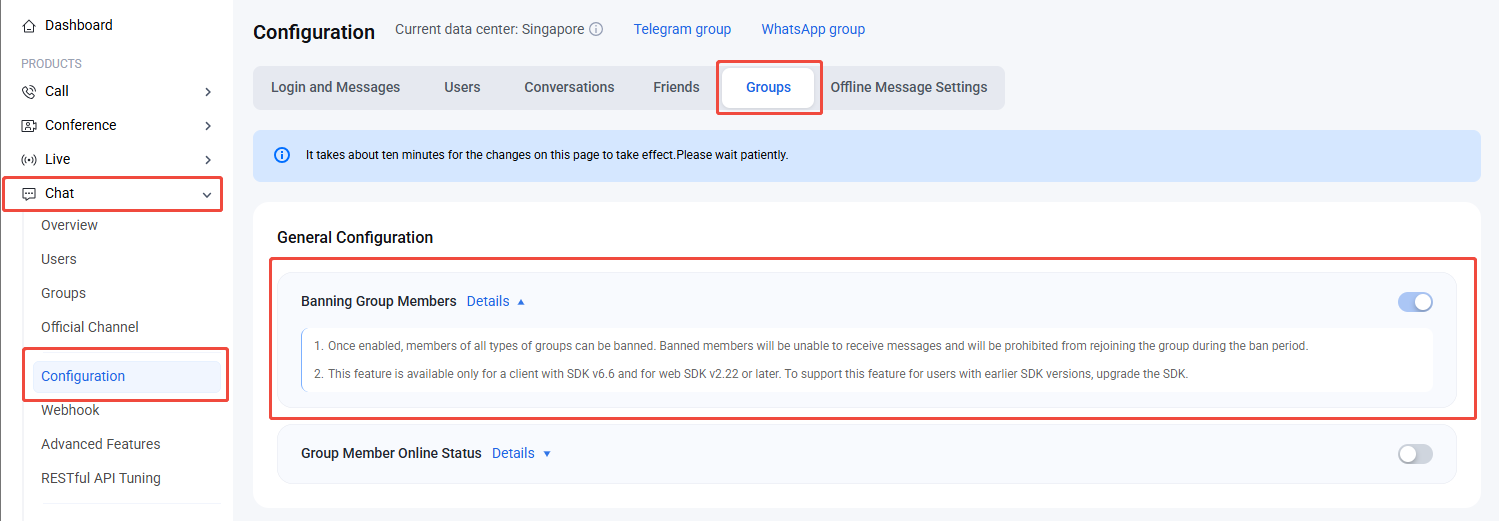
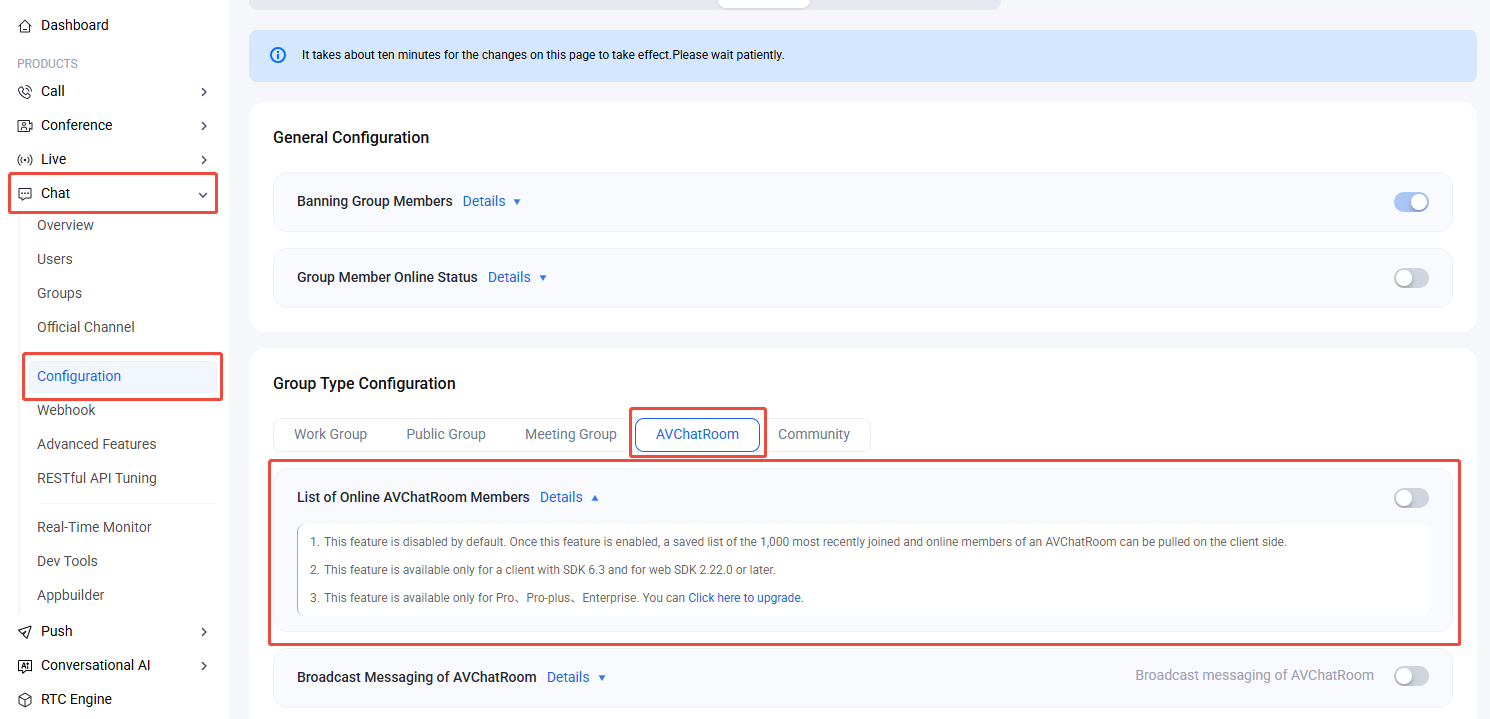
1. Non-Ultimate/Enterprise Edition users can fetch the latest 30 group members.
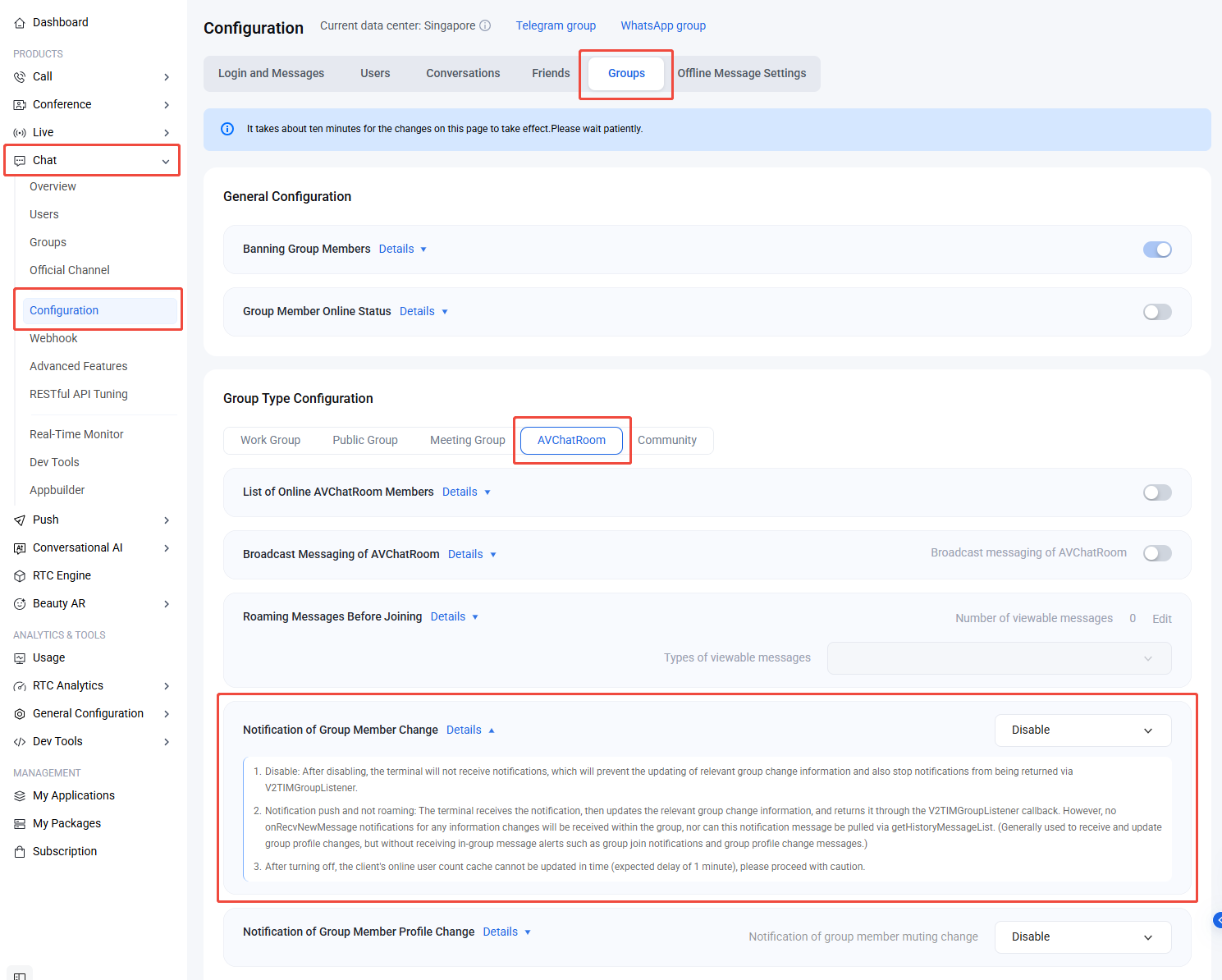
2. Ultimate/Enterprise Edition users can fetch the latest 1000 group members. This feature must be enabled in the Chat console; otherwise, only the latest 30 members are fetched.
Console configuration is shown below:
For non-Ultimate/Enterprise Edition, you can also use getGroupMemberList together with group listener callbacks onGroupMemberEnter and onGroupMemberQuit to maintain the current online member list on the client. However, after rejoining, only the latest 30 members can be fetched.
Anroid
iOS & Mac
Flutter
Web & Mini Program
// Use the `filter` parameter to specify only the profile of the group owner is to be pulled
int role =V2TIMGroupMemberFullInfo.V2TIM_GROUP_MEMBER_FILTER_OWNER;
// Use the `filter` parameter to specify only the profile of the group owner is to be pulled. You can also set `filter` to `All` to pull the profiles of all group members.
Live comment lottery requires the Pre-send Message Callback. By detecting message content, users who match lottery keywords can be added to the lottery pool.
Broadcast Message (Big Horn)
The broadcast message (Big Horn) feature is similar to a system announcement at the live room level, but unlike announcements, it is treated as a message. When a system administrator sends a broadcast message, all live rooms under the SDKAppID receive it.
The broadcast message feature is available in Pro Edition, Pro Edition Plus, and Enterprise Edition, and must be enabled in the console.
In addition to push/pull streaming, Cloud Live offers more advanced features, such as:
Ultra HD Transcoding: Intelligent scene recognition and dynamic encoding for high-definition, low-bitrate live streaming and quality enhancement.
Live Recording: Synchronously record and store live streams for later editing and distribution.
Live Watermark: Overlay visible or digital watermarks for video anti-theft.
Cloud Mixing: Mix multiple input streams into a new stream based on your layout for interactive live streaming.
Pull-to-Push: Distribute live or VOD content from other platforms via live streaming, providing content fetching and pushing to target addresses.
Frequently Asked Questions
Can Cloud Live be tested?
New users who activate Cloud Live receive a free 20GB traffic package valid for one year. Test traffic is deducted from this package.
Excess usage is billed daily on a pay-as-you-go basis. Value-added features such as watermarking, transcoding, recording, snapshot, and content moderation are available and billed as needed. For details, see the Product Overview.
Is there a limit on the number of online viewers in a live stream?
By default, there is no limit on the number of online viewers, as long as network conditions allow. If you set a bandwidth limit and the number of viewers exceeds it, new users cannot watch, so there is a limit in that case.
When sending a message, both Message.nick and Message.avatar fields are empty. How can I display nickname and avatar correctly?
Use the getUserInfo API to fetch your user info, and use the nick and avatar fields as the sender's nickname and avatar in the message.
Why are messages lost?
Possible reasons for message loss:
Live groups have a 40 messages/second rate limit. Use pre-send and post-send callbacks to check; if you receive the pre-send callback but not the post-send callback, the message was rate-limited.
See Message-related Issues to check if Mini Program/Web exit caused Android/iOS/PC to sync exit.
For Mini Program/Web issues, check if your SDK version is earlier than V2.7.6. If so, upgrade to the latest version.
If you've ruled out these possibilities, you can submit a ticket to contact us.
How to troubleshoot duplicate messages in live rooms?
First, check if the message was sent via the server-side API. When sending messages via the API, ensure the MsgRandom parameter is not fixed.
If you've ruled out these possibilities, you can submit a ticket to contact us.