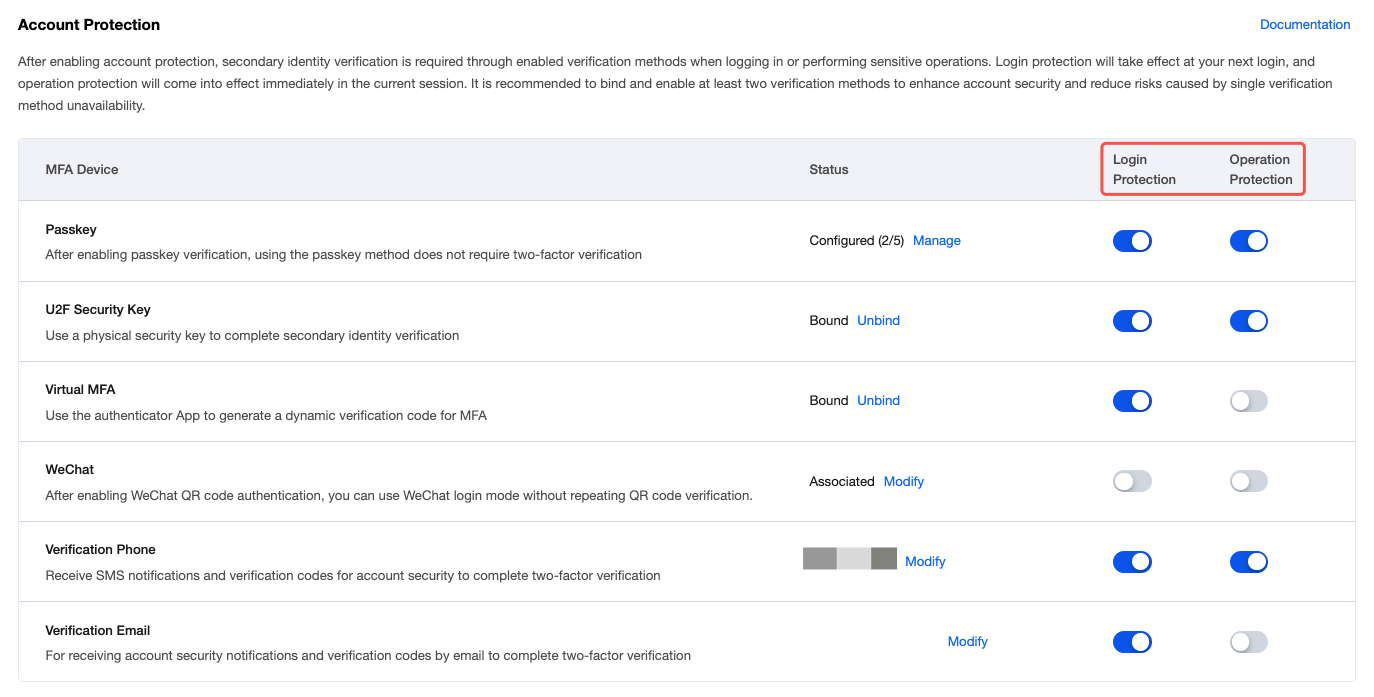
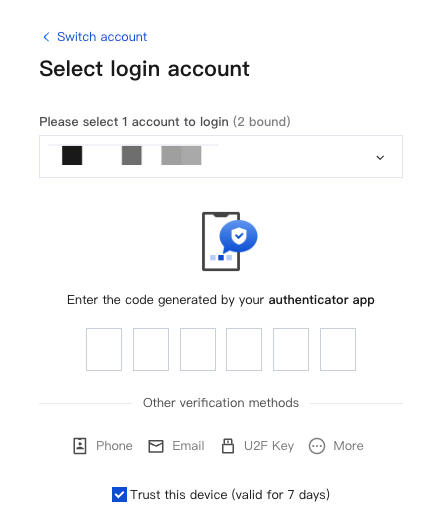
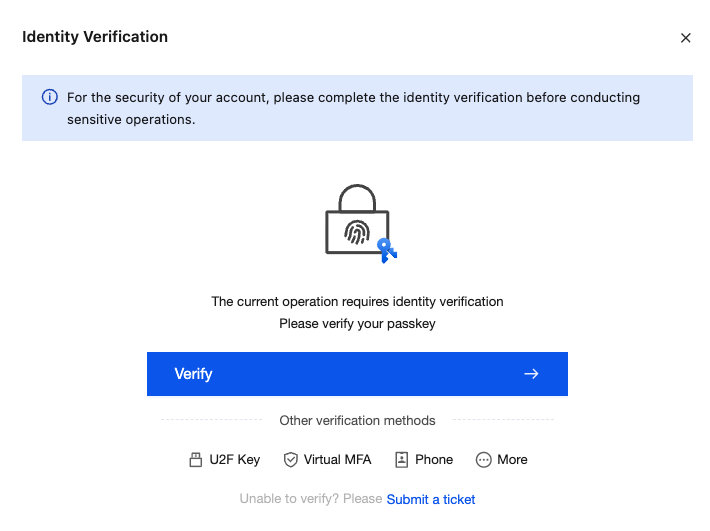
Account protection is a security verification mechanism provided by Tencent Cloud when you log in or perform sensitive operations (such as changing the account login method, changing the account password, or changing the verification mobile number). It includes two types: login protection and operation protection.
Enable login protection: When logging in to the Tencent Cloud website, you must complete identity verification to prevent others from directly logging in to your account after your password is stolen.
Enable operation protection: You must complete identity verification before performing sensitive operations to prevent others from using your account to modify important information.
This document describes the types of account protection and the steps for enabling/disabling it.
Attention:
To enable/disable account protection for a sub-account, the operation must be performed by the root account or an account with management permissions. For details, see Setting Security Protection for Sub-users.
Notes
The verification for sensitive operations is valid for 60 minutes. If you perform a sensitive operation again after more than 60 minutes, you must be verified again.
If both login protection and operation protection are enabled for your account and you complete two-step verification during login, performing sensitive operations within 60 minutes after login does not trigger sensitive operation verification.
Account Protection Types
Note:
To enable passkey device verification, your account must have a passkey created. Passkeys are supported for verification only on PC, not on mobile devices.
To enable U2F security key verification, your account must have a U2F security key bound. U2F security keys are supported for verification only on PC, not on mobile devices.
After entering the account and password on the login page, go to the login protection page, verify the bound passkey, and then complete the login.
When you perform sensitive operations in the console, the system automatically prompts a second identity verification dialog. After verification with the bound passkey, you can proceed to the next step.
Enable U2F Security Key Device Verification
After entering the account and password on the login page, go to the login protection page, insert the bound U2F security key, and tap the button to complete the login.
When sensitive operations are performed in the console, the system automatically prompts a second identity verification dialog. After inserting the bound U2F security key and tapping the button to complete verification, you can proceed to the next step.
Enable Virtual MFA Device Verification
After entering the account and password on the login page, go to the login protection page, and enter the correct virtual MFA dynamic security code to complete the login.
When sensitive operations are performed in the console, the system automatically prompts a second identity verification dialog. After entering the correct virtual MFA dynamic security code to complete verification, you can proceed to the next step.
Enable WeChat QR Code Verification
After using a non-WeChat QR code login method on the login page, go to the identity confirmation page and use WeChat to scan the QR code to confirm your identity. If the WeChat account used for scanning matches the WeChat account associated with your account, you can complete the login. Otherwise, the login cannot be completed.
When performing sensitive operations in the console, you enter the identity verification page and need to scan a QR code with WeChat to confirm your identity. The operation can be completed only if the WeChat account used for scanning matches the WeChat account associated with your account. Otherwise, the action cannot be performed.
Enable SMS Verification Code Verification.
After entering the account and password on the login page, go to the SMS verification code input page, click to obtain the SMS verification code, and enter the correct verification code to complete the login.
When sensitive operations are performed in the console, the system automatically prompts a second identity verification dialog. Click to obtain an SMS verification code, enter the correct verification code to complete verification, and then proceed to the next step.
Enable Email Verification Code Verification.
After entering the account and password on the login page, go to the email verification code input page, click to obtain the email verification code, and enter the correct verification code to complete the login.
When sensitive operations are performed in the console, the system automatically prompts a second identity verification dialog. Click to obtain an email verification code, enter the correct verification code to complete verification, and then proceed to the next step.
2. In the Account Protection section, locate login protection and operation protection.
3. Select the type of protection you want to enable, and click
to enable login protection or operation protection.
Note:
We recommend that you enable at least two different types to avoid being unable to log in if a single method fails.
You can enable login protection and operation protection for multiple devices at the same time. By default, the system verifies the device you used in your last verification. Alternatively, on the identity verification page, you can select another enabled device for verification as needed.
4. In the identity verification window that pops up, follow the on-page instructions to proceed. Once the verification is successful, the feature will be enabled.
Note:
If the identity verification method is unavailable, please contact us or submit a ticket to obtain support.
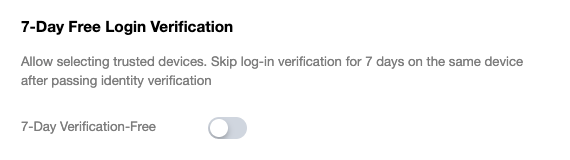
5. (Optional) In the 7-Day Login-Free Verification module, you can select trusted login devices to enable 7-day login-free verification. If you do not need this feature, ignore this step.
Disabling Account Protection
Warning:
Disabling account protection lowers the security level of your account and assets. Please proceed with caution.
After you disable login protection, daily logins require only your account and password. Two-step verification is no longer mandatory, which may increase the risk of account theft if your password is compromised.
After you disable operation protection, identity is no longer verified for routine sensitive operations. This increases the risk of erroneous operations, which can lead to data loss or asset damage.
Note: For certain high-risk operations, such as when an account has not been logged into for 30 days, when the login environment is abnormal, or during account cancellation, disabling account protection does not apply. The system will still enforce identity verification to further safeguard your account and assets.
1. Log in to the Tencent Cloud console and go to the Security Settings page.
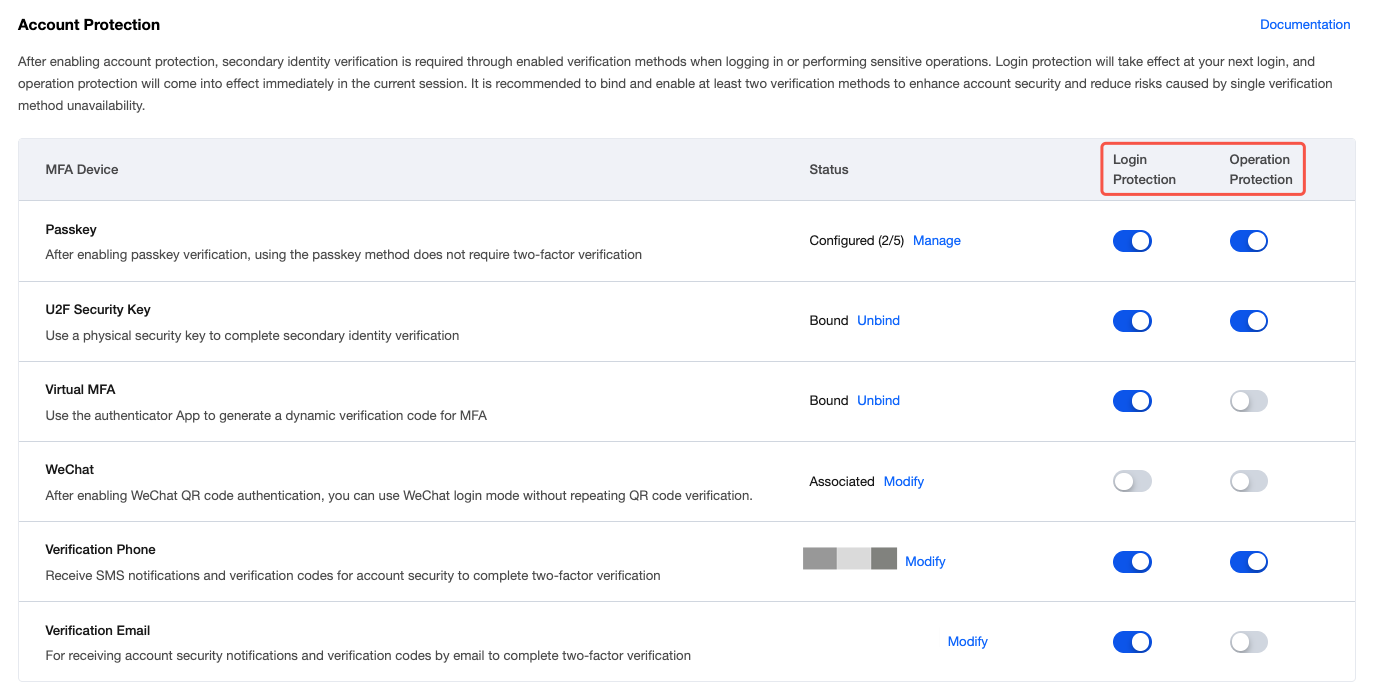
2. In the Account Protection section, locate login protection and operation protection.
3. Select the type of protection you want to disable, and click
to disable login protection or operation protection.
4. In the verification window that pops up, follow the on-page instructions to proceed. Once the verification is successful, the window will close.
Note:
If the identity verification method is unavailable, please contact us or submit a ticket to obtain support.
Account Protection Verification Sequence
Your account can enable login protection and operation protection for multiple devices simultaneously. By default, the system verifies the device you used in your last verification. Alternatively, on the identity verification page, you can select another enabled device for verification as needed.
1. If you have bound multiple MFA devices and enabled login protection for them.
2. On the identity verification page, the method you used in your last verification is displayed by default. Alternatively, you can switch to another verification method at the bottom to complete the process.