Vulnerability Management
ダウンロード
フォーカスモード
フォントサイズ
Overview
Vulnerability governance helps customers scan for security vulnerabilities in their systems and provides vulnerability information and fixing suggestions. Some vulnerabilities can be fixed automatically with one click. This document describes how to use the vulnerability governance features of CSC.
Version Limitations
The scope of vulnerability governance is described as follows: ('✓' indicates supported, and '-' indicates not currently supported).
The edition refers to the version of the CWPP module in CSC. For details, see Billing Overview.
Edition limits apply to specific machines. For example, application vulnerability features take effect only in the Ultimate Edition, so they apply only to machines bound to the Ultimate Edition.
Vulnerability Management Feature | Vulnerability type | Free Edition | Pro Edition | Flagship Edition |
Vulnerability scans. | Linux software vulnerabilities | ✓ | ✓ | ✓ |
| Windows system patches | ✓ | ✓ | ✓ |
| Web-CMS vulnerabilities | ✓ | ✓ | ✓ |
| Application vulnerabilities | - | - | ✓ |
| Displaying Emergency Vulnerabilities | ✓ | ✓ | ✓ |
Scheduled scans. | All scannable types | ✓ The scan cycle cannot be modified. | ✓ | ✓ |
VPR rating | Linux software vulnerabilities | - | ✓ | ✓ |
| Windows system patches | - | The latest patch is treated as an urgent fix in the VPR rating. | The latest patch is treated as an urgent fix in the VPR rating. |
| Web-CMS vulnerabilities | - | ✓ | ✓ |
| Application vulnerabilities | - | ✓ | ✓ |
| Displaying Emergency Vulnerabilities | - | ✓ | ✓ |
One-click automatic vulnerability fix | Linux software vulnerabilities | - | ✓ | ✓ |
| Windows system patches | - | ✓ | ✓ |
| Web-CMS vulnerabilities | - | - | - |
| Application vulnerabilities | - | - | - |
Vulnerability Scan
Scanning is the first step in discovering vulnerabilities and can be performed in two ways: scheduled automatic scans by the system (recommended, effective permanently after a one-time configuration) or manually initiated one-time scans.
Setting Up Scheduled Automatic Scans
You do not need to perform manual scans every time. Instead, configure a scheduled scan once and it will run automatically on a long-term basis.
1. On the vulnerability governance page, click Vulnerability Settings in the upper-left corner.
2. On the Periodic Scan Settings Tab, configure a policy for automatic periodic scans by the system.
Note:
To disable periodic scans, clear the checkboxes for all vulnerability types. After disabling, vulnerability detection will be unavailable, so proceed with caution.
Configuration Item | Description |
Vulnerability category | Includes emergency vulnerabilities, Linux software vulnerabilities, Windows patches, Web-CMS vulnerabilities, and application vulnerabilities. |
Vulnerability threat level | Filter scan scope by threat level. |
Scanning method | Version comparison: Scans component versions to identify vulnerability risks. Patch detection: Compares patch rules for Windows systems to identify patches to be updated. POC verification: Sends one or two harmless probe requests to the application to confirm with high confidence that the vulnerability exists, without performing any attack or destructive operations, and features precise rate control. This process typically has no impact on the business. Only in rare cases where an application has fragile logic for handling unexpected input may it introduce minor unknown risks. |
Scanning cycle. | You can set the scanning cycle and time range. Scan time supports cross-day configuration (for example, from 21:00 to 2:00 the next day). The system will randomly select a time point within the specified time range to initiate a scan. The time zone automatically adjusts to the browser's time zone by default. |
Timeout Period | You can set the scan timeout period, with a default value of 1 hour. |
Manually Initiating a Full Scan
1. On the vulnerability governance page, click One-Click Scan in the upper-right corner.
2. In one-click scan, configure the following settings for this scan as needed: vulnerability category, vulnerability threat level, timeout period, and scan host range.
3. Click OK, and the system will immediately dispatch a scan task.
Scanning Only a Specific Vulnerability
If you only care about whether a specific vulnerability affects your assets:
1. On the vulnerability governance page, click the number in the vulnerability knowledge base to open the vulnerability knowledge base drawer.

2. Search to find the target vulnerability, click One-Click Scan, and select the asset scope in the pop-up settings.
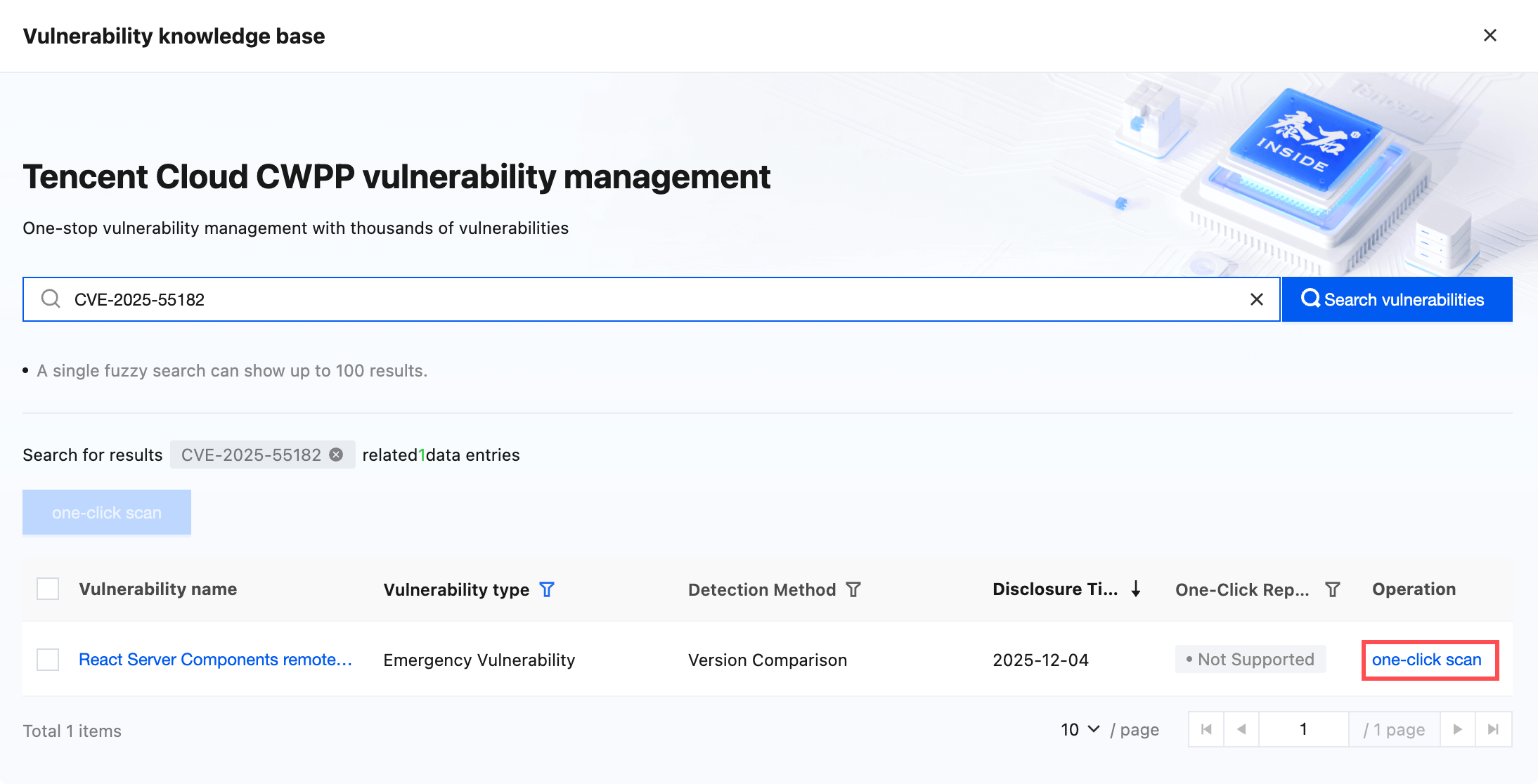
3. Click OK, and the system will dispatch a scan task for this vulnerability.
Vulnerability Analysis
After vulnerabilities are detected, you can use VPR ratings to help determine which one to fix first.
What Is VPR
Traditional CVSS is a static, generic scoring system that does not consider your actual environment. It often labels a large number of vulnerabilities as "high risk", leaving you unsure where to start. In contrast, VPR (Vulnerability Priority Rating) combines multiple dimensions of intelligence, including vulnerability exploitability, media attention, severity, public network exposure, and impact on critical assets, to dynamically calculate the real fixing priority of each vulnerability in your environment, allowing you to focus on the vulnerabilities that matter most.
Evaluation System | Core Question Addressed | Limitations / Advantages |
CVSS (Common Severity) | "Under the most ideal technical assumptions, how great is the theoretical damage potential of this vulnerability?" | Static, lab perspective: regardless of how the vulnerability evolves in the industry (for example, whether it goes from being unnoticed to being widely exploited in the wild), and regardless of whether your business is exposed to the internet. |
VPR (fixing priority) | "Based on the current in-the-wild attack situation and your actual network environment, how high is the actual reachable risk of the attack, and how quickly should it be remediated now?" | Dynamic, real-world attack and defense perspective: accurately quantifies real-world urgency and guides ticket routing and handling. |
VPR Rating Explanation
Priority | Business Meaning | Typical Feature Combination |
Urgent fix required | Real-world attack pressure is very clear. Immediately enter the emergency response process. | Confirmed active exploitation in the wild + remote exploitation path Externally exposed service + mature exploit Vulnerabilities tagged for emergency response to 0-day/major security incidents |
Fix as soon as possible. | High-risk vulnerability with exploitable conditions Prioritize remediation in the near term. | Mature exploit tools + remote path (but no large-scale in-the-wild attacks yet) High exploitability + severe technical impact |
Planned fix | Clear risk but limited attack conditions. Schedule the remediation in a planned manner. | Only a theoretical PoC exists, and exploitation is difficult, requiring local access/high privileges/complex interaction. The asset is not publicly disclosed, and the technical impact is limited. |
Fix can be postponed. | Extremely high real-world attack cost / extremely weak threat. Perform routine maintenance. | No public exploit code is available, exploitation is difficult, and the impact is limited. The evidence chain indicates that the probability of being attacked in the short term is extremely low. |
Quickly Locating Target Vulnerabilities with Filters
In the filter area above the vulnerability list, you can:
Filter by VPR rating. For vulnerabilities that require urgent fixing, you can click the statistics on the vulnerability governance homepage to filter them directly, allowing you to quickly focus on the highest-priority vulnerabilities.
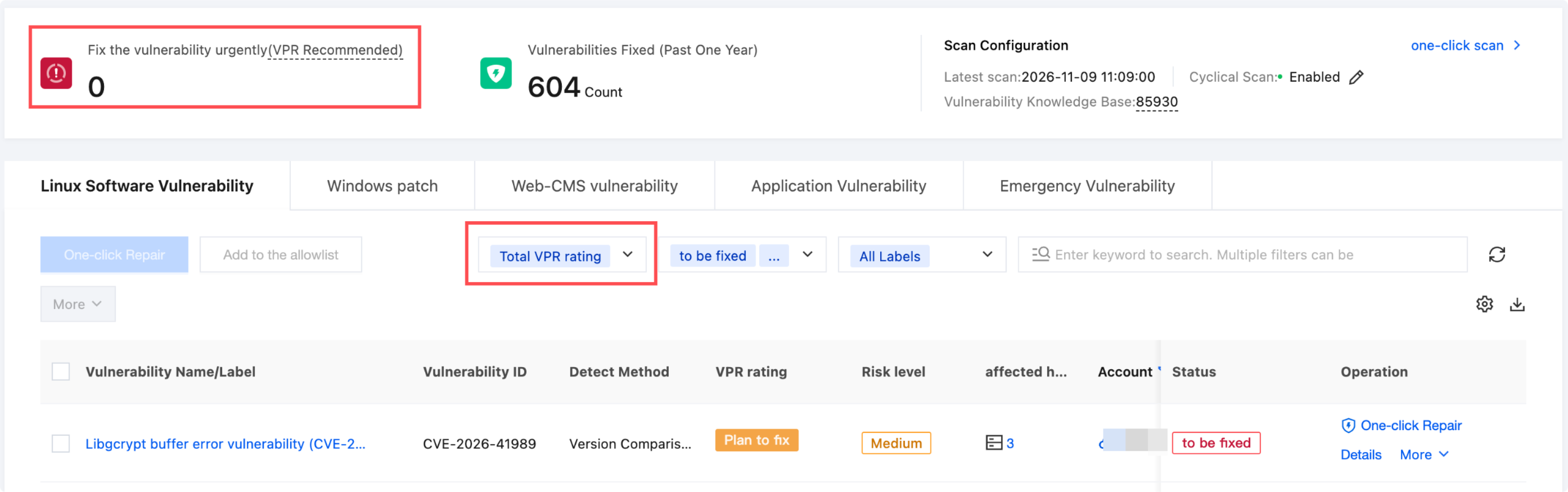
Note:
Click the filter for the Vulnerabilities Requiring Urgent Fix statistic to jump to the first tab from the left that contains data.
All the latest Windows patches will be treated as requiring urgent fixes.
In the Free Edition, VPR ratings are not supported. If you do not have any paid cloud workload protection licenses, the Vulnerabilities Requiring Urgent Fix statistic will change to Critical Vulnerabilities Pending Fix.
Filter by status, such as Fixed, Pending Fix, Fixing, Pending Restart, Fix Failed, Allowlisted, and Scanning.
Filter by risk tag, such as exploited in the wild, weaponized, and publicly available PoC code.
Use the search box to search. Vulnerability IDs are matched exactly, while vulnerability names support fuzzy search.
Vulnerability Fixing
After you identify the vulnerabilities to handle, Linux software vulnerabilities and Windows patches can be fixed with one click. Other vulnerabilities can be fixed manually based on the handling suggestions in the vulnerability details. The following describes how to fix vulnerabilities that support one-click fixing. You can initiate a fix from any of the following locations:
Vulnerability list: In the row of the target vulnerability, click One-Click Fix.
Batch Fix: After selecting multiple vulnerabilities, click One-Click Fix in the toolbar above the list.
Vulnerability Details / Affected Hosts page: When viewing details, click One-Click Fix on the page to initiate a fix for one or more hosts.
Note:
If you need to fix multiple vulnerabilities, we recommend that you prioritize batch fixing to avoid potential exceptions such as timeouts or task pileups caused by frequently issuing multiple fix tasks for the same asset.
Starting Remediation
1. When you initiate a fix from any of the above entries, a one-click fix drawer page opens for pre-fix confirmation, including snapshot settings, fixable assets, and non-fixable assets.
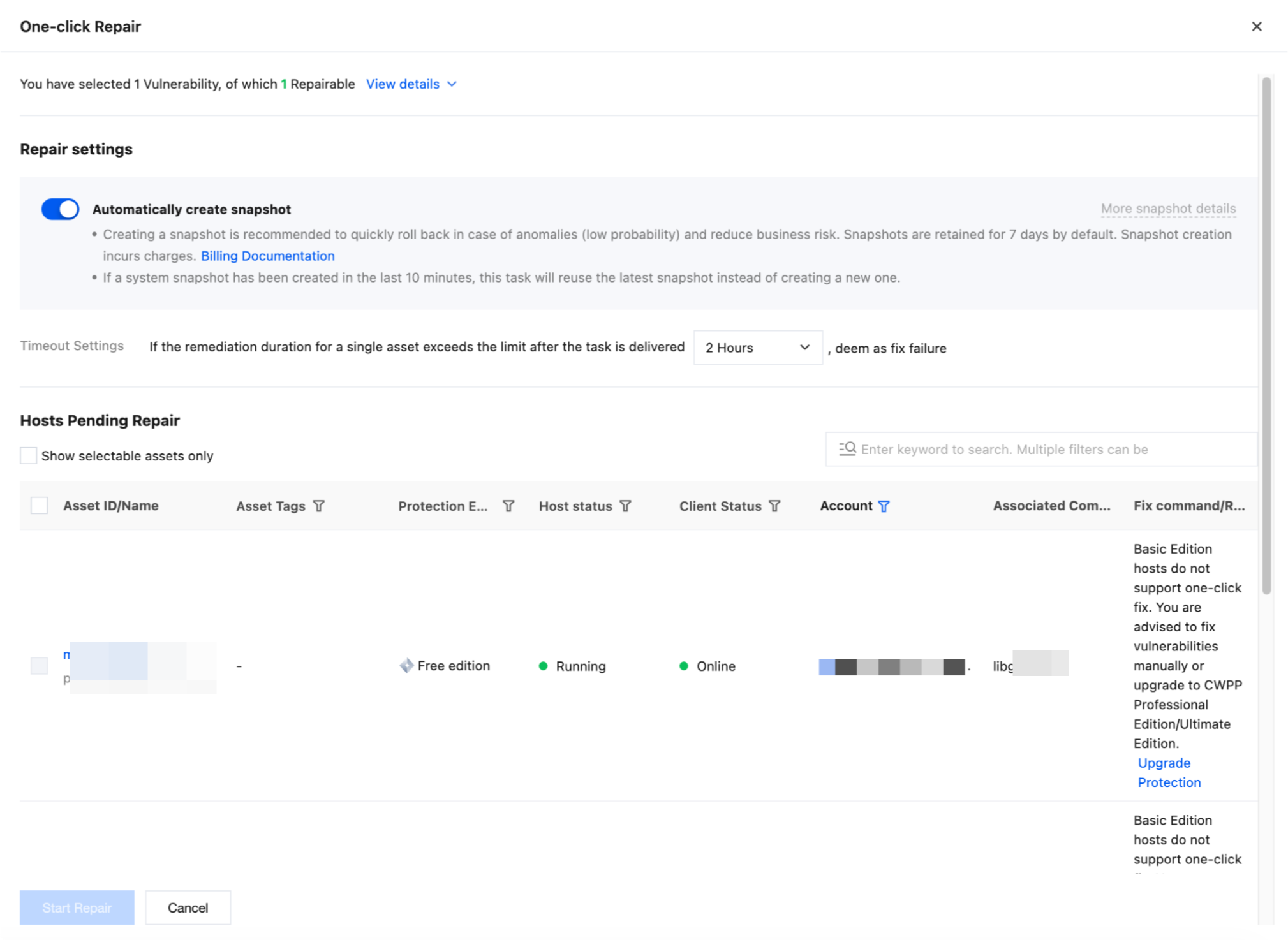
Snapshot Settings: We recommend that you create a snapshot so that you can quickly roll back to minimize business risks if an exception occurs (with a low probability).
Snapshots are retained for 7 days by default.
Tencent Cloud CVM and Lighthouse support automatic snapshots. Other assets will be skipped automatically, so please create snapshots manually.
Creating snapshots may incur certain fees, which are charged by CBS. For a 40GB system disk, storing a snapshot for one day costs approximately CNY 0.13. For details, see Snapshot Billing Documentation.
Snapshots are created only for vulnerabilities whose fix method is "Install Patch/Component Update".
If a snapshot fails to be created, the system will skip that host and continue fixing other hosts.
Select hosts that can be fixed with one click: Select the hosts that need to be fixed.
Hosts that cannot be fixed with one click: The host may not support one-click fix for the following reasons:
Hosts on the Free Edition do not support one-click fix. We recommend that you fix them manually or upgrade your protection.
The cloud workload protection client is offline. We recommend that you reinstall the client.
The host is powered off. Restart it and try again.
This system is installed from source code and does not support one-click fix. We recommend that you fix it manually.
The official source has stopped releasing security patches for this system version, so one-click fix is unavailable. We recommend that you upgrade to the latest official version.
2. After confirming the relevant settings, click Start Fix. A fix task will be submitted immediately. You can click Task Records in the prompt pop-up in the upper-right corner to open the task records drawer, and then select the Vulnerability Fixing tab to view the status and progress of the task.
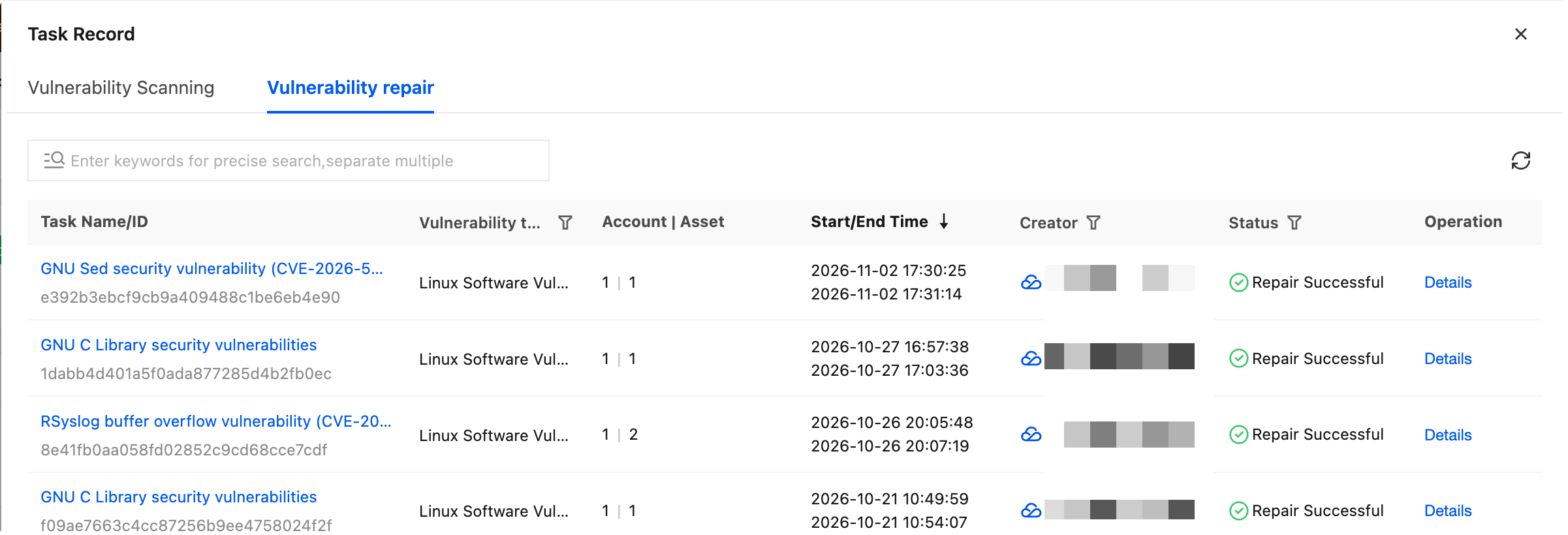
3. After the fix is complete, the system will automatically rescan to verify whether the vulnerability has been fixed. If it has been fixed, the status of the vulnerability will be updated to "Fixed".
Other Vulnerability Operations
On the vulnerability governance page, in addition to one-click fix, you can also click More for each vulnerability to perform the following operations:
Rescan: Check whether the vulnerability still exists. After you click it, a confirmation dialog box appears. After you confirm, the status changes to "Scanning". After the scan is complete, the status is automatically updated to "Fixed" or "To Be Fixed".
Add to Allowlist: When you confirm that a vulnerability does not need to be handled, you can ignore it and stop receiving alerts. After you click it, a second confirmation is required. After the vulnerability is added to the allowlist, you can click Vulnerability Settings in the upper-right corner of the vulnerability governance page to manage it in the vulnerability allowlist.
Manual Fix: For vulnerabilities that do not support one-click fix, you can manually handle them by referring to the fixing solutions in the vulnerability details.
Installing Windows Patches
Windows system vulnerabilities are fixed by installing KB patches. The operation process is basically the same as vulnerability fixing. Only the differences are described below.
1. Show latest patches only: In the Windows patch list, you can enable Show latest patches only. After it is enabled, only the latest patches for the system are displayed. Fixing the latest patches can cover the alarm records of historical patches to be fixed, improving patch fixing efficiency. If no latest patch is available for the current month after filtering, we recommend that you fix historical patches.
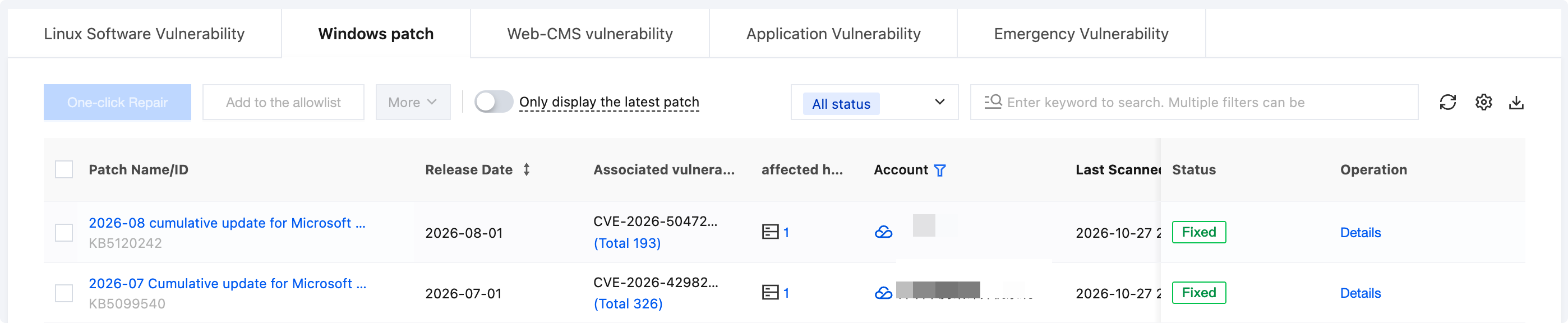
2. Select the patches to be installed and click One-Click Fix.
If a patch has prerequisite patches or will overwrite historical patches, it will be displayed in the remarks. Hover over it to see the specific patches, and click patch name to go to its details page.
The snapshot settings are basically the same as vulnerability fixing, with only slight differences in the prompt text.
Records of Fixed Vulnerabilities
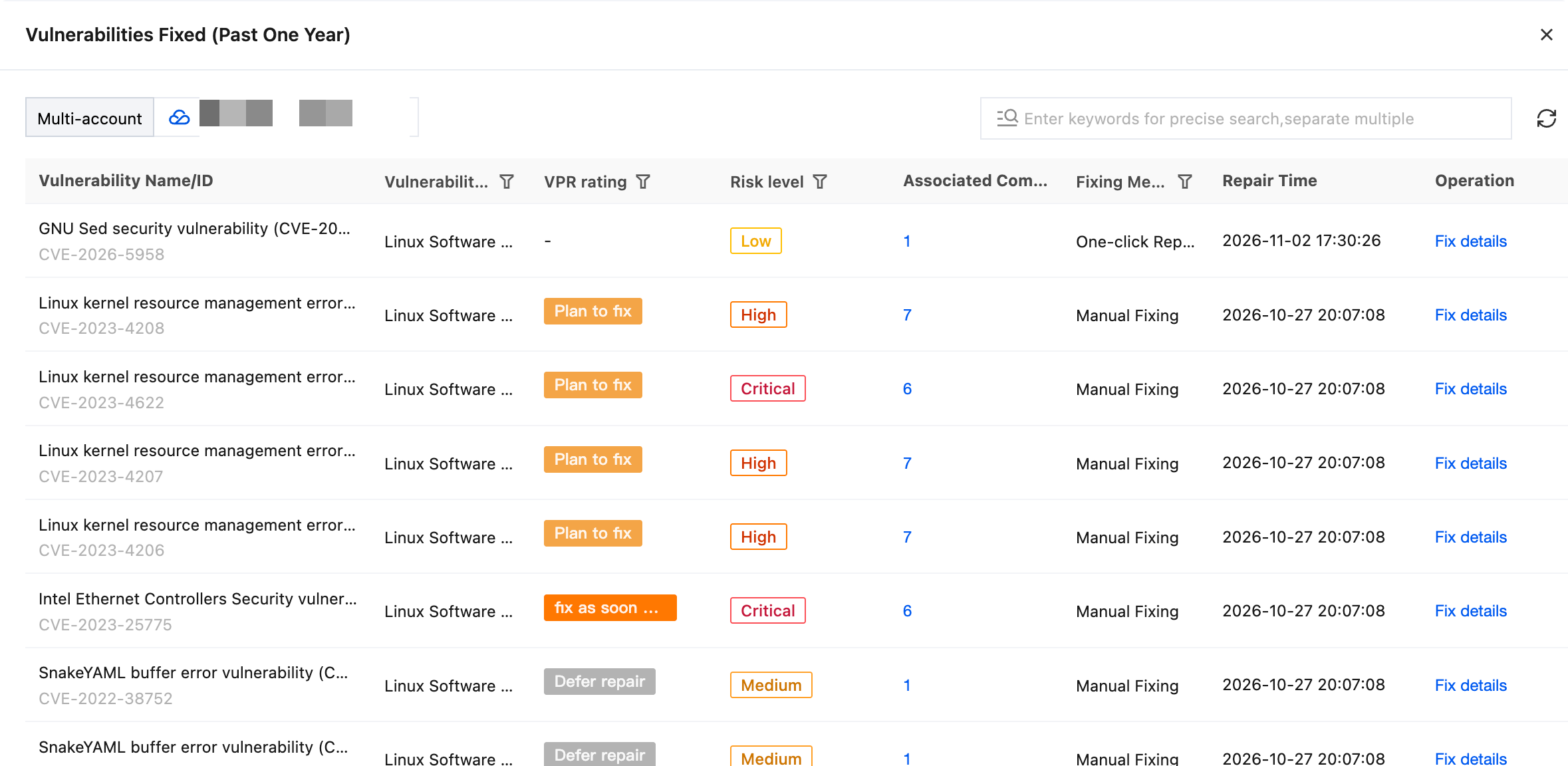
1. On the vulnerability governance page, you can view fixed vulnerabilities (within the last year), and the fixing status of the last year is displayed by the number of fixes.

2. After you click the number of fixed vulnerabilities (within the last year), you can view detailed fix records, including records of one-click fixes performed in the console and manual fixes.
Appendix
Supported Operating Systems
Supported operating system versions for the vulnerability scanning and automatic fixing feature.
Operating system | System Version | Vulnerability scans | Vulnerability Fixing |
CentOS | CentOS 5 | ✓ | ✓ |
| CentOS 6 | ✓ | ✓ |
| CentOS 7 | ✓ | ✓ |
| CentOS 8 | ✓ | ✓ |
Debian | Debian 8 | ✓ | - |
| Debian 9 | ✓ | - |
| Debian 10 | ✓ | - |
| Debian 11 | ✓ | - |
| Debian 12 | ✓ | - |
Windows patches | Windows Server 2008 | ✓ | ✓ |
| Windows Server 2012 | ✓ | ✓ |
| Windows Server 2016 | ✓ | ✓ |
| Windows Server 2019 | ✓ | ✓ |
| Windows Server 2022 | ✓ | ✓ |
Ubuntu | Ubuntu 16.04 | ✓ | ✓ |
| Ubuntu 18.04 | ✓ | ✓ |
| Ubuntu 20.04 | ✓ | ✓ |
| Ubuntu 21.04 | ✓ | ✓ |
| Ubuntu 22.04 | ✓ | ✓ |
| Ubuntu 24.04 | ✓ | ✓ |
Tlinux/TencentOS | Tlinux | ✓ | ✓ |
RockyLinux | RockyLinux | ✓ | ✓ |
OpenCloudOS | OpenCloudOS | ✓ | ✓ |
List of Vulnerabilities No Longer Maintained
For operating systems that have entered end-of-support status (that is, versions for which official updates have been discontinued), CSC will no longer provide scanning and fixing support for vulnerabilities that emerge after the end-of-support date. Vulnerabilities that emerged before the end-of-support date will still be supported, and the scope of supported vulnerabilities will not be affected. The list of end-of-support systems is as follows:
Operating System Version | Official End of Support Date |
Windows Server 2003 | July 14, 2015 |
Windows Server 2008 | January 14, 2020 |
Windows Server 2008 R2 | January 14, 2020 |
Windows Server 2008 SP2 | January 14, 2020 |
Windows Server 2012 | October 10, 2023 |
Windows Server 2012 R2 | October 10, 2023 |
Ubuntu 12.04 LTS | April 28, 2017 |
Ubuntu 14.04 LTS | Apr-19 |
Ubuntu 16.04 LTS | 21-Apr |
Ubuntu 18.04 LTS | April 2023 |
Ubuntu 20.04 LTS | May 31, 2025 |
CentOS 5 | March 31, 2017 |
CentOS 6 | November 30, 2020 |
CentOS 7 | June 30, 2024 |
CentOS 8 | December 31, 2021 |
Debian 8 (Jessie) | June 30, 2020 |
Debian 9 (Stretch) | June 30, 2022 |
Debian 10 (Buster) | June 30, 2024 |
Debian 11 (Bullseye) | August 31, 2026 |
フィードバック