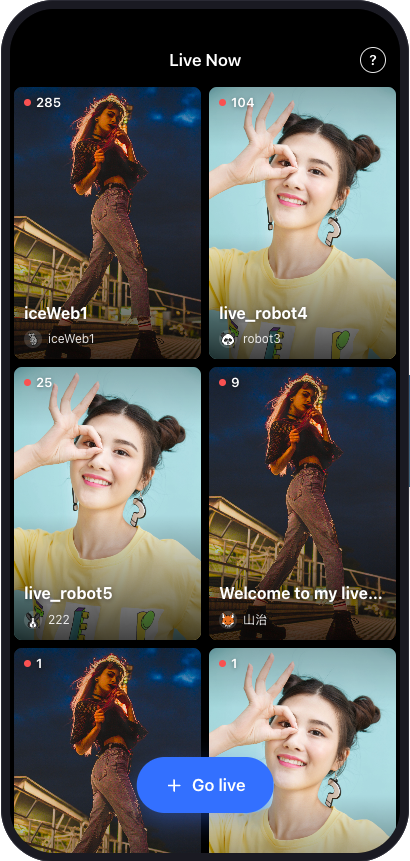
This guide walks you through running the TUILiveKit Android Demo in just 10 minutes. You'll experience a complete video live streaming solution with a fully integrated UI. Once the demo is set up, you'll see screens like the examples below:
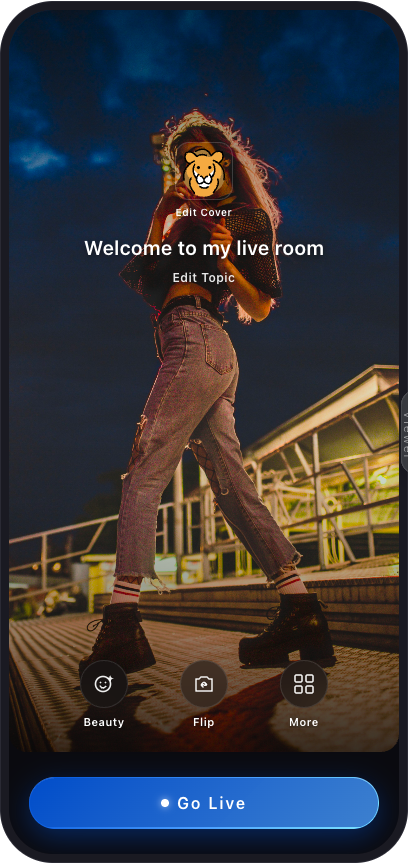
Host Preview Before Going Live
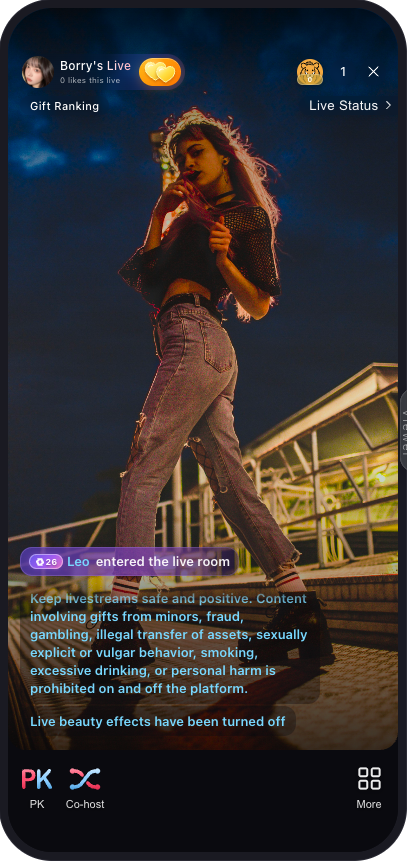
Host Live Streaming
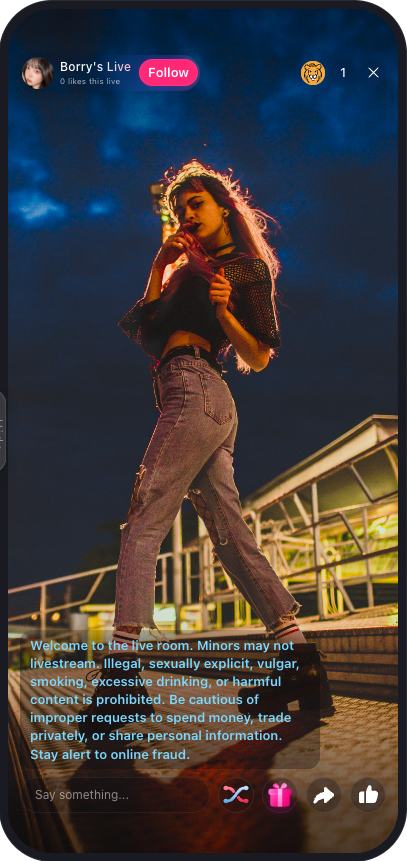
Audience Viewing
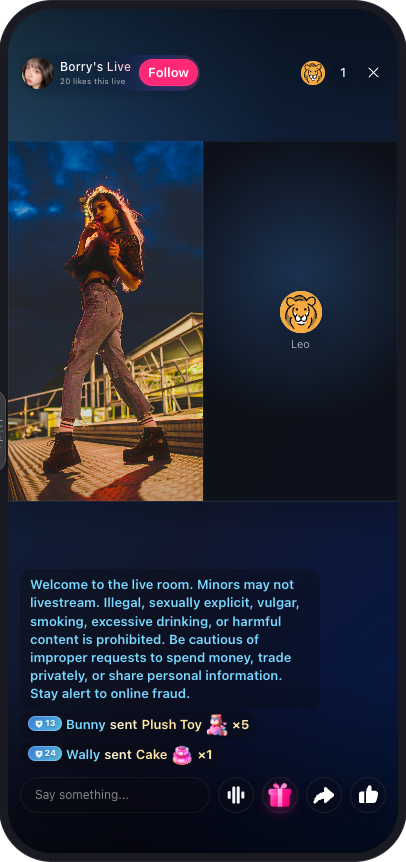
Host and Audience Co-hosting
Quick Experience
You can directly experience all Live features using the following methods.
Prerequisites
Enable the Service
Refer to Enable the Service to obtain a TUILiveKit trial version. Then, go to the Console for application management, and get the following:
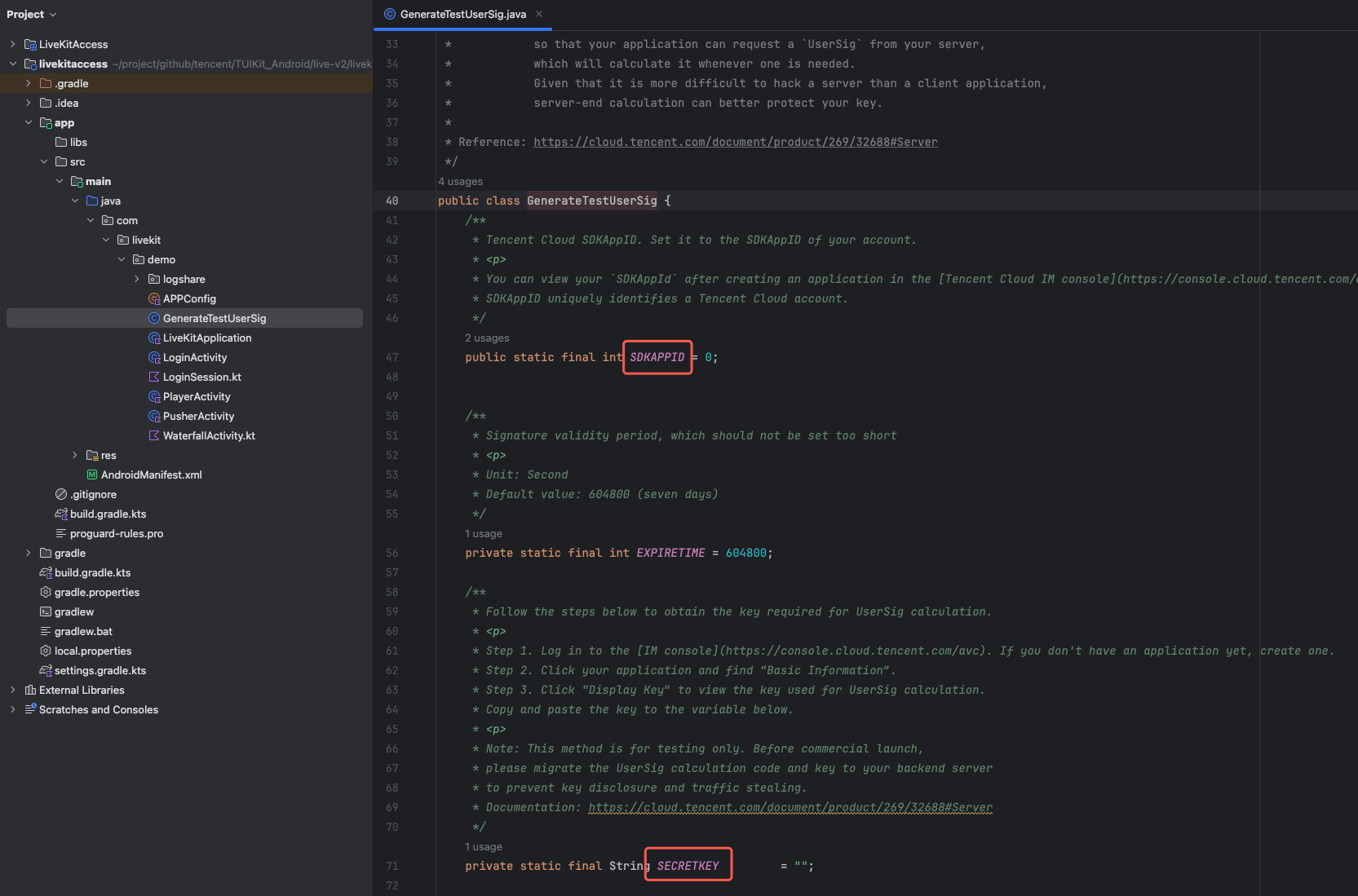
SDKAppID: Application identifier (required). Tencent Cloud uses SDKAppId for billing and details.
SDKSecretKey: Application secret key, used to initialize the configuration file with secret information.
Environment Preparation
Android 5.0 (API level 21) or above
Gradle 8.0 or above
Two Android devices running 5.0 or above
Instructions
Download the Demo
1. Download the source code: Get TUIKit_Android from GitHub, or run the following command in your terminal:
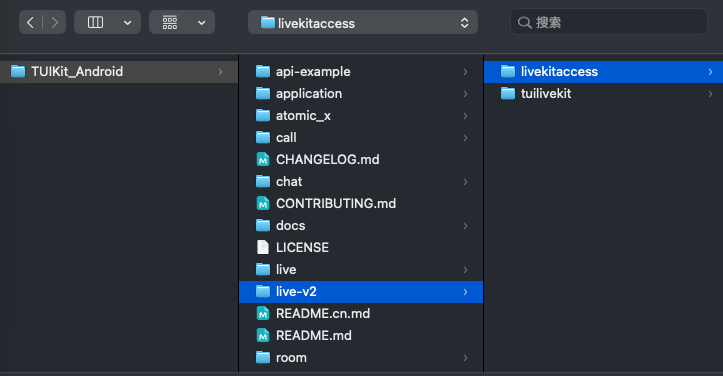
2. Open the project: Launch the TUILiveKit Android project in Android Studio:
Configuration
1. Configure SDKAppID and SDKSecretKey: Open live-v2/livekitaccess/app/src/main/java/com/livekit/demo/GenerateTestUserSig.java and enter your SDKAppID and SDKSecretKey:
Build and Run
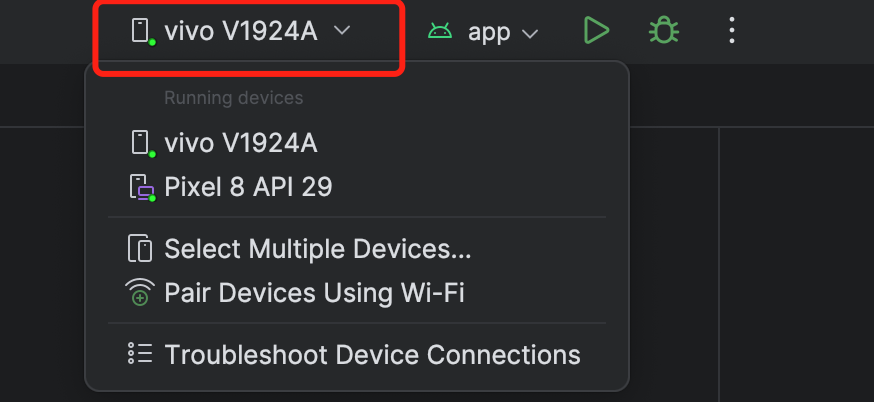
1. In the upper right corner of Android Studio, select the device to run the demo:
2. Click Run to deploy.
Note:
For a complete live streaming experience, log in with two different users on two separate devices—one as the host and one as the audience.
Login
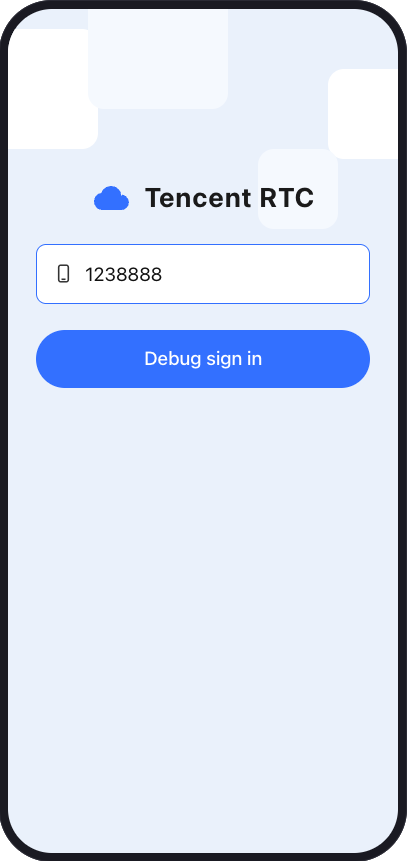
On the login page, enter your user ID and click Login. After a successful login, you'll land on the demo homepage. From there, you can explore all features shown in the screenshots at the beginning of this guide.
Sign-in Page
Home Page
Next Steps
After running the Demo, refer to the following integration guides to add these features to your own project:
Name
Description
Integration Guide
Video Live Streaming
Supports ultra-low latency HD streaming, multi-user co-hosting/PK, real-time beauty filters, bullet comments, and gift interactions—enabling you to build interactive video live streaming scenarios.
Delivers ultra-clear audio quality, supports multi-user co-hosting, seat management, and real-time text chat—ideal for KTV, social, or gaming-themed rooms.
Verify that the SDKAppID and SDKSecretKey in live-v2/livekitaccess/app/src/main/java/com/livekit/demo/GenerateTestUserSig.java are correct. Ensure they match the values from the Tencent Cloud Console Application Management page.
Will running the Demo be affected if Gradle version is below 8.0?
Yes. If your Gradle version is below 8.0, you may encounter dependency download failures or build errors. Upgrade your Gradle version in Android Studio to meet the requirements. Configure SDKAppID and SDKSecretKey: Open live-
After entering the room, you may encounter error code "-3301" with the message "Services are not available in your region."
If you receive this error code, contact us for support.