Audience Watching (iOS)
Unduh
Mode fokus
Ukuran font
TUILiveKit Audience Watch Page delivers a seamless live streaming experience, offering rich viewing and interactive features for your audience. You can quickly integrate it into your application to support a wide range of audience engagement scenarios.
Feature Overview
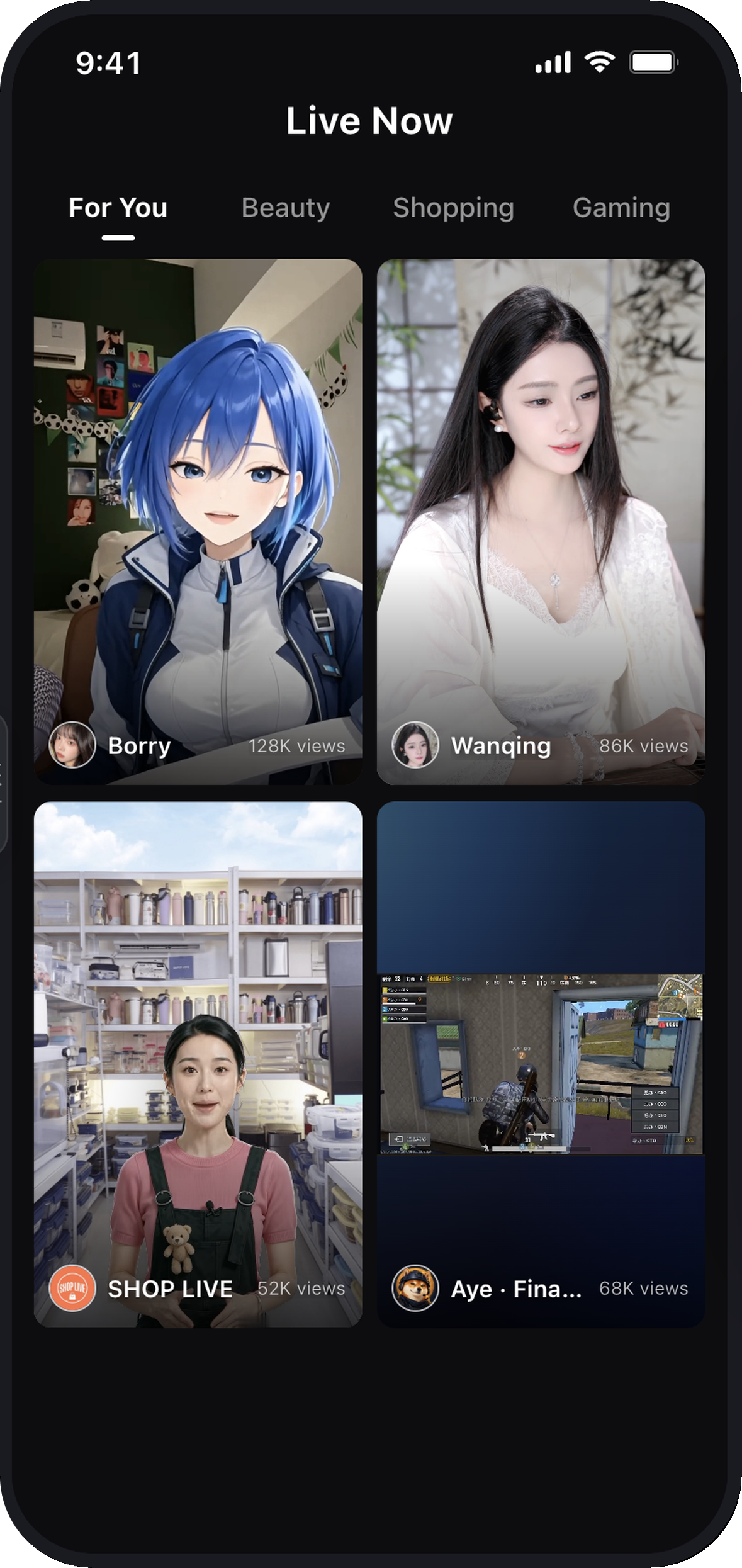
Live Preview: View the host's real-time video before joining the room. Tap Enter Room to join and start interacting.
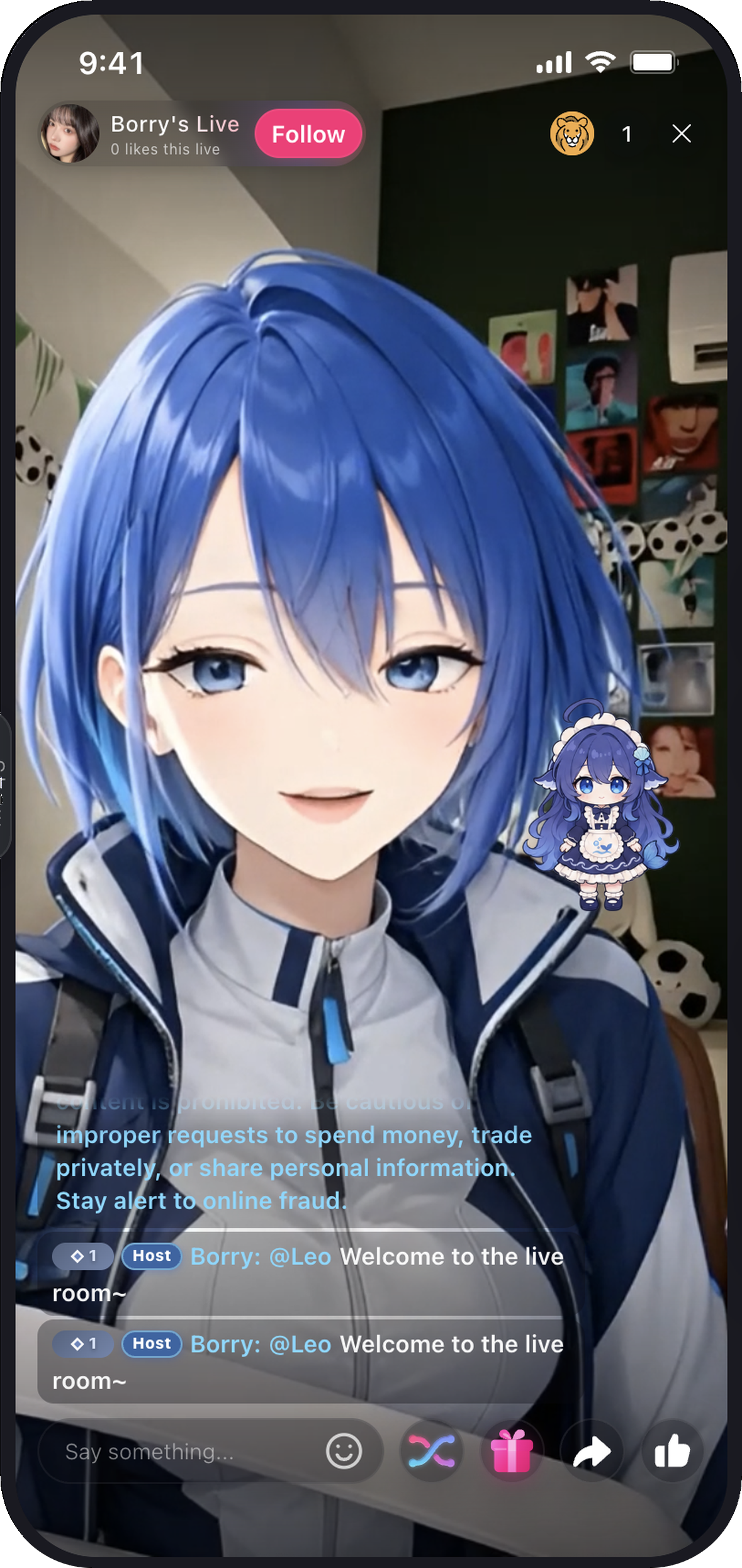
Live Watching: Watch the host's live stream in high quality. See the stream title, host details, and the number of online viewers.
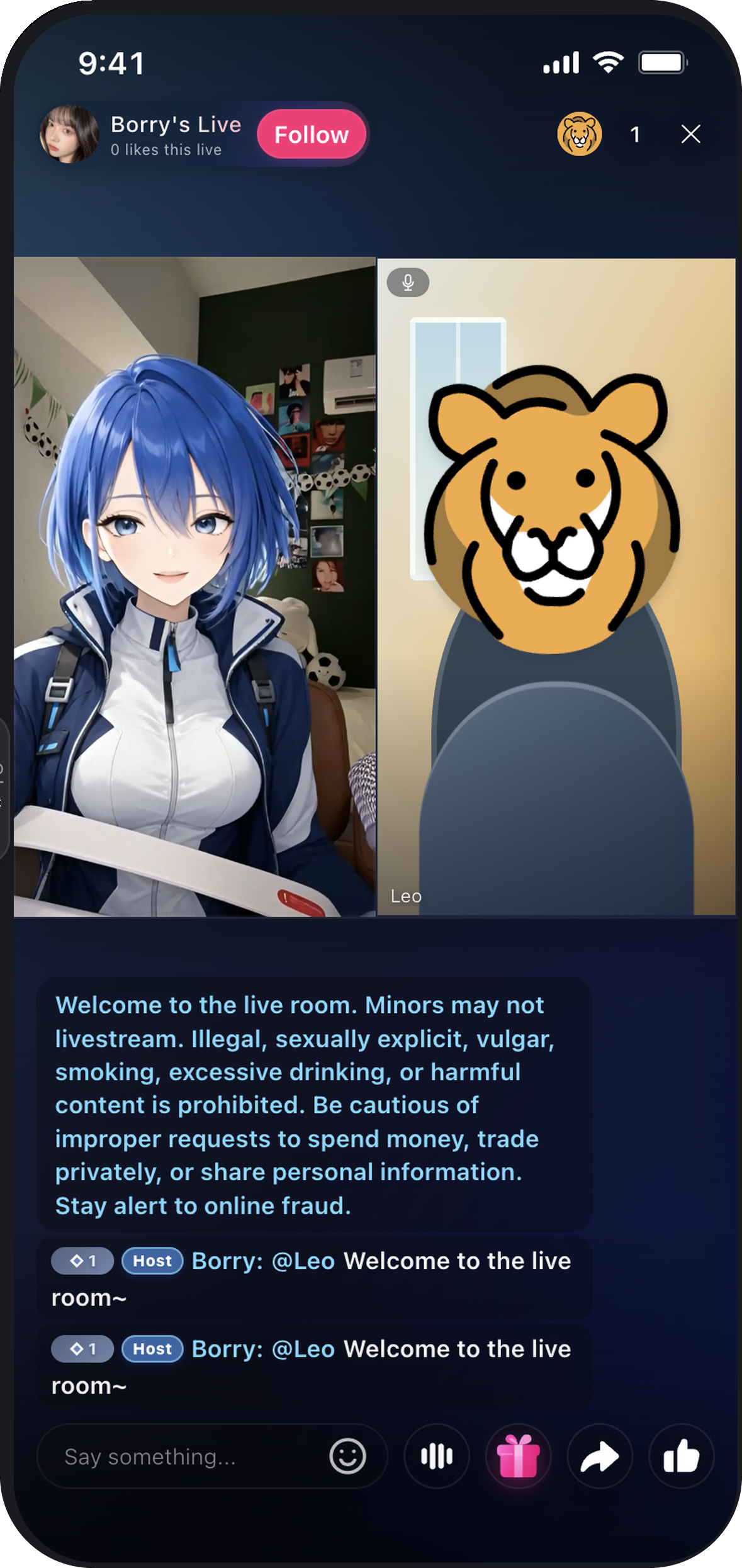
Live Interaction: Send gifts (with animation and host notifications), like (with animation and real-time stats), post live comments, and request to join the host for audio/video co-hosting.
Live Preview | Live Viewing | Live Interaction |
 |
 |  |
Component Description
PlayerView is designed for viewing a single live stream room, ideal for scenarios where users join a specific stream directly (such as via a shared link or host start notification). The component provides a full interactive UI for stream playback, room entry, co-hosting, live comments, gifts, and likes.
Quick Start
Step 1. Activate the Service
Refer to the Activate Service document to get the
TUILiveKit trial version or activate the paid version.Step 2. Code Integration
Note:
Before creating a
PlayerView, please ensure that you have logged in; otherwise, the flow pulling and room entry will fail.The host App must declare the audio background mode (
UIBackgroundModes → audio) That is, Target → Signing & Capabilities → Background Modes → Audio, AirPlay, and Picture in Picture. When not declared, the App will be suspended by the system when entering the background, and the audience will not be able to hear the sound from the live stream.Step 3. Use PlayerView to Watch a Single Live Stream Room
Create and initialize PlayerView in your audience viewing view controller:
import AtomicXCoreimport Combineimport SnapKitimport TUILiveKitimport UIKitclass AudiencePlayerViewController: UIViewController {private let liveID: Stringprivate let playerView = PlayerView()private var cancellables = Set<AnyCancellable>()init(liveID: String) {self.liveID = liveIDsuper.init(nibName: nil, bundle: nil)}@available(*, unavailable)required init?(coder: NSCoder) {fatalError("init(coder:) has not been implemented")}override func viewDidLoad() {super.viewDidLoad()// 1. Add playerView to the viewview.addSubview(playerView)playerView.snp.makeConstraints { make inmake.edges.equalToSuperview()}// 2. Set live stream room info (must be called before startPlay / joinChannel)let liveInfo = LiveInfo()liveInfo.liveID = liveIDplayerView.setLiveInfo(liveInfo)playerView.contentSafeAreaInsets = view.safeAreaInsets// 3. Listen for close and enter room eventsplayerView.onCloseClicked = { [weak self] inself?.dismiss(animated: true)}playerView.onJoinLiveClicked = { [weak self] inprint("onJoinLiveClicked, liveID:\\(self?.liveID ?? "")")}// 4. (Optional) Listen for playback status changesplayerView.status.receive(on: DispatchQueue.main).sink { status inprint("player status:\\(status)")}.store(in: &cancellables)// 5. Start streaming playbackplayerView.startPlay()// 6. Enter the live stream room. After entering, audience can send live comments, likes, gifts, and request co-hosting.playerView.joinChannel { result inswitch result {case .success(let joinedLiveInfo):print("joinChannel success, liveID:\\(joinedLiveInfo.liveID)")case .failure(let error):print("joinChannel failed:\\(error.localizedDescription)")}}}override func viewDidDisappear(_ animated: Bool) {super.viewDidDisappear(animated)// 7. Stop playback and leave the live stream room when leaving the pageguard isMovingFromParent || isBeingDismissed else { return }playerView.stopPlay()playerView.leaveChannel(completion: nil)}}
Step 4. Navigate to the Audience Viewing Page
To navigate to the audience viewing page, use the following code example:
// Navigate to the "Single Live Stream Room" viewing pagelet playerVC = AudiencePlayerViewController(liveID: "Your live stream room id")playerVC.modalPresentationStyle = .fullScreenpresent(playerVC, animated: false)
API Reference
PlayerView
PlayerView inherits from UIView and is used to watch a single live stream room.
Method / Property | Description |
PlayerView() | Constructor for creating the viewing component. |
setLiveInfo(_ liveInfo: LiveInfo) | Set live stream room information. Must be called before startPlay and joinChannel; otherwise, these APIs will return immediately due to missing room info. |
startPlay() | Start streaming playback (plays video only, not yet entered the room). |
stopPlay() | Stop streaming playback. |
joinChannel(completion:) | Enter the live stream room. Callback returns Result. After entering, audience can send live comments, likes, gifts, and request co-hosting. |
leaveChannel(completion:) | Leave the live stream room. Callback returns Result. |
setVolume(_ volume: Int) | Set playback volume, range 0 ~ 100. |
joinLiveEntranceEnabled | Whether to show the Enter Room entrance. If disabled, audience can watch the stream directly and only enter the room after clicking the entrance. |
contentSafeAreaInsets | Safe area insets for the component content, used for adapting to notched screens and custom containers. |
status | AnyPublisher (Combine), used to observe current playback status. |
liveID | ID of the current live stream room being watched. |
onCloseClicked | Closure callback triggered when audience clicks the close button (component will leave the room before callback). |
onJoinLiveClicked | Closure callback triggered when audience successfully enters the room via the Enter Room entrance. |
PlayerStatus
Playback status of PlayerView.status, values are as follows:
Status | Description |
idle | Idle, not playing and not entered the room. |
playing | Streaming playback in progress, audience not yet entered the room (shows Enter Room entrance). |
inRoom | Entered the room, audience can participate in live comments, likes, gifts, co-hosting, etc. |
coGuest | Co-hosting in progress (requesting or already on mic seat). |
end | Live stream has ended or was kicked out, component displays the end page. |
Next Steps
Congratulations! You have successfully integrated Audience Viewing. Next, you can implement features such as host streaming, live stream list and gift system. Please refer to the table below:
Feature | Description | Integration Guide |
Host Streaming | The complete workflow for a host to start a stream, including pre-stream setup and various in-stream interactions. | |
Live Stream List | Display the live stream list interface and features, including the live stream list and room information display. | |
Gift System | Support custom gift asset configuration, billing system integration, and gift-sending in PK scenarios. |
FAQs
There's no sound in the live stream after the App goes back to the background?
Please check whether the host App has declared the audio background mode Target → Signing & Capabilities → Background Modes → Check Audio, AirPlay, and Picture in Picture. When not declared, iOS will suspend the audio session after the App enters the background.
No screen or failed to enter the room after calling startPlay or joinChannel?
Please confirm first
The setLiveInfo() function has been called to set the live streaming room information, and the liveID is not empty.
AtomicXCore login has been completed.
This live streaming room is indeed on air.
If all the above have been confirmed, you can further locate it through the TUILiveKit log.
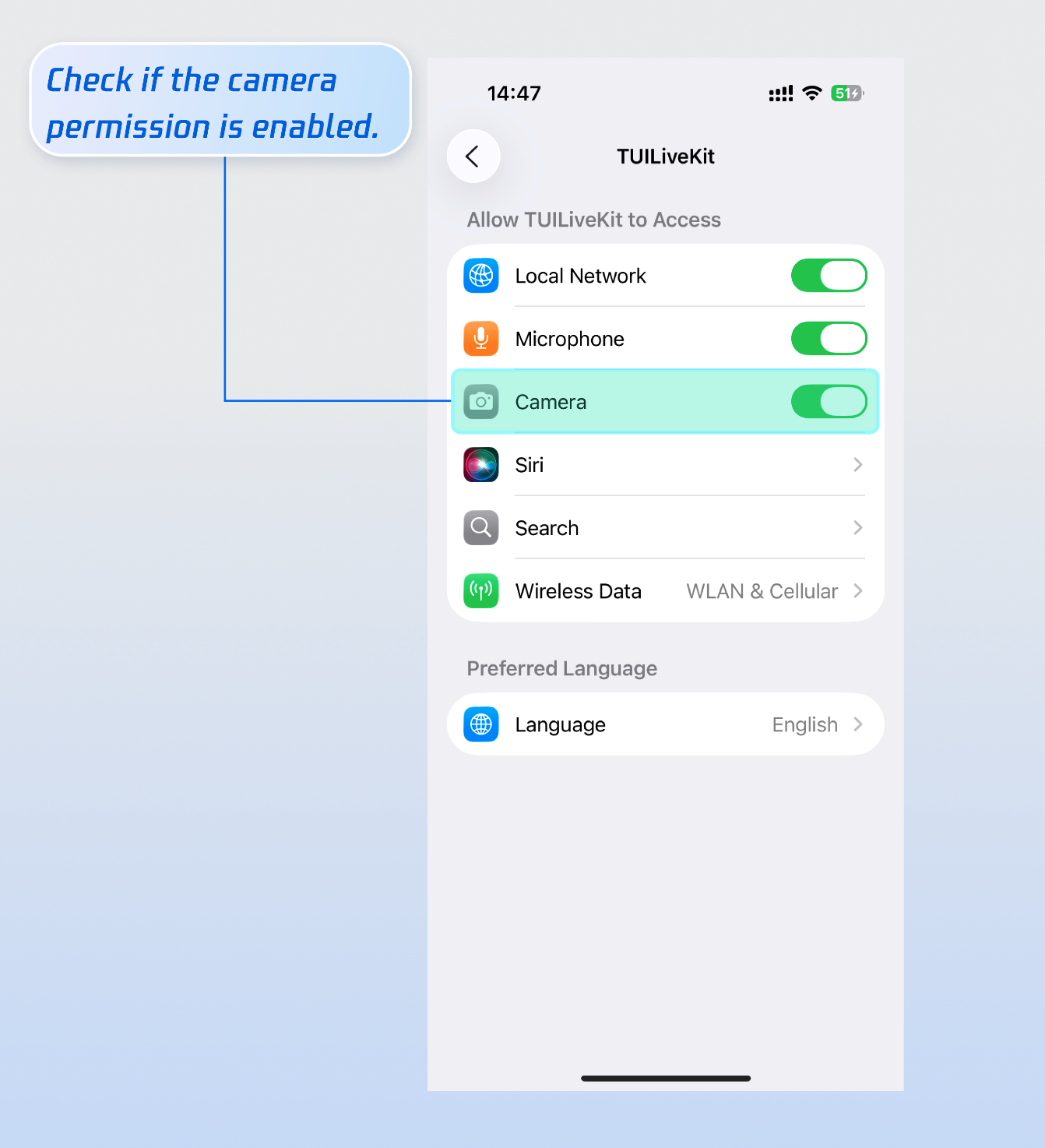
Why is the video screen black when a viewer selects video co-hosting?
Please go to Phone Settings > App > Camera, check whether camera permission is enabled, refer to the image below:
Why can't other viewers in the live room see the barrage content sent by a viewer?
Reason 1: First check the network connection to ensure the viewer's device network is normal.
Reason 2: The viewer has been muted (banned) by the host and cannot send barrage.
Reason 3: The viewer's barrage content involves keyword blocking. Please confirm whether the content sent by the viewer complies with the live room rules.
Bantuan dan Dukungan
Apakah halaman ini membantu?
Anda juga dapat Menghubungi Penjualan atau Mengirimkan Tiket untuk meminta bantuan.
masukan