Renewal Instructions
Baixar
Modo Foco
Tamanho da Fonte
A yearly/monthly subscription CFW service will become unavailable after it expires. You can renew the service within the specified period. If you fail to renew it in time, the service resources will be automatically released and the data will be cleared. This document describes the renewal instructions and operations for CFW.
Attention:
After the service expires, there is a risk of data being cleared. Please renew the service in time to avoid impact on your business.
Prerequisite
Only yearly/monthly subscription CFW services can be renewed. Pay-as-you-go services are not subject to expiration or renewal.
Renewal Method
You can renew the service automatically or manually. For manual renewal, you need to renew the service periodically to extend its usage duration. Automatic renewal relieves you from the hassle of periodic manual renewal, preventing service disruption or even business interruption due to missed renewals.
Automatic Renewal Instructions
I. Automatic Renewal Rules
Service Content: The CFW service is automatically renewed.
Automatic renewal cycle: The automatic renewal cycle and mode you have set shall prevail. For example, if you select a cycle of 1 month, the system will automatically renew it for 1 month each time it expires.
Deduction Amount: The renewal fee is calculated based on the actual configuration and pricing policy at the time of renewal. The specific amount is subject to the final settlement on the CFW purchase page.
Deduction time and method: The system will deduct the fee on the service expiration date. If the deduction fails due to insufficient account balance, the service will be terminated upon expiration.
II. Enabling Automatic Renewal
Enabling Automatic Renewal via the CFW Purchase Page
On the CFW purchase page, select to enable the automatic renewal service. After the service expires, it will be automatically renewed on a monthly basis to provide continuous protection for your assets.
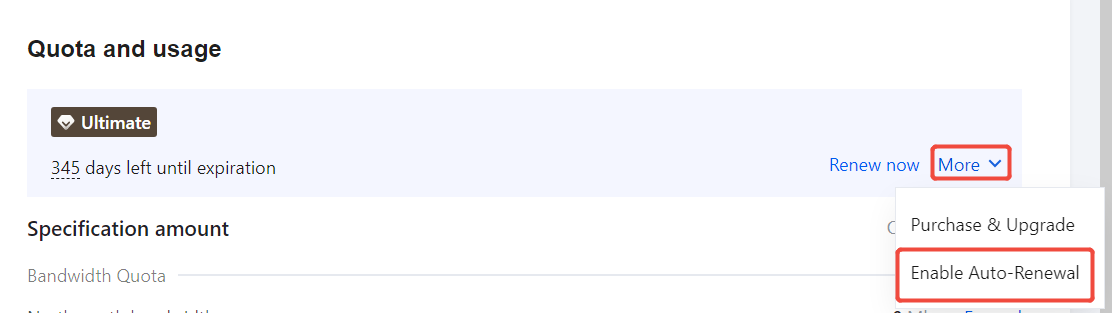
Enabling Automatic Renewal via the Product Console Page
1. Log in to the CFW console and check whether automatic renewal is enabled on the Overview page.
2. If automatic renewal is not enabled, you can click Enable Auto-Renewal to set it up.
Enabling Automatic Renewal via the Billing Center > Renewal Management Page
1. Log in to the Billing Center > Renewal Management page.
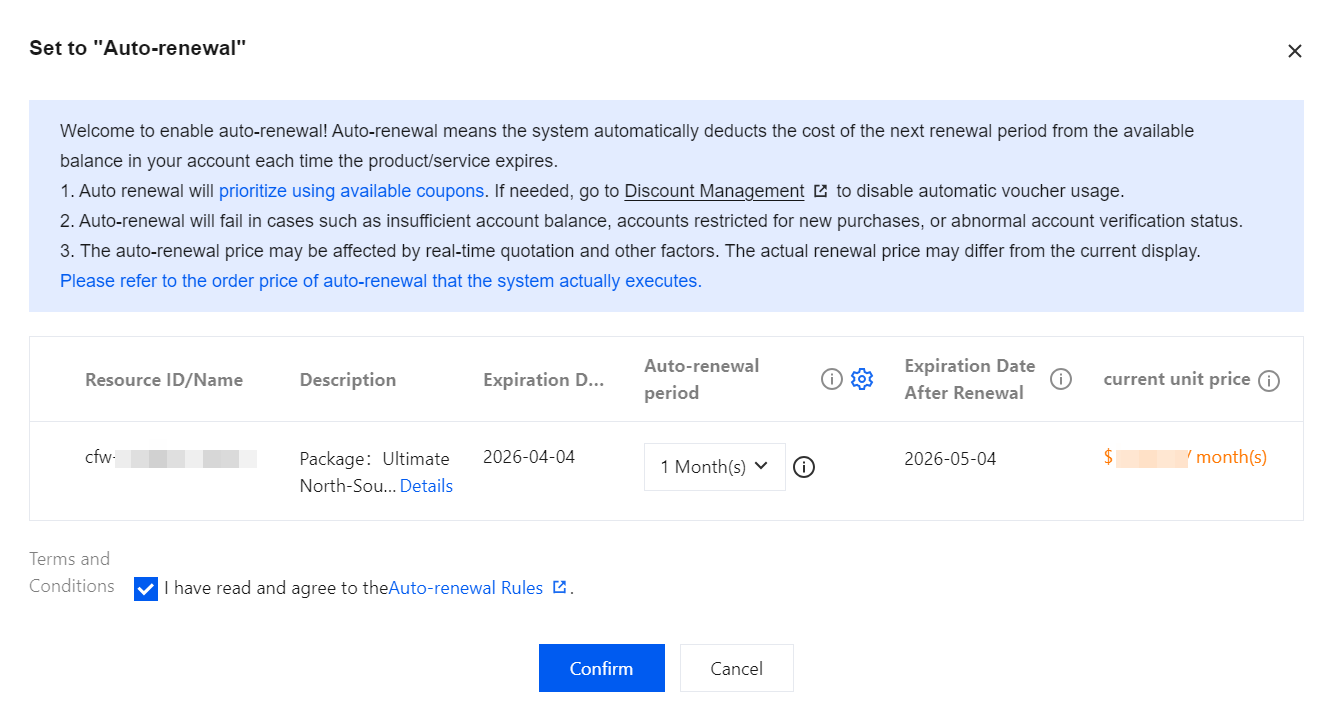
2. Under the manual renewal section, locate one or more CFW services for which you want to set up automatic renewal. Select them and then click Set to Auto-Renewal or Auto renewal.

3. In the pop-up automatic renewal window, confirm the product information, select the Auto-renewal period, and then click Confirm after confirming the settings are correct.
III. Canceling Automatic Renewal
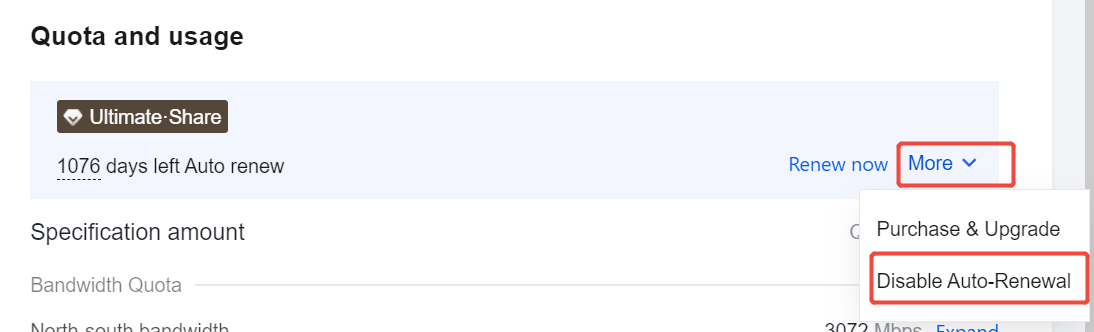
Canceling Automatic Renewal via the Product Console Page
1. Log in to the CFW console and check whether automatic renewal is enabled on the Overview page.
2. If automatic renewal is already enabled, you can click Disable Auto-Renewal to cancel the automatic renewal setting.
Canceling Automatic Renewal via the Official Website Billing Center > Renewal Management Page
1. Log in to the Billing Center > Renewal Management page.
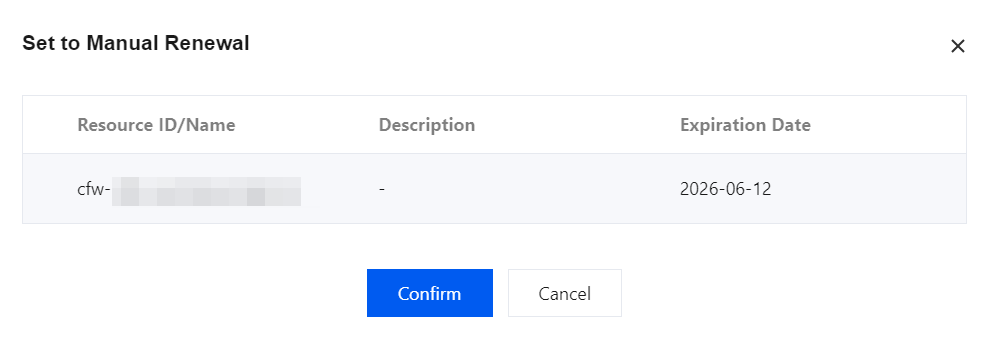
2. Under the automatic renewal section, locate one or more CFW services for which you want to cancel automatic renewal. Select them and then click Set to Manual Renewal or Manual renewal.

3. In the pop-up window to set to manual renewal, confirm product information and click Confirm.
IV. Modifying the Automatic Renewal Cycle
Modifying the Automatic Renewal Cycle via the Official Website Billing Center > Renewal Management Page
1. Log in to the Billing Center > Renewal Management page.
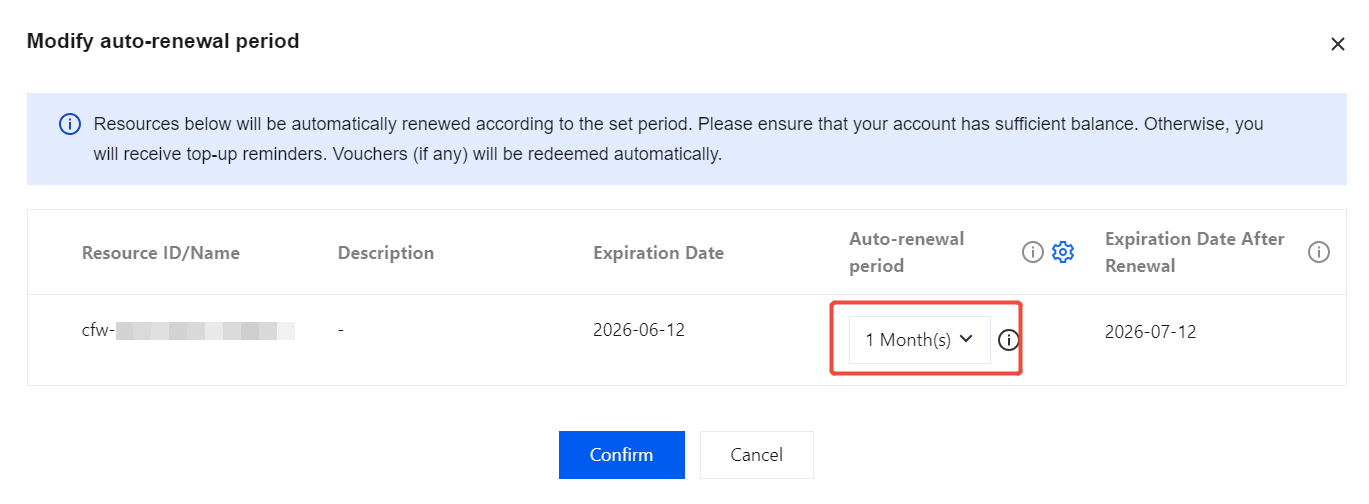
2. Under the automatic renewal section, locate one or more CFW services for which you want to modify the automatic renewal cycle. Select them and then click Modify auto-renewal period or More > Modify auto-renewal period.

3. In the pop-up window to modify the automatic renewal cycle, modify the service's Automatic Renewal Cycle and click Confirm.
V. Managing Automatic Renewal
Managing Automatic Renewal via the Official Website Billing Center > Renewal Management Page
On the Billing Center > Renewal Management page, you can also perform other renewal-related management operations for your services, such as viewing the renewal status of your services, setting no renewal upon expiration, and unifying expiration dates. For detailed instructions, see Renewal Management.
Manual Renewal Instructions
I. Manual Renewal Rules
Service Content: The CFW service is manually renewed.
Manual Renewal Time: You can manually renew a service within 7 days after it expires or at any time before it expires. The minimum renewal period is 1 month, and the maximum is 3 years. After renewal, the expiration time of the service will be extended from the original expiration date by the selected renewal period. For example, if your service is expected to expire on January 1, 2027, and you manually renew it for 1 month, the new expiration time will be February 1, 2027.
Deduction Amount: The renewal fee is calculated based on the actual configuration and pricing policy at the time of renewal. The specific amount is subject to the final settlement on the CFW purchase page.
Deduction time and method: When you perform manual renewal, the page will navigate to the payment interface. The renewal will take effect immediately after payment.
II. Manual Renewal
Manual Renewal via the Product Console Page
1. Log in to the CFW console and view the expiration time on the Overview page.
2. Click Renew now to navigate to the CFW purchase page.

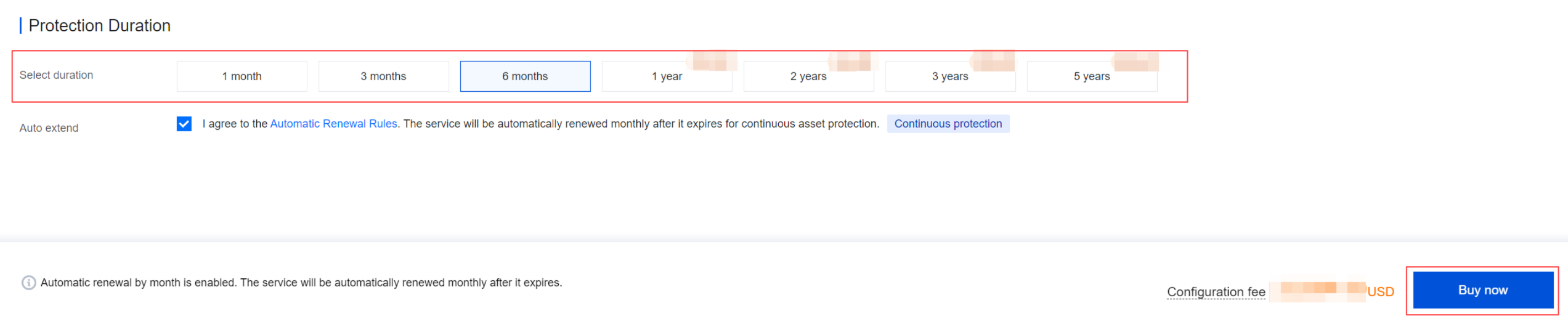
3. On the CFW purchase page, select the Protection Duration and click Buy Now to complete the renewal. For detailed steps, see Purchase Method.
III. Managing Manual Renewal
Managing Manual Renewal via the Official Website Billing Center > Renewal Management Page
On the Billing Center > Renewal Management page, you can also perform other renewal-related management operations for your services, such as viewing the renewal status of your services, setting no renewal upon expiration, and unifying expiration dates. For detailed instructions, see Renewal Management.
Ajuda e Suporte
Esta página foi útil?
Você também pode entrar em contato com a Equipe de vendas ou Enviar um tíquete em caso de ajuda.
comentários